

Can I edit the field shape while I’m adding a property to my account?
Can I edit the field shape while I’m adding a property to my account?
- Yes - if you are in the process adding a property to your account begin at Step 3.
How do I know when to use the Cut Tool or the Draw Polygon tool?
How do I know when to use the Cut Tool or the Draw Polygon tool?
- Use the Draw Polygon Tool if you want to:
- Measure a precise area using feet or miles and acres, square miles, or square feet
- Draw a field or parcel by hand. Note if you draw a parcel manually the parcel ID and convenience link to assessor data will not be available.
- Isolate non-productive acres from a field that are surrounded by tillable acres
- Isolate non-productive acres that span across more than one field or parcel
- Measure a precise area using feet or miles and acres, square miles, or square feet
- Use the Cut Tool if you want to:
- Quickly divide a single field into multiple fields
- Subdivide a parcel
- Isolate non-productive acres that are along the border of a field
- Quickly divide a single field into multiple fields
Will the acres of the new field created be subtracted from the original shape?
Will the acres of the new field created be subtracted from the original shape?
- Yes. If your original shape is 80 acres and you use either the Draw Polygon or Cut tool, to create a new 20 acre field, the original shape will now show as 60 acres.
Using the Draw Polygon Tool
1
Navigate to the map and enable the Farm Builder > Map Tools
2
Click Draw Polygon
3
At the bottom middle of your screen you will see a measuring tool with feet and acres. If you would like to change the measurements click on the bar. Feet can be switched to miles and acres can be switched to square miles or square feet
4
Locate where you want to start drawing the polygon and drop a point on the map with a single-click on your mouse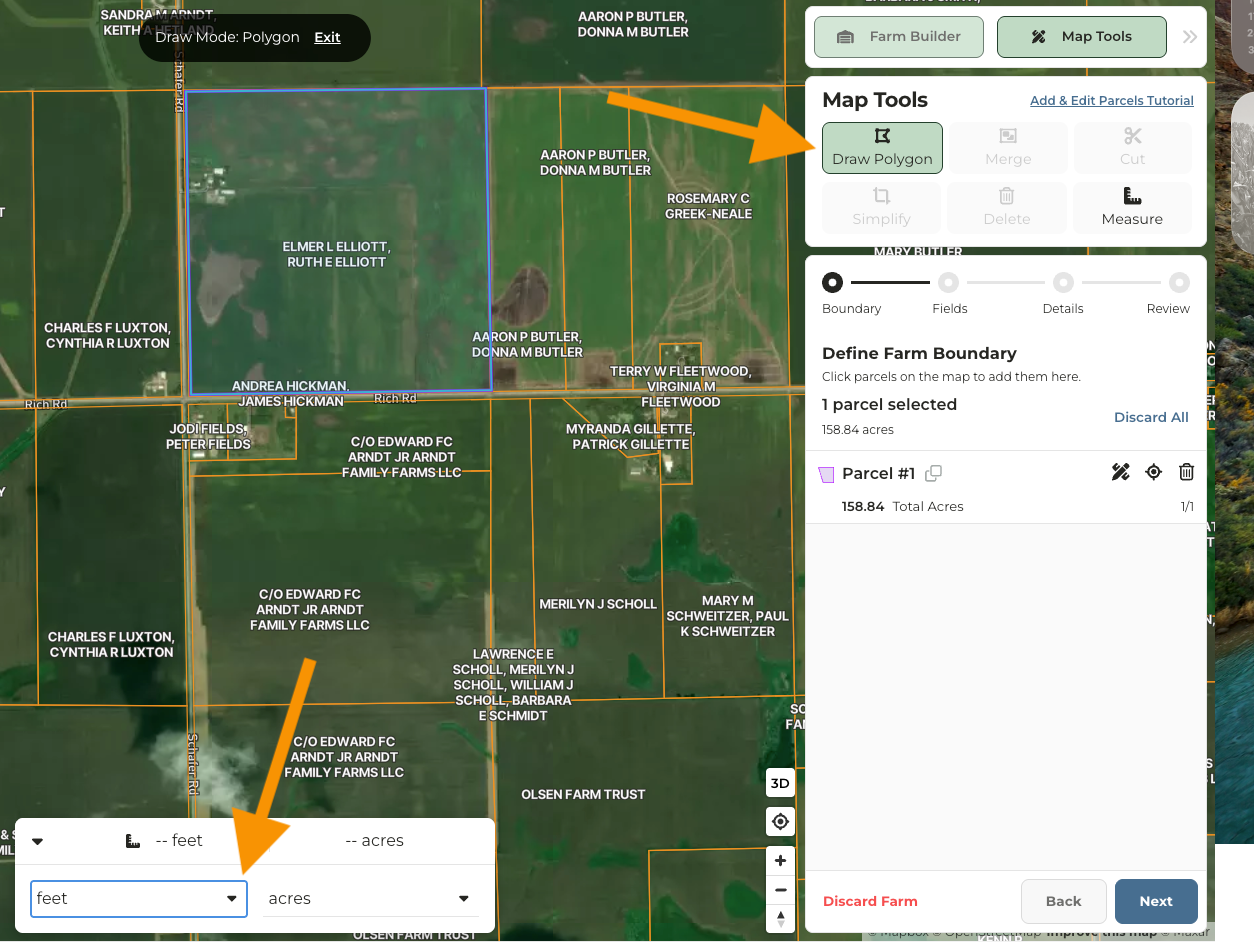
5
Moving in either a clockwise or counter-clockwise direction, begin to drop points with a single-click using your mouse.
6
Double-click on the mouse to end the shape
7
Click Next
8
Continue through the farm builder workflow or Save Farm. Note if you save a farm that consists of only a parcel the farm, you will not be able to generate soil maps, crop history, or denote acres types as these are all powered by having a field.