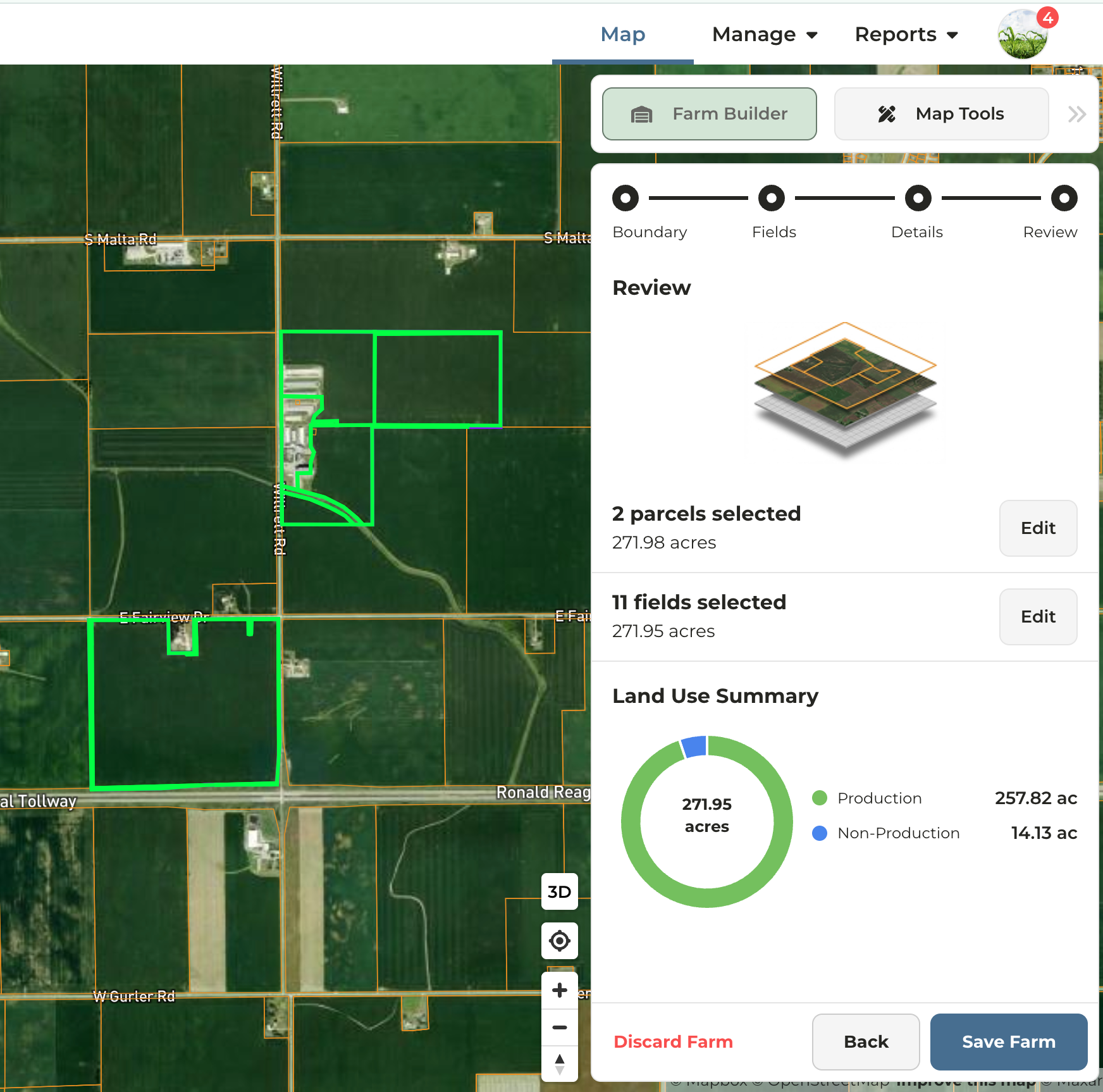
The Farm Builder workflow consists of four sequential steps:
1
Step 1: Boundary
Select the parcel(s) to be included in the farm.
2
Step 2: Fields
Choose whether to generate fields from parcel boundaries or from CLU fields.FSA CLU Datasheet
Note: CLUs, or Common Land Units, were last made publicly available by the USDA in 2008 and are not used by all states.
3
Step 3: Details
Rename fields and modify acre types as needed.
4
Step 4: Review
Review all farm details and make any necessary edits prior to saving.
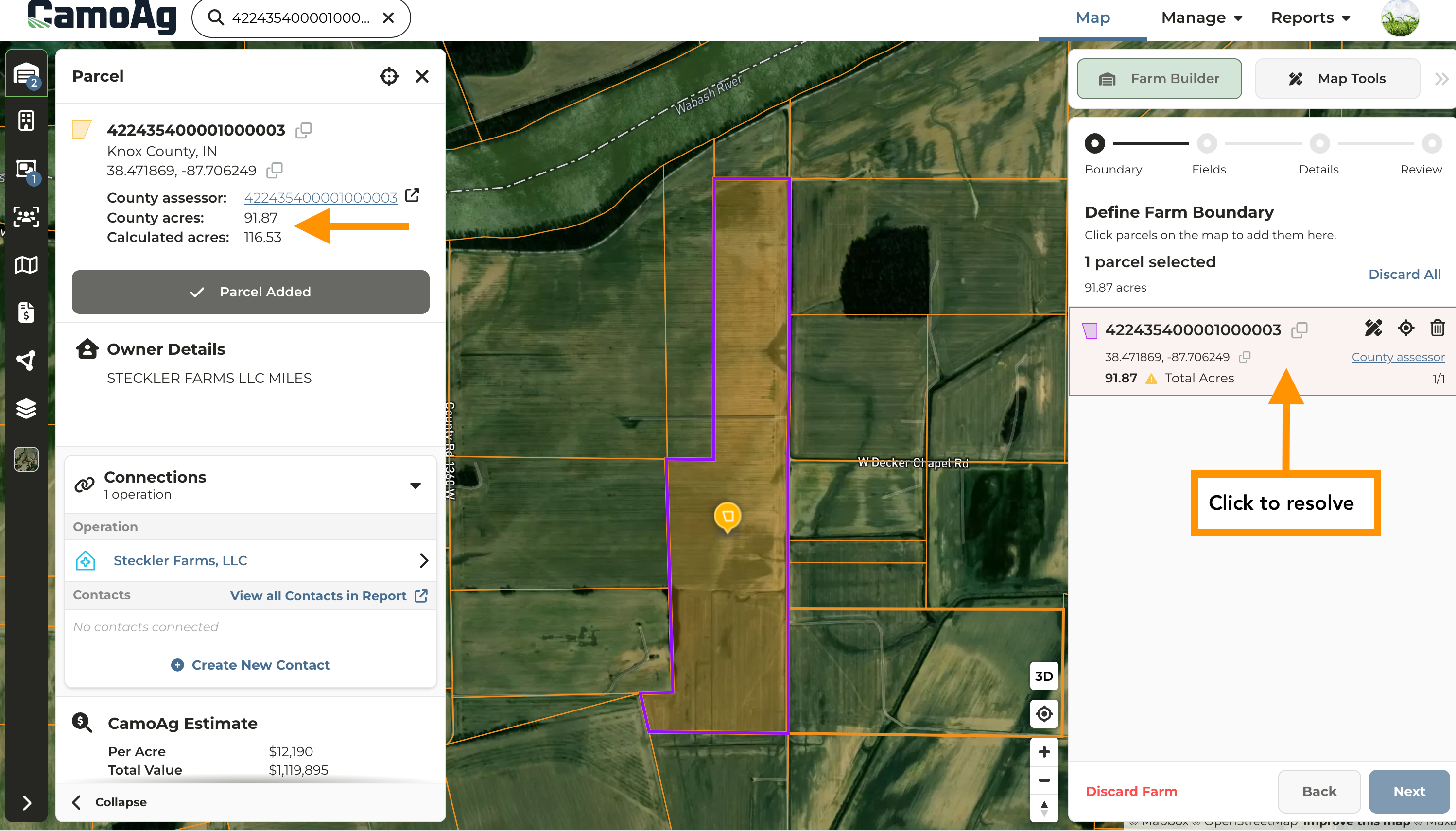
County Acres vs. Calculated Acres
- County Acres represent the actual deeded acres according to county tax data
- Calculated Acres the estimated size of the parcel boundaries according to county GIS data
- For transparency purposes, CamoAg displays both County and Calculated acres
- Parcel geometry will automatically adjust to reconcile the calculated area with the recorded county deed acreage.
- Where the discrepancy between the calculated and recorded values exceeds 10%, the system will display a warning and require the user to perform a corrective action before proceeding.
Using Map (Draw) Tools During Farm Building
At any point during the farm building process, click the Scope icon to locate the desired boundaries on the map, then click the Edit Tools icon to begin editing the selected boundaries. Review the Map Tools guide for explanation of each map tool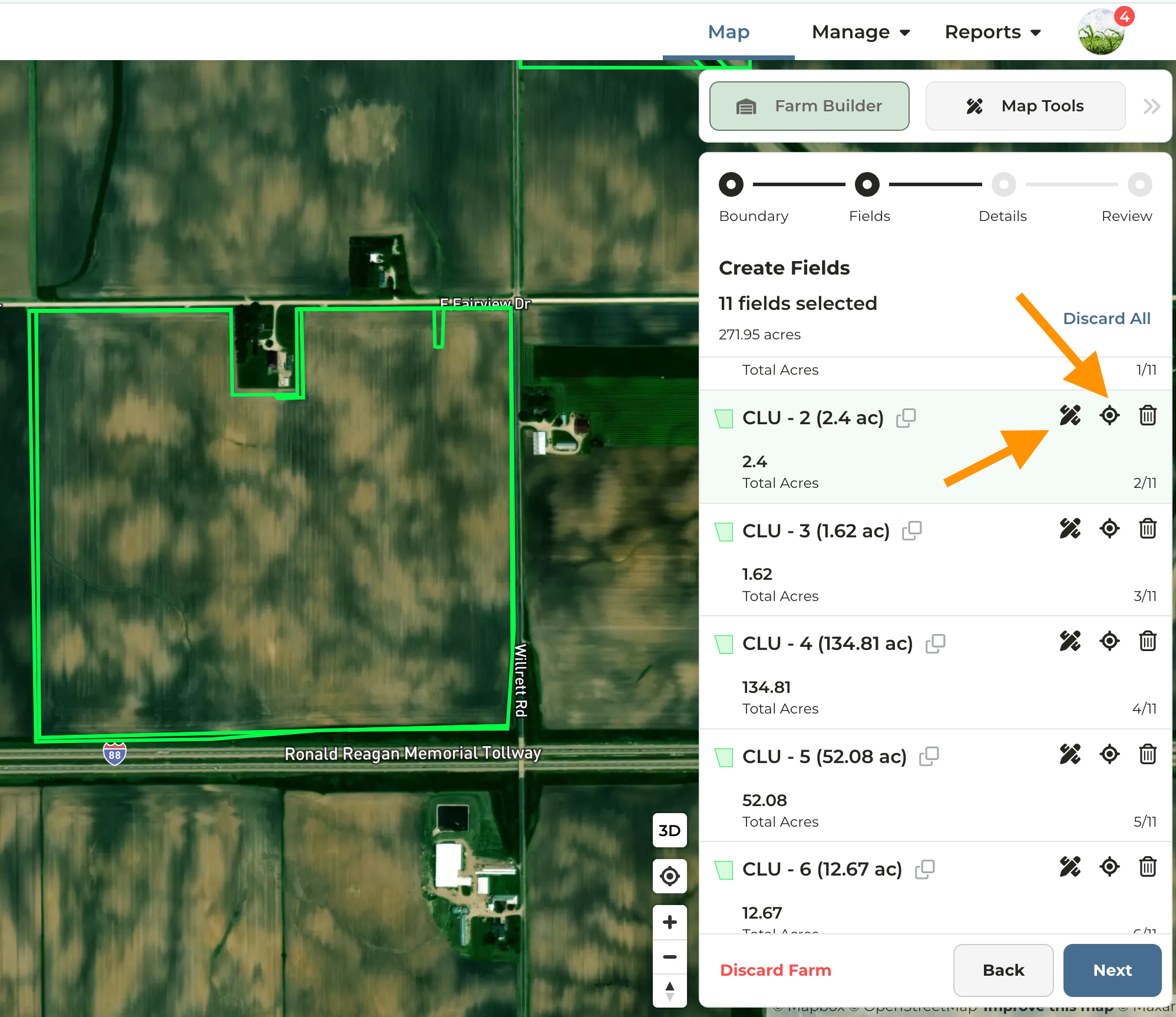
Starting from Smart Search
1
Search for the parcel or entity name in the search field.
- Parcel ID — Select the parcel ID from the search results. The corresponding parcel will be highlighted on the map. Click Start from Parcel and proceed to Step 5.
- Name — Select the name from the search results, then locate the desired parcel on the map. Proceed to Step 2.
Starting From the Map
1
Navigate to the map and locate the desired parcel
2
In the upper-right corner of the map, click Farm Builder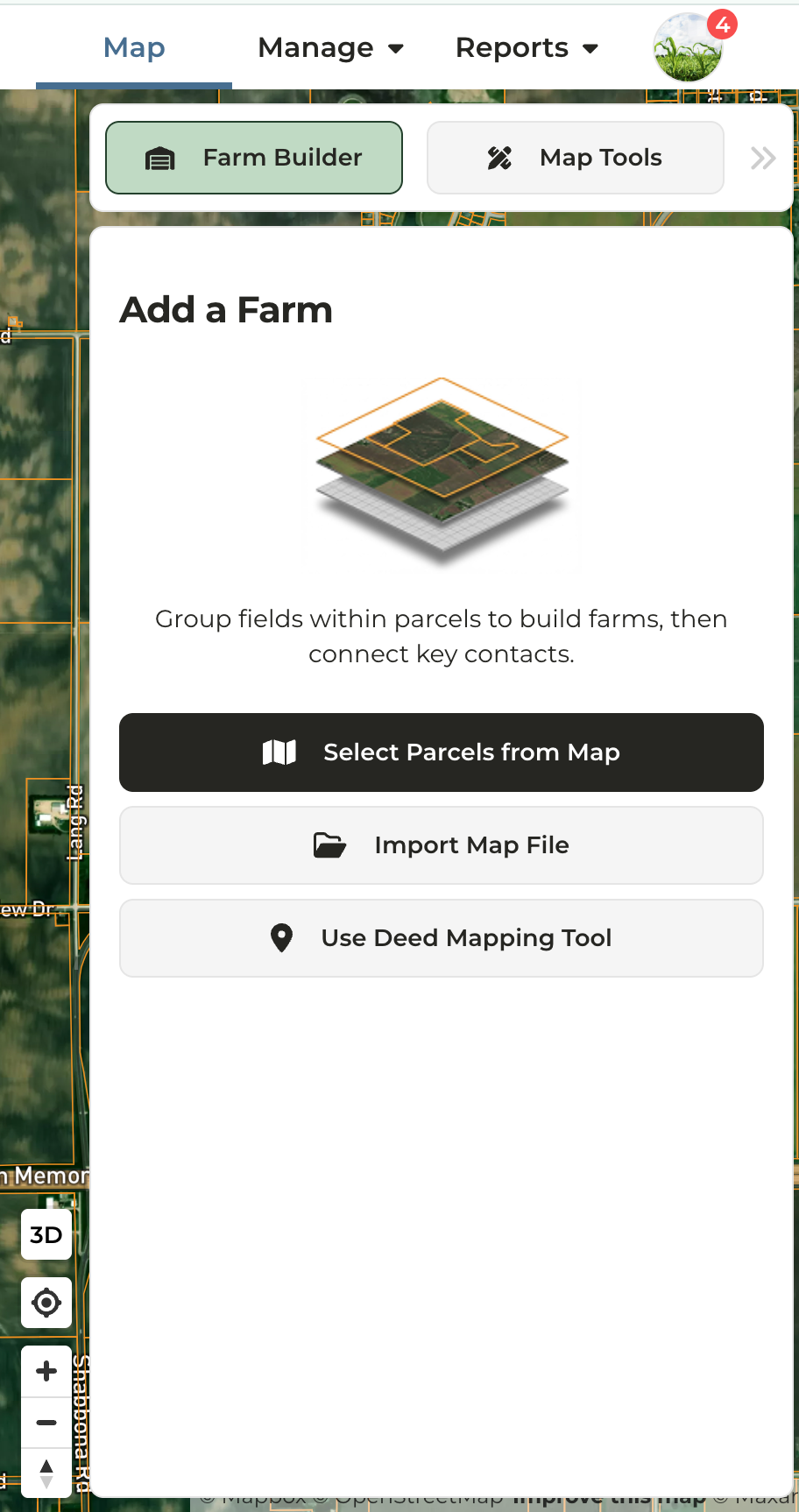
3
Click Select Parcels from map
4
On the map, click on the parcel(s) you want to work with
5
Click Next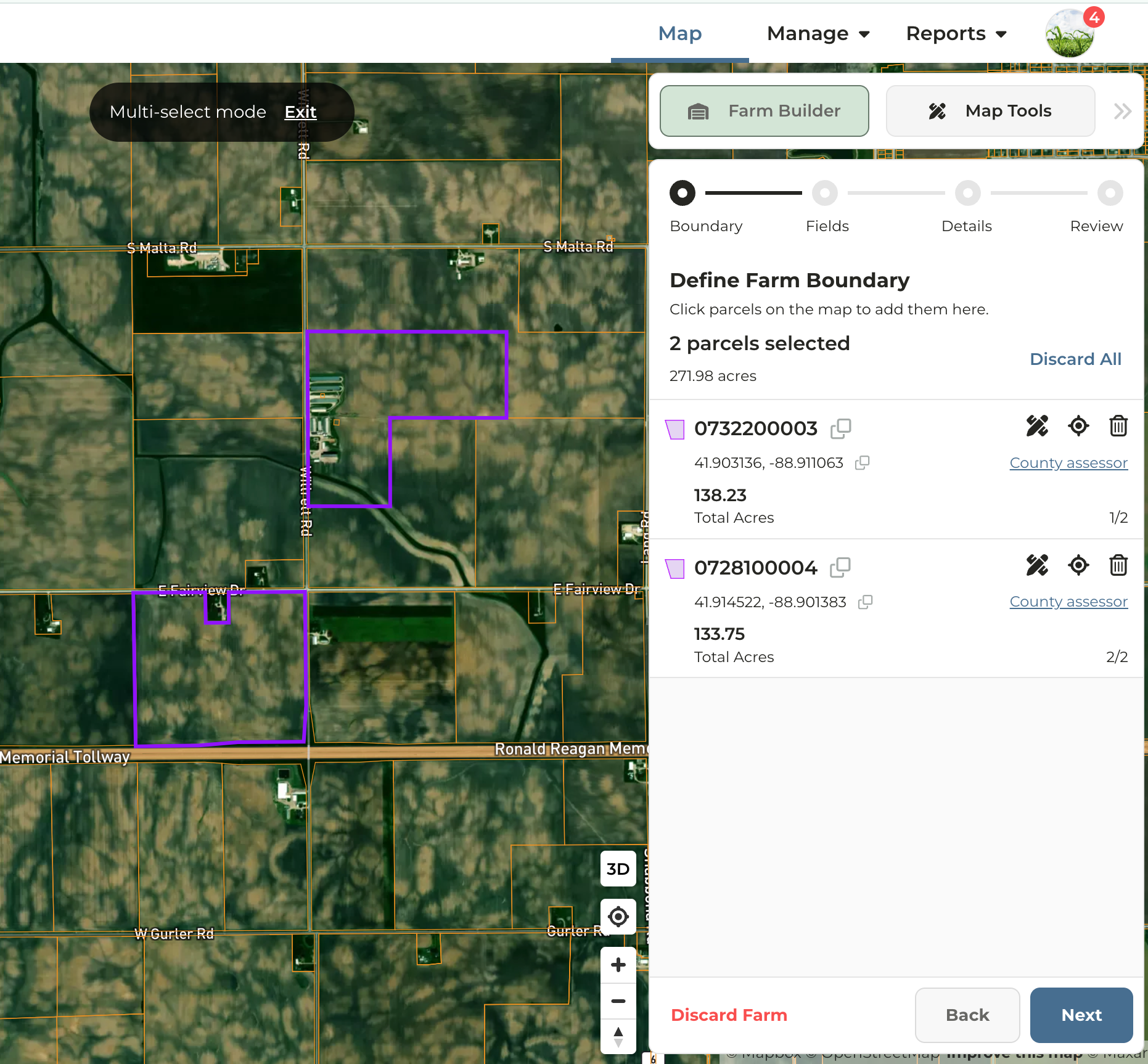
6
Select the desired boundary type for field creation — either CLU Boundaries or Parcel Boundaries — then click Next.
Reminder: Soil maps, crop history, and acre types (dryland, irrigated, woodland, etc.) are powered by fields. If you build a farm out of parcels only, this data will not be available until fields are added.
7
Details: To rename fields or edit acre types, click Next at the top of the panel. If a property consists of only one parcel, renaming the field will rename the farm.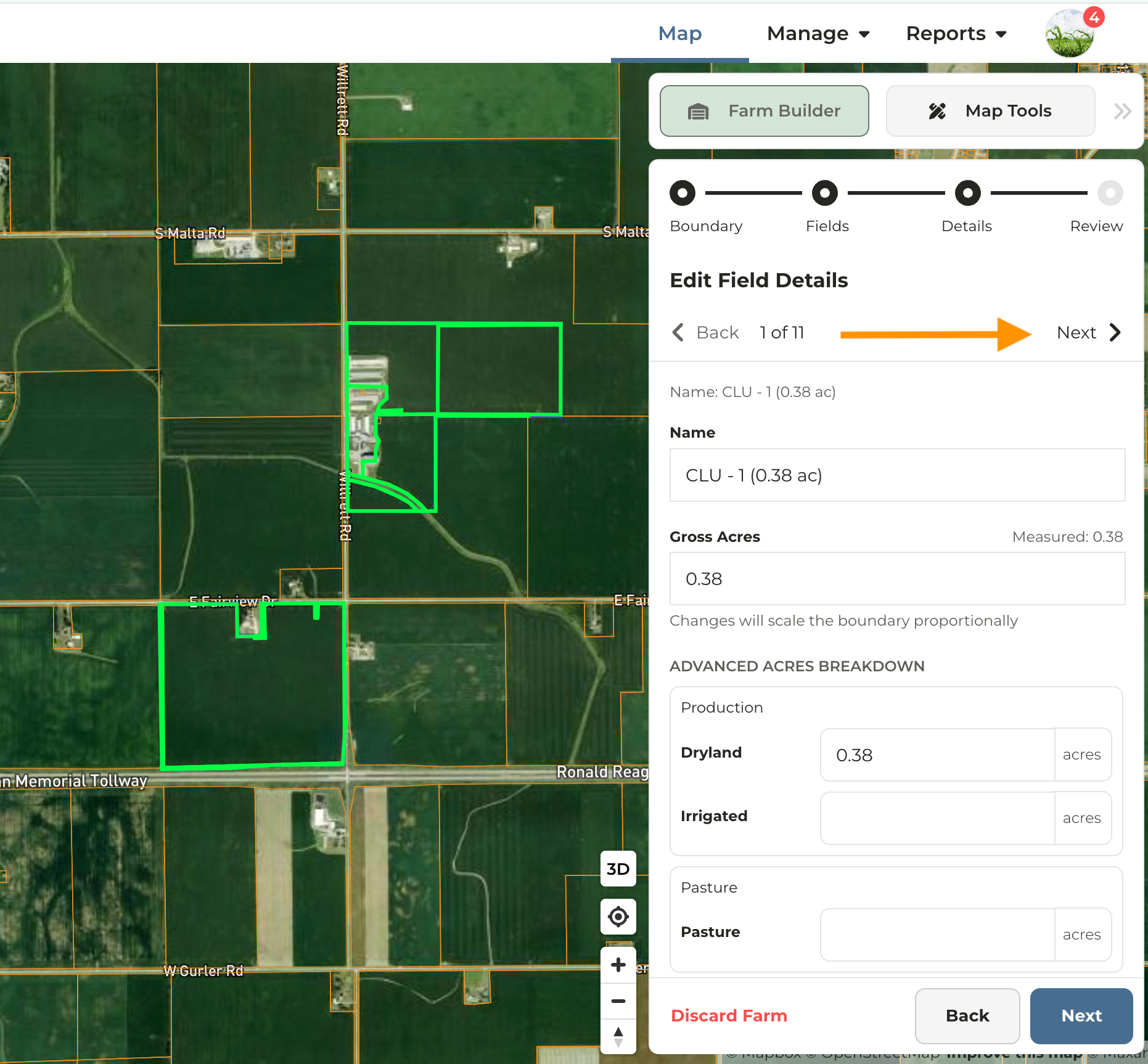
8
Review details and click Save Farm