

Terms to Know
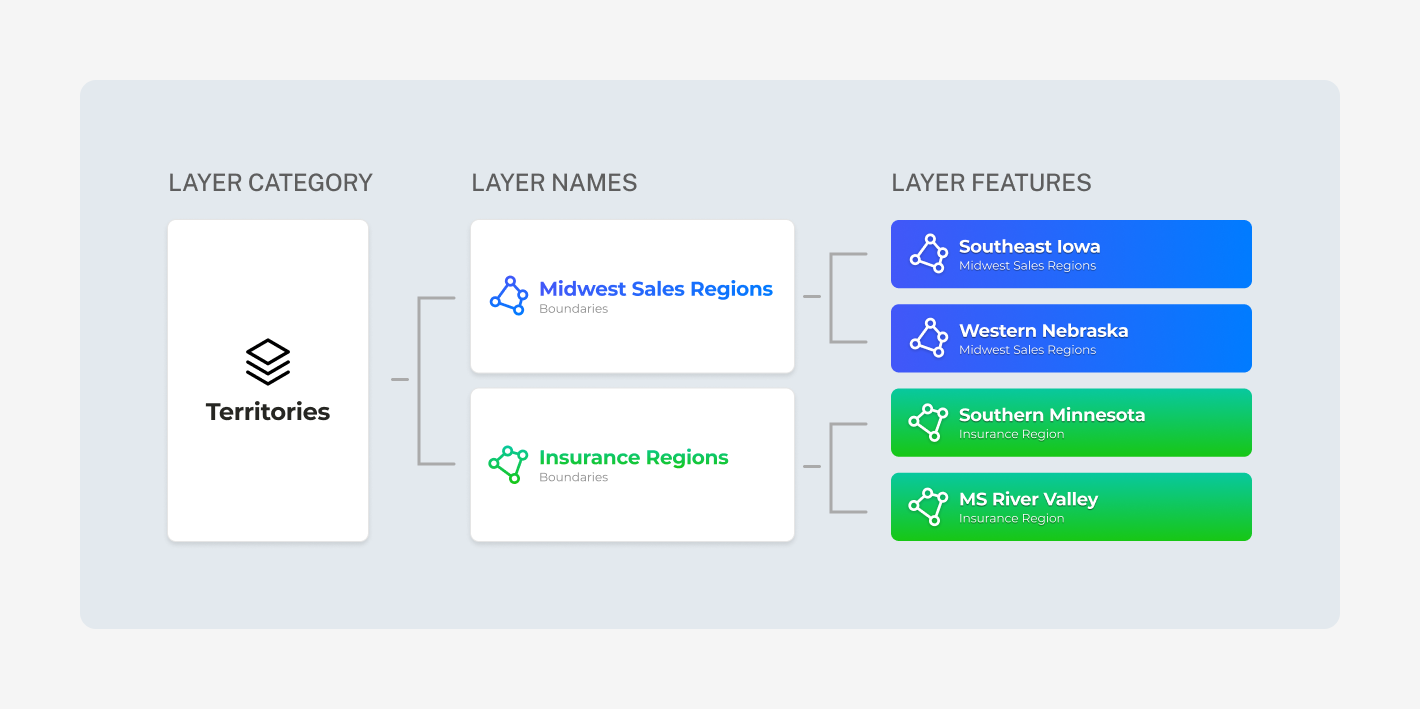
- Layer Category: The Layer is the category under which the features will exist. Some layer examples could be: Territories, Weather Events, Water Districts, and Office Locations to name a few.
- Layer Name: Assign a more defined name for the map layer. The Layer Name can be toggled on or off on the map.
- Features: Layer features is where you actually define the boundaries and further define the feature. When you enable a Layer Name, all Features added to that Layer Name will appear on the map.
Please review the Planning Your Custom Map Layers guide before getting started
1
Navigate to the Map
2
Click Company Layers > New Company Layer and select Boundary Layer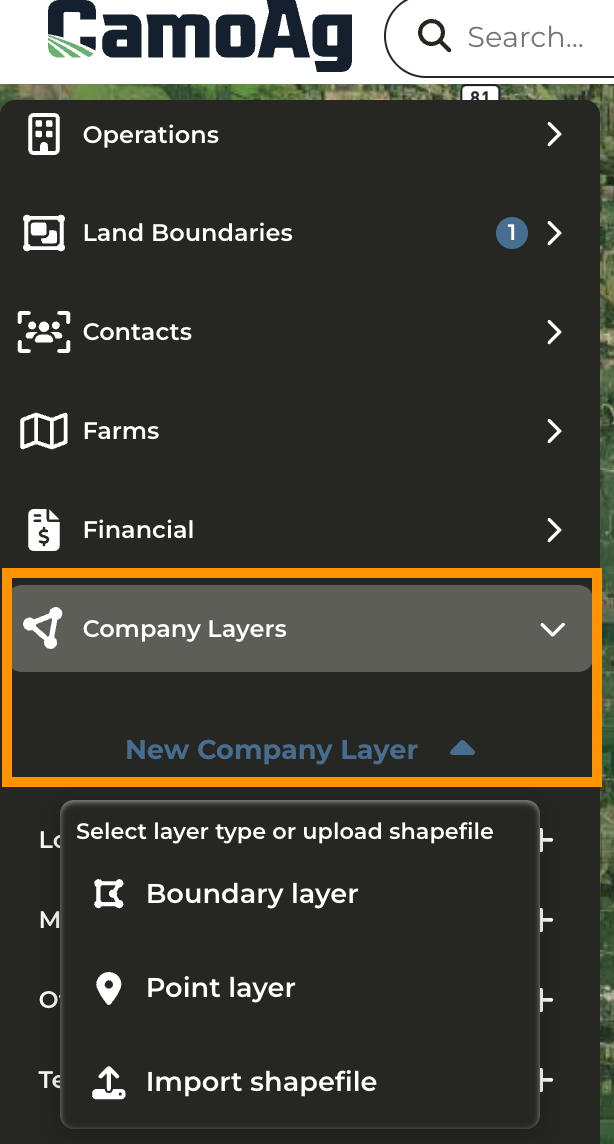
3
Assign a Layer Name
4
Next, assign a Layer Category or Create a New Category
5
Select a display color for the Layer Name
6
Click Save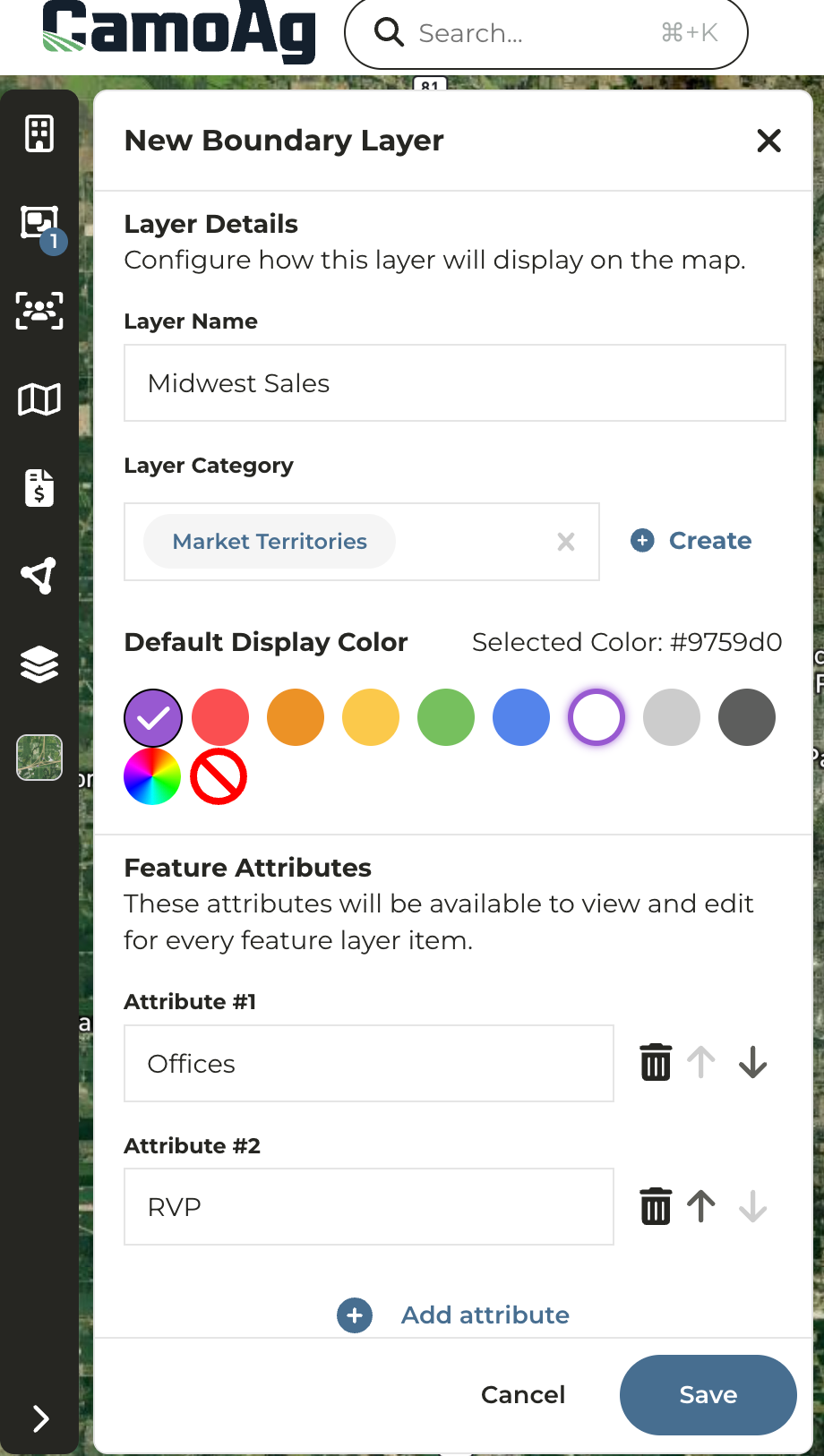
7
Click Add feature to layer
8
Click Enable to the right of Boundary edit tools then click Draw Polygon
9
On the map click to drop a point of where you want to begin drawing. Moving in a clockwise or counter-clockwise direction, continue to drop points by clicking your mouse.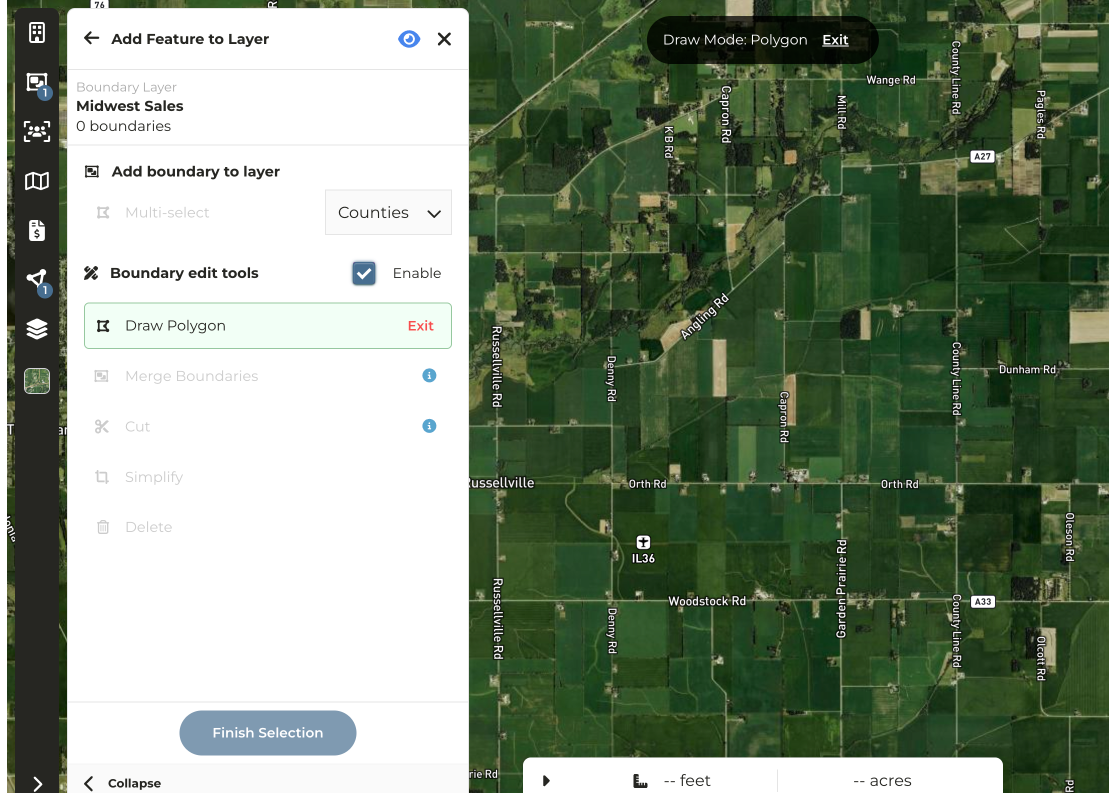
10
Once you have completed your drawing double-click to end
11
Click Finish selection
12
Enter a Feature Name and Color.
Note: When the Layer Name is enabled this is the color that will be assigned to this feature
13
Click Save
14
Click the back arrow to the left of Selected Feature and repeat steps 8-15 until you have added all Features to this Layer