

Which Features of Interest layers do not have report access?
Which Features of Interest layers do not have report access?
- Barn & Equipment Storage
- Gate Access
- Grain Bin
- Other
- Wells & Pumps
- Wind Turbine
What reports are available?
What reports are available?
The available reports will be based on your organization’s subscription and data integrations
- Potential available reports may include:
- Comps Created: Will display sales sent to CamoAg from your organization, within the boundaries of the layer selected
- Contacts Pro: Report will display CRM contacts whose address is located within the boundaries of the layer selected
- DTN Operators Pro
- Land Sales Bulletin
- Largest Farmland Buyers & Sellers
- Mortgages Pro: Report will display mortgages within the boundaries of the layer selected
- Operators Pro:
- Owners Pro: Report will display entities who own property within the boundary selected. Note the owner does not necessarily have to live within the boundary.
- Recently Created Auctions
- UCC Blanket Report
- UCC Filing Items Pro
- USDA Subsidy Payments Pro
What data will pull into the report?
What data will pull into the report?
- The data that pulls in will be based on the boundaries of the layer applied. For example, if your organization has a layer based on lending regions, by clicking on a specific region then running the report, the data pulled in will be based on the boundaries of the selected region.
What is the difference between accessing a report via right-click on the map and a FOI layer?
What is the difference between accessing a report via right-click on the map and a FOI layer?
- Right-click will always pull in data based on a radius from the point of click
1
Navigate to the Map
2
Click on Layers then Features of Interest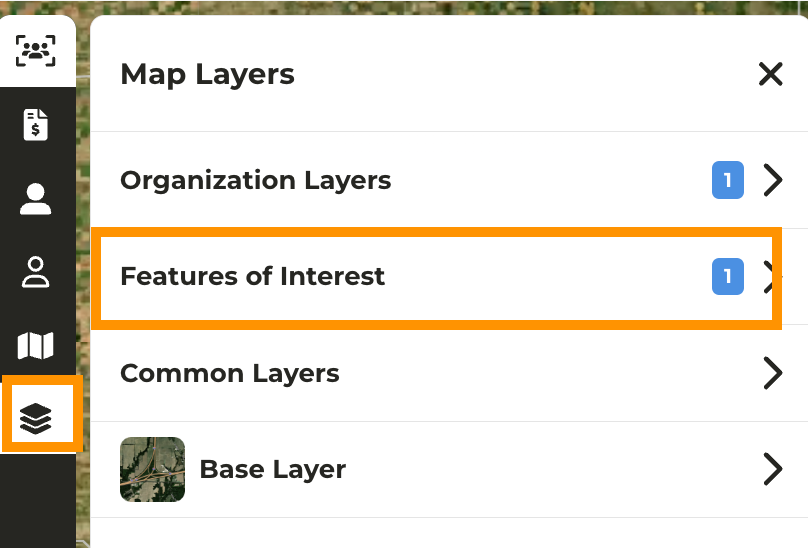
3
Enable the layer you want to work with (for this example we are using the KS Groundwater districts)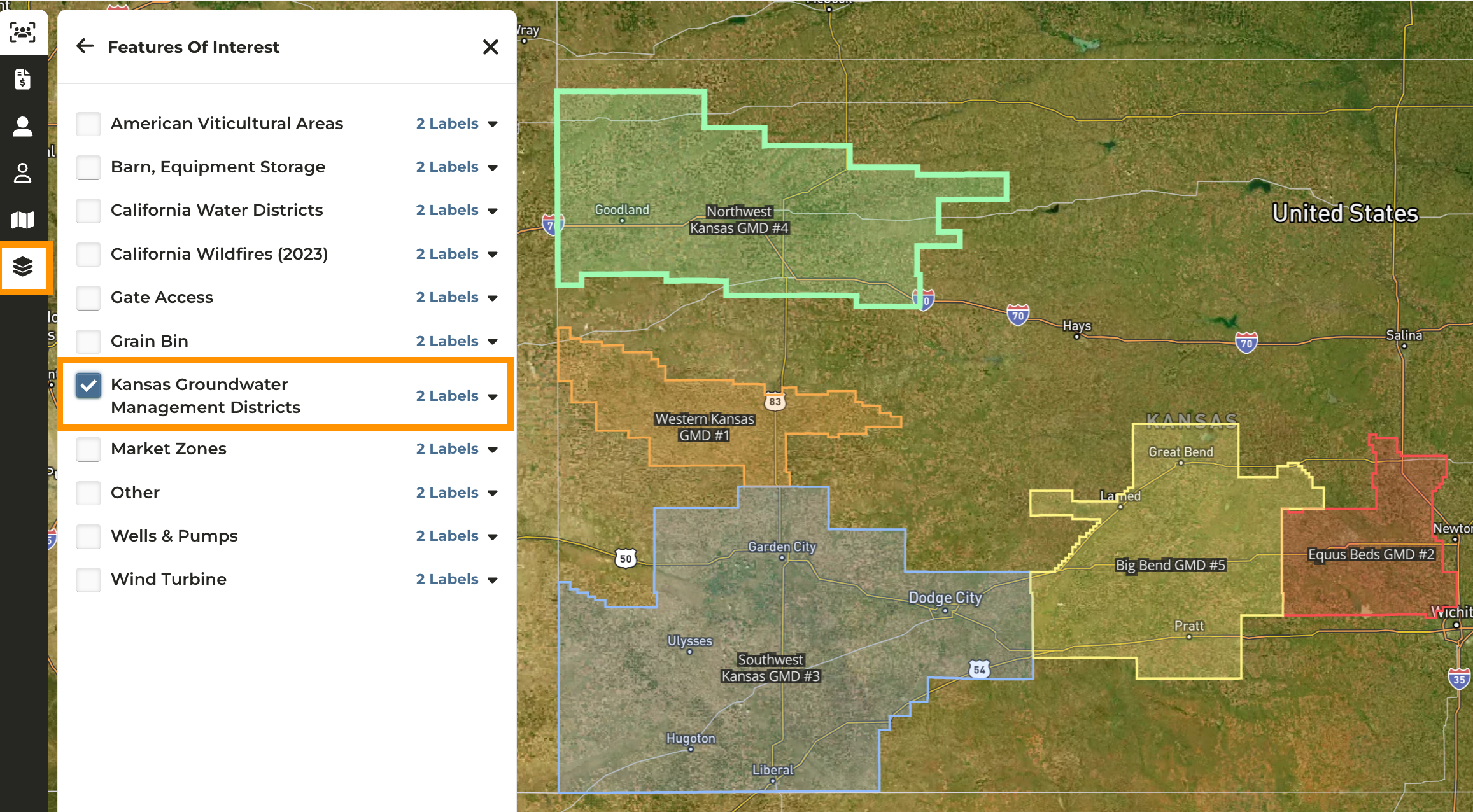
4
On the map, click on the specific area for which you’d like to generate a report
5
Within the pane on the left side of your screen, expand Available Reports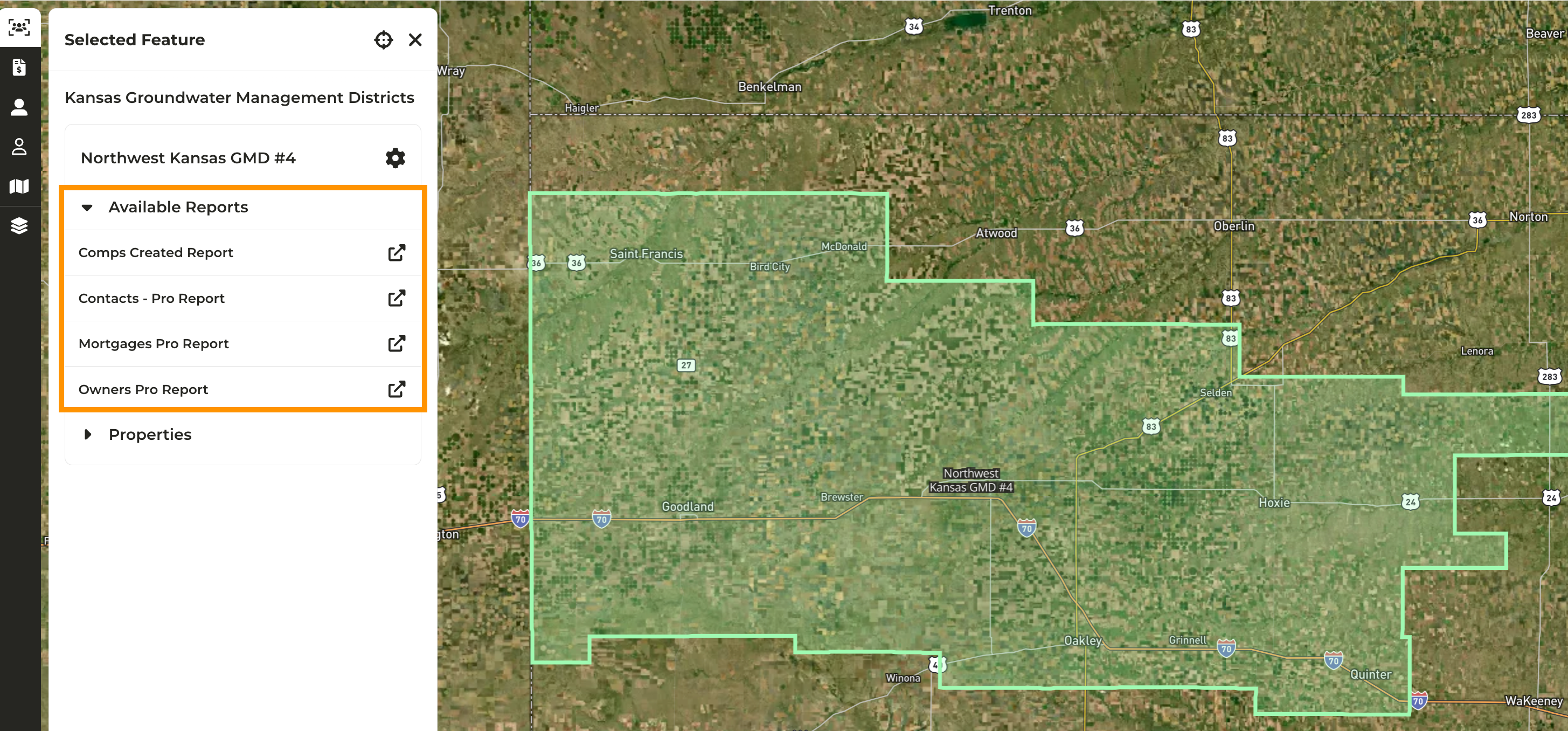
6
Click on the report you want to run
7
A new tab will open and the report will generate based on the area selected