Editing Layer Names, Colors, or Attributes
1
Navigate to the Map
2
Click Company Layers from the menu
3
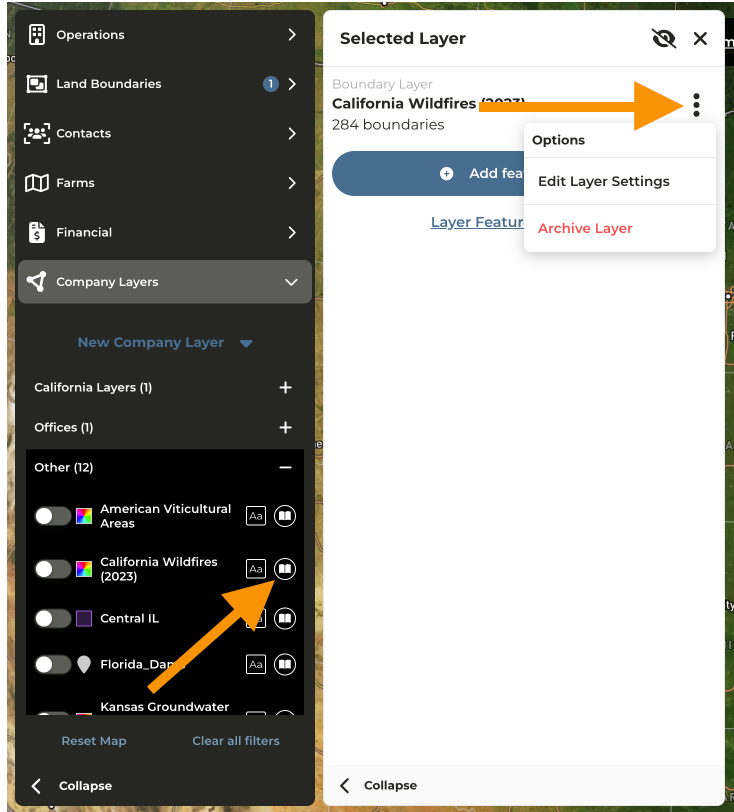
Expand the Layer Category and locate the Feature for editing
4
Click the View Layer Details icon to the right of the Feature
5
Click the menu then Edit Layer Settings
Editing Layer Boundaries
1
Navigate to the Map
2
Click Company Layers from the menu
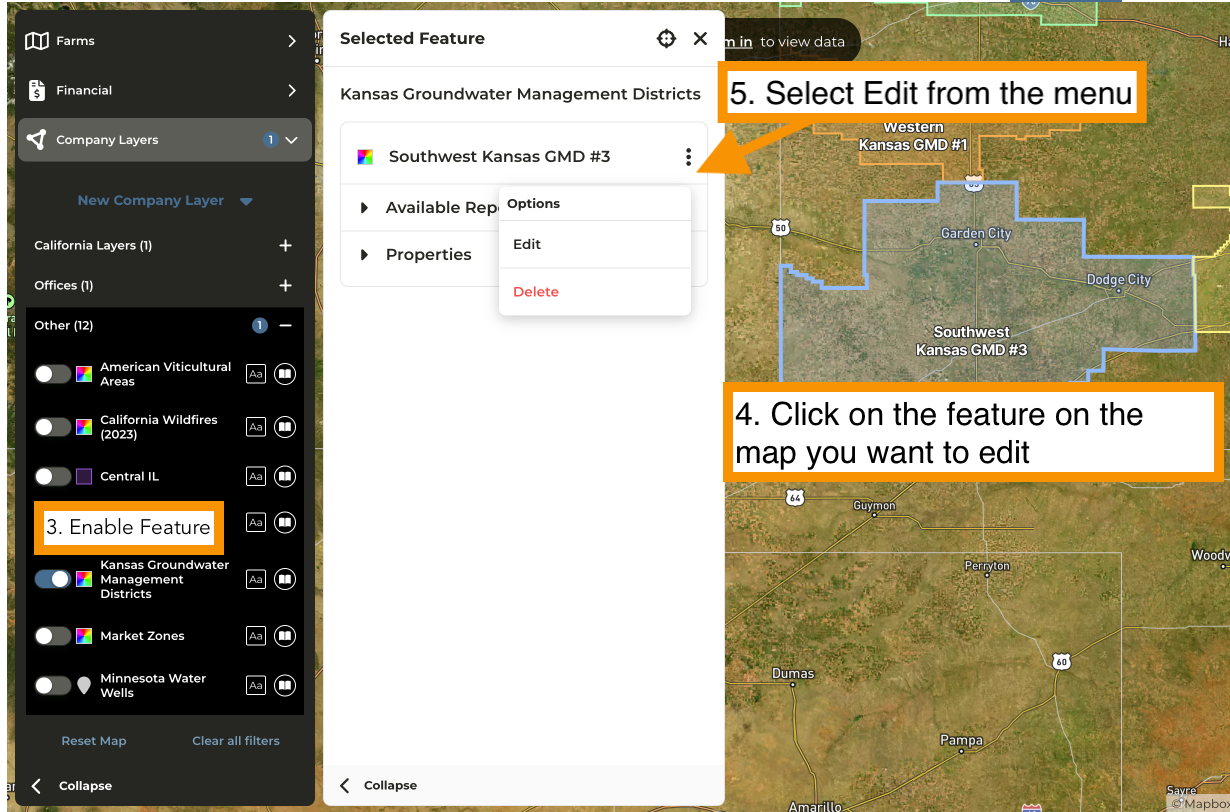
3
Expand the Layer Category and enable the Feature for editing
4
On the map click on the feature you wish to edit
5
Select Edit from the menu