

Completing the Provided Templates
- Templates can be found at the bottom of this article.
- Customers with this module, we support a Map Layer import via CSV
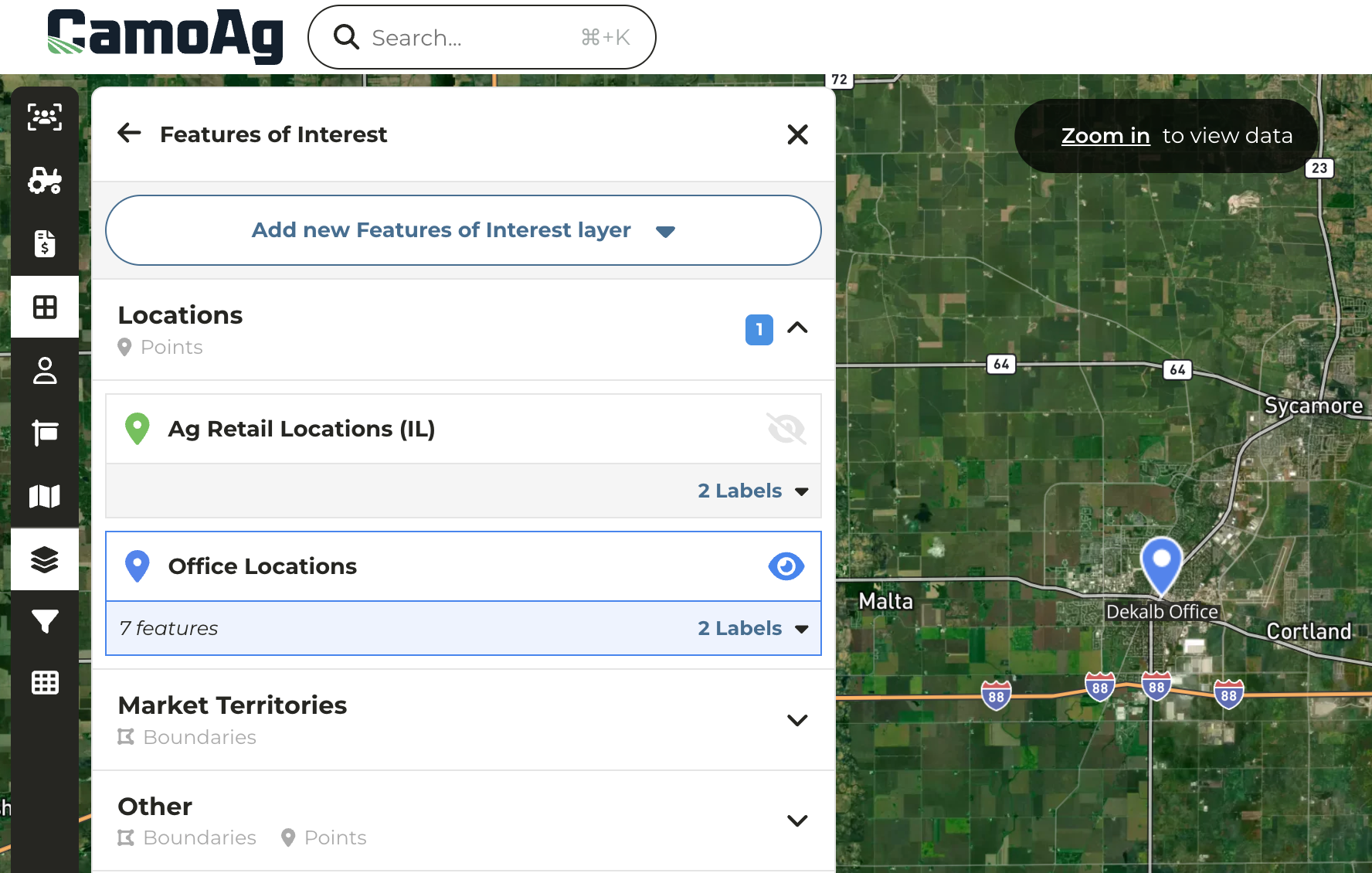
- Each layer should be uploaded as a separate CSV file. For example, Office Locations would be one layer and one file and livestock feed lots would be a second layer and a second file.
- An item’s location can either be a point on the map, such as a well, irrigation pump, office location, etc. or a boundary of an area, such as a lending region, water district, etc.
- The import expects one map layer item per row (see examples below)
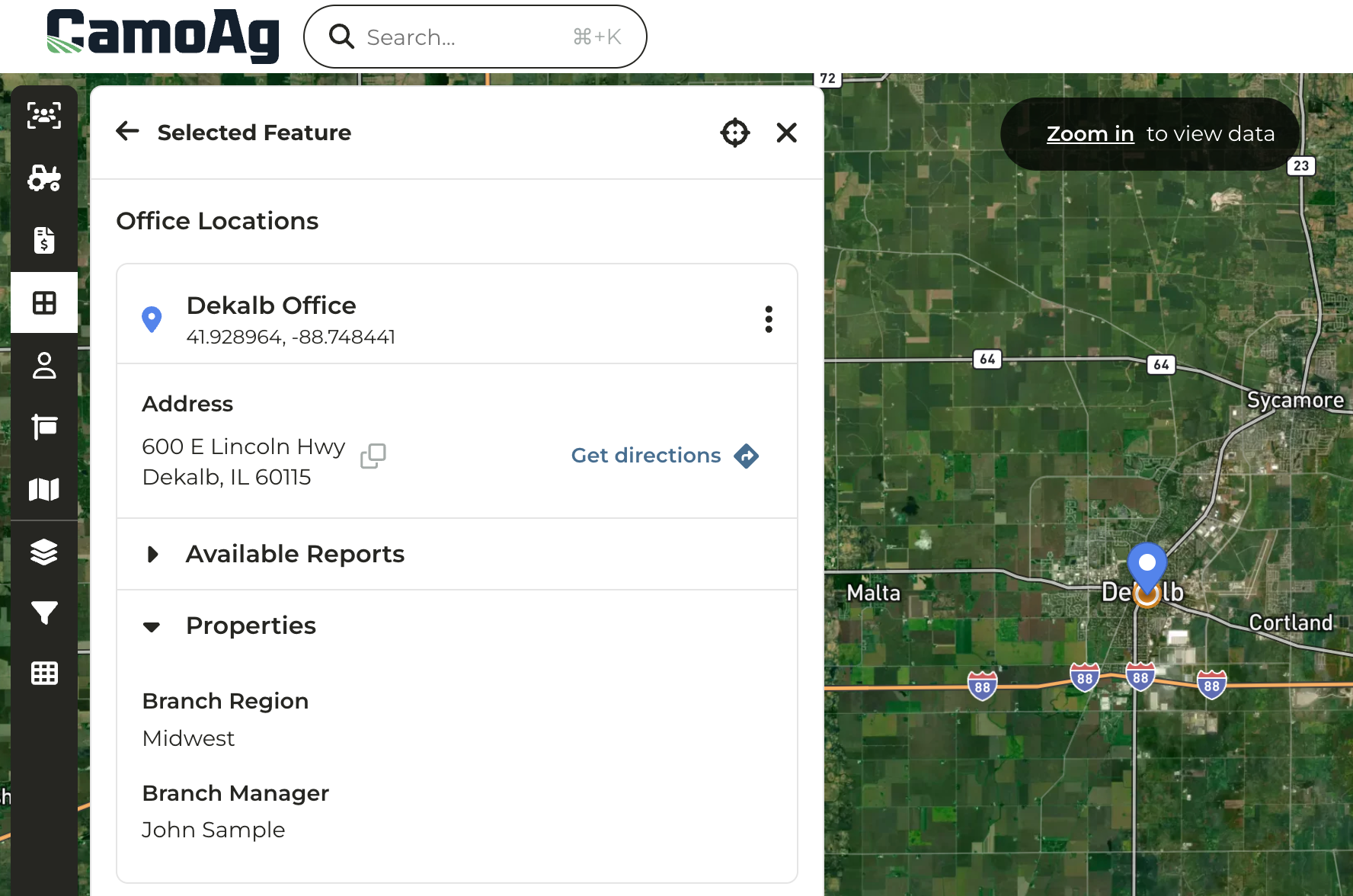
- Optional “Properties” fields should be entered and will display in CamoAg as entered. For example branch_manager or Branch Manager.
- Files should be saved as CSV and sent to your Customer Success Manager at CamoAg to coordinate uploading
Required Fields
- title (String) - The name of the item
Example: “Water Well Number 1” or “Springfield Branch Location” - layer_name (String) - The name of the layer
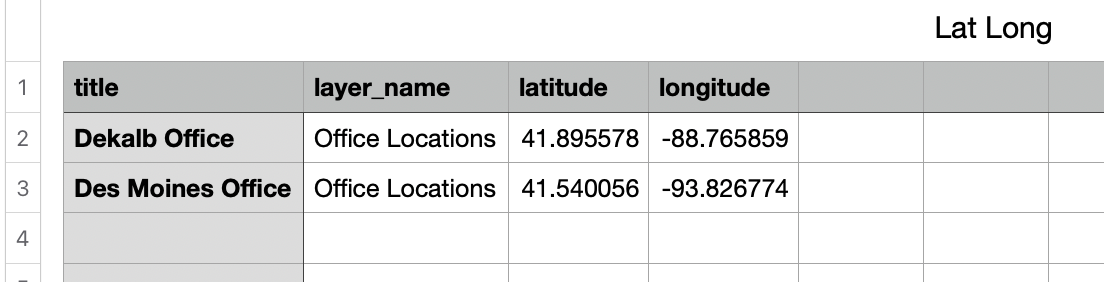
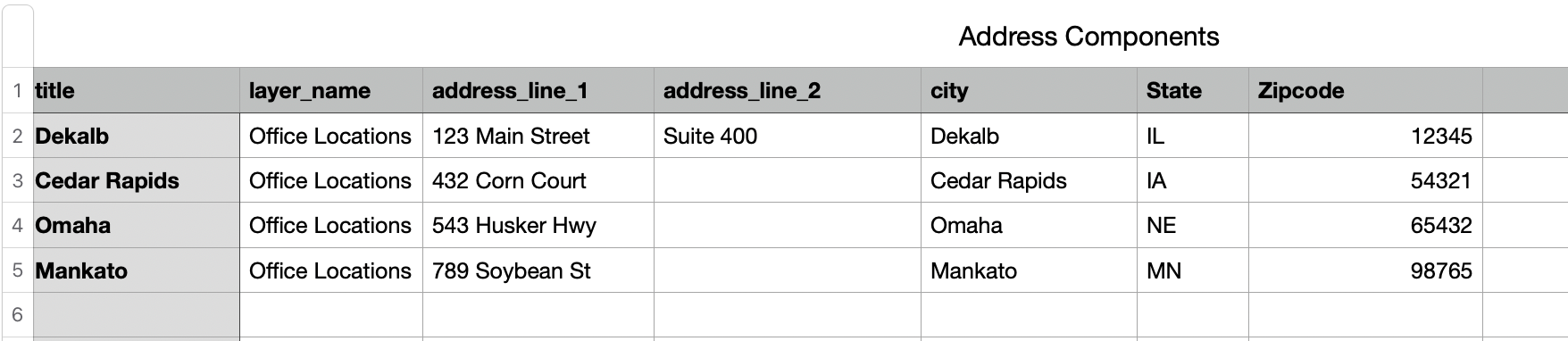
Example: ‘California Water Wells’ or ‘Branch Locations’ - Item Location: Point on the map identified by latitude/longitude coordinates or an address. Depending which option you choose to locate the point, the column titles should be written out as demonstrated in the below screenshots.
- latitude (String) - latitude coordinate
- longitude (String) - longitude coordinate
- address: An address should be provided as a single address string OR broken out by address components, but not both on the same file

- address_line_1
- address_line_2
- city
- state
- zipcode
Optional Fields
Reserved optional fields- external_id (String) - Used as an unique identifier for the point or boundary location
- branch_region = “Midwest”
- branch_manager = “John Sample”

- Lat.Long.Map_Layer_Template.csv (39 Bytes)
- Addresses.Map_Layers_Template.csv (73 Bytes)