Section 1: FAQs
What is a subject property?
What is a subject property?
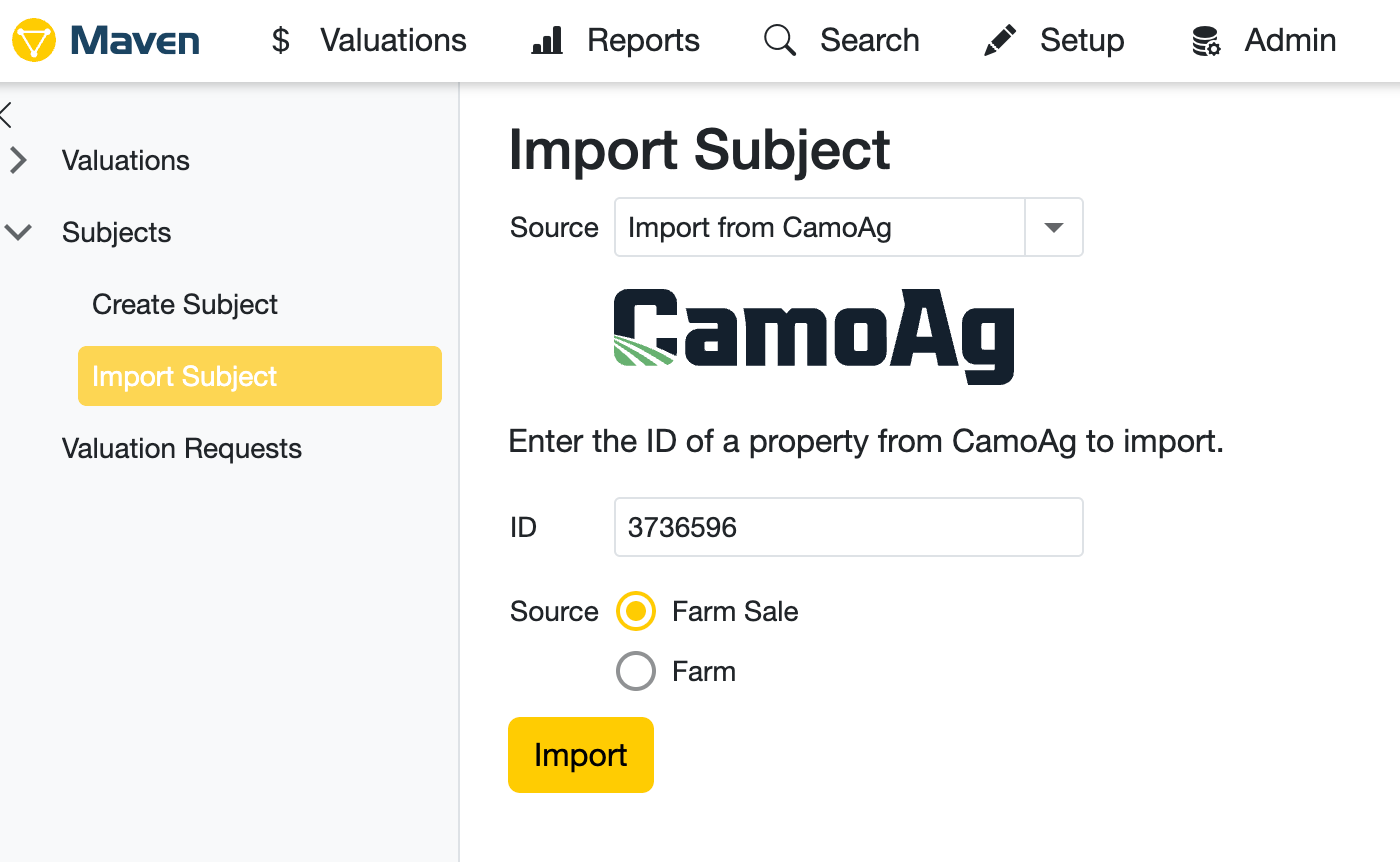
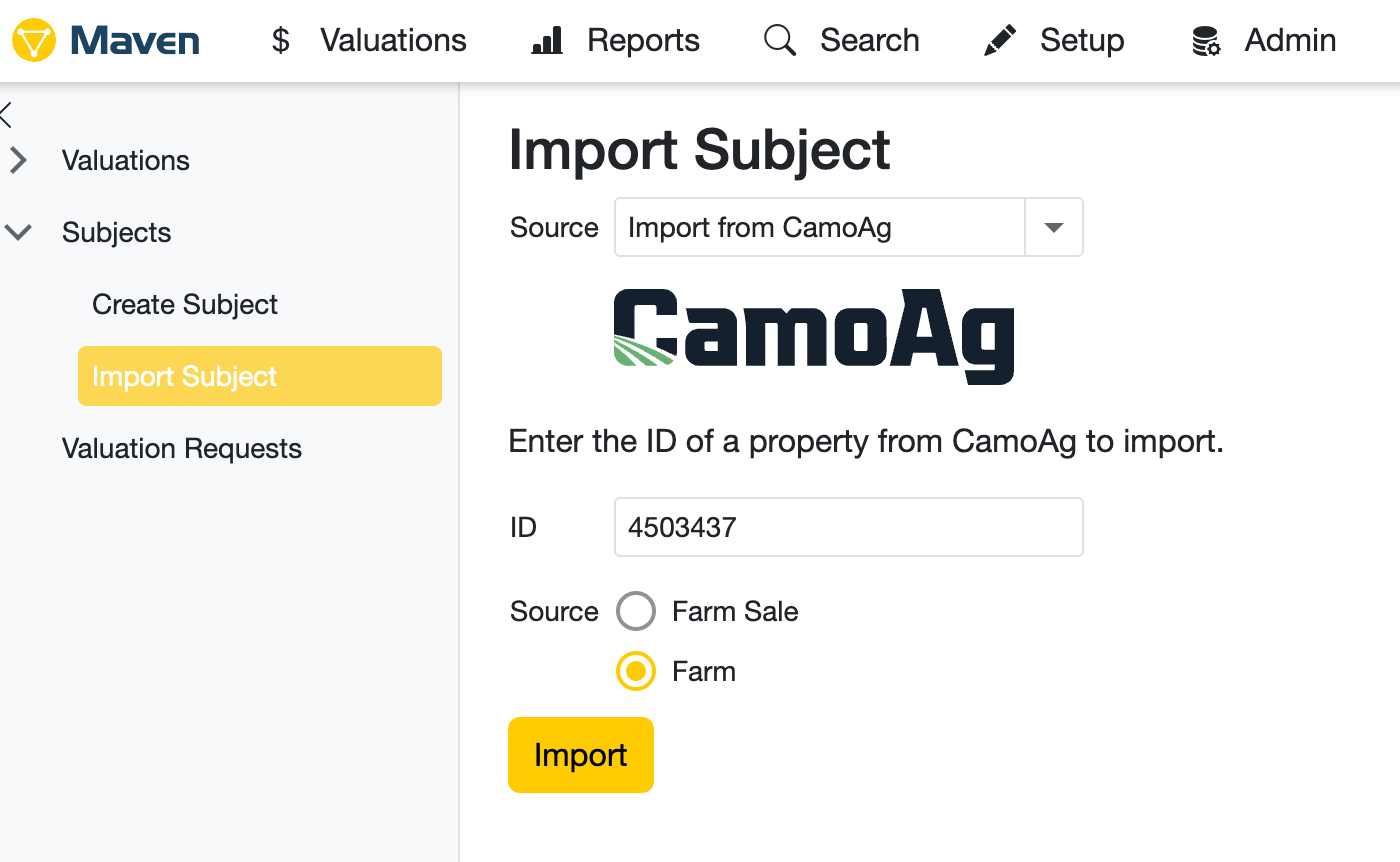
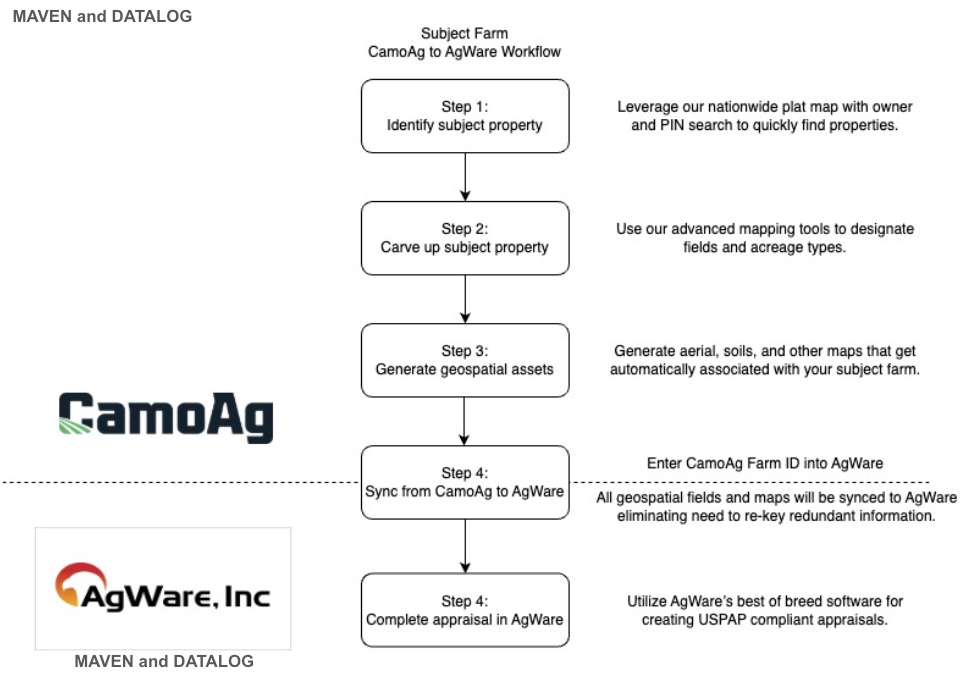
A subject property refers to a specific parcel or tract of agricultural land that is being evaluated or appraised. It is the primary focus of the appraisal process, where various data points such as ownership, land use, soil quality and other relevant characteristics are collected, analyzed and documented.Camoag simplifies the process of creating a subject farm/property with its comprehensive search capabilities, digital plat map and robust mapping tools. Once a subject farm/property is created it can be synced to AgWare Maven to complete the appraisal. You can read more about the Farm Import Process on AgWare’s website here.
Can I upload additional documents to a farm so that those documents get transferred into AgWare?
Can I upload additional documents to a farm so that those documents get transferred into AgWare?
Yes, you can upload documents, photos, maps from other sources to your subject farm.
Why should I use CamoAg to find my subject farm?
Why should I use CamoAg to find my subject farm?
When a subject is captured in CamoAg, by default, a number of attributes from public information associated with the property; State, County, S,T,R, Lat/Long, PIN, Crop History, Soils(type, class and capabilities), shapefile.
Can I determine additional attributes/data on import I would like to be populated in Agware?
Can I determine additional attributes/data on import I would like to be populated in Agware?
Yes, you can work with AgWare to define additional attributes to be auto-populated.
Can a subject property become a Comp?
Can a subject property become a Comp?
Yes
If I edit/update a subject farm in AgWare does it get updated in CamoAg?
If I edit/update a subject farm in AgWare does it get updated in CamoAg?
Yes
Who is the single source of truth for subject properties?
Who is the single source of truth for subject properties?
AgWare
Are updates from AgWare instantaneous in CamoAg or is it a scheduled update?
Are updates from AgWare instantaneous in CamoAg or is it a scheduled update?
They are extracted and moved daily.
Section 2: Workflow for Creating a Subject Farm
Section 3: How to Create a Subject Property
Guides are linked within each step
Where can I find the Farm ID and why is it important?
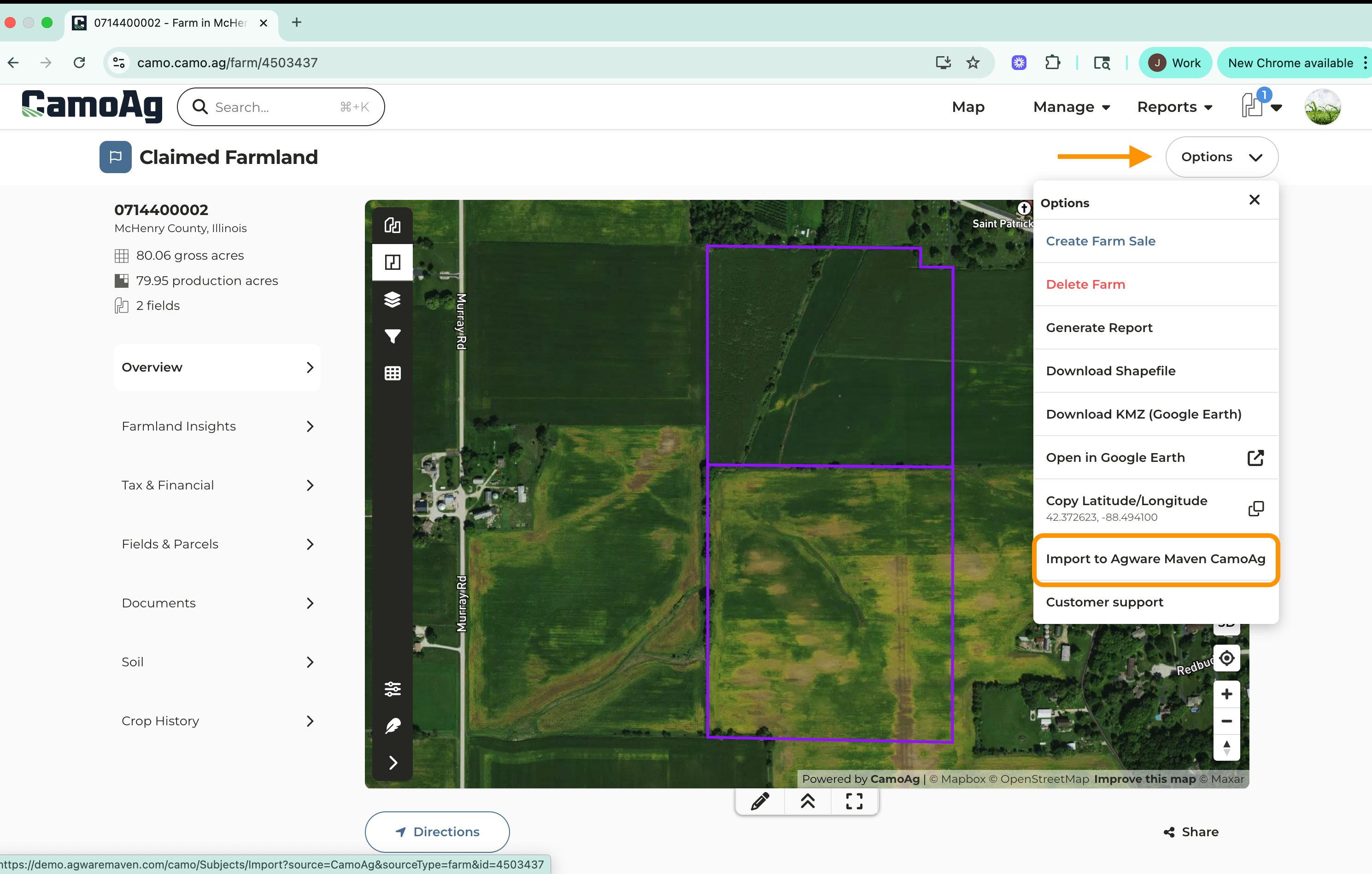
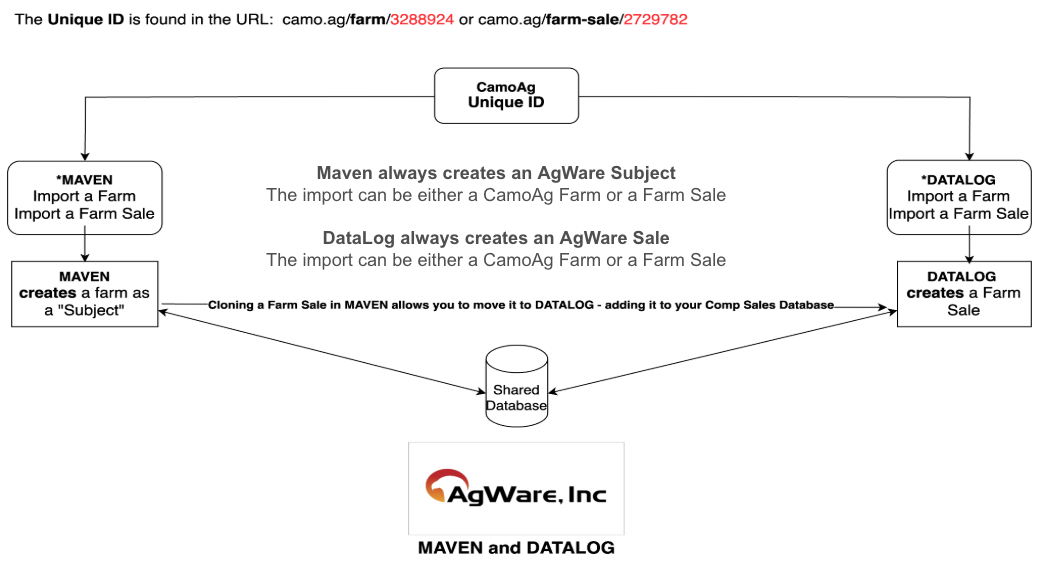
Each subject property you add to your CamoAg account has its own unique Farm ID located in the URL. The Farm ID is important because it differentiates between a Farm/Subject and a Farm Sale/Comp Sale. When importing into MAVEN or DATALOG from CamoAg, simply click the Options menu then select Import to Agware Maven CamoAg.
Please note that CamoAg is unable to provide support for Maven/Agware. If you run into questions with the Maven/Agware platform, please reach out to their team. Questions specific to CamoAg should be sent to support@camo.ag