1
Login to CamoAg
2
Navigate to the farm you want to work with
3
Click Options > Generate Report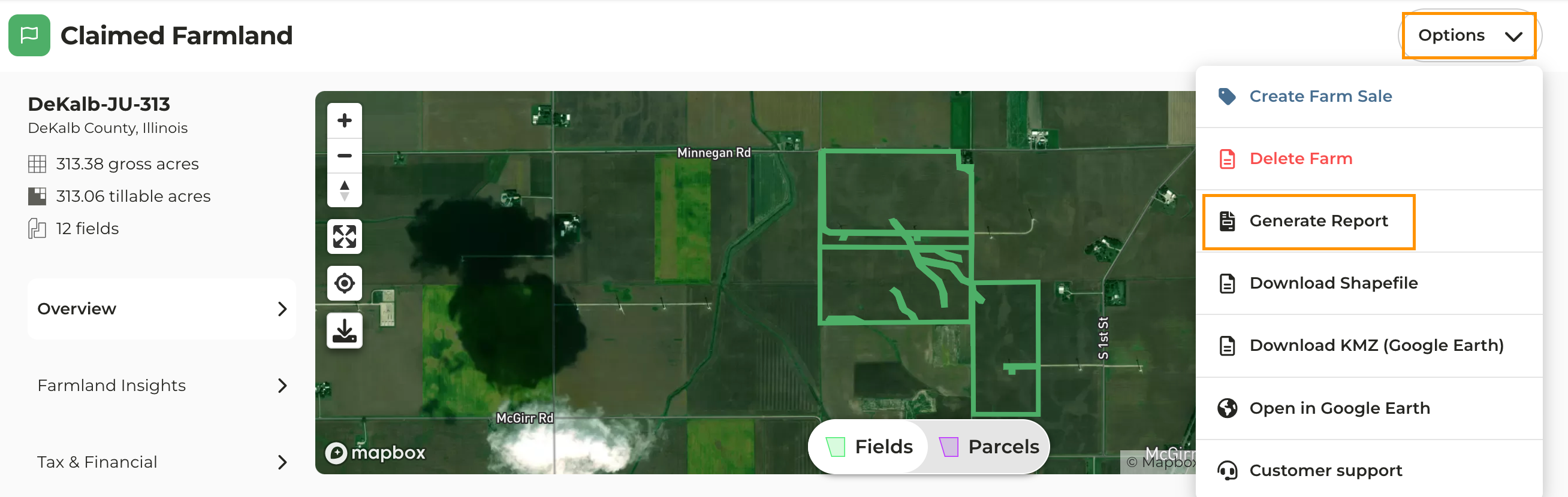
4
Select the information you would like to include in the report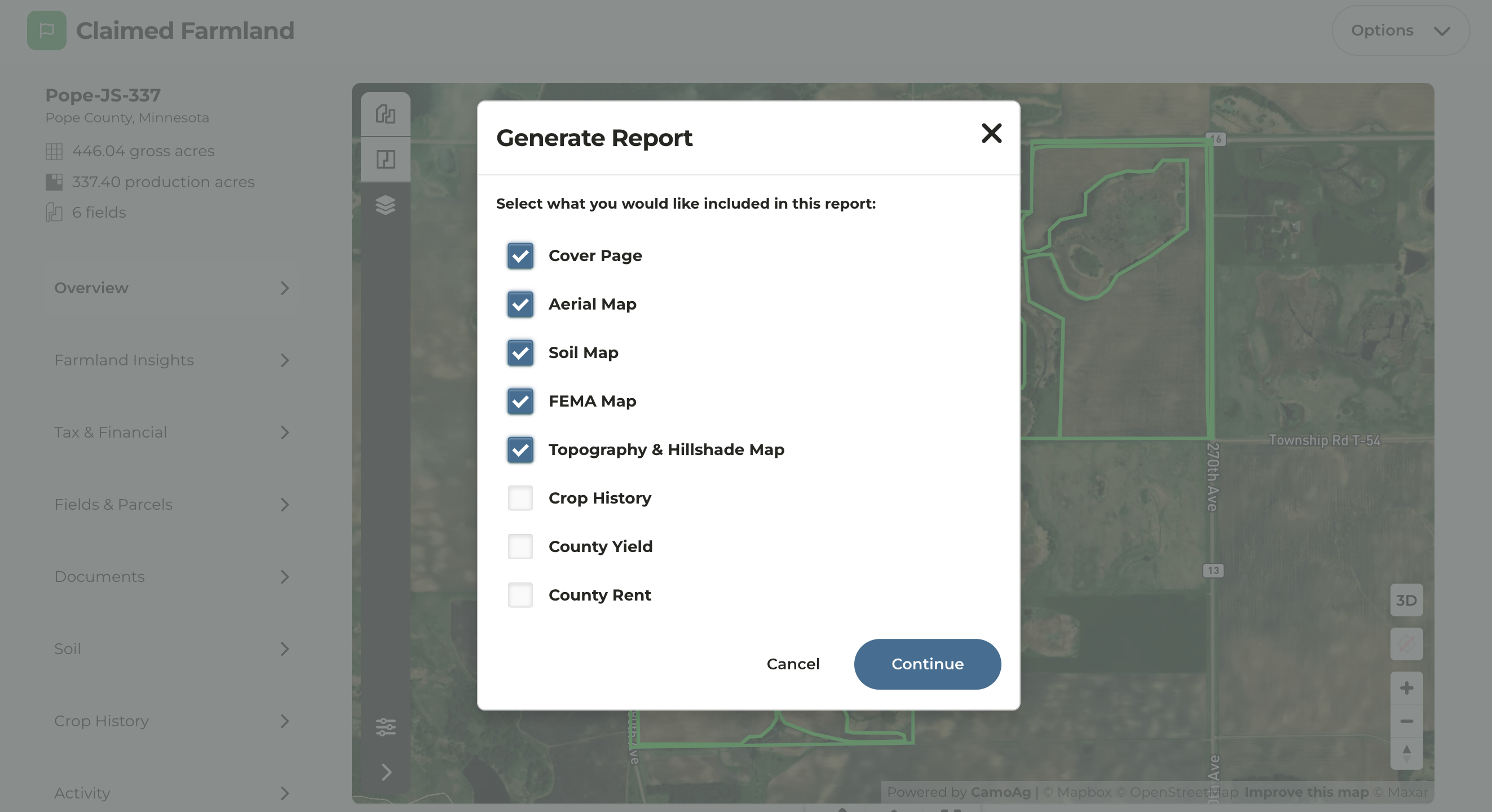
5
Click Continue
6
Decide if you want to generate a single PDF file that includes all maps selected or download individual PDFs of each map type selected. 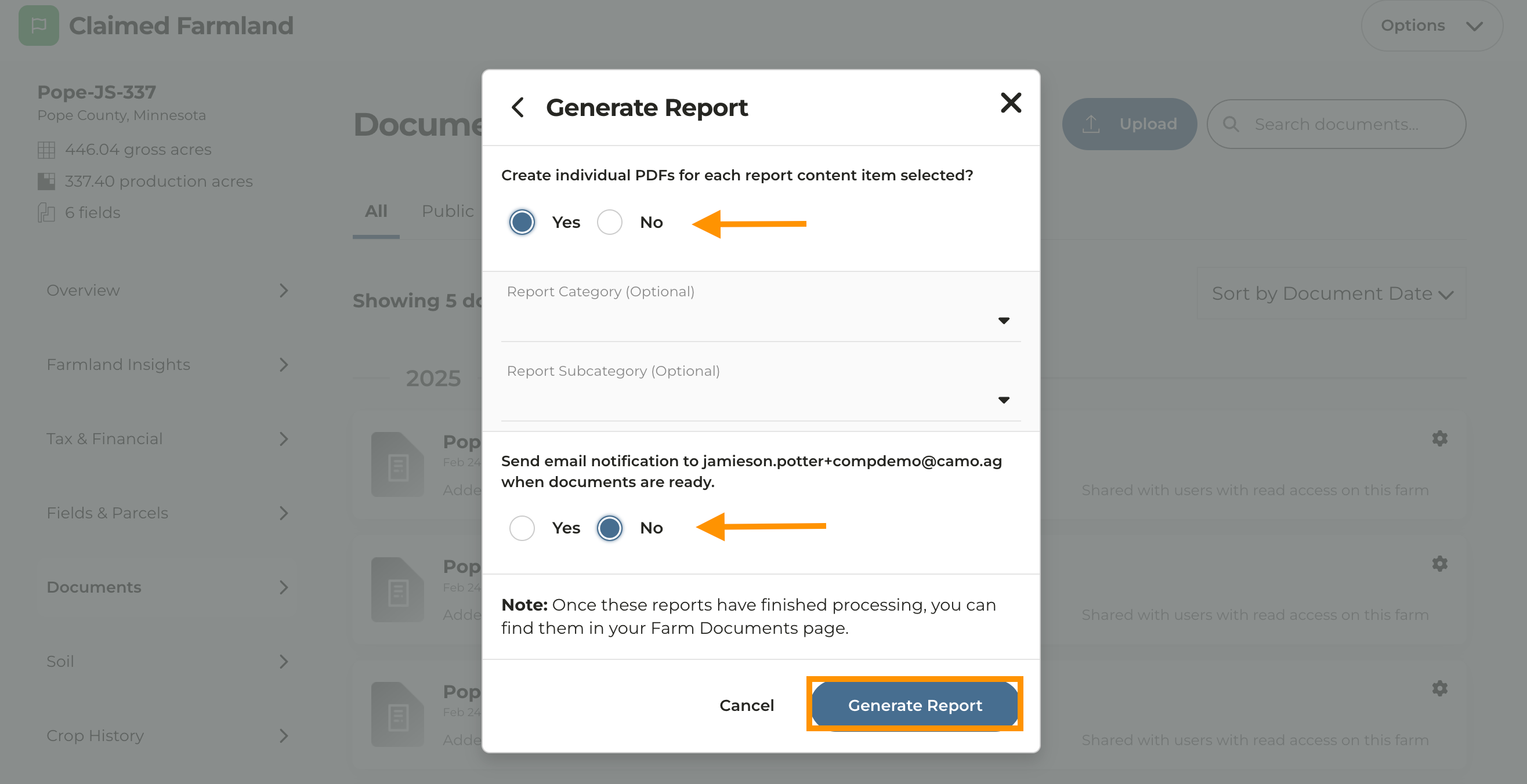
Please note if you generate a single file that includes all maps you are required to assign a name to the file before you can click Generate Report.
7
Optionally assign categories and subcategories to the report
8
Check Yes or No to receive an email notification
9
Click Generate Report
10
You will see a message appear at the bottom of your screen that the report is generating. The larger the report, the more time it may take to generate.
11
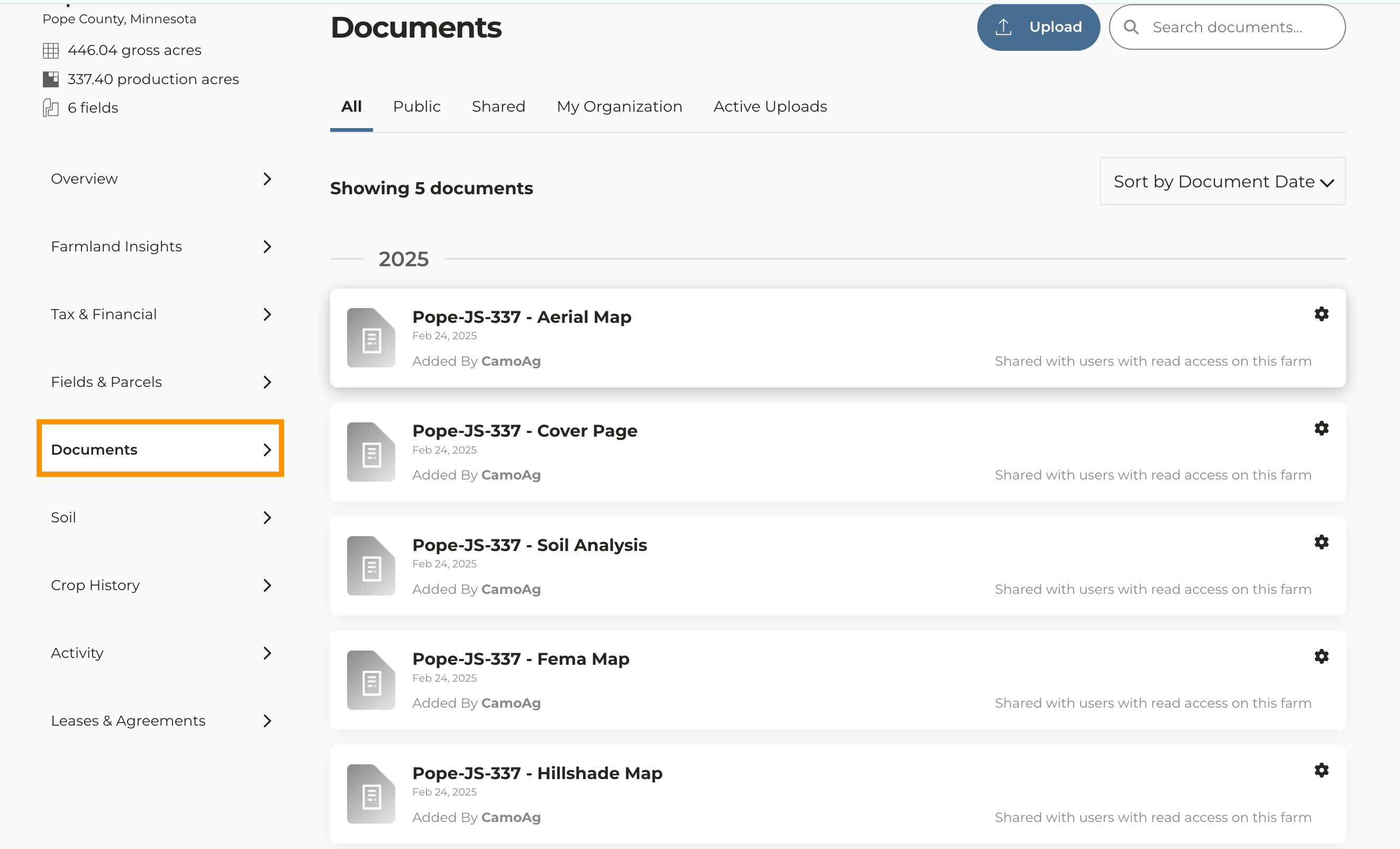
Navigate to the Documents tab of the property to view or download the pdf copies