Accessing From the Map
1
Navigate to the Map and locate the property
2
Right-click on the map and click Open in Google Earth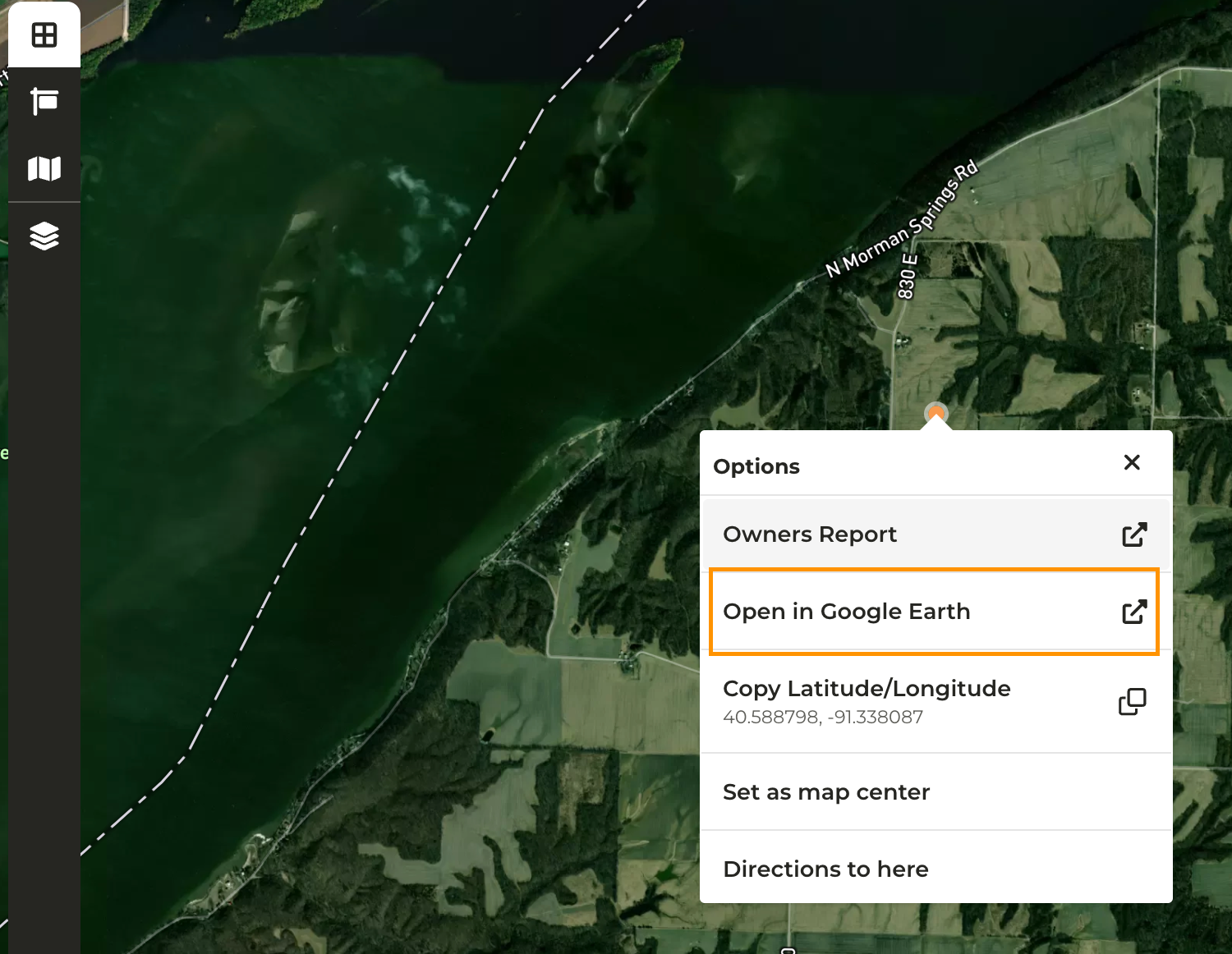
3
Google Earth will open in a new tab
4
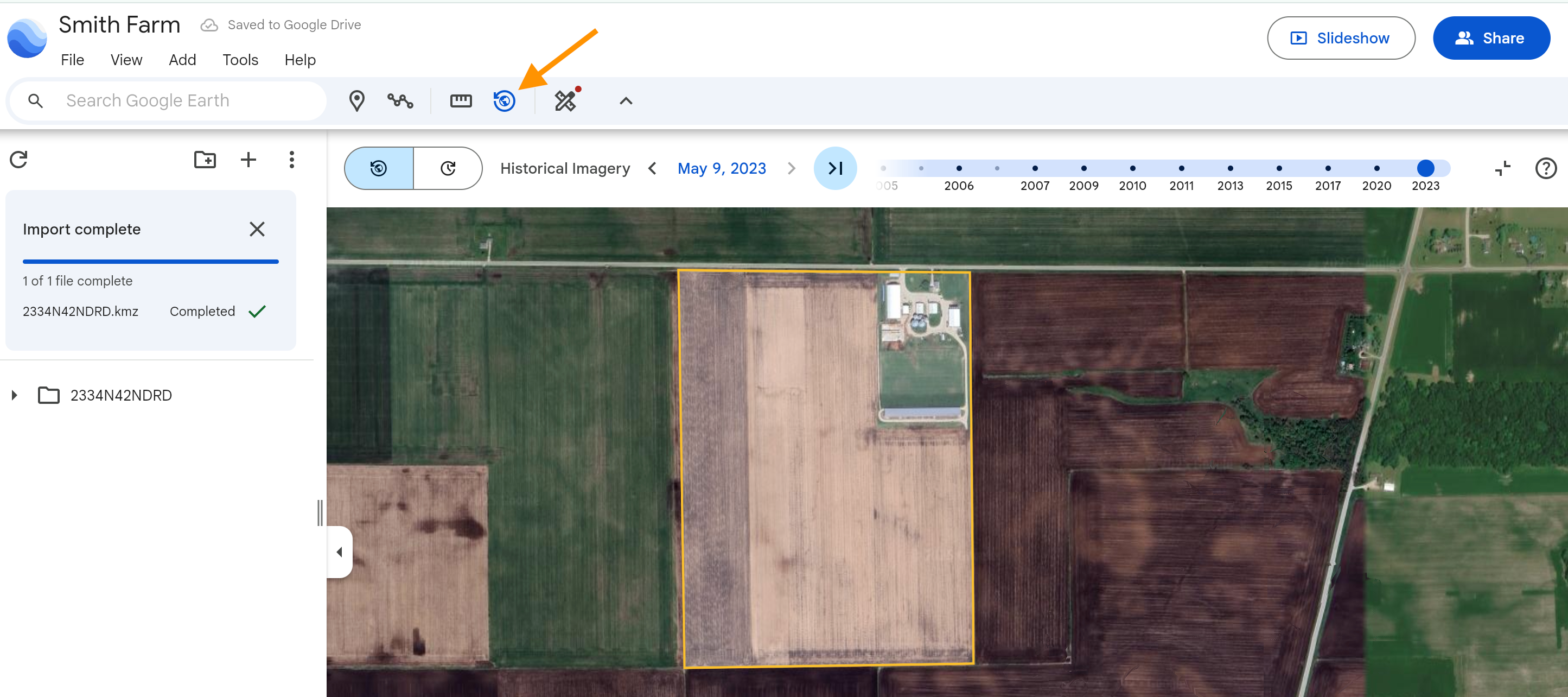
Click on the Historical Imagery icon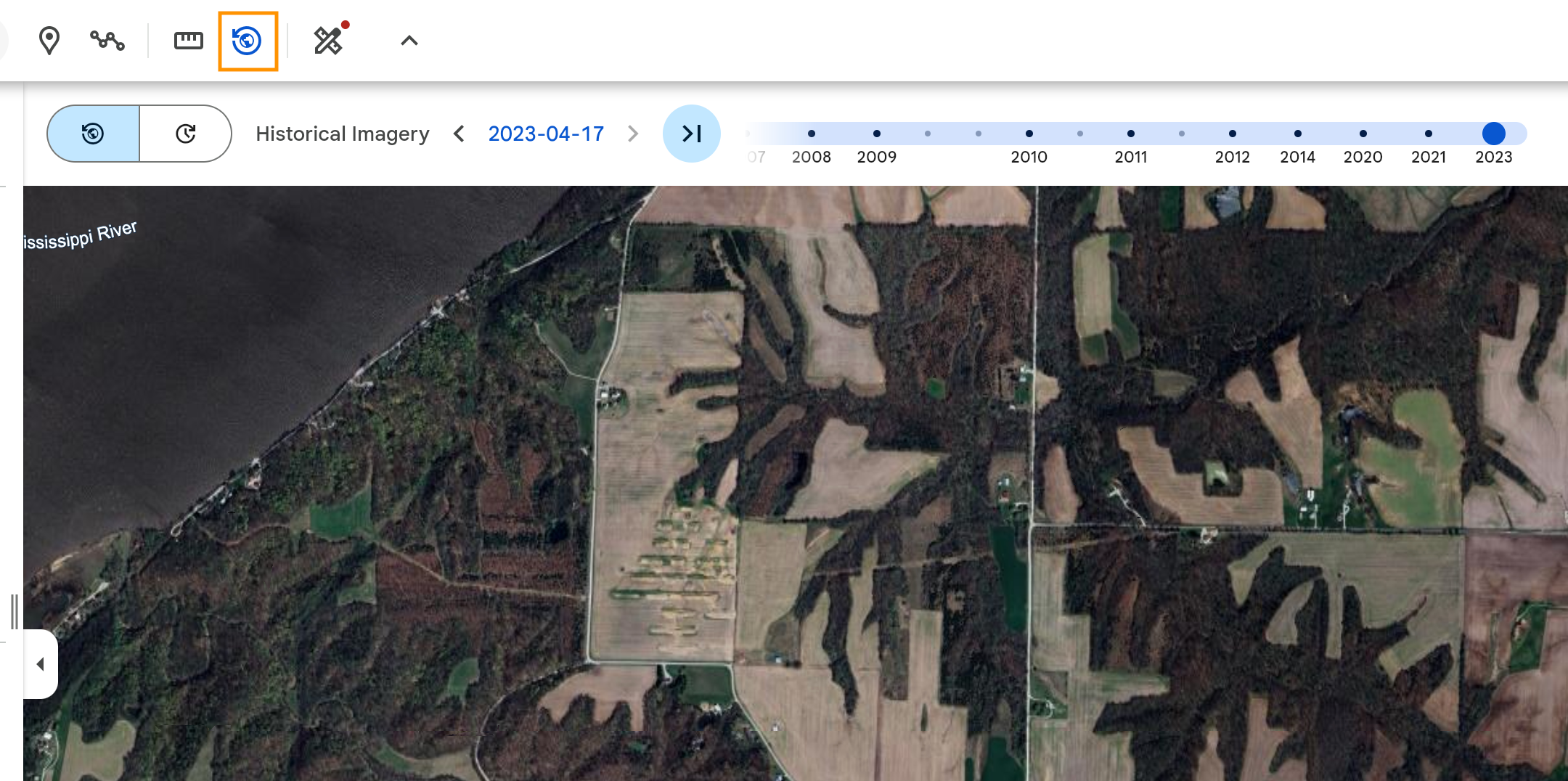
Downloading a KMZ File for Google Earth
1
Add the property to your account
2
From the property overview page click Options > Download KMZ (Google Earth) to download the shape file to your device
3
From the same menu click Open Google Earth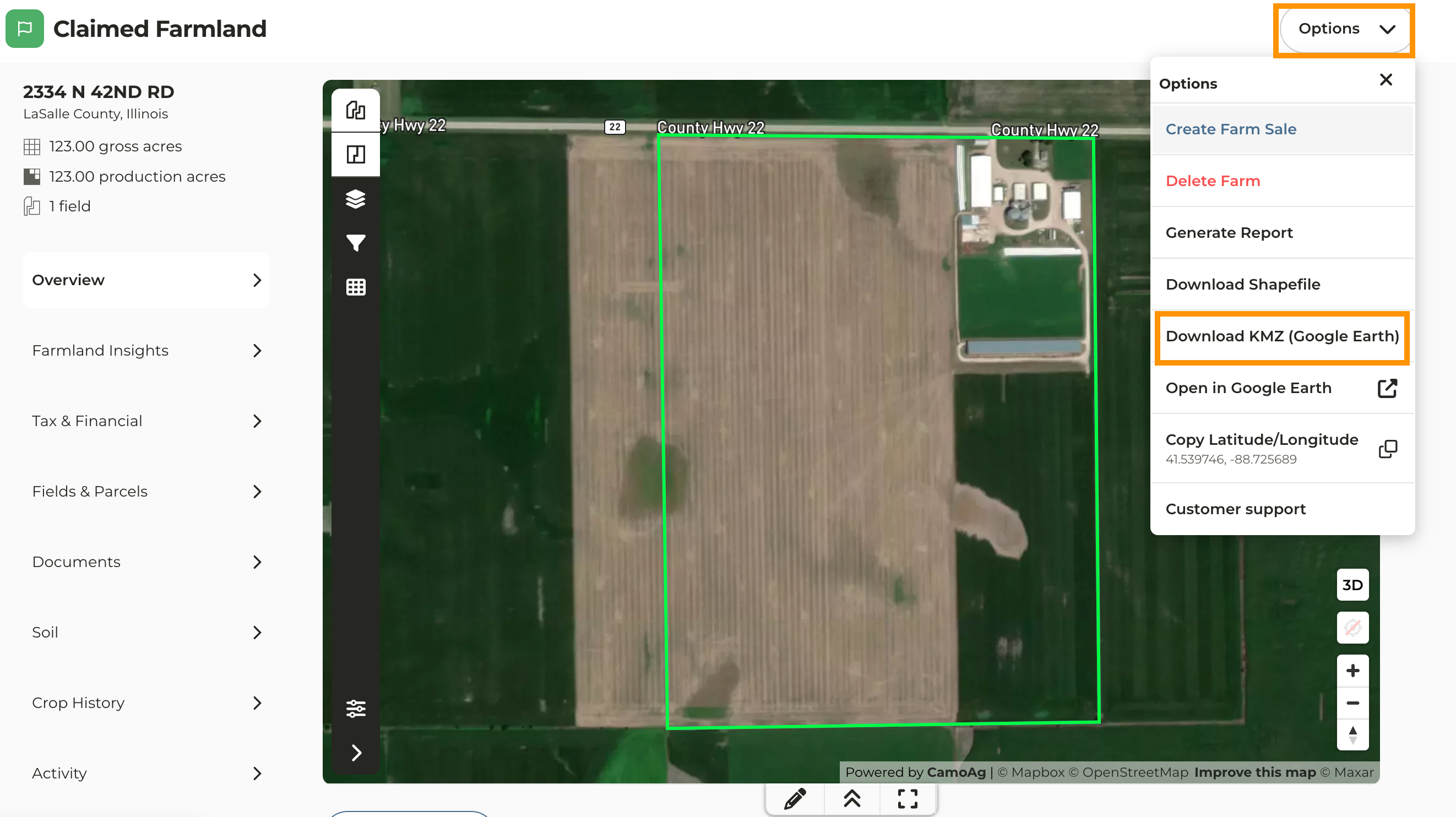
4
In Google Earth click File > Import File to Project and select the shape file you just downloaded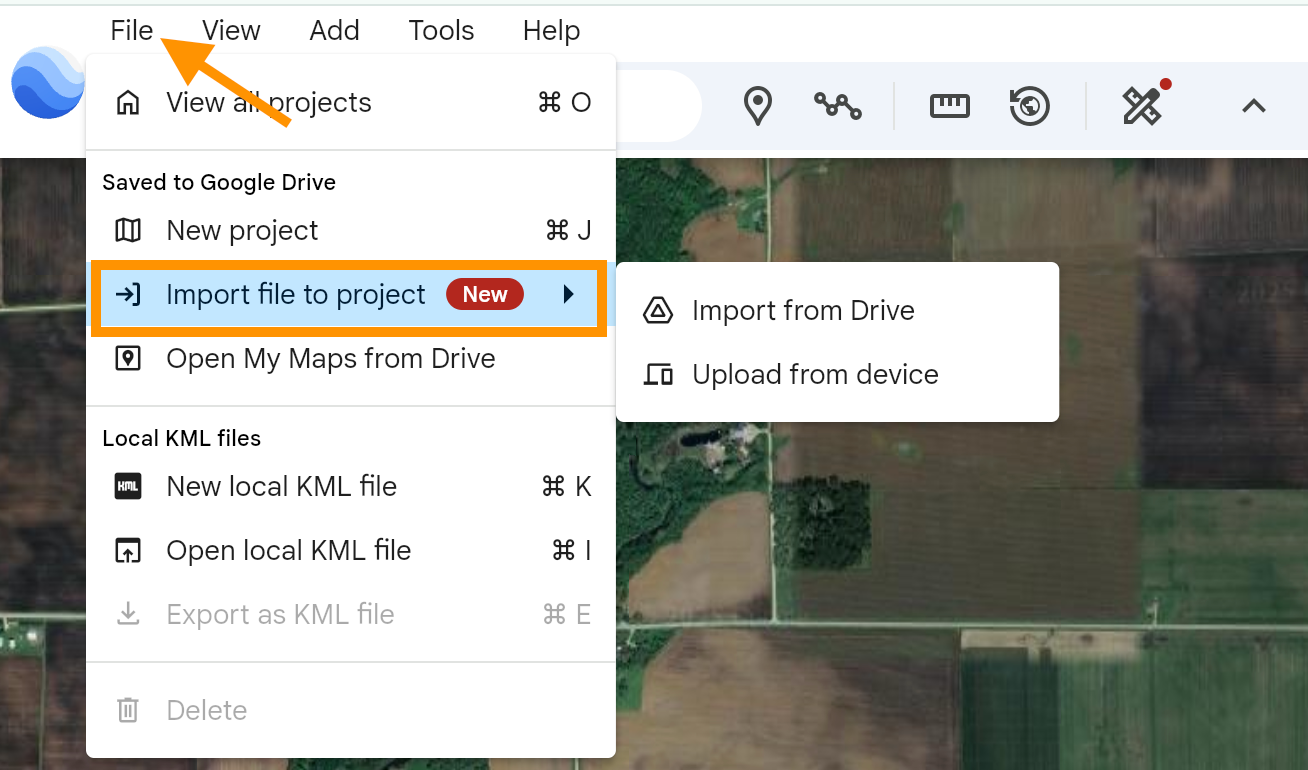
5
Enable the Historical Imagery and begin exploring