

- You want to pull a list of your contacts within a specified area
- Access the report from the Farm Sales layer to notify contacts of an upcoming auction or farm that has sold
Contacts Pro Report Filters
To see all available filters click on the funnel to the right of the filters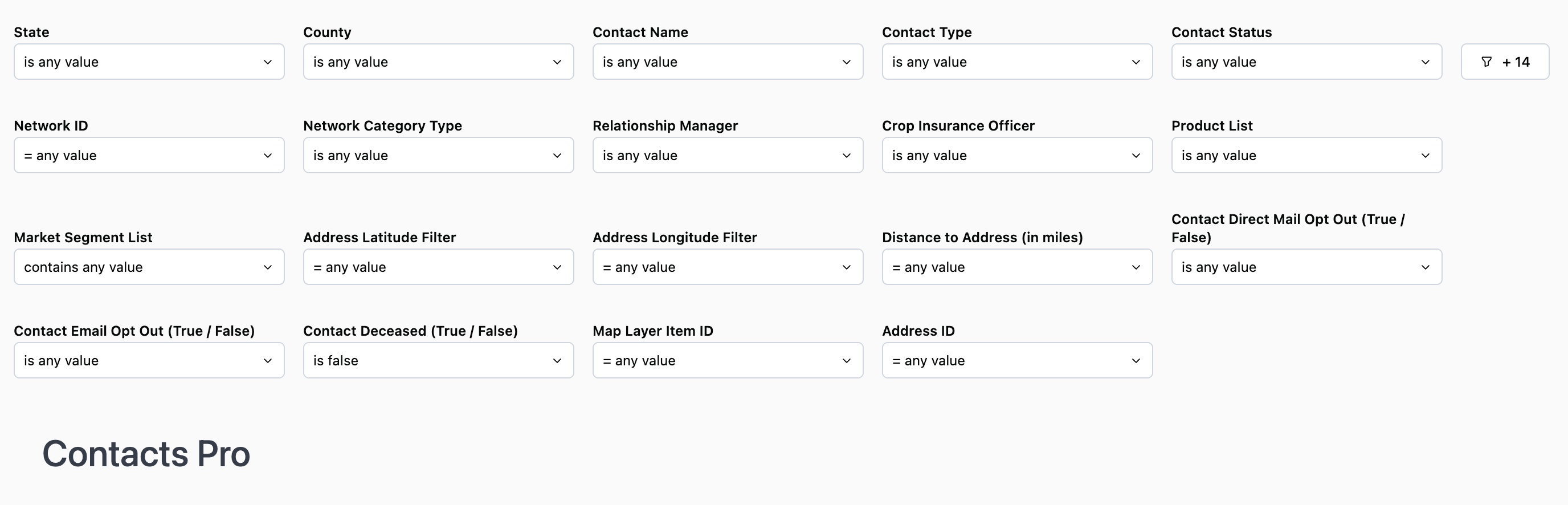
- State: Filter to show organization contacts within a specific state
- County: Filter to show organization contacts within a specific county. Use in conjunction with State.
- Contact Name: Use this if you want to focus on a specific contact or set of contacts
- Contact Type: Filter to show active clients or prospects
- Contact Status: Filter by statuses such as lead, contact, account, or prospect. The statuses here may differ if your organization’s CRM is integrated with CamoAg
- **Network ID (“**Formerly Address ID”): The Network ID is unique to CamoAg and is used to create networks by grouping parties who either reside at the same address or are tied together for business reasons
- **Network Category (Formerly “Primary Addressee Type”)**The type of address associated with the primary addressee name such as agribusiness, government organizations, farm management companies, or banks
- Relationship Manager: Filter the report to see the contacts for a specific RM or group of RMs
- Crop Insurance Officer: Requires CRM integration, filter the report to see the contacts assigned to a specific person
- Product List: Filter your report to include or exclude organization contacts who have specific products
Use Case: You want to generate a list of contacts who do not currently purchase Crop Insurance from your organization. Use “does not contain” and select Crop Insurance.
Note: If you select “is not equal to” the results may still include contacts who use crop insurance if they also purchase other products from your organization
- Market Segment: Requires CRM integration, filter by specific market segments as specified in your CRM and shared with CamoAg
- Address Latitude & Longitude: Populates with the latitude/longitude coordinates when the report is accessed via right-click on the map. Can also be manually populated with coordinates.
- Distance to Address: Default distance of 10 miles when report is accessed via right-click on the map. Use this when you want to search for contacts who physically live near a specific address. This address may be geographically different from where their land is located (See Use Case below)
Use Case: Your organization is hosting an open house in the Quad Cities and want to invite customers and prospects who live within 50 miles.
1
Navigate to the map and right-click from where you are hosting the open house
2
Click Available Reports > Contacts
3
Adjust the distance filter to the preferred distance
4
Apply any additional filters so the list reflects the desired group of contacts
- Contact Direct Mail Opt Out (True/False): Requires CRM integration
- Contact Email Opt Out (True/False): Requires CRM integration
- Contact Deceased (True/False): Requires CRM integration
- Map Layer Item ID: This filter is populated when the report is accessed via a Features of Interest layer on the map. The report will filter to show only data within the boundaries of that FOI layer.
Contacts Data Table
- Click the three dots in the upper right corner of the data table to download or schedule an alert or delivery
