If my organization doesn't have a CRM integrated how can I create contacts in CamoAg?
If my organization doesn't have a CRM integrated how can I create contacts in CamoAg?
- Review this help center article Creating a Contact
How often is information pushed from my organization's CRM to CamoAg?
How often is information pushed from my organization's CRM to CamoAg?
- If you update a contact in your CRM, the data will update on the map panels within a couple minutes
How are contacts matched to parcels in CamoAg?
How are contacts matched to parcels in CamoAg?
- The address in your CRM is matched to the address the tax bill is sent to for a parcel, not the address of the parcel itself
Where can I view contacts in CamoAg, whether created in a CRM or directly in CamoAg
Where can I view contacts in CamoAg, whether created in a CRM or directly in CamoAg
- Contacts Layer on map - See immediately (refresh page if needed)
- Contacts Dashboard - See immediately (refresh page if needed)
- Contacts Report - Report takes approximately 30 minutes to update. Click Contacts Pro Report to be taken to the report guide
- You know of an upcoming auction or sale and want to see your Contacts that are in the area
- Want to understand where the organization has a concentration of contacts vs. areas with fewer contacts
Navigating the Contacts Layer
- To access the Contacts layer you can either:
- Use the Global Search to locate a specific contact
- Click on Organization Contacts from the dashboard
- Navigate to the Map and enable the contacts layer
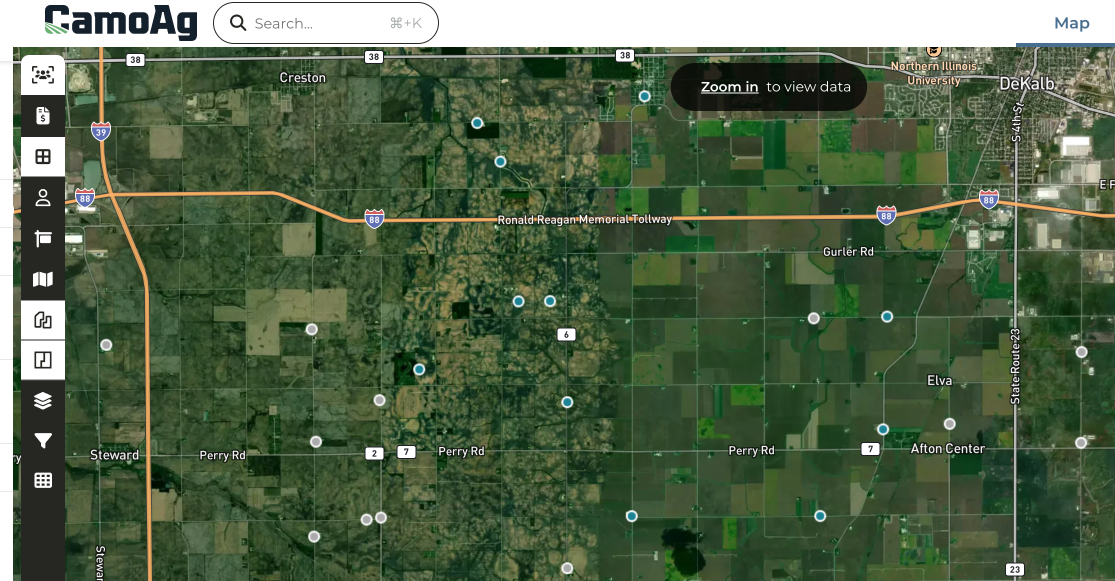
- Zooming in on the map will display dots indicating the location of contacts and as you zoom in closer the dots will be replaced with contact marker flags
 | Teal marker or dot indicates the contact is a Customer in your CRM |
 | Gray marker or dot indicates contact was created in CamoAg or a prospect in your CRM |
- Clicking on a contact marker will reveal the contact card on the left along with additional insights about the contact such as:
- Operation
- Owned Parcels
- UCC Filing Data*
- Mortgage Data*
- Subsidy payments
- Connected Operators*
- Operated Parcels
- Recent Land Transactions
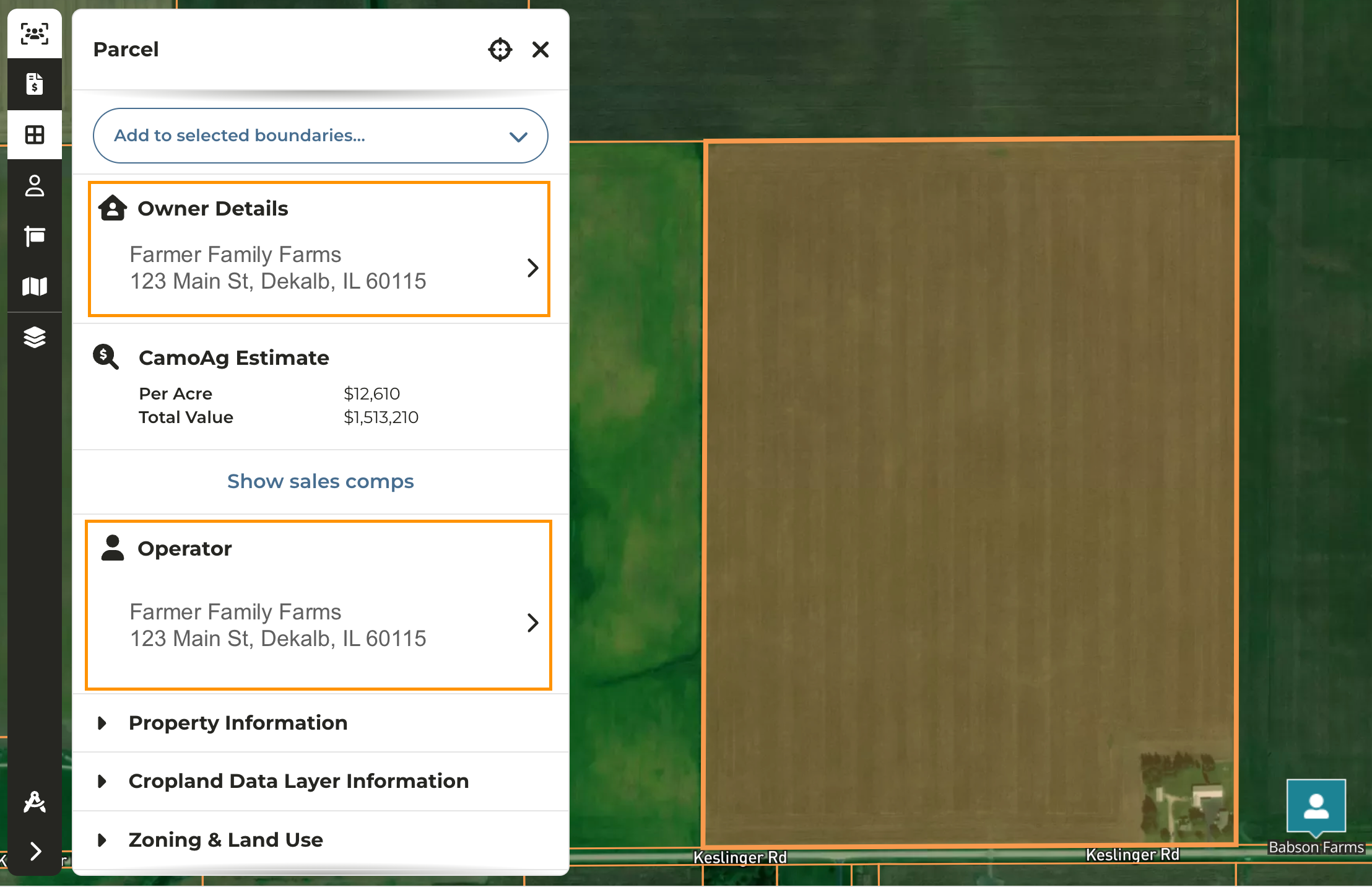
- Clicking on the parcel will reveal information about the parcel, but by clicking into the Owner and/or Operator Details, you will be able to access contact details and link back to your CRM
Contacts Dashboard
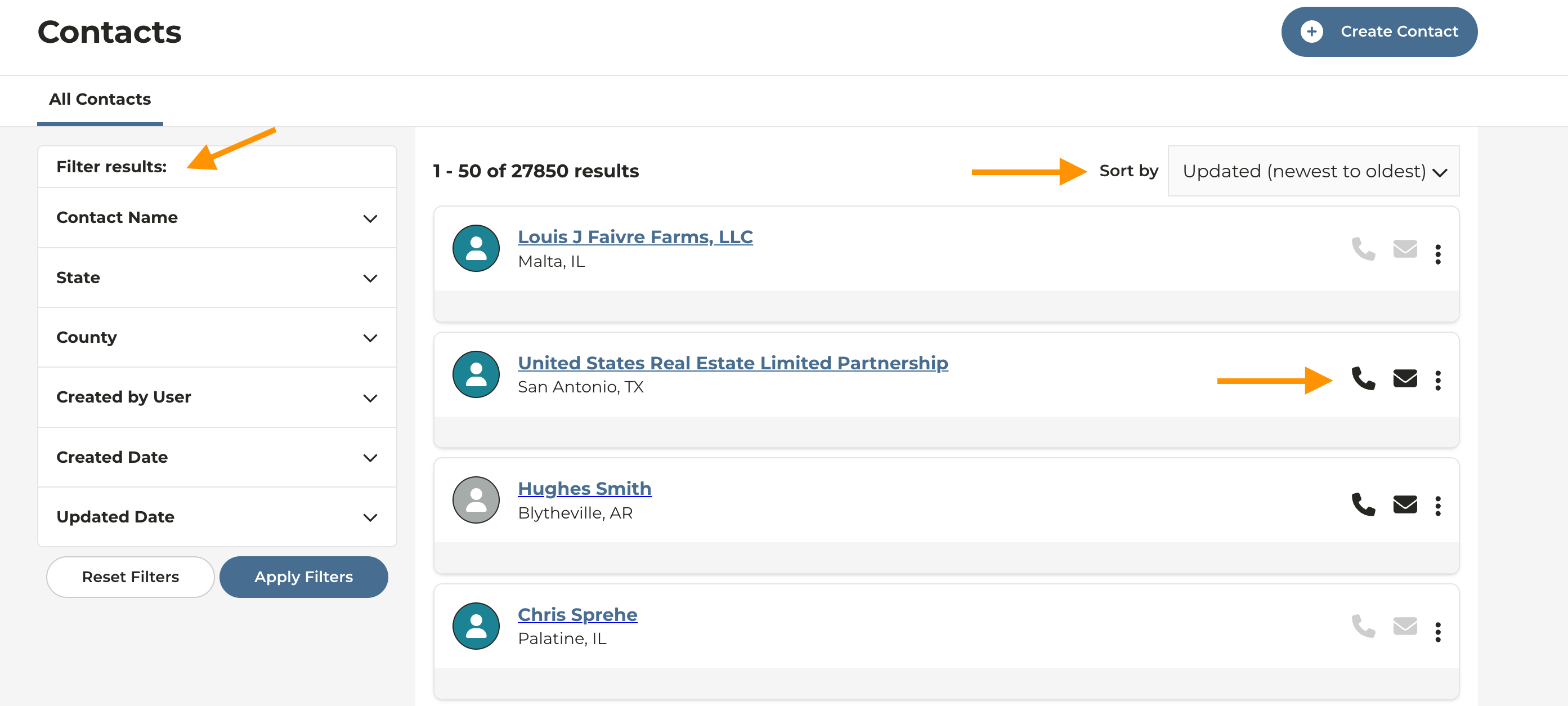
- Click Manage > Contacts
- Filter Contacts by:
- Name
- State and/or County
- Created by User: Name of logged in user will appear first on the list allowing you to filter to see only your contacts
- Created Date
- Updated Date
- If phone and/or email info is available, the corresponding icons can be clicked on and the info is available to copy
- Click the three vertical dots to Edit Contact information
- Click on the Contact Name to be taken to the map