

Can I bulk add or upload contact data?
Can I bulk add or upload contact data?
- No, the intent of this feature is for users to be able to add contact information for a customer or prospect as needed and quickly find it on the map or in a report.
Where can I expect to see the contact on the map?
Where can I expect to see the contact on the map?
- Once you have created a contact, the contact marker flag will appear on the map at the address entered. This means if you click on a parcel in Dekalb, Illinois and the owner address is located in Cedar Rapids Iowa, the contact marker flag will appear at the address in Iowa.
Can I run a report for the contacts I have created or see them all on the map?
Can I run a report for the contacts I have created or see them all on the map?
- Yes - review the Contacts Pro Report and Using the Contacts Map Layer for more details
What if my organization has a CRM integrated?
What if my organization has a CRM integrated?
- CRM contact information will appear as read only in CamoAg. Any edits made to contact information must be done in your CRM.
- If you create a contact in CamoAg and later add that information to your CRM, the data from your CRM will override the information in CamoAg and become read-only
Creating a Contact from the Map
When creating a contact from the map address information it is not editable. If you want to create a contact with an address different from what you see steps below:1
Locate the person you want to add as a contact using one of the methods below:
- Use the search tool and click through to the results on the map
- Enable the Operations > Producer layer and click on an operation on the map
- Click on a parcel and under Connections click on the name of the Operation
2
Click Save to Edit
3
The operation is now saved as a Prospect.
- Edits can be made to the Operation details such as Operation Category or Estimated Operated acres
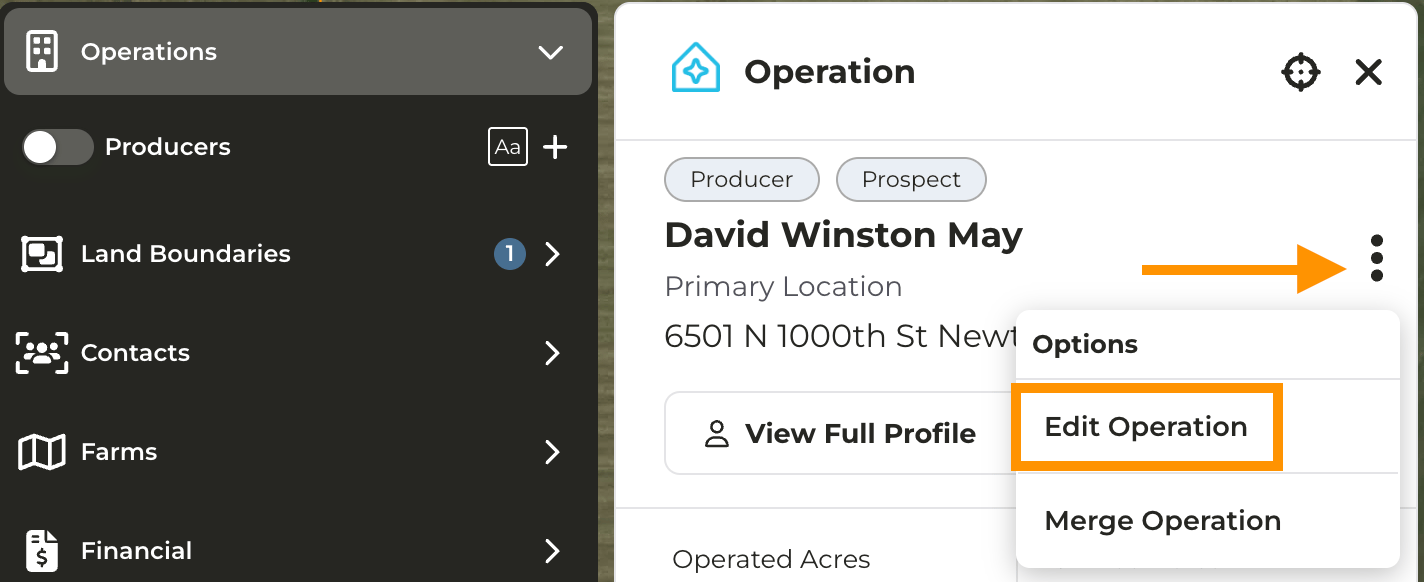
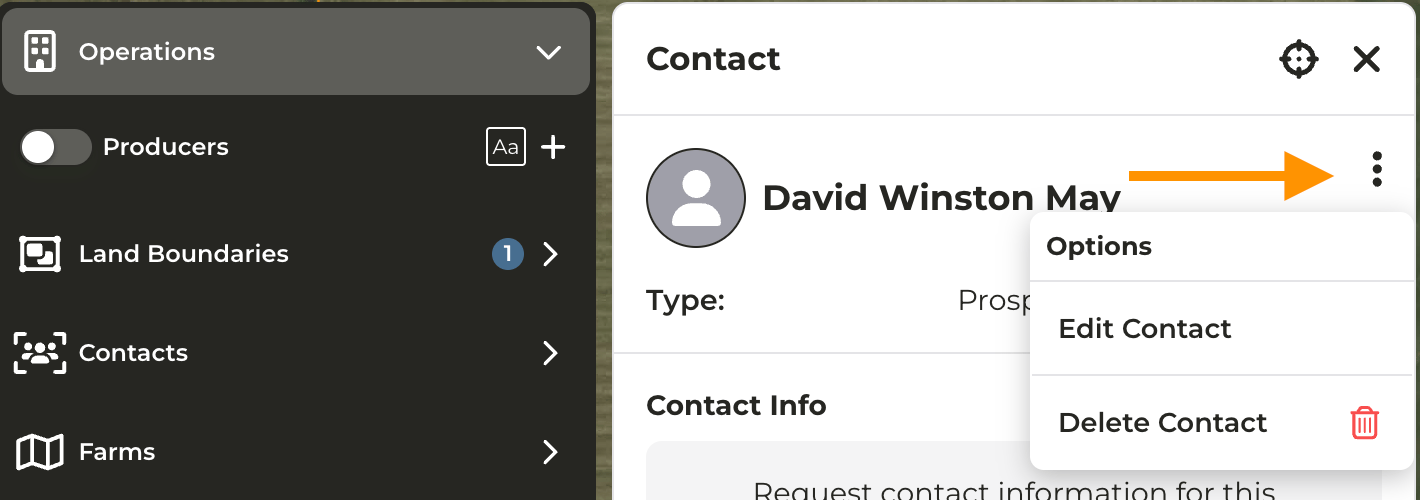
- Edits can be made to the Contact details by expanding Connections and clicking the contact name then Edit Contact. Once edits have been made click Save Contact.
4
You can now view your contact on the map when the Contacts layer is enabled, on the Contacts Dashboard, and on the Contacts Report. Reminder, that when you create a contact, the marker will save on the map at the address location, which may differ from the parcel location.
Creating a Contact on the Contact Dashboard
1
Click Manage > Contacts
2
Click Create Contact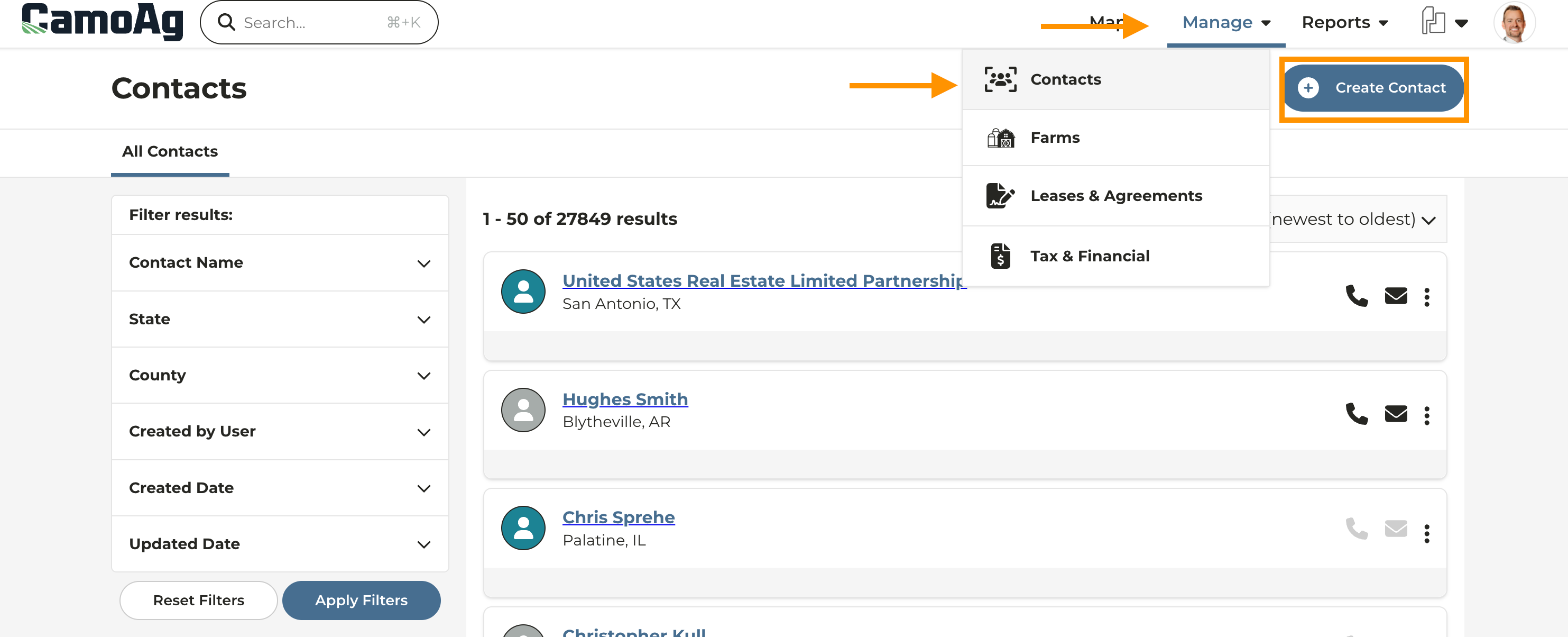
3
Click +Add Address and either search for the address and pick from the suggested addresses or manually enter the address and click Save Address
4
Enter remaining contact details
- Contact Name - required
- Contact Type - optional drop down
- Phone and Email - optional
- Age or DOB - optional
5
Click Save Contact