Where does the data come from?
Where does the data come from?
- CamoAg partners with a leading data technology provider to enhance both business and consumer data. While we do not independently verify or guarantee the accuracy of this third-party data, we offer it as a supplemental resource to enrich the information you already have and support your business prospecting efforts.
Is the contact information cross-checked against the Do Not Call registry?
Is the contact information cross-checked against the Do Not Call registry?
- Contact information is cross-checked against the National and State Do Not Call Registry and a warning will appear if that person is on the list
- CamoAg is not responsible for any calls your organization may make to individuals listed on the Do Not Contact registry
What if my organization has a CRM integrated?
What if my organization has a CRM integrated?
- CRM contact information will appear as read only in CamoAg. Any edits made to contact information must be done in your CRM.
- If you create a contact in CamoAg and later add that information to your CRM, the data from your CRM will override the information in CamoAg and become read-only
What if my organization does not have a CRM integrated?
What if my organization does not have a CRM integrated?
- You will be able to add contact information if you have it, request contact information, and save contact information on the map.
Can I bulk request contact data?
Can I bulk request contact data?
- No. At this time bulk appending is not available.
Can I run a report for the contacts I have created or see them all on the map?
Can I run a report for the contacts I have created or see them all on the map?
- Yes - review the Contacts Pro Report and Using the Contacts Map Layer for more details
1
Click on the parcel of an owner you want to request or add contact information
2
On the Parcel pane on the left, click on the Owner Details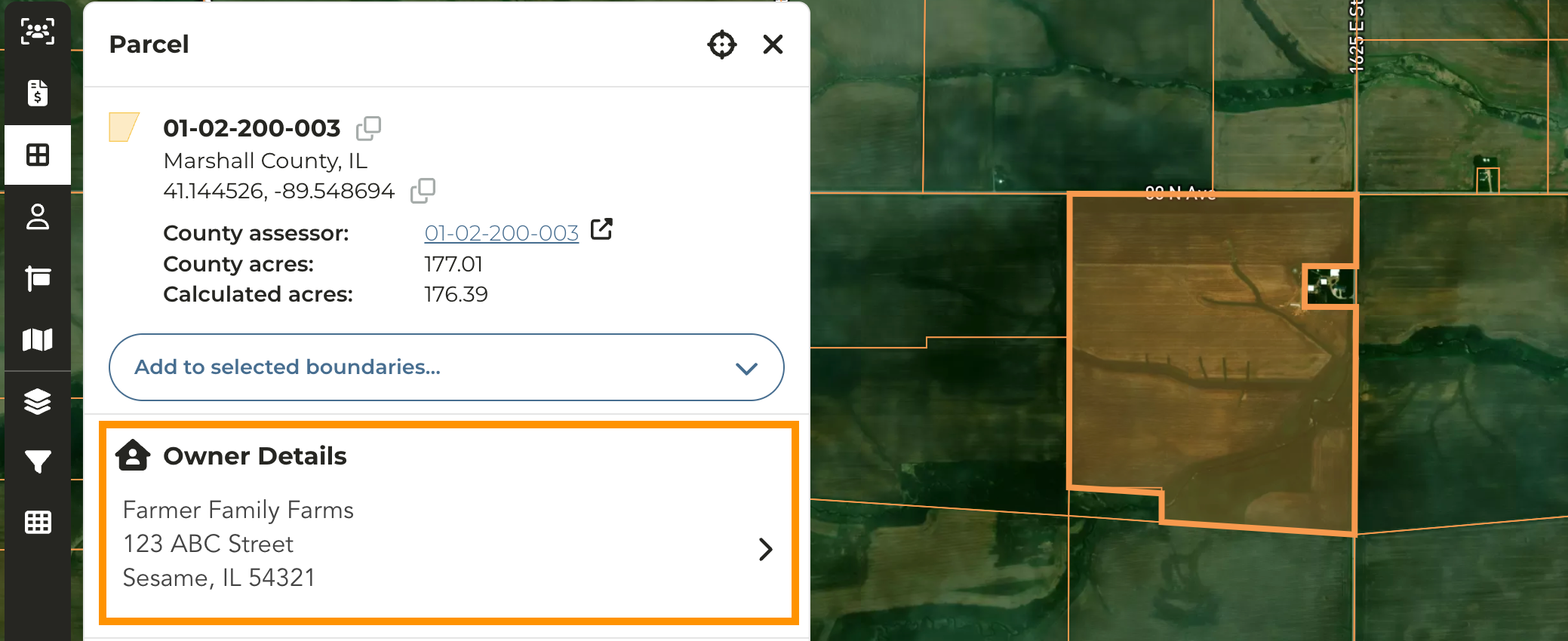
3
Click Create New Contact
4
You can manually enter contact information or click Request Contact Information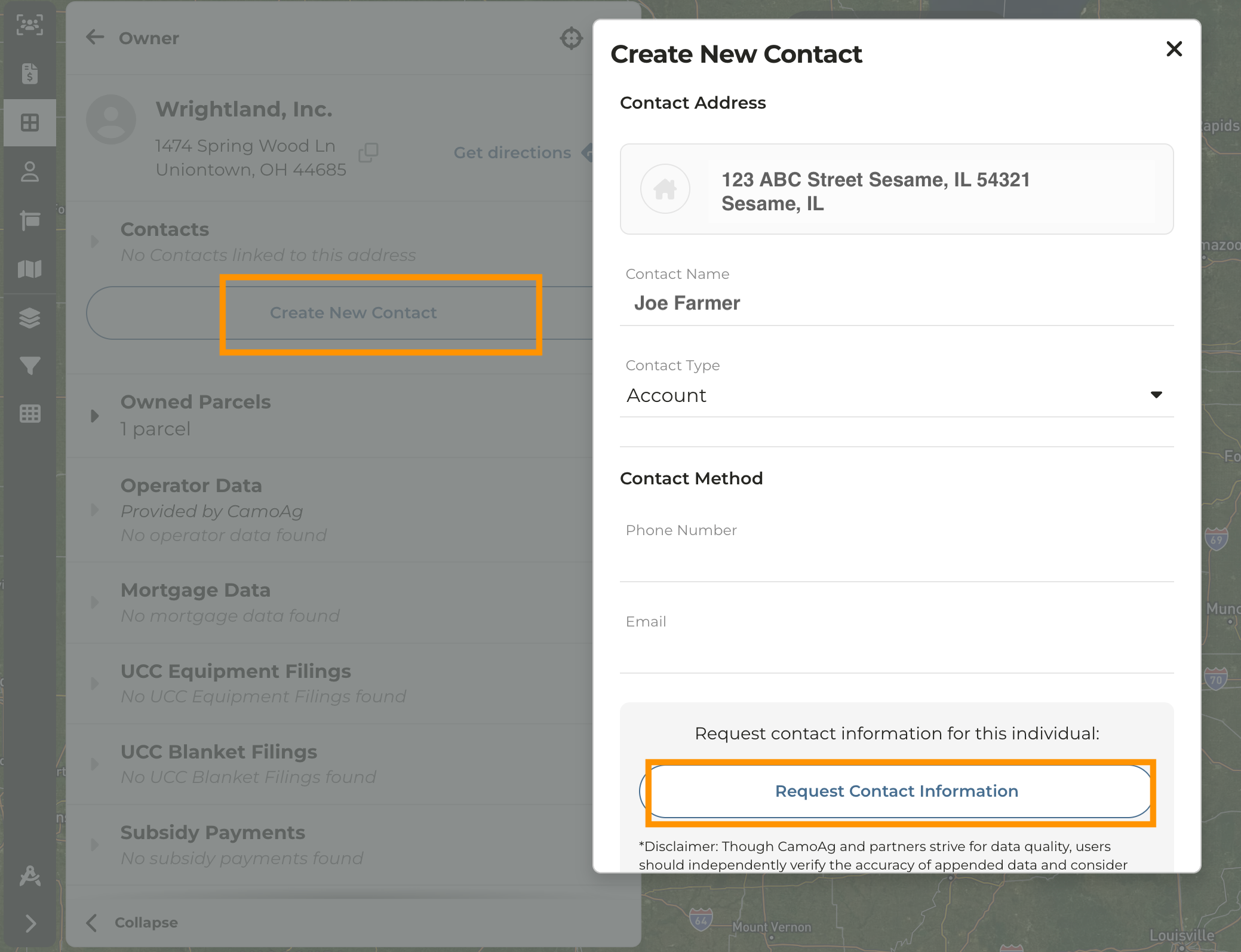
5
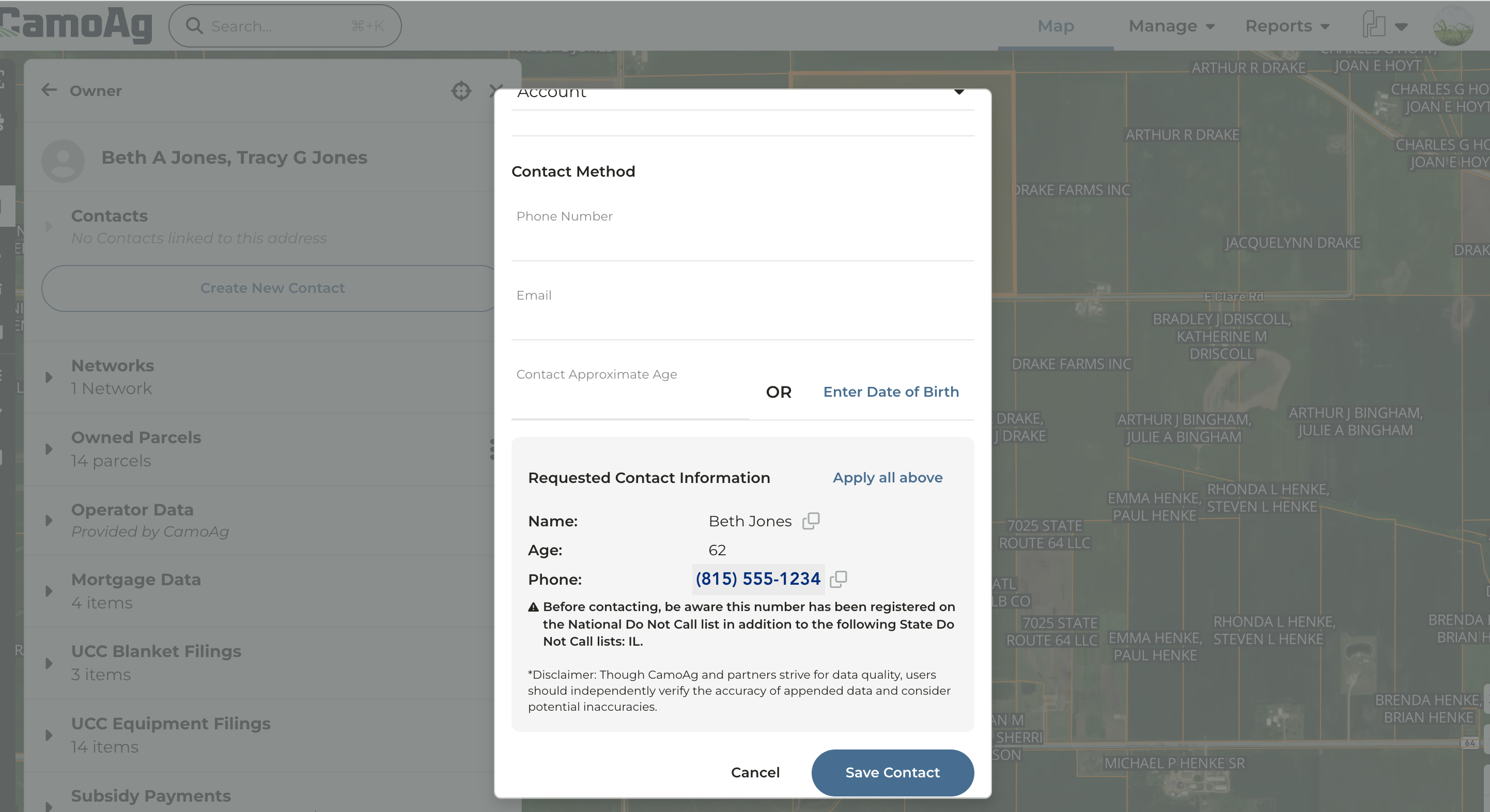
Any contact information that can be retrieved will be displayed.
- As a reminder, CamoAg does not independently verify or guarantee the accuracy of this third-party data, we offer it as a supplemental resource to enrich the information you already have and support your business prospecting efforts.
- Contact information is cross-checked against the National and State Do Not Call Registry and a warning will appear if that person is on the list.
- CamoAg is not responsible for any calls your organization may make to individuals listed on the Do Not Contact registry
6
You can manually enter the contact information, click Apply all above, or copy and paste the data.
7
Click Save Contact