Why am I seeing "Subscribe to View" on the sold farms data?
Why am I seeing "Subscribe to View" on the sold farms data?
- If you do not have a paid subscription to CamoAg or Land Sales Bulletin you will not be able to view the transaction details for a sold property.
- If you have paid for a subscription please contact support@camo.ag for resolution
What are "Sourced Auctions"?
What are "Sourced Auctions"?
- Auctions added to the platform by the CamoAg team
How can I tell what data source the comparable sales are coming from?
How can I tell what data source the comparable sales are coming from?
- Green Flag - Denotes sales comps pulled from CoreLogic, Attom, and Black Knight
- Blue Flag - Denotes private comps created by your organization
- Purple Flag - Denotes data from Land Sales Bulletin
Is there a report where I can see all the CMAs that have been created by myself or my organization?
Is there a report where I can see all the CMAs that have been created by myself or my organization?
- Yes - the CMAs Created
Creating a CMA
- If you have previously added the subject property to your account, locate the property in CamoAg, click Create CMA and skip down to Step 5
- If you have not located the subject property, begin at Step 1.
1
From the dashboard click Create CMA and continue
2
Locate the subject property on the map and click Start Farm from Parcel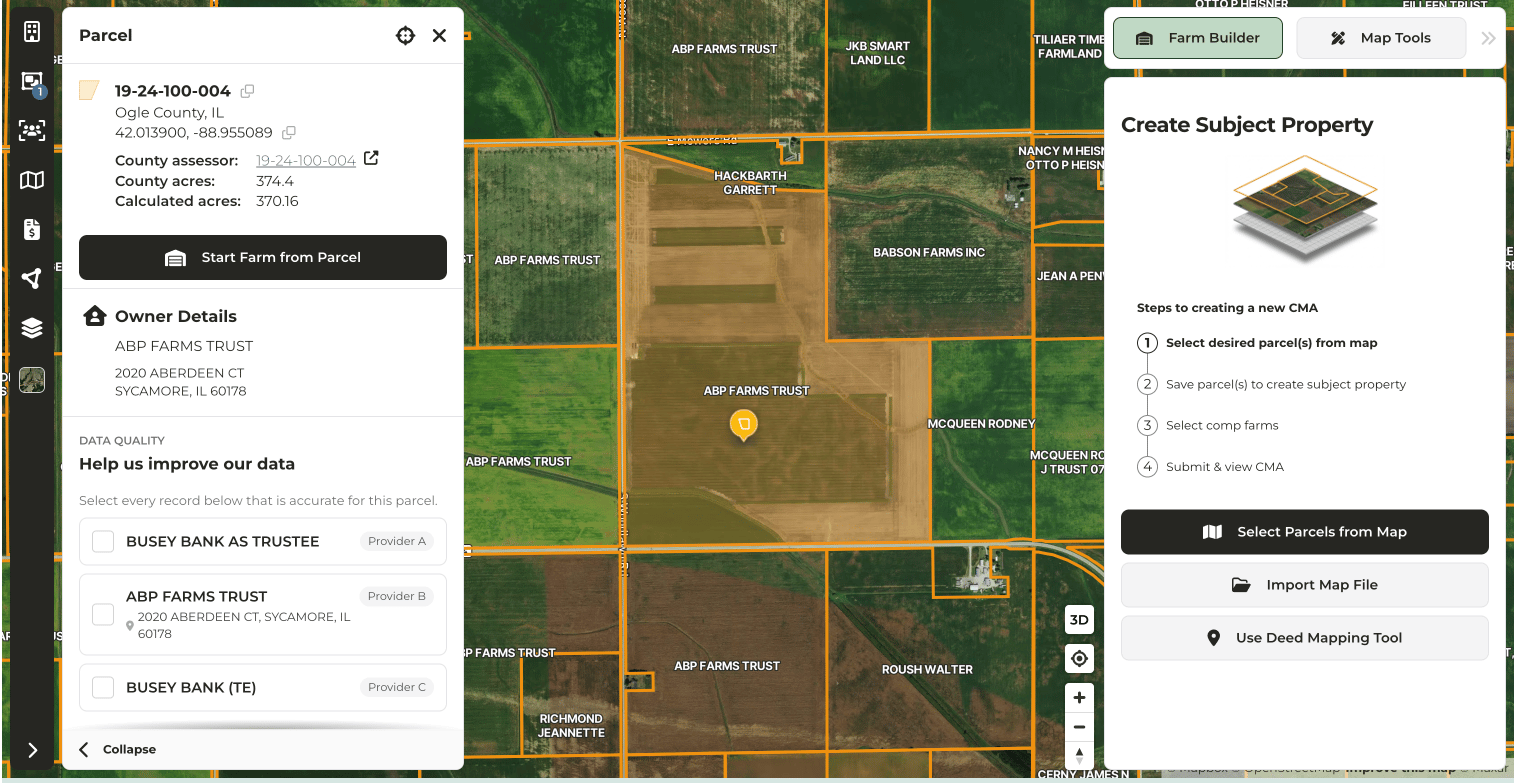
3
Click through the Farm Builder steps
4
After you save your farm, on the map you will see the subject property marked in the center of the radius, with comparable sales within a ten (10) mile radius around it
5
On the left panel click Farms > + > Advanced Filters. Here you can filter the comparable sales displayed by: data sources, soil rating, distance to subject property, and date sold to name a few.
6
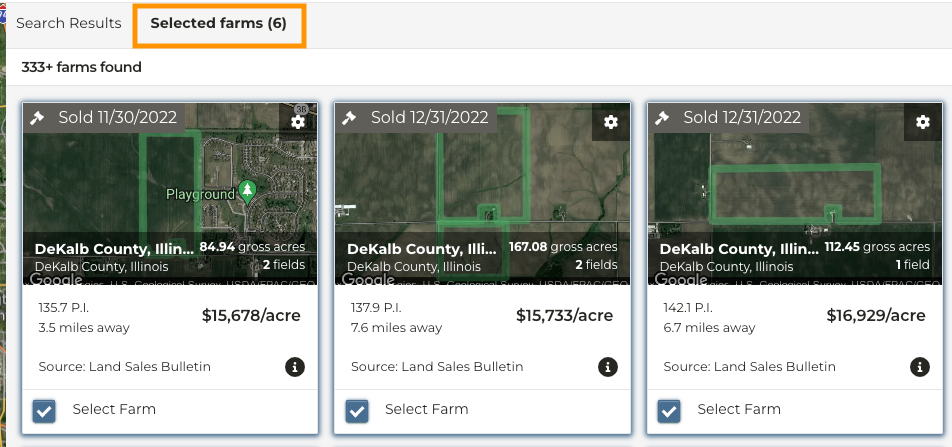
Comparable sales can be added to your analysis by either, clicking on the sale on the map then Add to Market Analysis or by reviewing the thumbnails on the right side of the page and checking the Select Farm box.
7
Once you’ve made your selections click Save Changes > View Analysis
8
You will now be taken to the Market Analysis page, click View CMA to review and make edits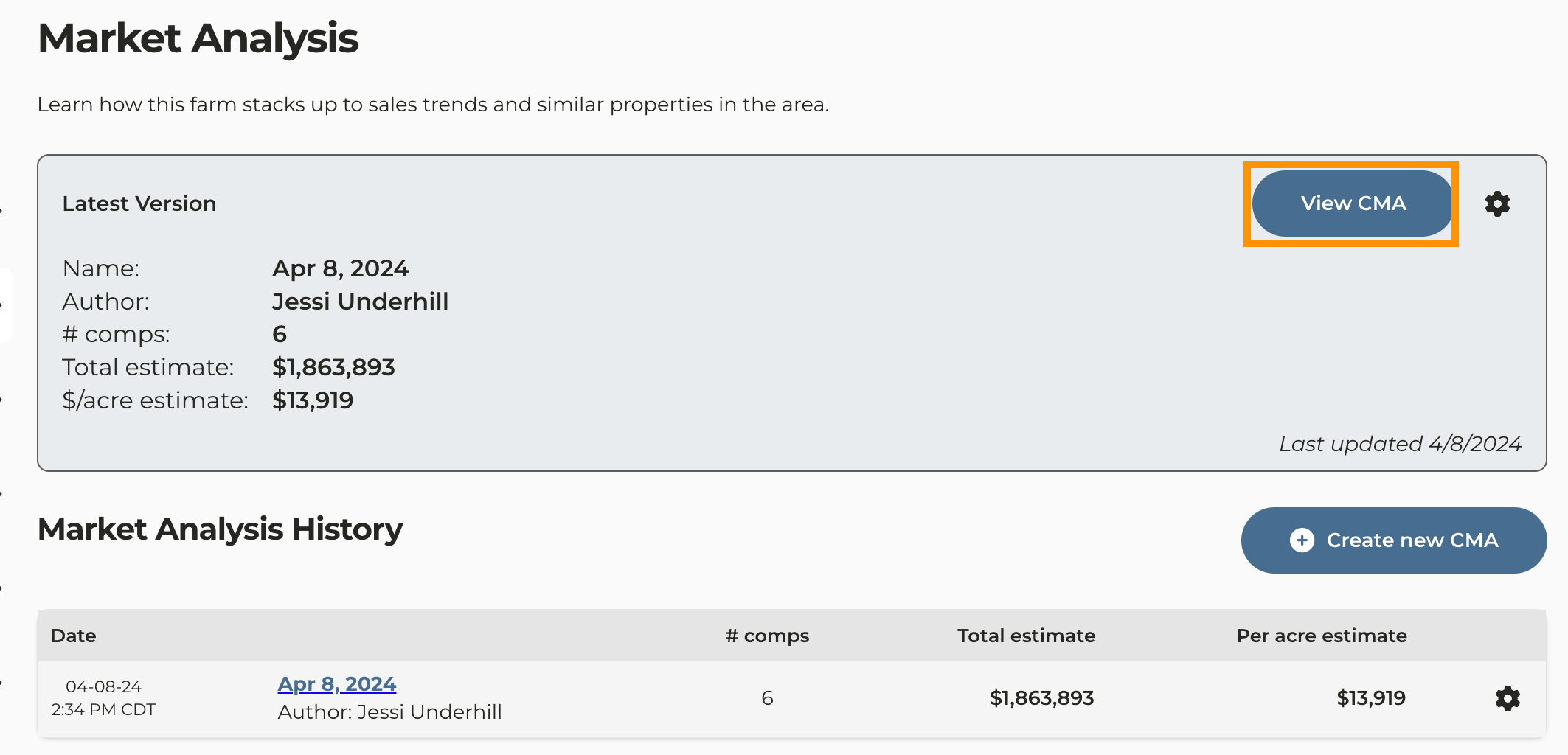
9
If different acre types have been designated to the subject property, you have the option of assigning a different value to each acre type by clicking the edit icon next to each acre type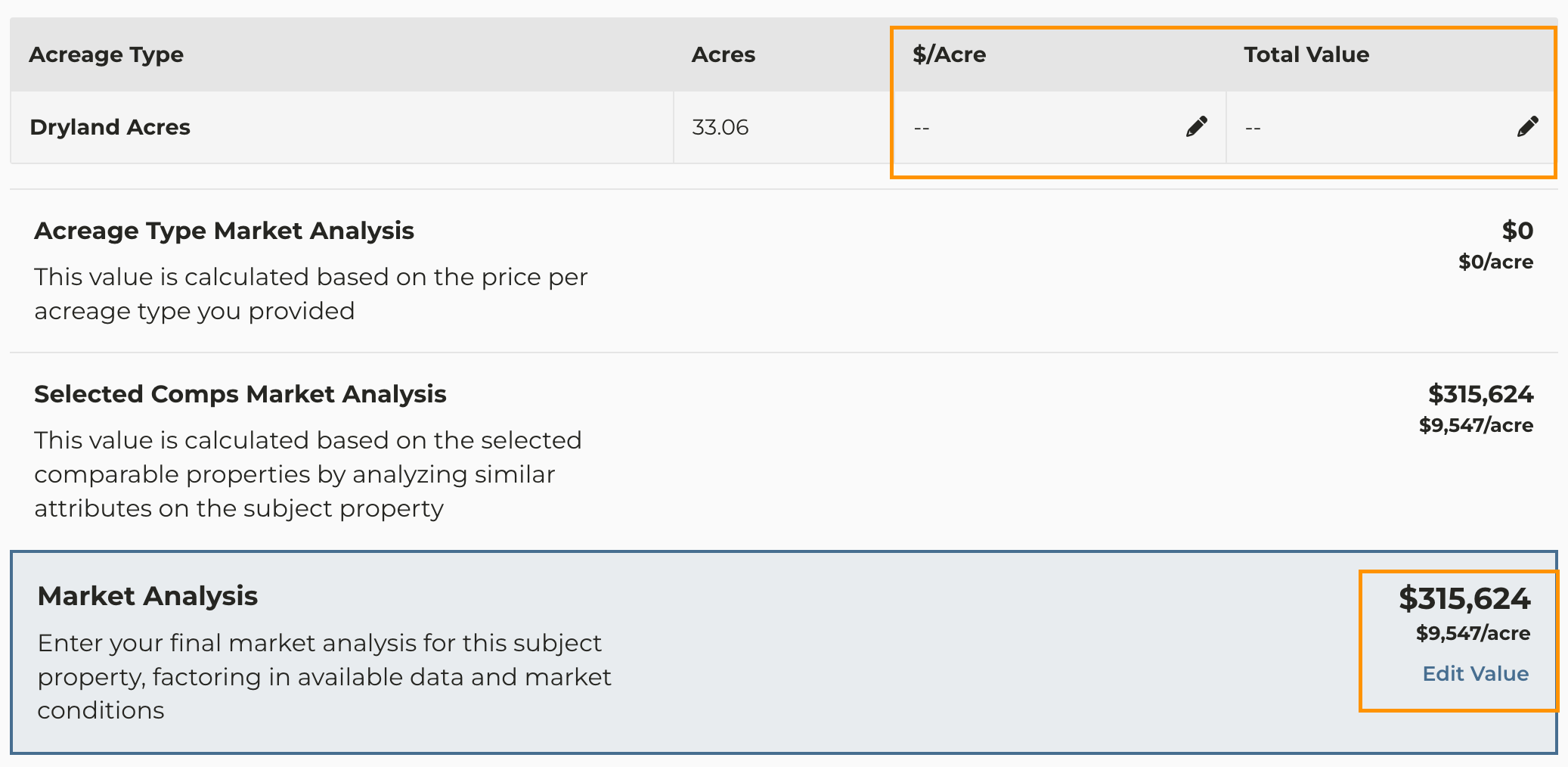
- If you do not assign a value to the acre types, the data on the CMAs report will pull from the Selected Comps Market Analysis
- If a value has been assigned to the different acre types, the numbers you see in the Acreage Type Market Analysis, will populate the Market Analysis Average Price Per Acre and Market Analysis Average Total Estimated Value columns in the CMAs Created report.
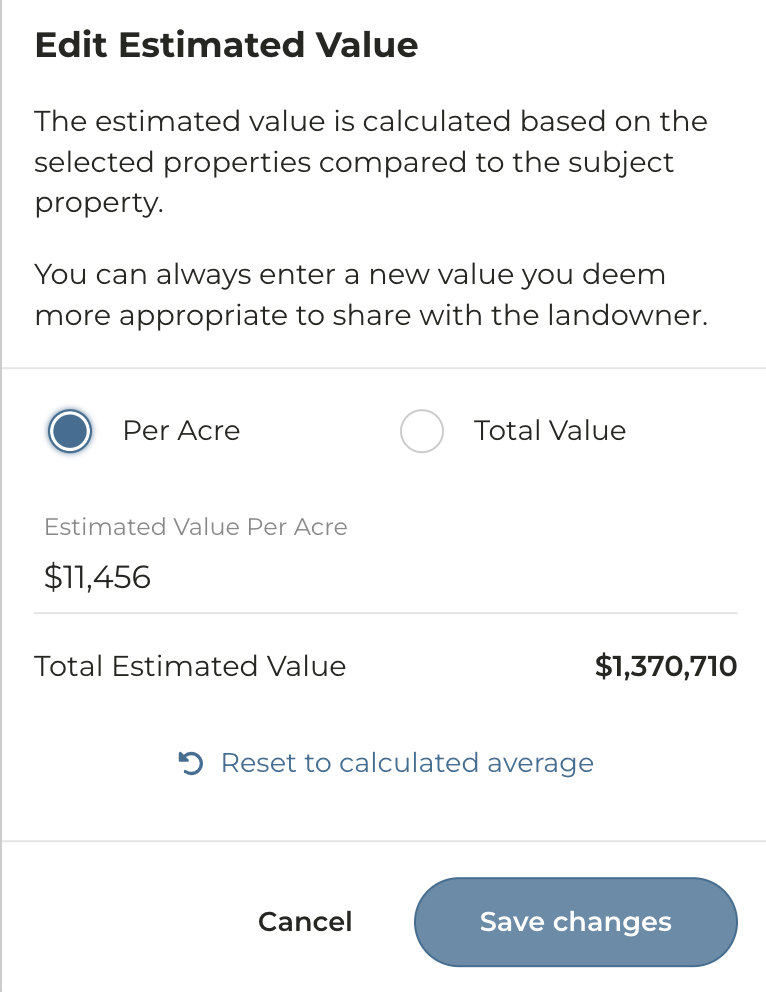
- To update the Market Analysis value to reflect your opinion, click Edit Value, update the value and click Save changes. Note: In order for the CMAs Created Report to populate with the this value, you must click Edit Value > Save changes, even if no edit is made to the value.
- If using the CMAs Created Report, you will need to click Edit Value > Save changes even if no edits are made to the Total Estimated Value
10
If you want to update your selection of comparable farms you can do so by clicking on Update Farms
11
To add more farms to the analysis, select the farms you want to add from the map or the Search Results tab
12
To remove a farm from the analysis click on the Selected farms tab above the thumbnails and uncheck the box next to the property you wish to remove from the analysis.
13
Click Save Changes