

1
Navigate to the Account Settings from either the dashboard or by clicking on your initials or profile photo in the upper right corner
2
Select the My Organization menu item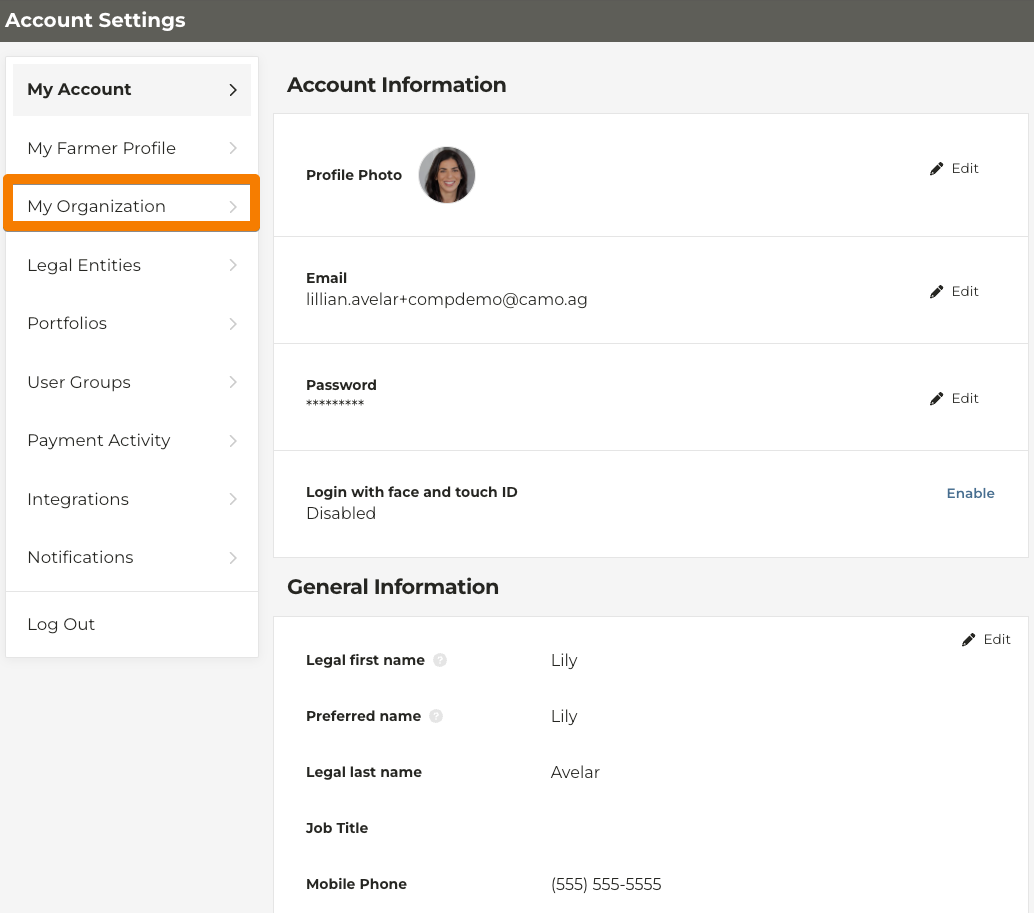
3
Scroll to the User Accounts section
4
Select the settings icon for the user you want to enable to developer permission for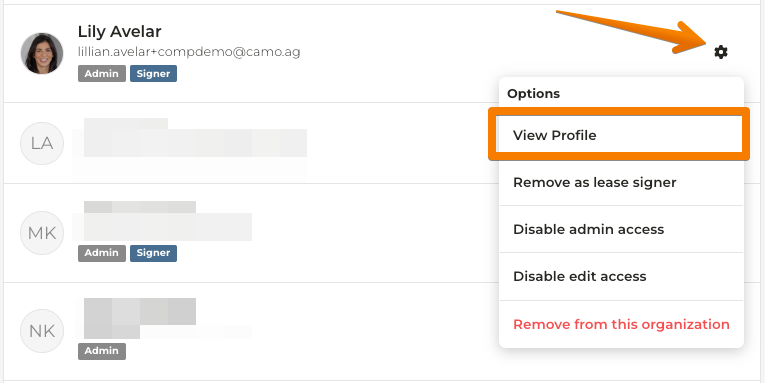
5
Select the View Profile option
6
Select the Organization tab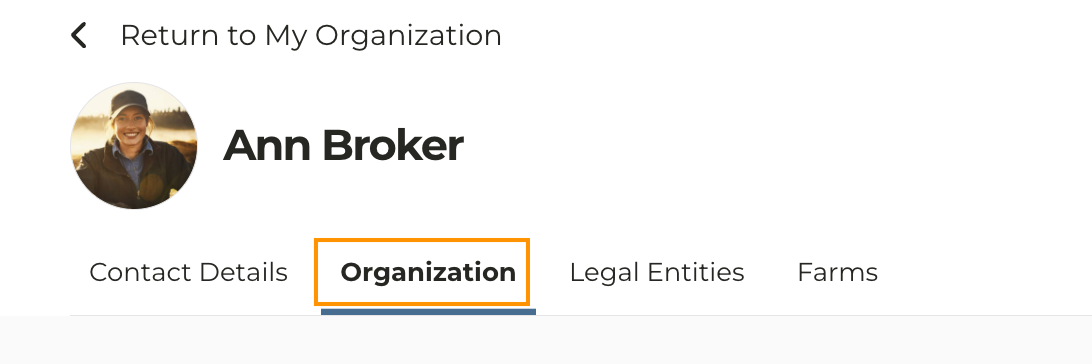
7
Scroll to the CamoAg developer permissions section and select the checkbox for Developer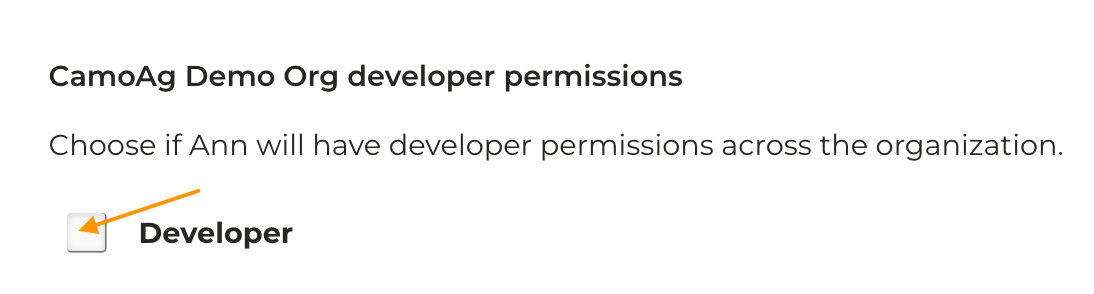
Note: If you do not see the CamoAg developer permissions section, please contact CamoAg support or your account manager so we can grant access to configure this.
8
A modal will pop up to confirm, select the link Yes, assign Developer permission