

- Yes - there is a CamoAg iOS app available on the Apple App Store.
- If you have an Android device, or prefer to use the web version, you can add CamoAg to the home screen of a mobile device and access your account in the same way as an app
1
Open Safari. Other browsers, such as Chrome, won’t work for this specific task.
2
Navigate to your organization’s specific URL or to app.camo.ag and tap Go
3
Tap the Share button on the bottom of the page. It looks like a square with an arrow pointing out of the top.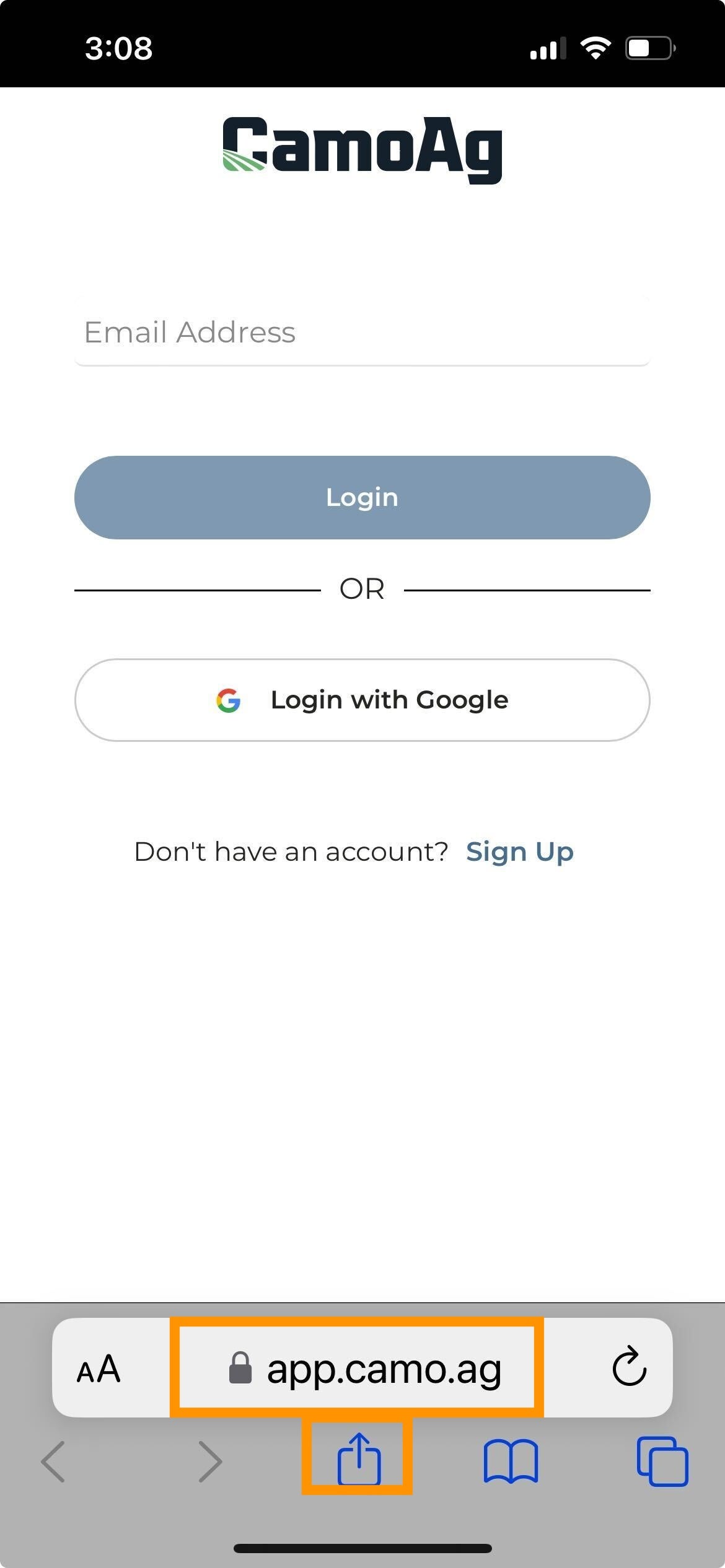
4
Scroll until you see Add to Home Screen and tap on the plus sign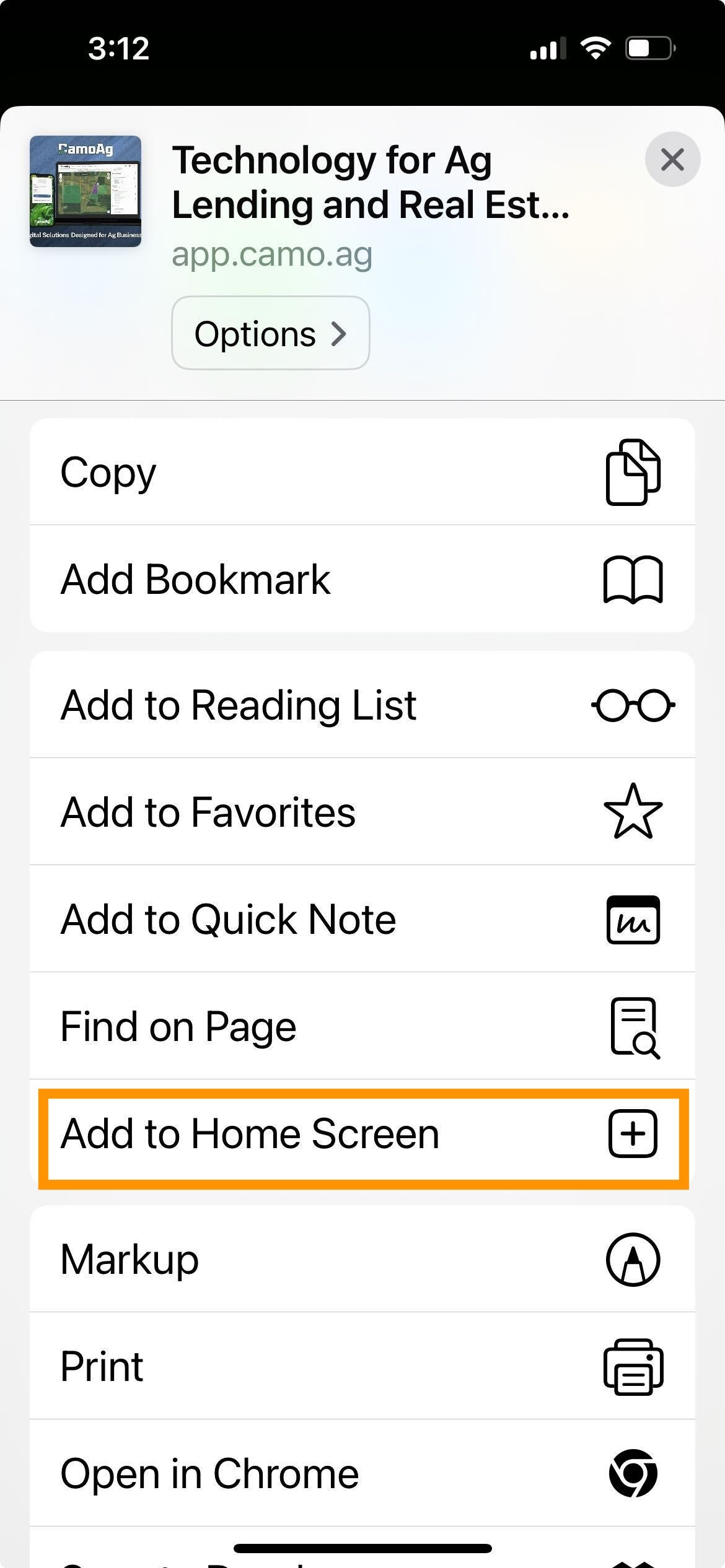
5
Tap Add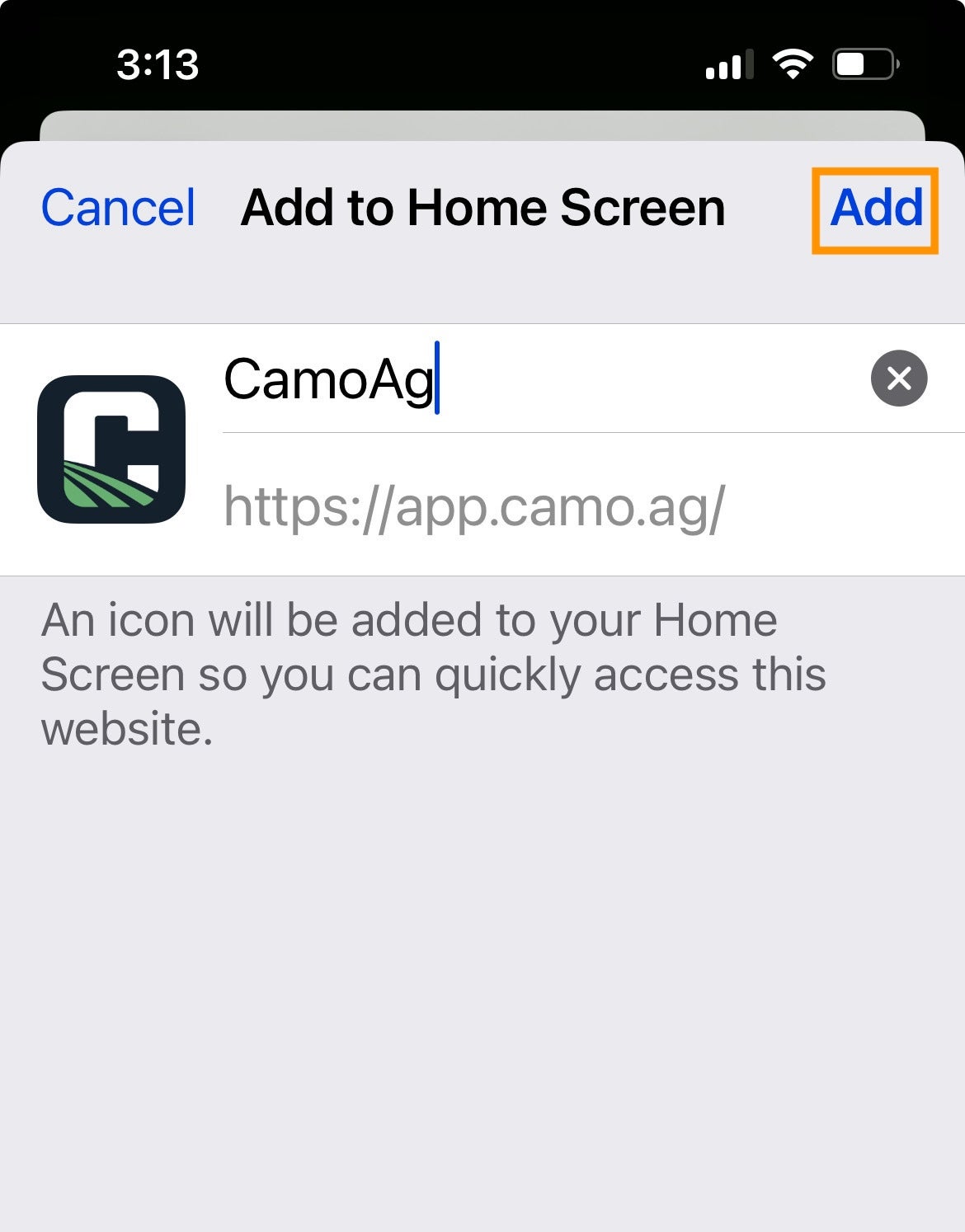
6
Tap the new “app” or shortcut on your home screen, and it will take you to the login screen
7
Lastly, you can optionally enable location services - when using the plat map out in the field, your location will be identified and allow you to quickly research or add a property to your account.
8
Settings > Privacy & Security > Location Services > Safari Websites > While Using App
1
Open Chrome.
2
Navigate to the website or web page you want to pin to your home screen.
3
Tap the menu icon (3 dots in upper right-hand corner) and tap Add to homescreen.
4
Choose a name for the website shortcut, then Chrome will add it to your home screen
1
Access directions to a property you have added to your account
2
Add a subject property when on site by navigating to the Plat Map and tapping on the Find My Location icon
3
Sign a Lease