- Use Case 1: You attend an auction and are aware of the sales information and would like to use that as a comparable sale ahead of the sales data being published
- Use Case 2: You know a parcel was split in the sale, but it appears as a single sale in CamoAg. You can copy the sale and make any necessary edits and use the updated sale and a comparable sale.
1
Navigate to the Map and enable the Farms Sales layer
2
Navigate to the auction or sale you want to copy and click into the property
3
From the property overview page click Options > Copy Sale to My Account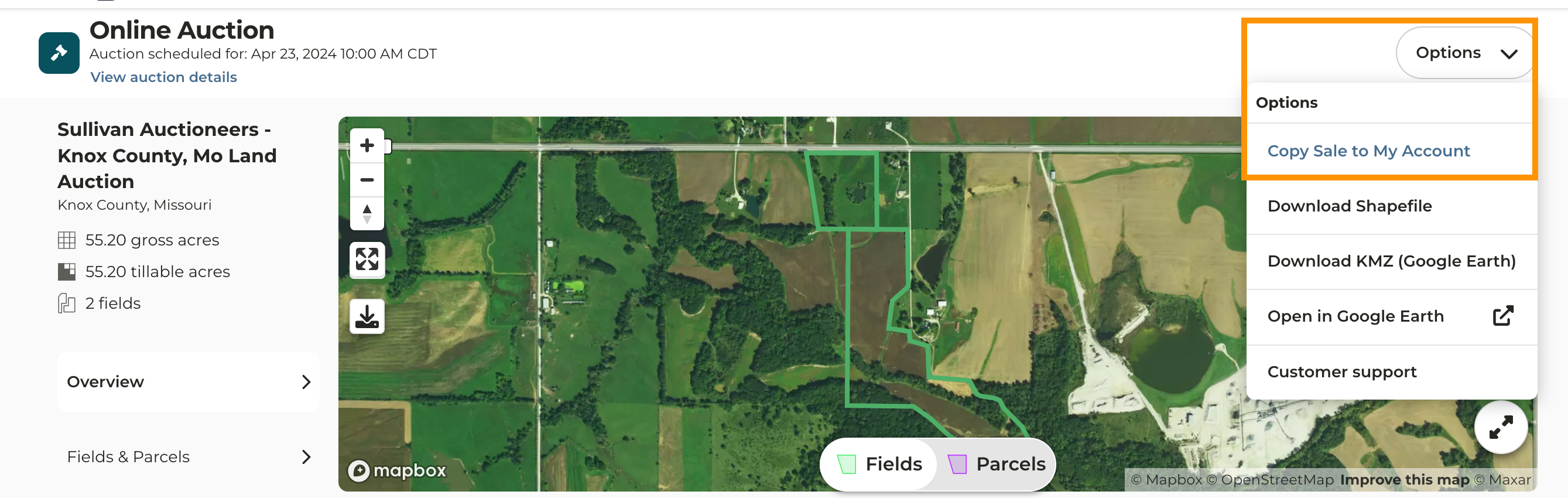
4
Once copied you will see a green banner on your screen notifying you the auction was successfully copied and is available to view on the Farms page.
Note: If the property was sold in multiple tracts, continue clicking “Copy Sale to My Account” until you have as many copies of the sale as tracts sold.
5
If you made multiple copies of the farm complete the steps below, if not continue with Step 6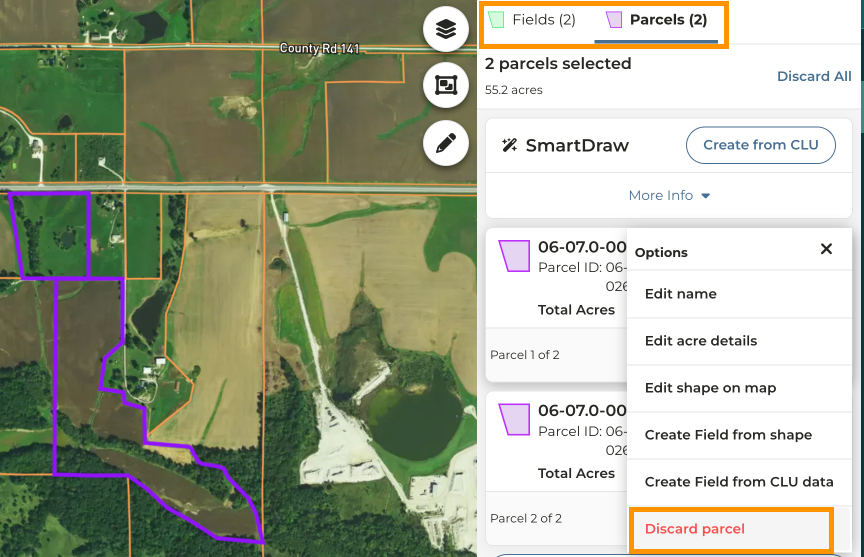
- Rename the copy of the farm sale to help identify the tract it will represent such as Acme Auctioneers Tract 1, Acme Auctioneers - Tract 2, etc.
- Click on Fields & Parcels > Add/Edit Fields
- Click on the Fields tab and next to the field you want to remove click Discard Field
- Click on the Parcels tab and repeat removing the corresponding parcel of the field you just removed
- Click Save Changes
- Repeat the steps removing different fields/parcels until each copy of the farm looks how you want it and continue with Step 10
6
Click Options > Edit Farm Sale
7
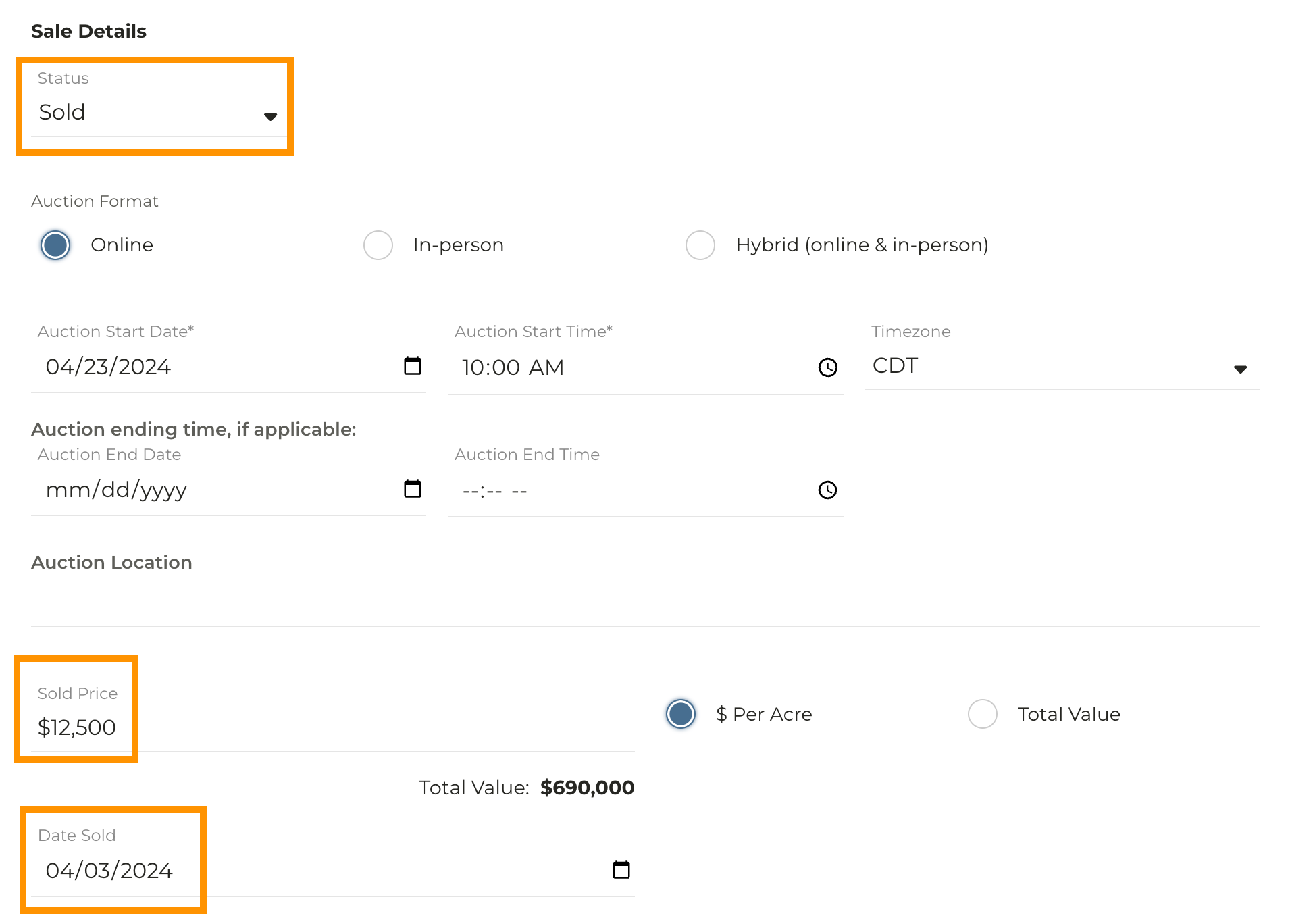
Under Sale Details change the status from Draft to Sold (for recently completed auctions only)
8
Enter or Edit the Sold Price and Date Sold. You have the option to enter additional information such as the Buyers and Sellers, but are not required to do so
9
Click Save Farm Sale
10
The sale will now appear as a private comp on the Sold Farms map and can be used as a comparable farm in a CMA