

1
Login to your CamoAg account
2
From the Dashboard click on Account Settings
3
On the left click on Portfolios
4
Click on Add Portfolio
5
Name your Portfolio and enter an optional description then click Save Portfolio
6
Click Add user to portfolio and select the user(s) that should have access
7
Click Send Invite - 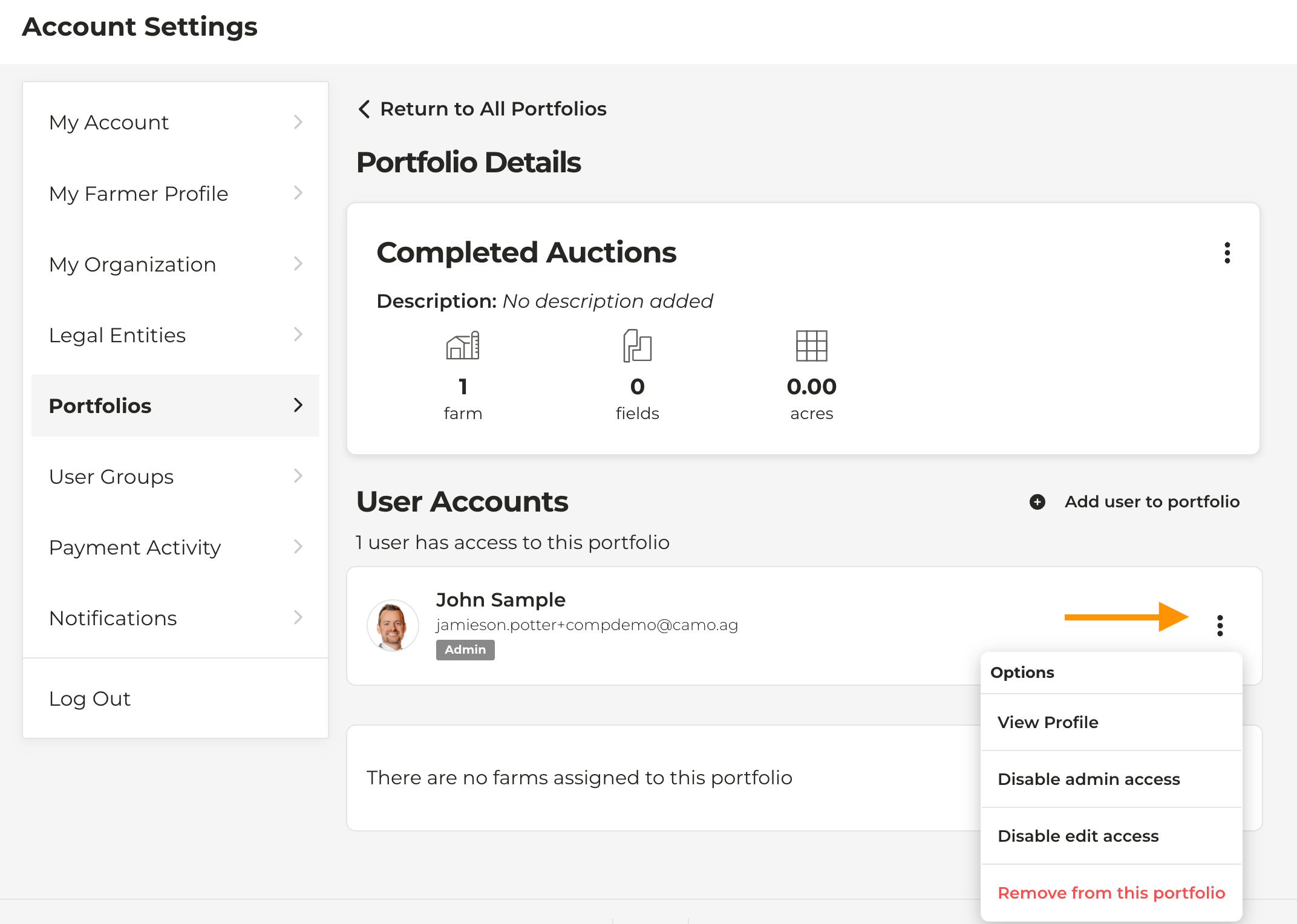
Note: The user(s) will receive an email notification that they have been added to the portoflio
- To grant portfolio permissions click the icon next to the users name. The permissions granted are specific to the Portfolio and will not change a users organization permissions.
- Admin: Grants user Admin privileges to the portfolio allowing them to add users, add farms, edit, and delete the portfolio
- Edit: Grants user Edit access to the portfolio allowing them to add or remove farms as well as editing or deleting the portfolio. The User will also be able to make edits to any farm shared in the portfolio
- Granting no permissions: You can add a user to a portfolio and not grant them any portfolio permissions. This will allow you and the user to share farms, but will restrict the user to a View Only permission of any farm added to the portfolio that they do no personally create.