Creating & Editing a Comparative Market Analysis (CMA)
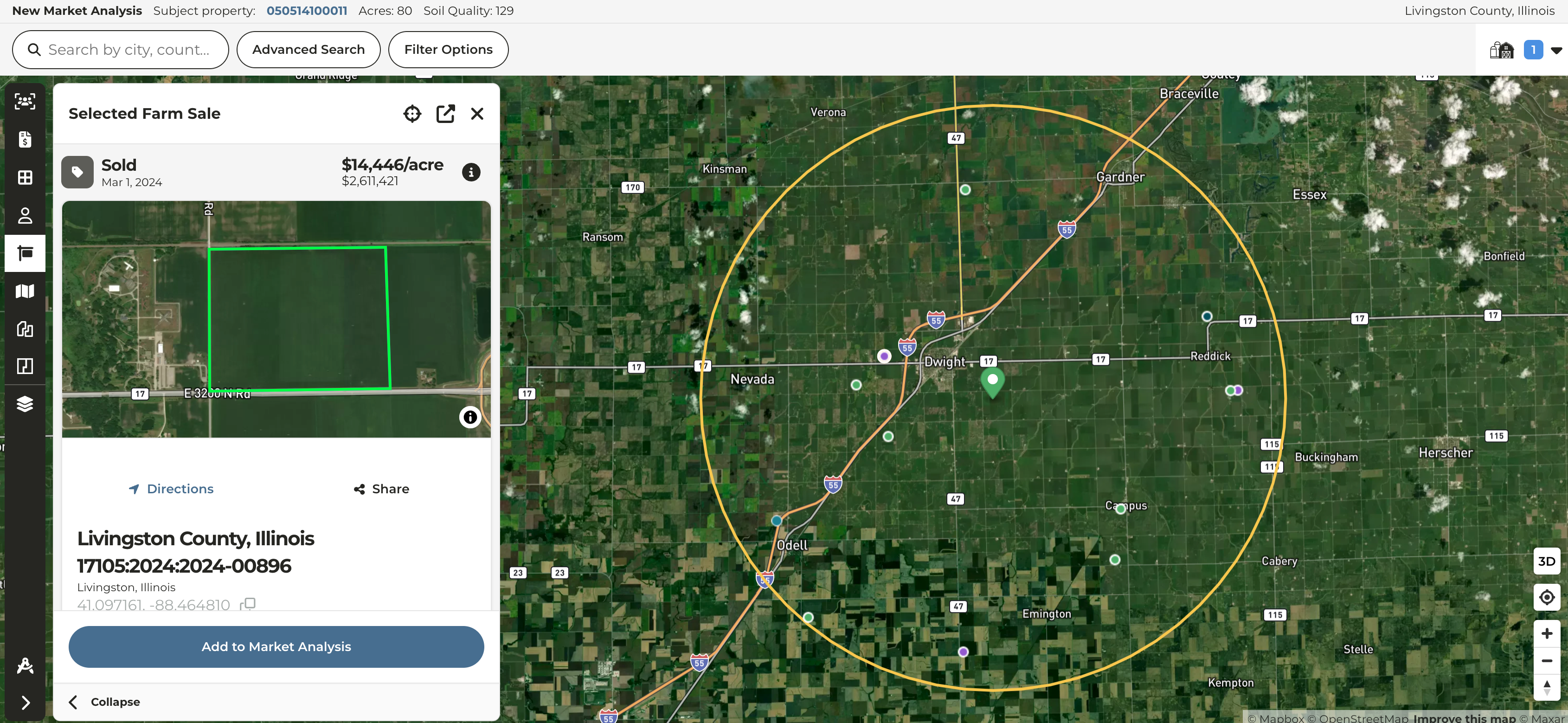
Our unified mapping experience initially made available on the primary map and our farm & farm sale pages is now available in the CMA tool as well.
- Access all your layers within the CMA tool in an experience that mirrors the primary map
- Quick preview of sales in a slide-out, collapsible left pane prior to adding to a CMA
- Slimmed down sales selection pane to allow for more visibility of the map
- Introduce collapsible cart mirroring experience of selecting new parcels from the plat map
New filters on Sales & CMA maps
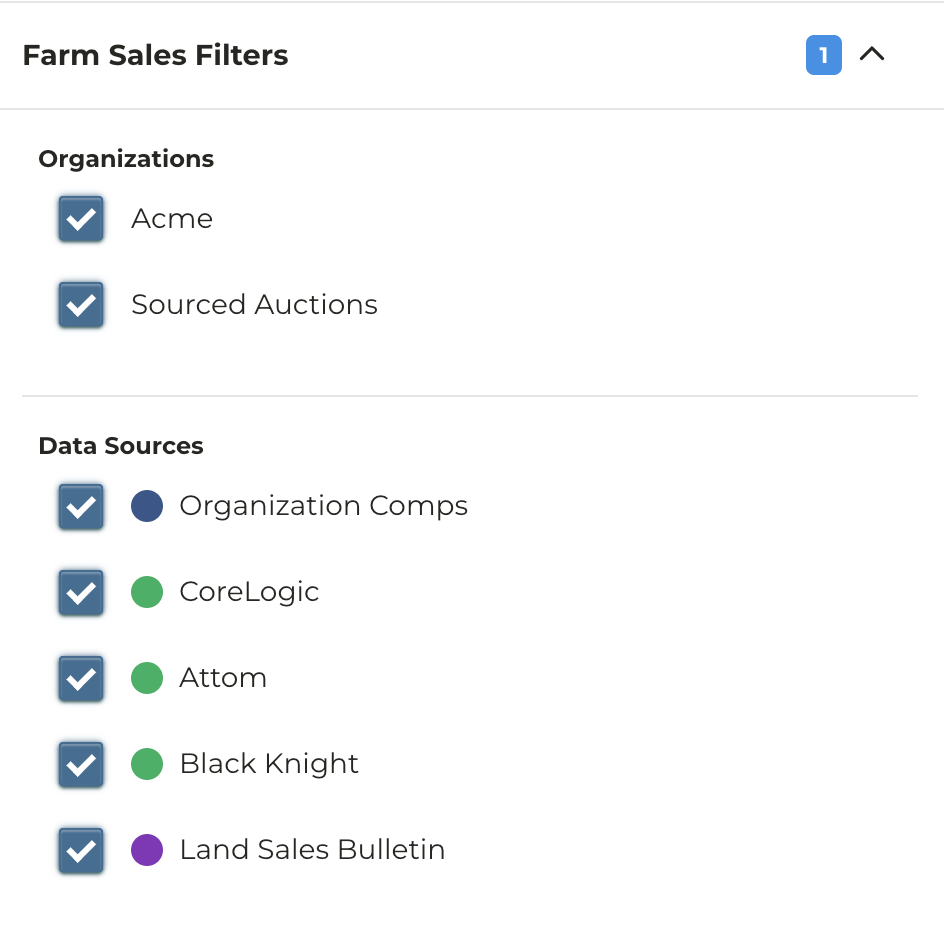
Enhancements were released to the farm sales maps to add additional flexibility on filtering by sources and private organizations.
- Easily filter by your private organization sales or platform sourced auctions
- More flexibility to filter by individual county recorder data sources
- Added support for organizations to opt into sharing their sales with other organizations on CamoAg; contact your account manager to learn more
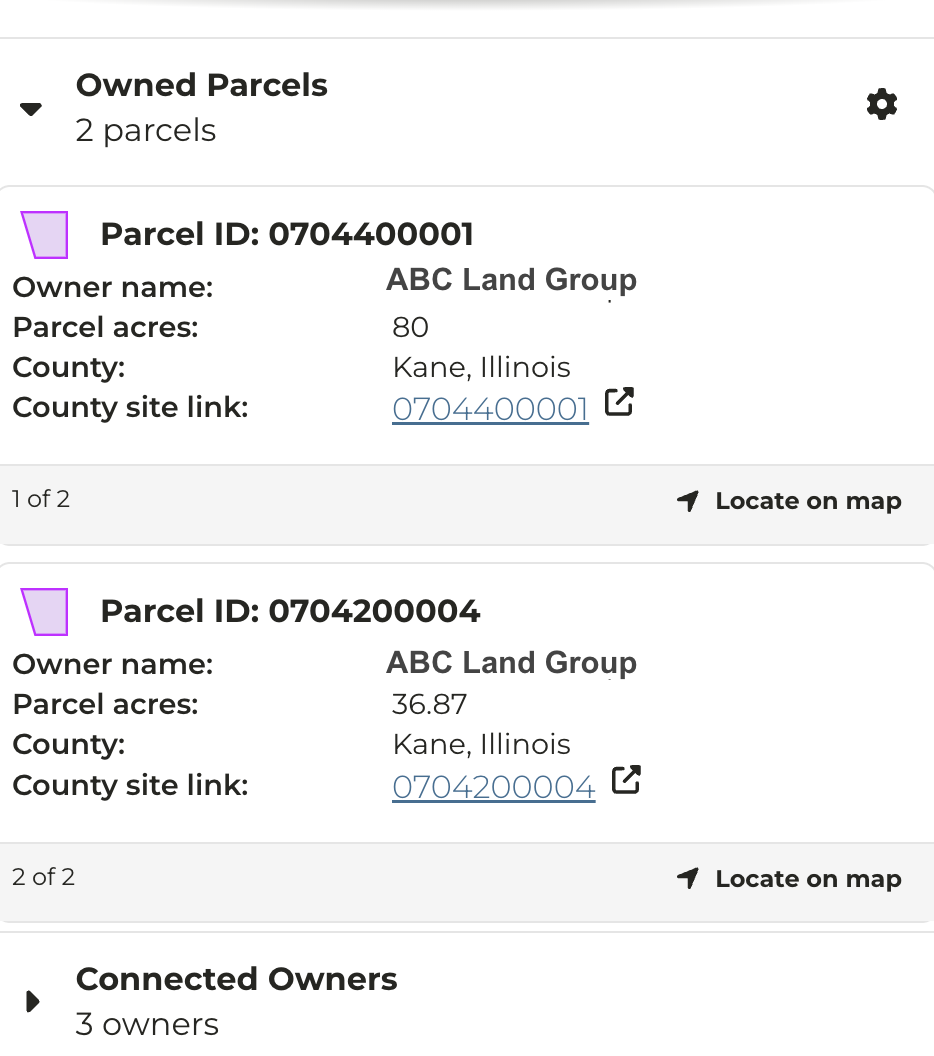
Updated ‘Owned Parcels’ Experience
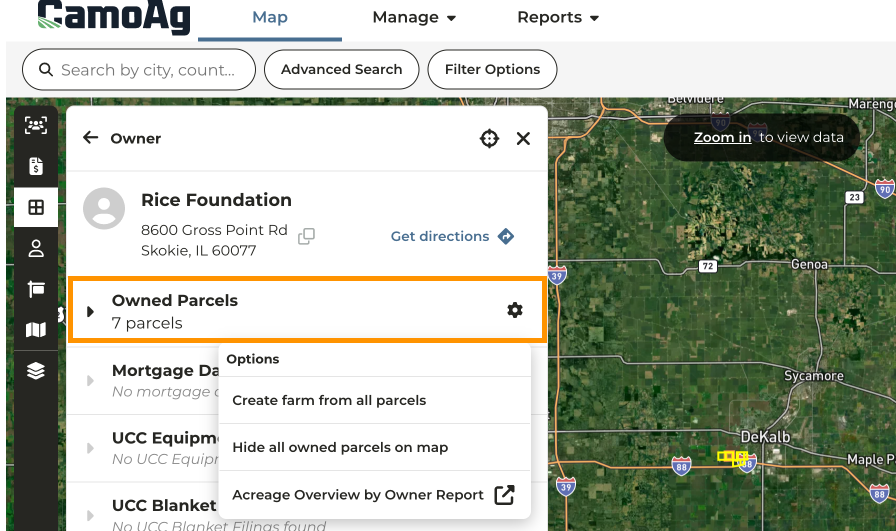
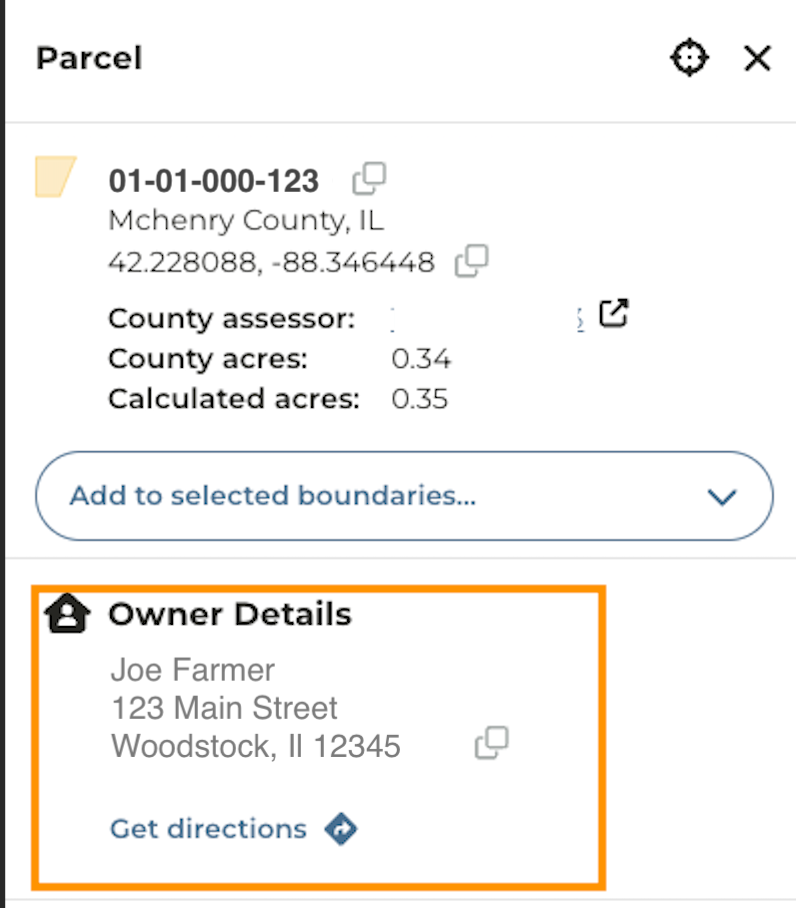
Enhancements were released to the Owner Details information panel
-
Clicking through to the owner details will automatically highlight all owned parcels in yellow
-
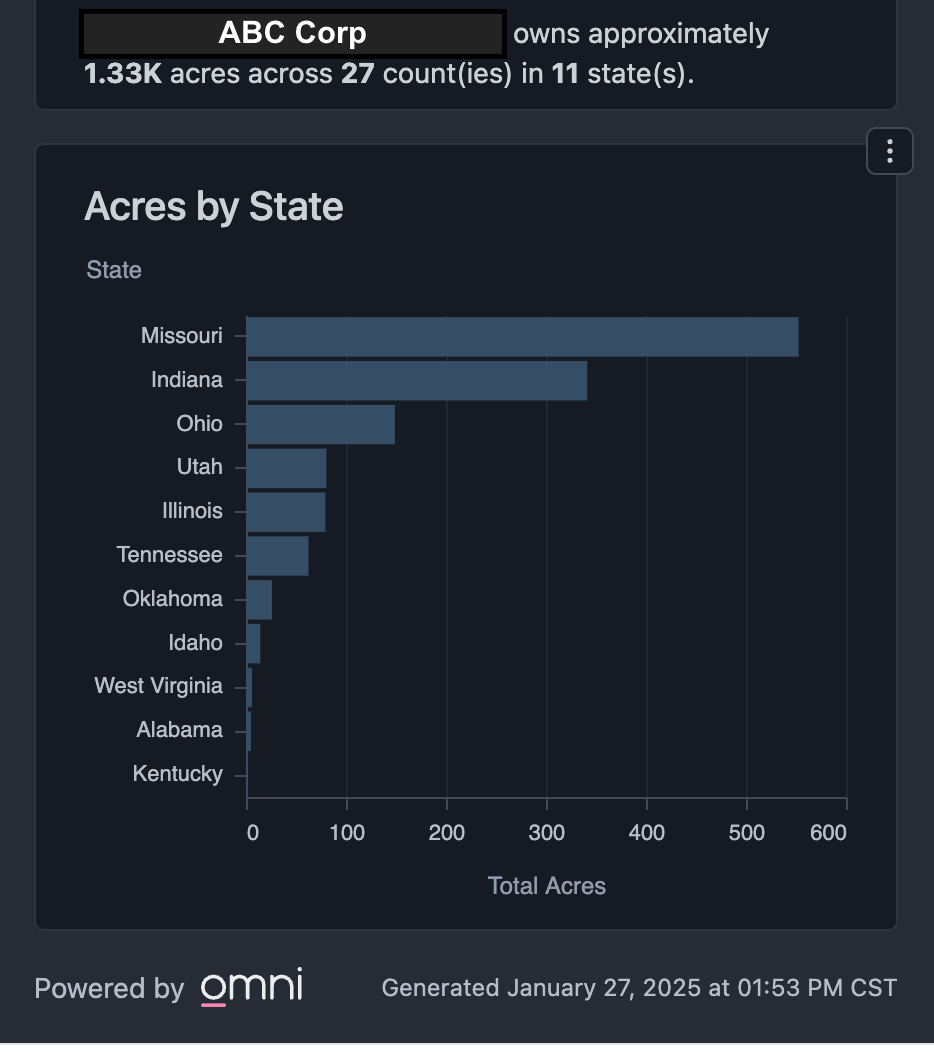
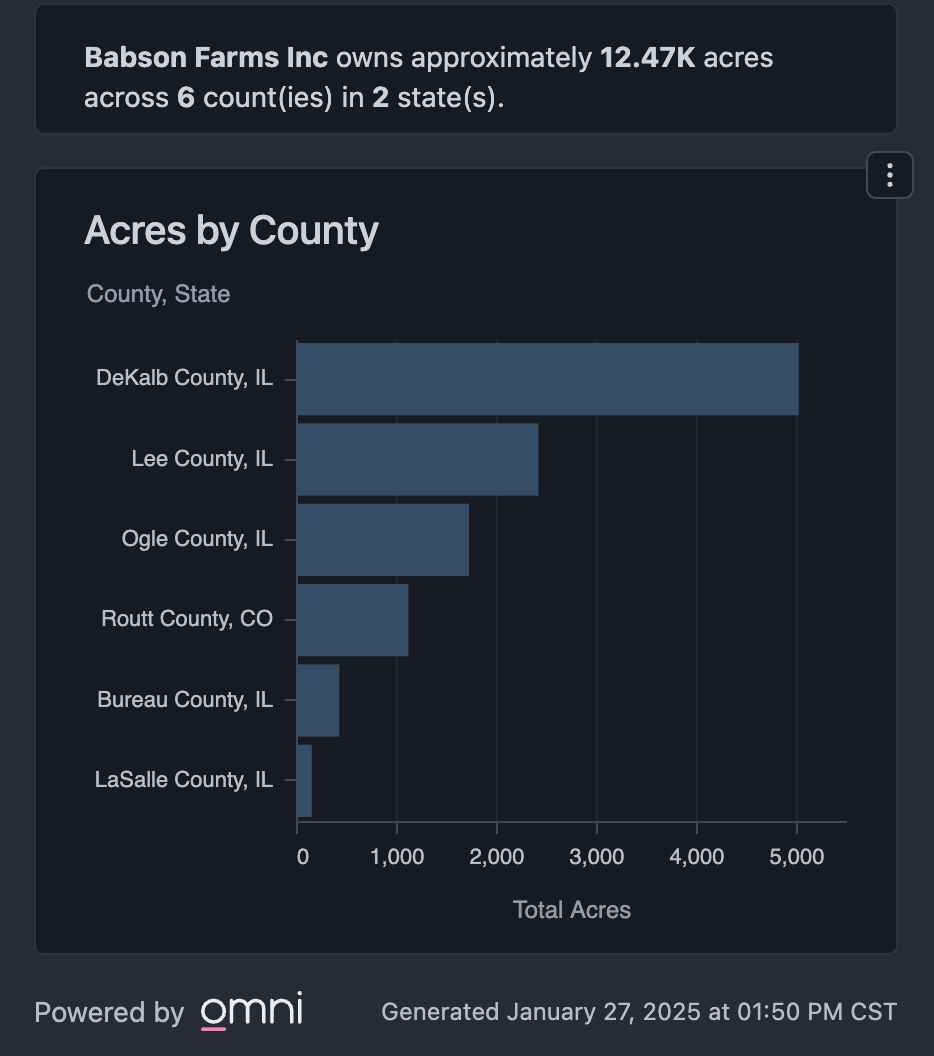
The option to Create farm from all parcels is still available via the drop down menu along with the option to Hide all owned parcels on map access to the Acreage Overview by Owner Report
-
Owned Parcels data set now divides data landowners into three buckets and will display information based on the number of parcels owned
Standardization of Address Display
Changes were released that standardize the way addresses are displayed, starting largely with the Owner Details pane.
What can you expect?
-
Always display Copy to clipboard icon for an available address within the ** Owner Details**
-
Always display Get directions
-
Updated address display so the city, state, and zip are on a new line
Geospatial Filter for Reports
-
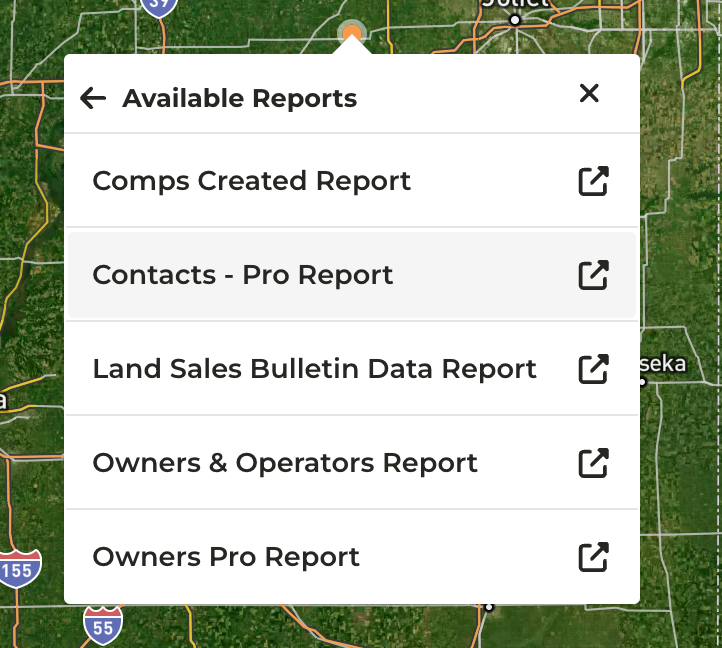
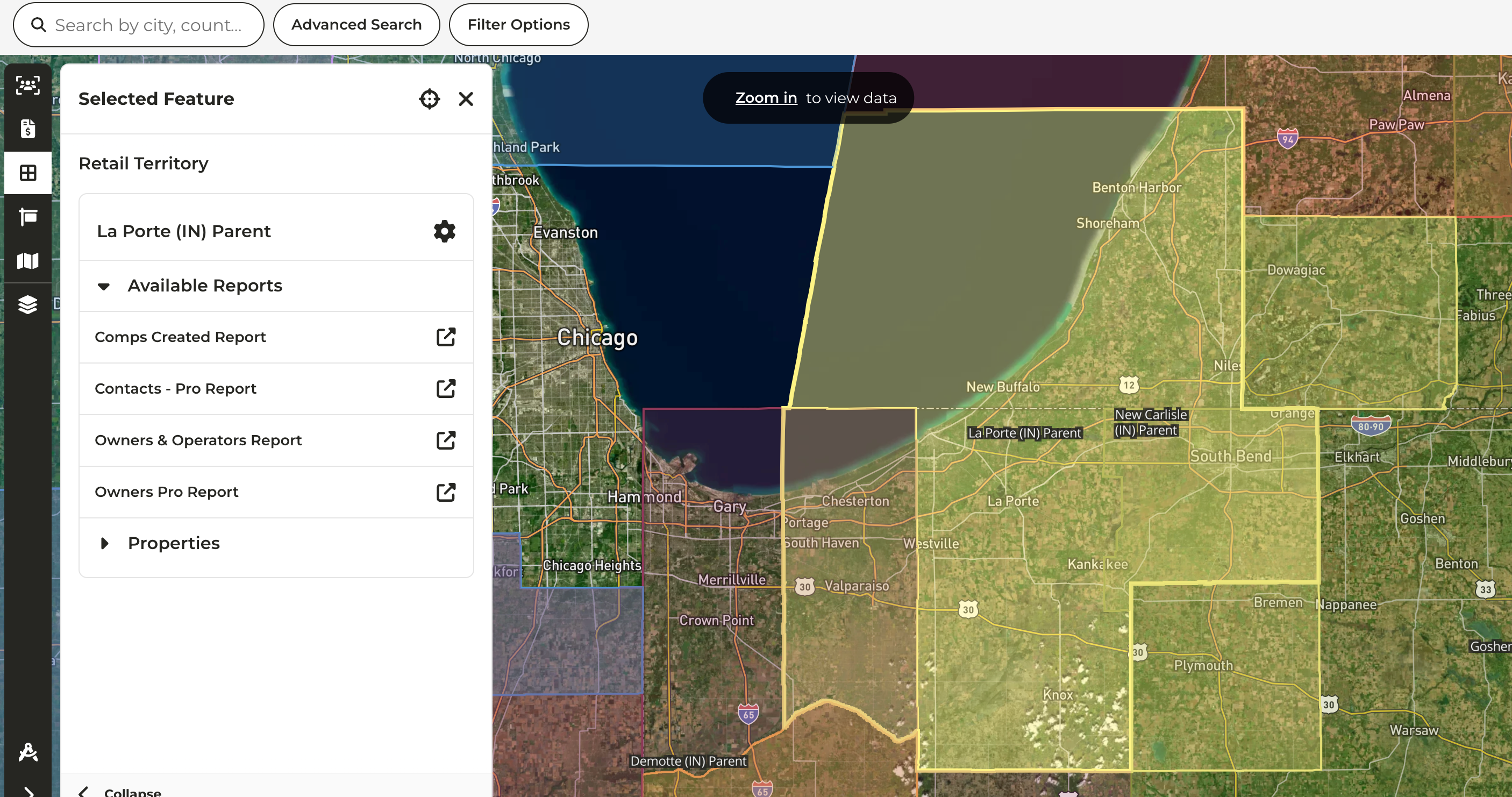
When accessing reports via right-click on the map, a radius based filter is now available
- Land Sales Bulletin Data Report
- Comps Created Report
- This feature was already available on other reports such as Owners and Operators
-
From the map, right click to view the available reports. Once you have clicked into a report you will notice additional filters for Latitude, Longitude, and Distance to Address
- If your organization has custom layers available, reports may also be accessed from these layers
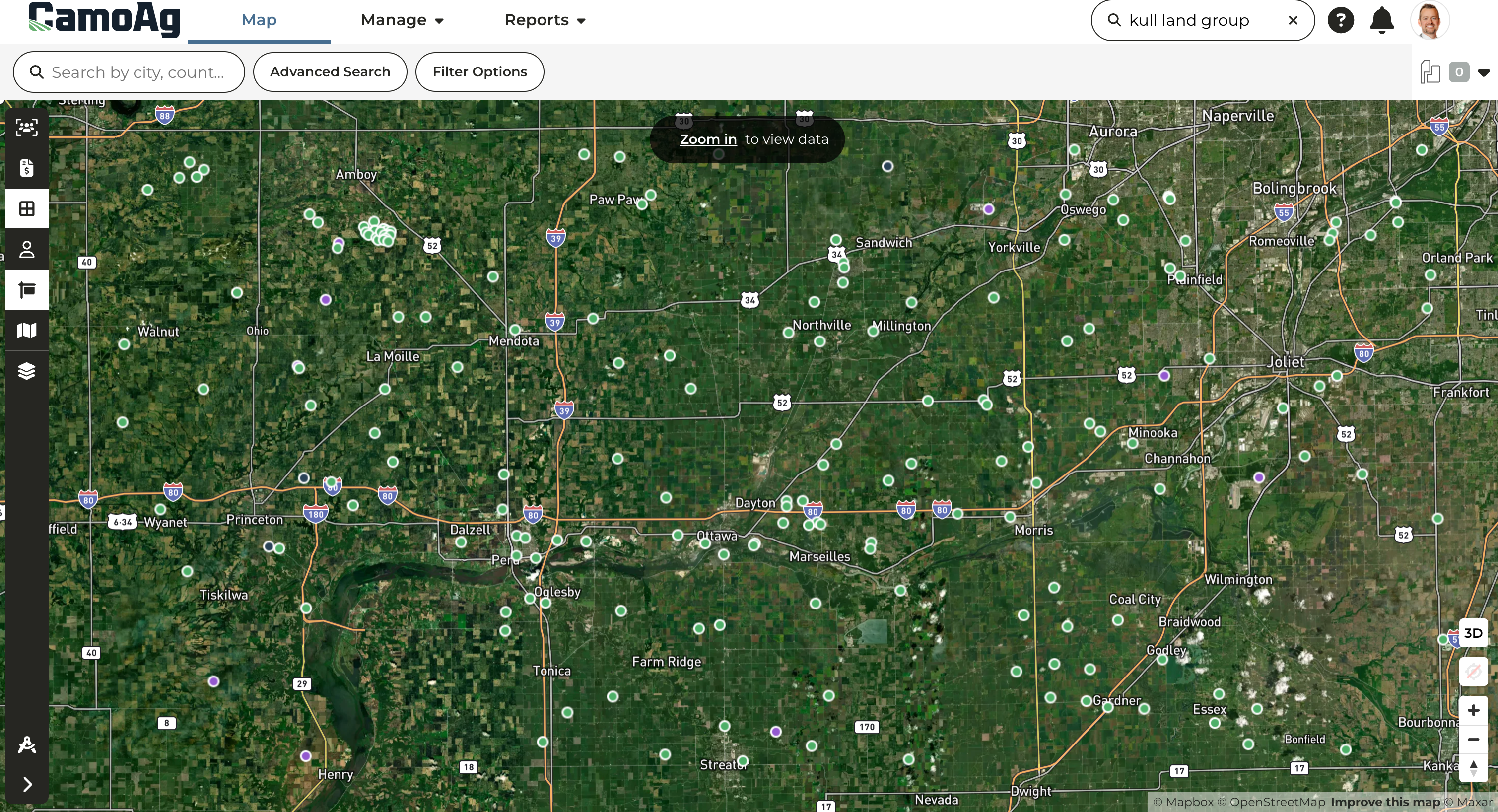
- When the Contacts or Farm Sales layer is enabled the size of the icon will change based on the density of contacts or sales in an area as well as the zoom level, making it easier to locate on the map
Last modified on May 22, 2026