> ## Documentation Index
> Fetch the complete documentation index at: https://docs.camo.ag/llms.txt
> Use this file to discover all available pages before exploring further.
# Creating and Managing Tags
* The primary objective of Tags is to enable sales and marketing teams to consistently classify, target, and prioritize producers and related entities using shared, repeatable logic across the Camo platform.
* This feature supports enterprise readiness by aligning Camo’s producer intelligence with CRM-driven workflows, improving collaboration across teams, and making segmentation a first-class capability in both the map and reporting experiences.
## Tags
### Overview
Tags are free-form labels that can be applied manually to supported entity types within the platform.
### Supported Entities
Tags may be applied to the following entity types:
* Contacts
* Producers
* Operations (Networks)
The platform supports three tag types:
**Global Tags** — Defined and maintained by Camo; visible across all contacts. These tags are read-only for users.
**Company Tags** — Created and managed by a user in an organization with CamoAg Admin permissions. Admins have full control over the creation and deletion of these tags.
**Integration Tags** — Sourced from external systems such as Salesforce or Snowflake. Editability is configurable per integration; tags may be read-only or editable depending on the integration's configuration.
### UI Requirements
The interface must clearly surface the following attributes for each tag:
* **Tag type** — Platform Global, Organization, or Integration
* **Edit status** — Whether the tag is editable or read-only in the current context
#### **Managing Organization Tags**
*Requires Admin or Edit permissions*
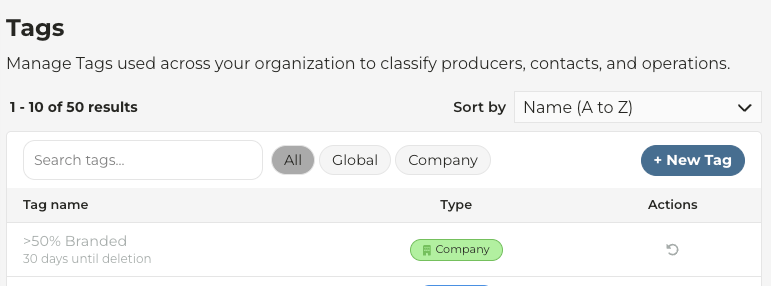
* Navigate to **Account Settings > Tags**
* Click **New Tag** to create a tag
* Tags created in CamoAg may be edited or deleted by clicking the appropriate **Edit** or **Delete** icons
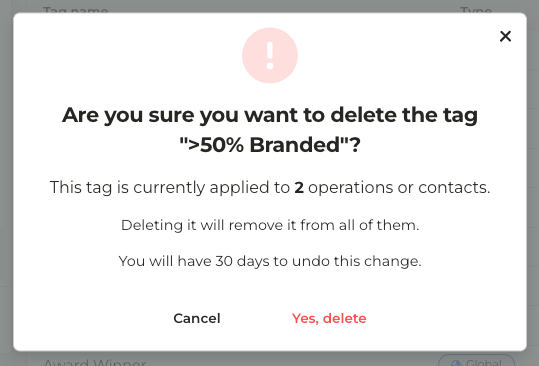
* Deleting a tag in use will display a message similar to the one below
* A deleted tag may be restored within 30 days by clicking **Restore** icon under **Actions**