> ## Documentation Index
> Fetch the complete documentation index at: https://docs.camo.ag/llms.txt
> Use this file to discover all available pages before exploring further.
# Editing a Contact in CamoAg
> If your organization has an integrated CRM, edits can only be made in the CRM. Once edits are saved in the CRM they will appear in CamoAg and override any data you may have entered in CamoAg.
### Editing a Contact on the Map
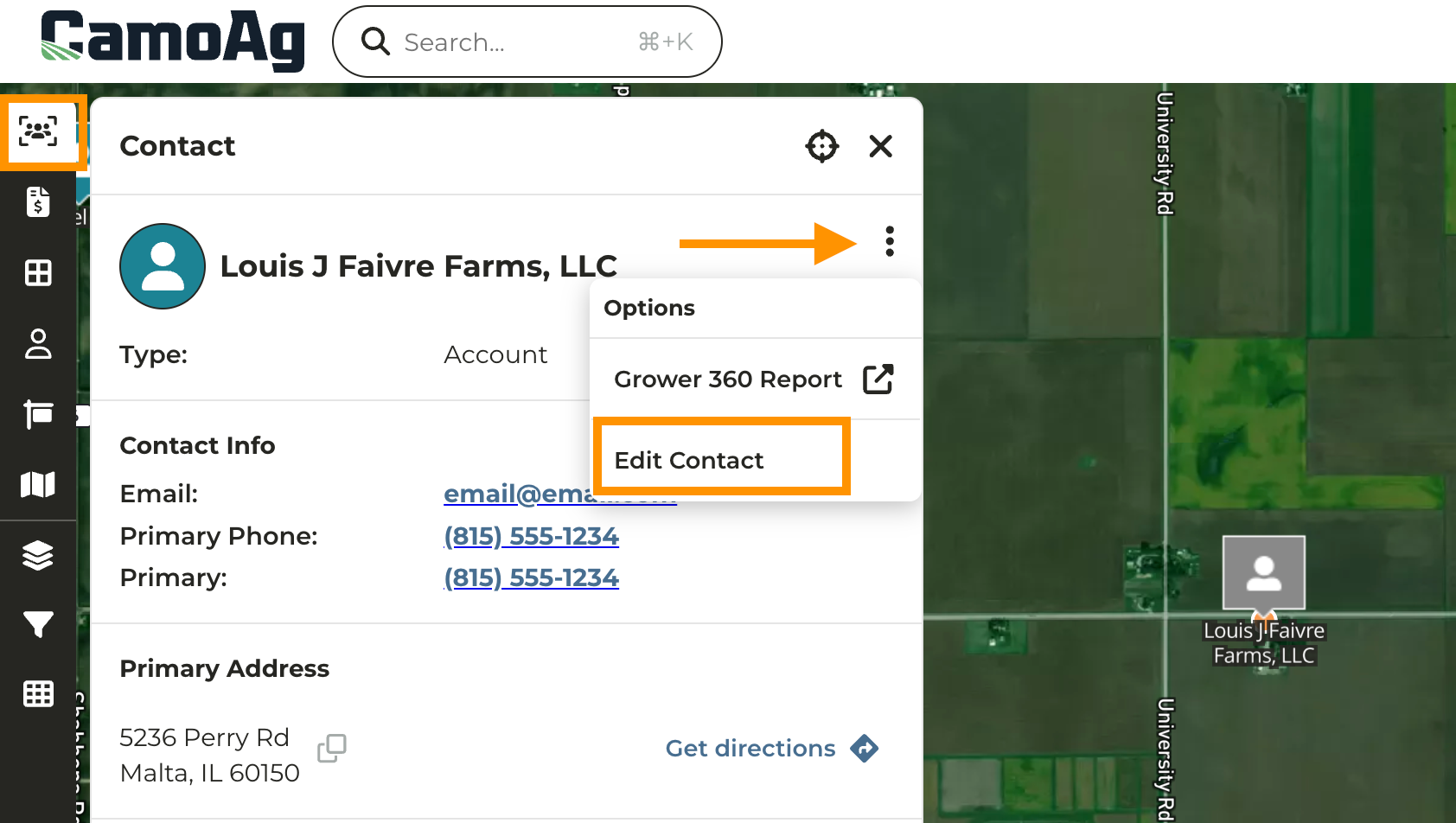
Navigate to the Contacts layer of the map
Click on the contact
Click the three vertical dots then **Edit Contact**
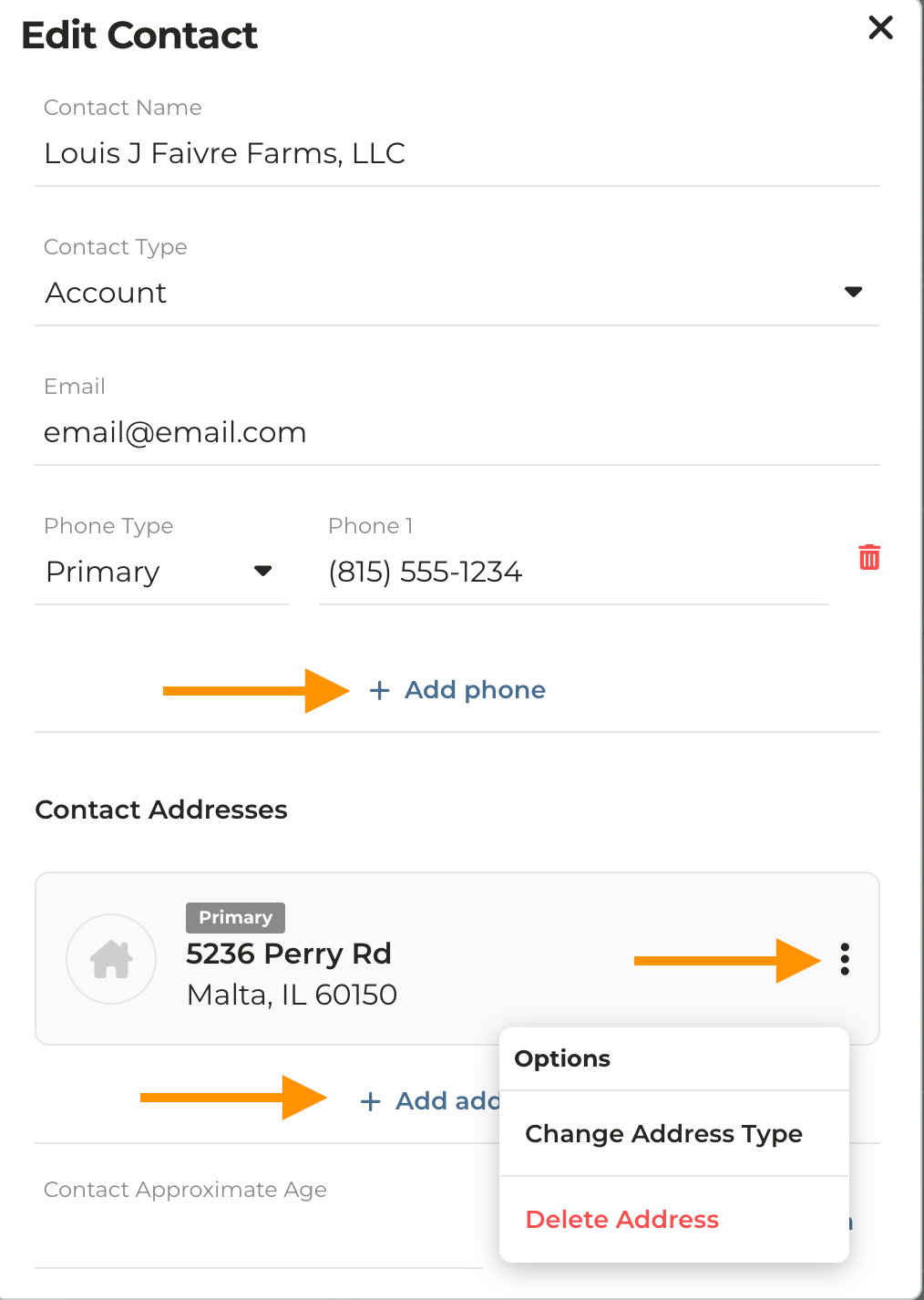
Add or edit the necessary contact information
Click **Save Contact**
### Edit Contact from Dashboard
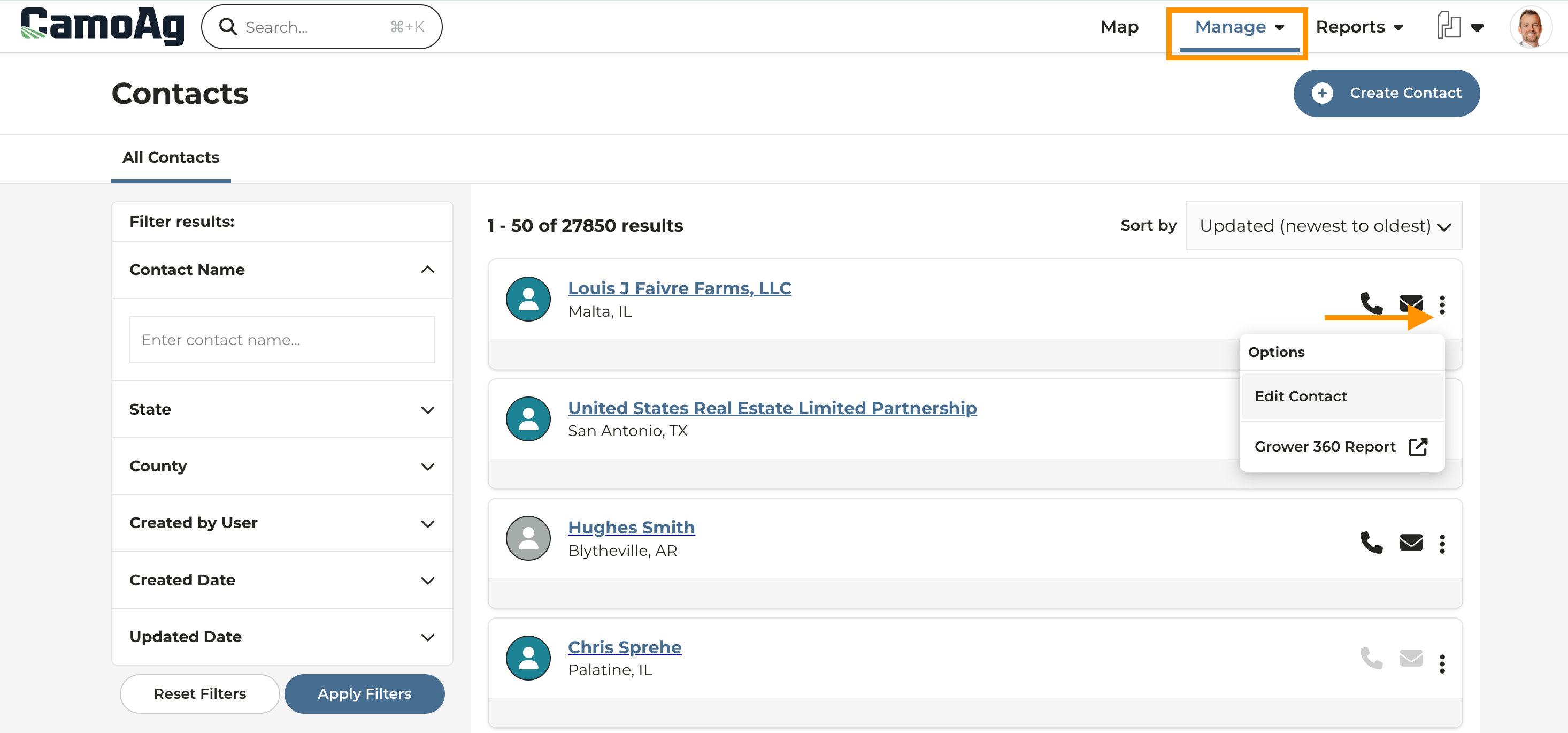
Click **Manage > Contacts**
Use the filters on the left to search for the contact you need to edit and click **Apply Filters**
Click the three vertical dots to the right of the contact
Click **Edit Contact**
Add or edit the necessary contact information
Click **Save Contact**
