> ## Documentation Index
> Fetch the complete documentation index at: https://docs.camo.ag/llms.txt
> Use this file to discover all available pages before exploring further.

# Adding Properties to a Portfolio

### **Adding Farms to Portfolios in Bulk**

There are two ways to add farms to Portfolios

<Steps>
  <Step>
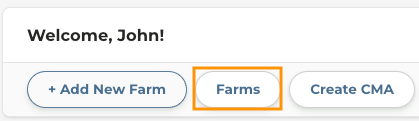
    From the Dashboard click **Farms**

    <Frame>
      ![Screenshot 2025-02-27 at 3.39.11 PM.png](https://assets.camo.ag/tillable-assets/docs/user-guides/image-261.png)
    </Frame>
  </Step>

  <Step>
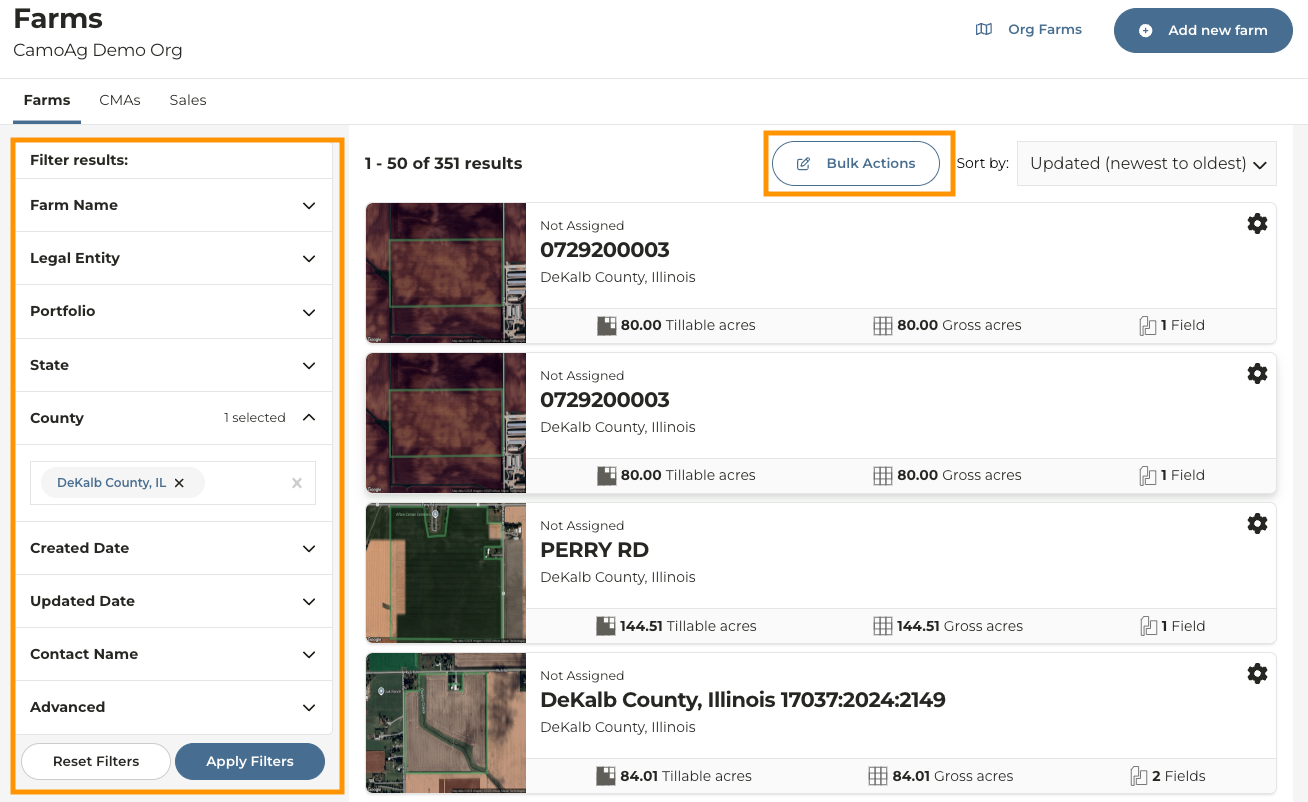
    Apply any necessary filters on the left to find the farms you want to add to your Portfolio
  </Step>

  <Step>
    Click **Bulk Actions**

    <Frame>
      ![Screenshot 2025-02-27 at 3.41.39 PM.png](https://assets.camo.ag/tillable-assets/docs/user-guides/image-262.png)
    </Frame>
  </Step>

  <Step>
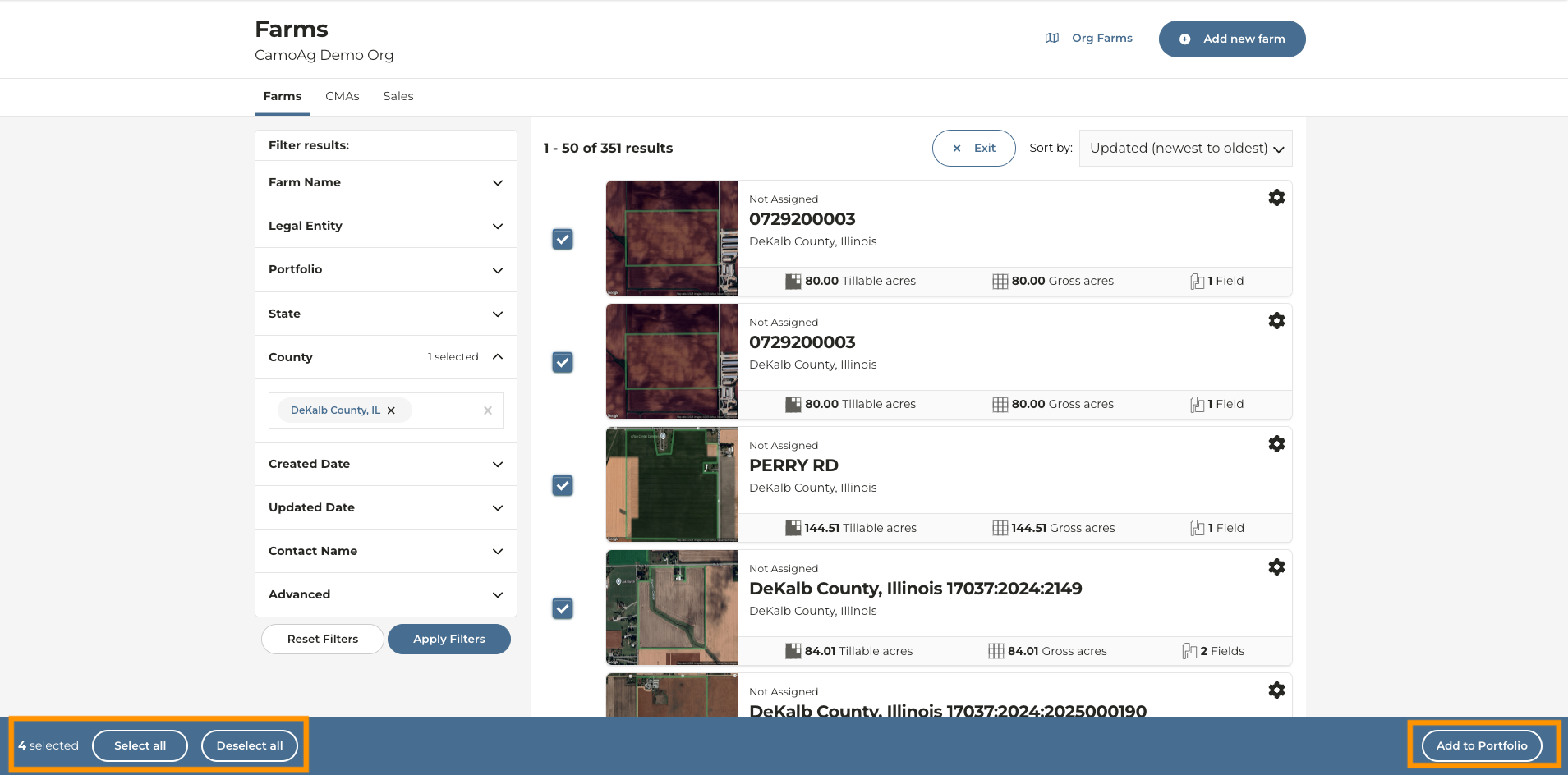
    Check the boxes next to the farms you want to add to the portfolio or click **Select all** on the bottom left of your screen
  </Step>

  <Step>
    Click **Add to Portfolio**

    <Frame>
      ![Screenshot 2025-02-27 at 3.42.12 PM.png](https://assets.camo.ag/tillable-assets/docs/user-guides/image-263.png)
    </Frame>
  </Step>

  <Step>
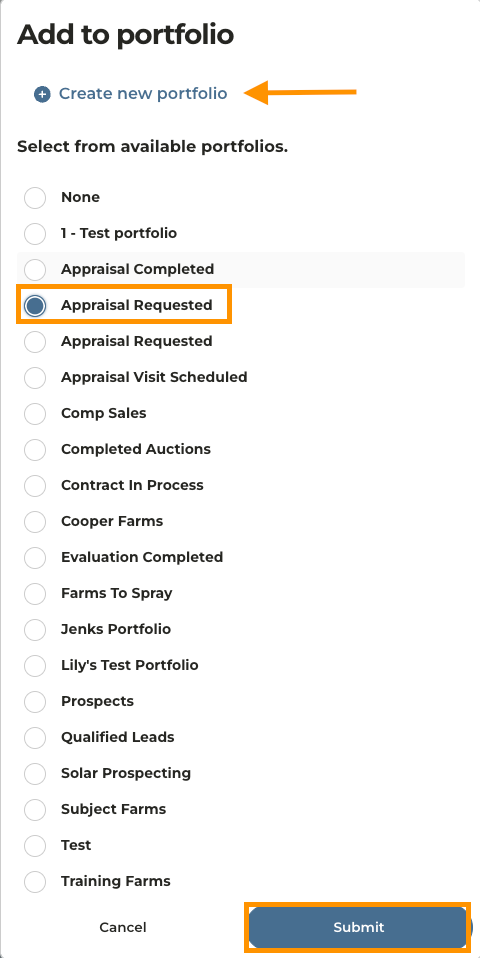
    Select the portfolio or **Create a new portfolio**
  </Step>

  <Step>
    Click **Submit**

    <Frame>
      ![Screenshot 2025-02-27 at 3.46.36 PM.png](https://assets.camo.ag/tillable-assets/docs/user-guides/image-264.png)
    </Frame>
  </Step>
</Steps>

### **Adding a Single Farm to a Portfolio**

<Steps>
  <Step>
    Navigate to the Farm you want to work with
  </Step>

  <Step>
    From the farm overview page, scroll down to the bottom of the page until you see **Assigned Portfolios**
  </Step>

  <Step>
    Click on **Add to new portfolio**

    <Frame>
      ![Screenshot 2023-10-11 at 1.17.35 PM.png](https://assets.camo.ag/tillable-assets/docs/user-guides/image-265.png)
    </Frame>
  </Step>

  <Step>
    Assign the farm to an existing portfolio or **Create a New Portfolio**
  </Step>
</Steps>