> ## Documentation Index
> Fetch the complete documentation index at: https://docs.camo.ag/llms.txt
> Use this file to discover all available pages before exploring further.
# Scheduling a Report for Delivery
**Scheduled Report Delivery vs. Alerts**
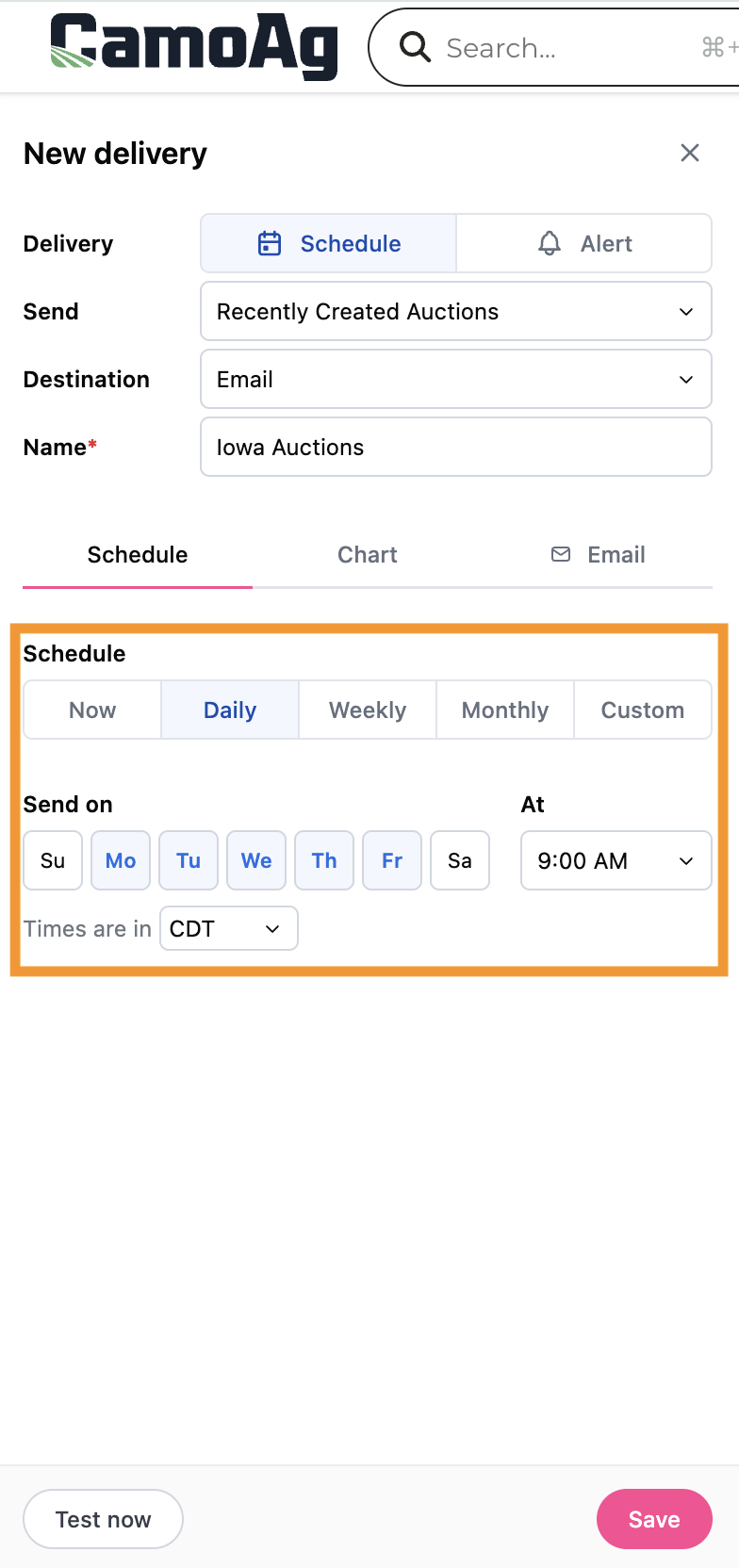
**Scheduled report delivery** sends a report to your email at a recurring day and time that you configure.
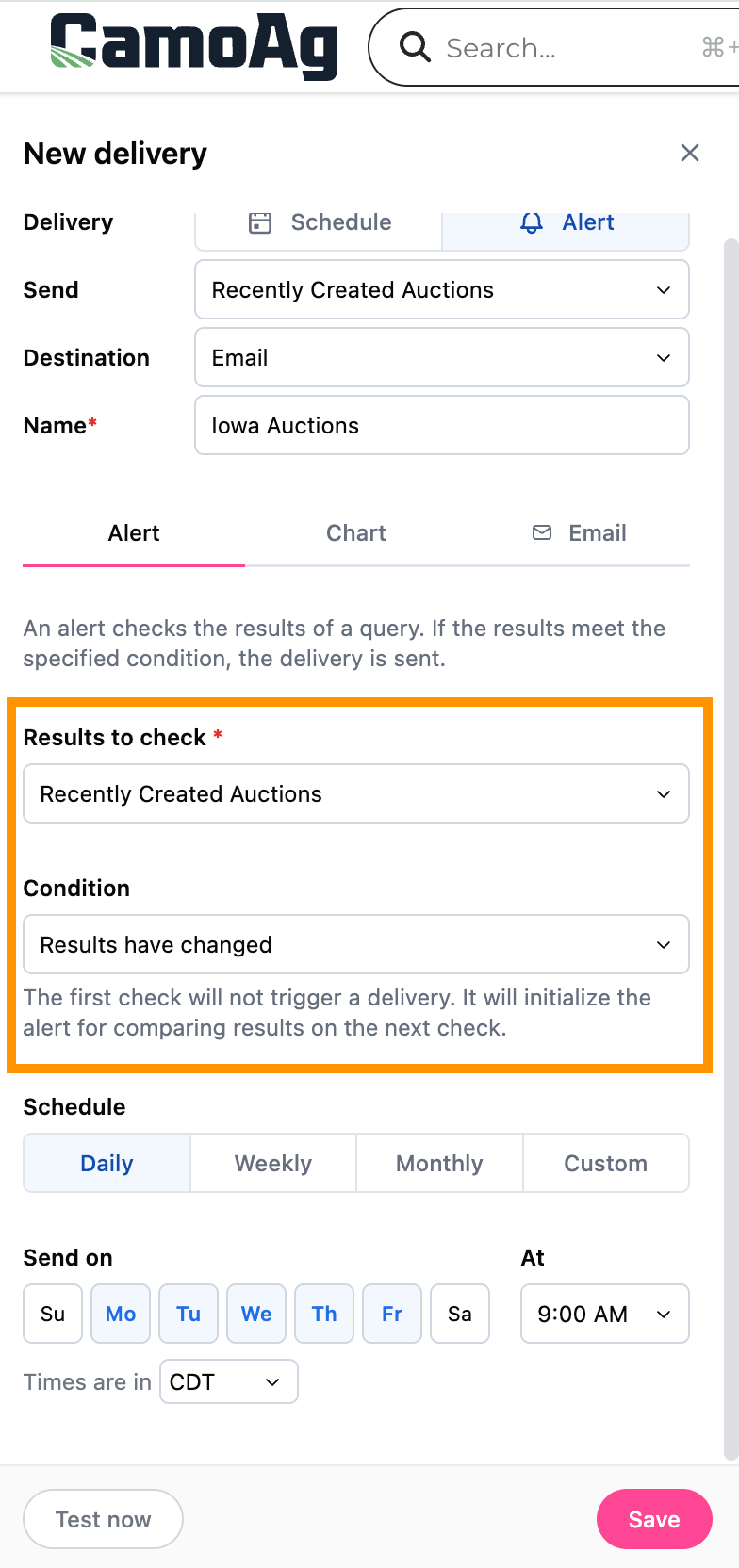
**Alerts** evaluate the results of a query against a specified condition. The report is delivered only if that condition is met.
* You can unsubscribe from a report in your email or edit the delivery of any report you set up [Editing a Report Delivery Schedule](/hc/en-us/articles/33848979836951-Editing-a-Report-Delivery-Schedule)
If setting up an Alert, it's best to review the [Data FAQs](/hc/en-us/articles/18255111889687-Data-Sources-and-Update-Frequency-FAQs) guide to understand how often data is updated in the platform.
Navigate to the report containing the data table for which you want to configure an alert or scheduled delivery.
Do not apply any filters at this time.
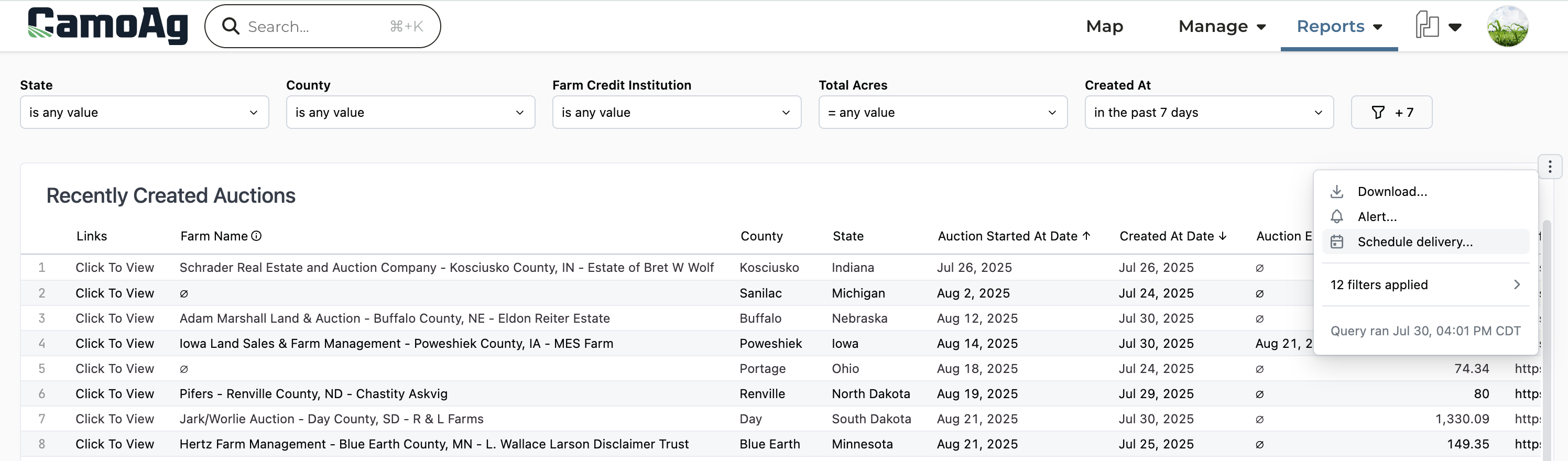
Locate the target data table, then click the three-dot menu in its upper-right corner.
Select **Alert** or **Schedule Delivery**
Within the Alert or Schedule tab make your selections and click **Save**
| Alert | Schedule |
| :------------------------------------------------------------------------------ | :------------------------------------------------------------------------------------------ |
|  |  |
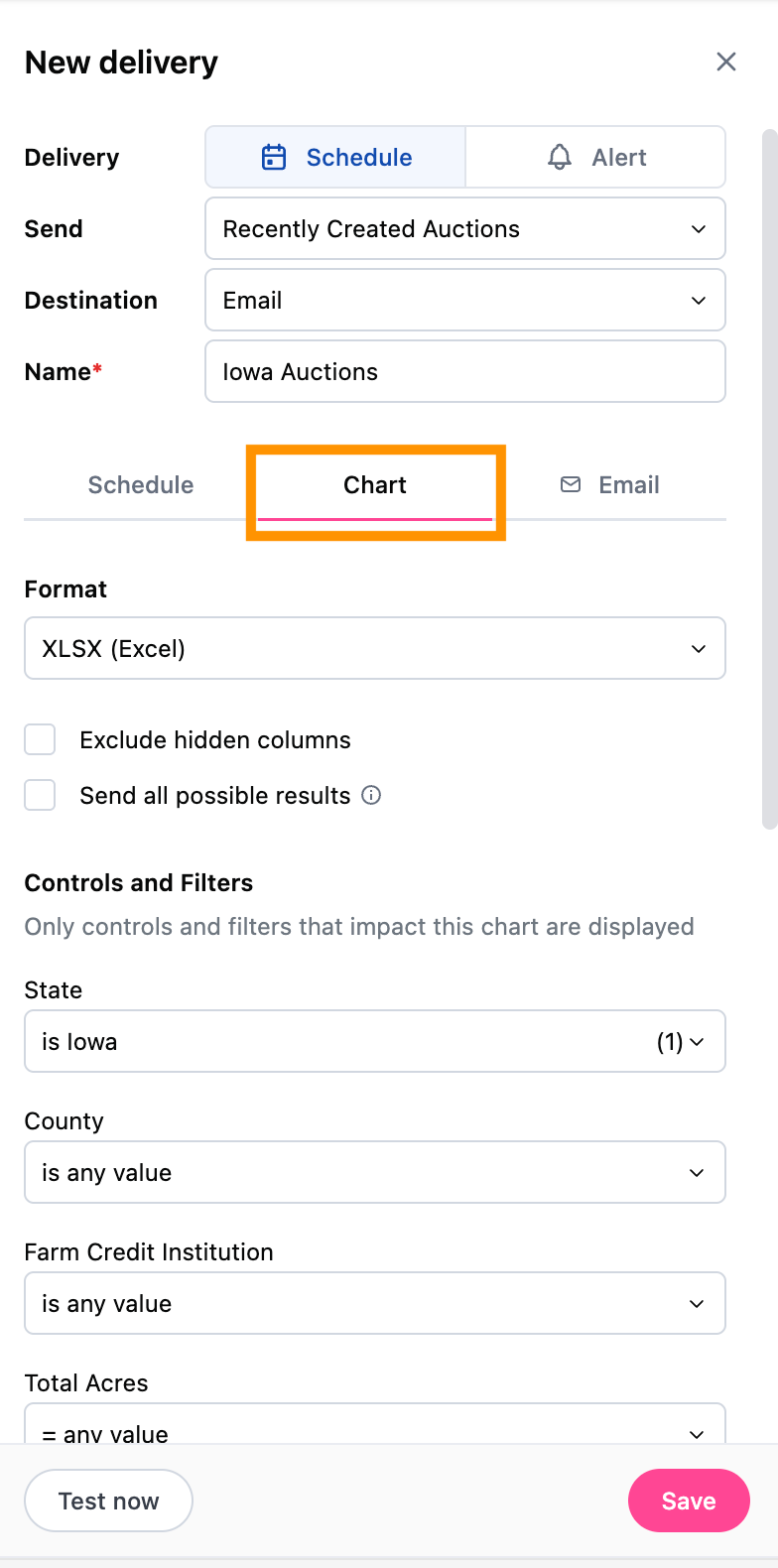
Click on the **Chart** tab to select the file format and apply filters then **Save**
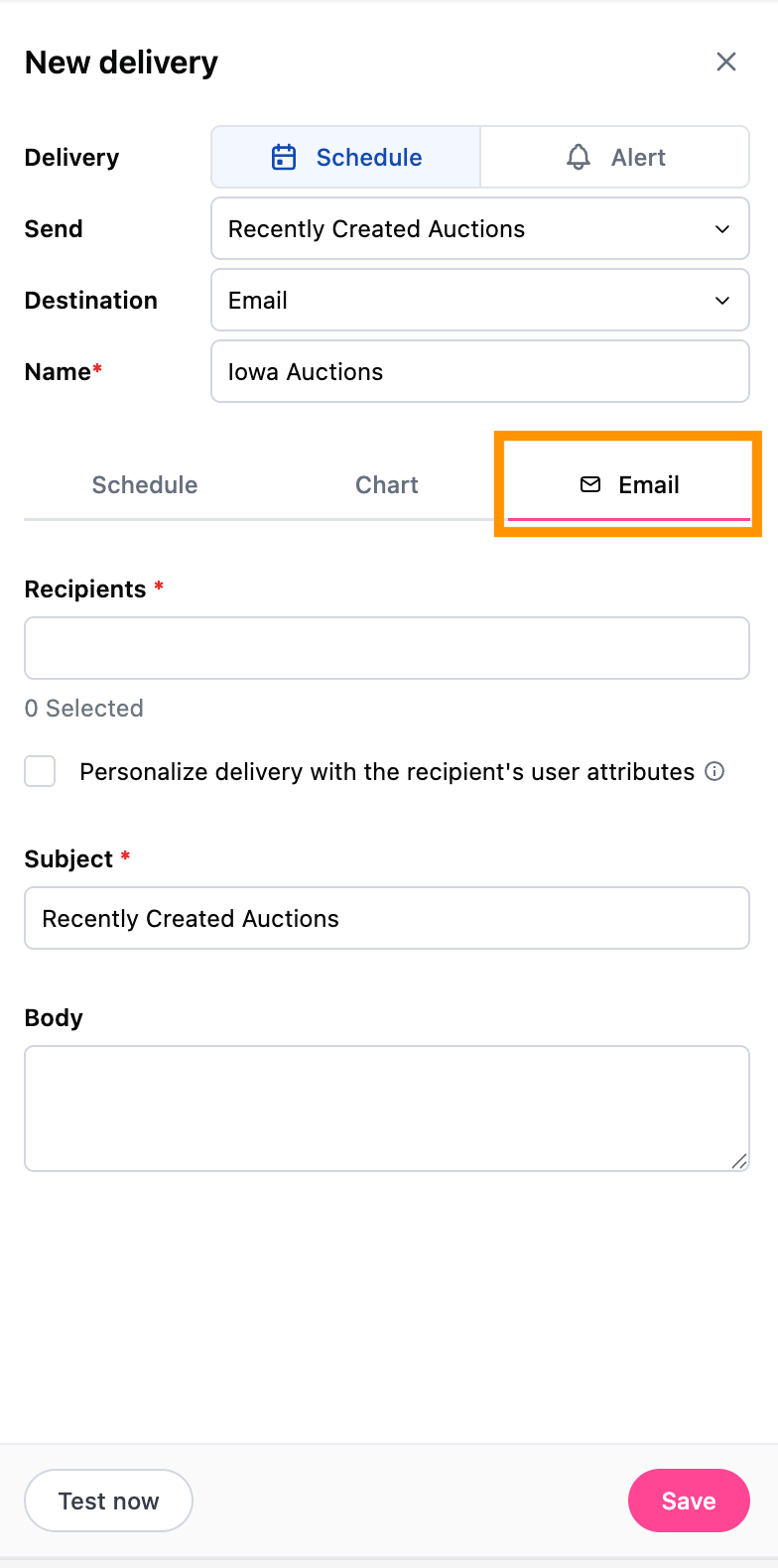
Click **Email** and enter the email address/addresses you would like the report delivered
Click **Save**