> ## Documentation Index
> Fetch the complete documentation index at: https://docs.camo.ag/llms.txt
> Use this file to discover all available pages before exploring further.

# Using the Farm Sales Map Layer

| **Map Marker**                                                                                                    | **Details**                                                                                                                                                                                                    |
| ----------------------------------------------------------------------------------------------------------------- | -------------------------------------------------------------------------------------------------------------------------------------------------------------------------------------------------------------- |
| ![Screenshot 2024-10-08 at 1.05.12 PM.png](https://assets.camo.ag/tillable-assets/docs/user-guides/image-190.png) | - CoreLogic/Black Knight Data<br /><br />- Updated monthly<br /><br />- Available in all 50 states                                                                                                             |

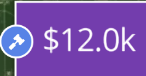
| ![Screenshot 2024-10-08 at 1.05.42 PM.png](https://assets.camo.ag/tillable-assets/docs/user-guides/image-338.png) | - Land Sales Bulletin<br /><br />- Updated daily<br /><br />- Requires Subscription<br /><br />- Available in ND, SD, NE, MN, IA, WI, IL, IN, MI, OH<br /><br />- Gavel icon indicates the sale was an auction |
| ![Screenshot 2024-10-08 at 1.06.48 PM.png](https://assets.camo.ag/tillable-assets/docs/user-guides/image-339.png) | - Sales data entered by users in your organization <br /><br />- Sales sent to CamoAg directly from your organization (requires pro subscription and integration)                                              |
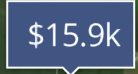
| ![Screenshot 2024-10-08 at 1.07.38 PM.png](https://assets.camo.ag/tillable-assets/docs/user-guides/image-400.png) | - Auction that has closed <br /><br />                                                                                                                                                                         |

| ![Screenshot 2024-10-08 at 1.07.13 PM.png](https://assets.camo.ag/tillable-assets/docs/user-guides/image-401.png) | - Upcoming Auction <br /><br />                                                                                                                                                                                |
| ![Screenshot 2024-10-08 at 1.08.17 PM.png](https://assets.camo.ag/tillable-assets/docs/user-guides/image-402.png) | - An Auction with a start and end date <br /><br />- Actively within the window of the auction timeframe                                                                                                       |

*\*Auction information is updated by the CamoAg team regularly, but not in real time.*

***The map will show up to three (3) years of sales data.***

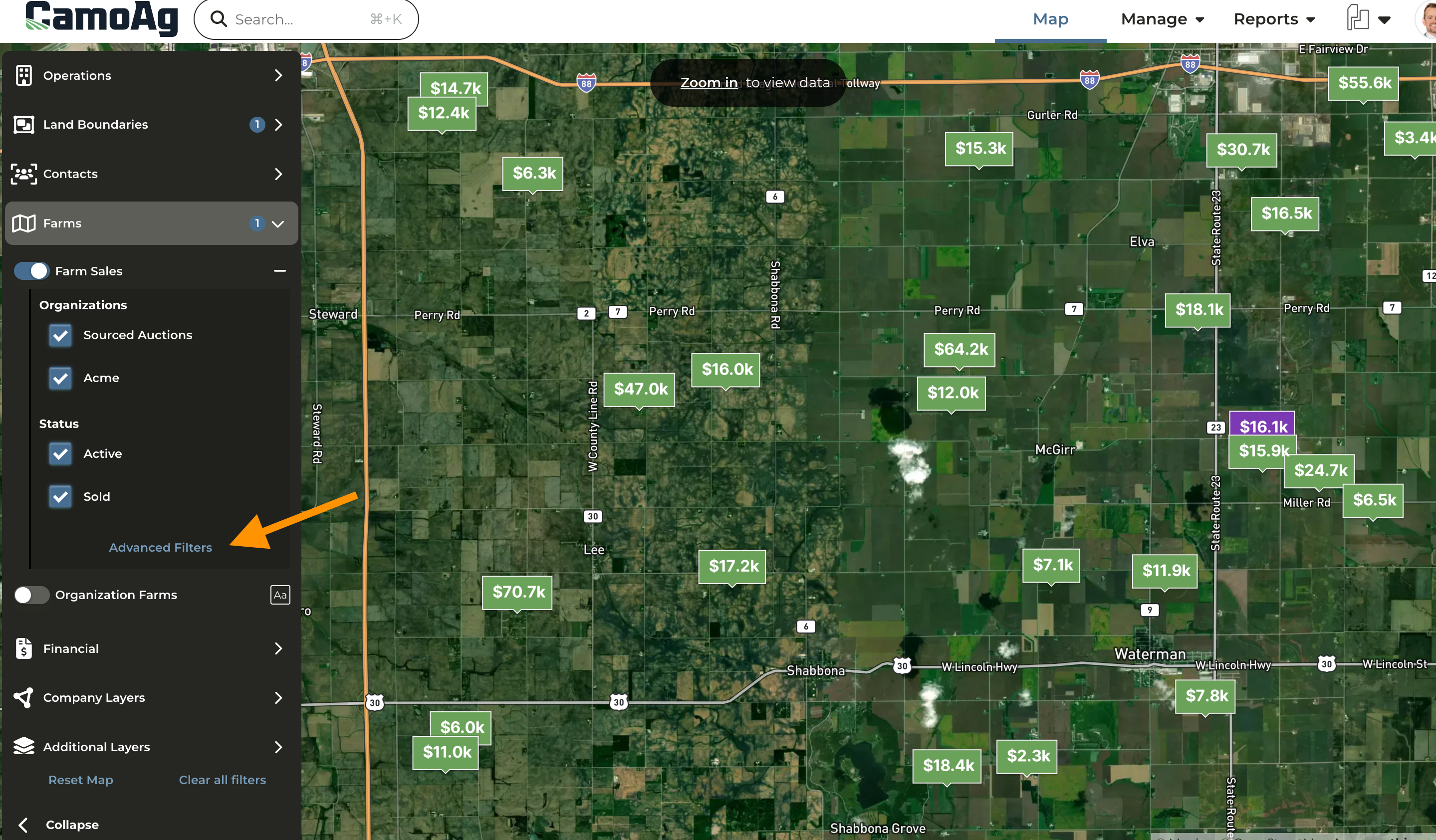
* On the map enable **Farms > Farm Sales**
* Clicking on **Advanced Filters** allows you to apply filters to the map to narrow your search for sales or auctions that fit specific criteria. <Note>*Note: The filter menu is scrollable*</Note>

<Frame>
  ![](https://assets.camo.ag/tillable-assets/docs/user-guides/image-191.png)
</Frame>

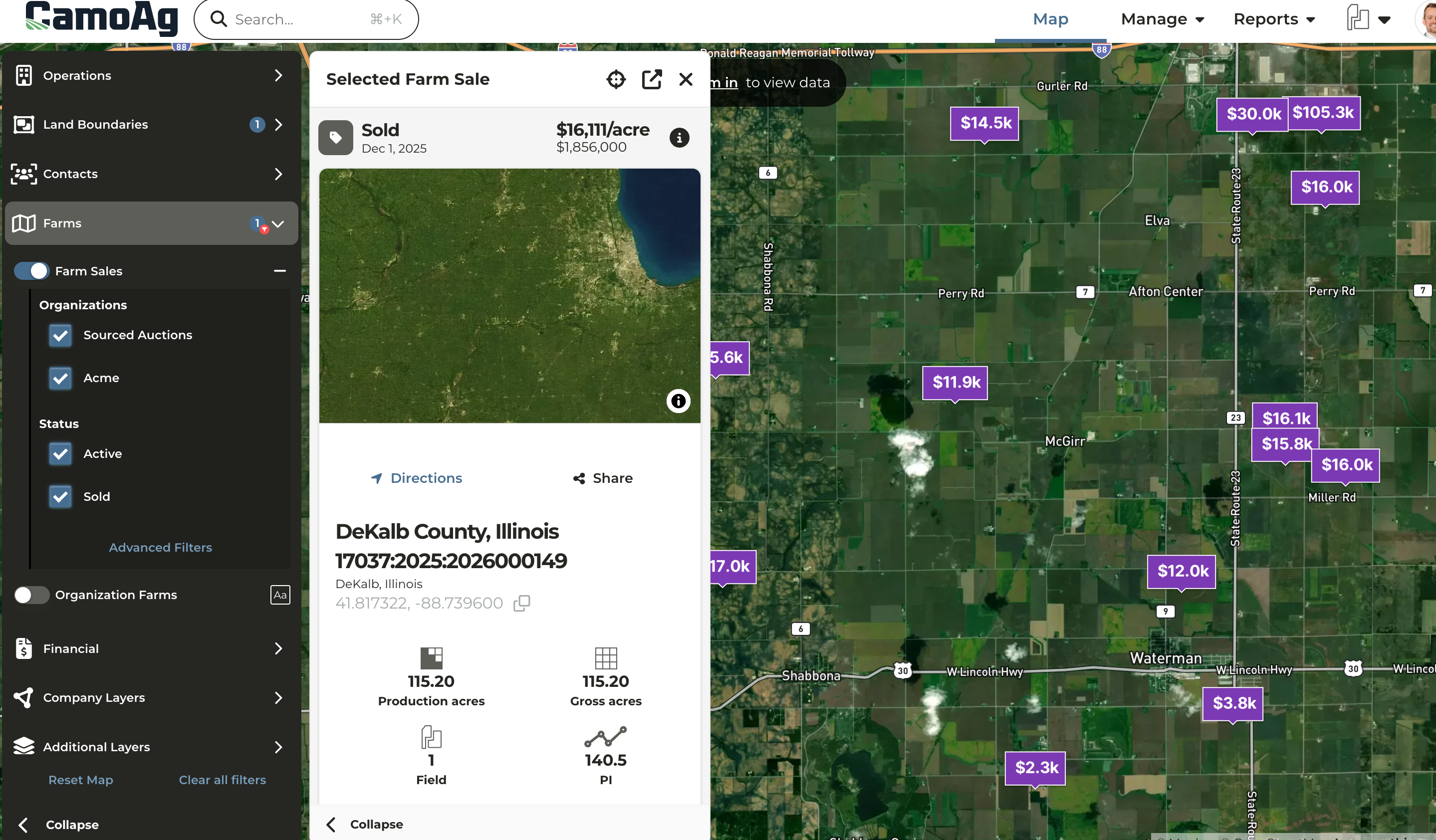
* Clicking on a sale or auction marker on the map will pull up additional details about the property on the left pane
<Frame>
  ![](https://assets.camo.ag/tillable-assets/docs/user-guides/image-192.png)
</Frame>

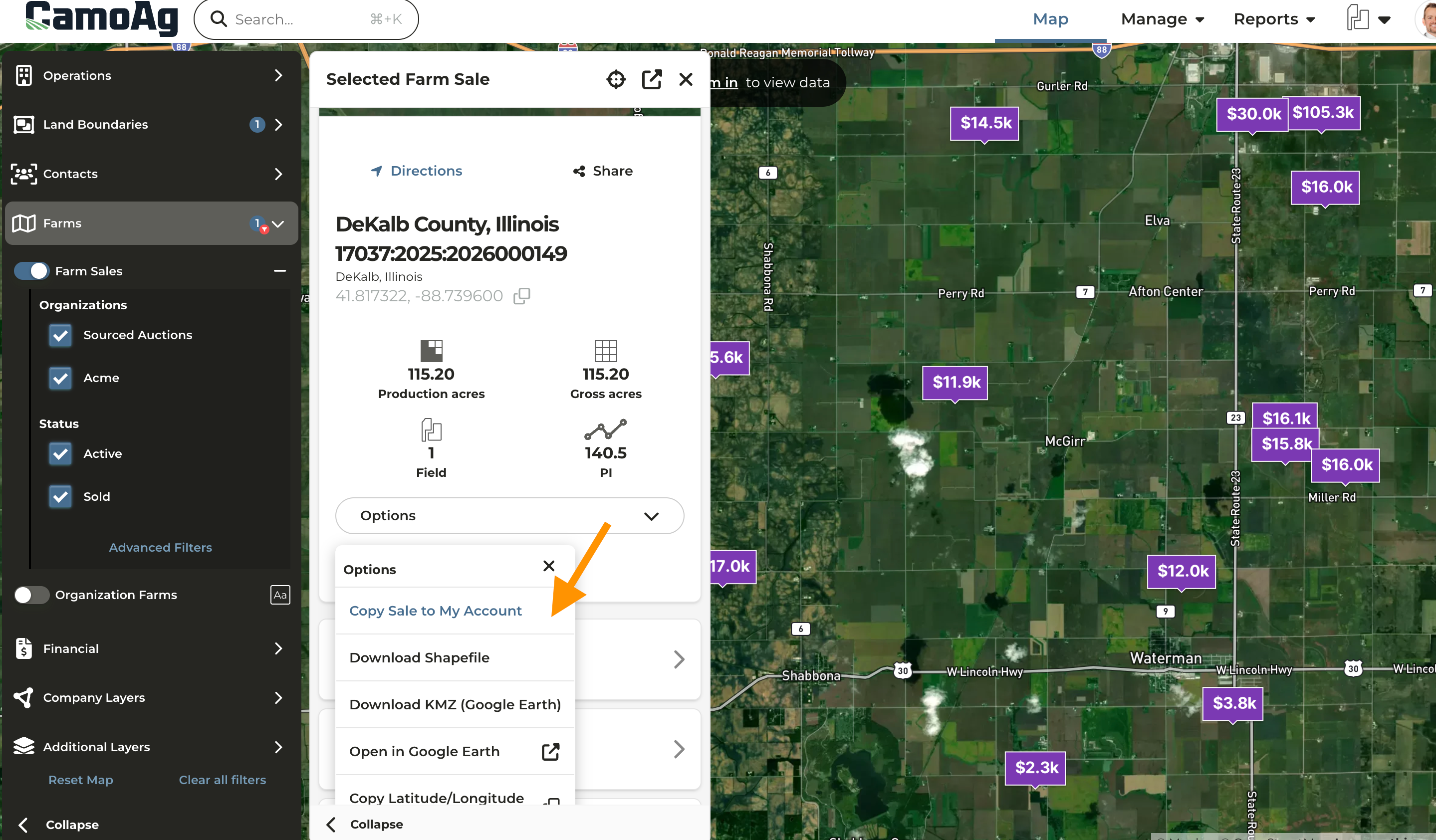
* **Click Options** to see additional actions that can be taken such as **Copy Sale to My Account**
<Frame>
  ![](https://assets.camo.ag/tillable-assets/docs/user-guides/image-193.png)
</Frame>

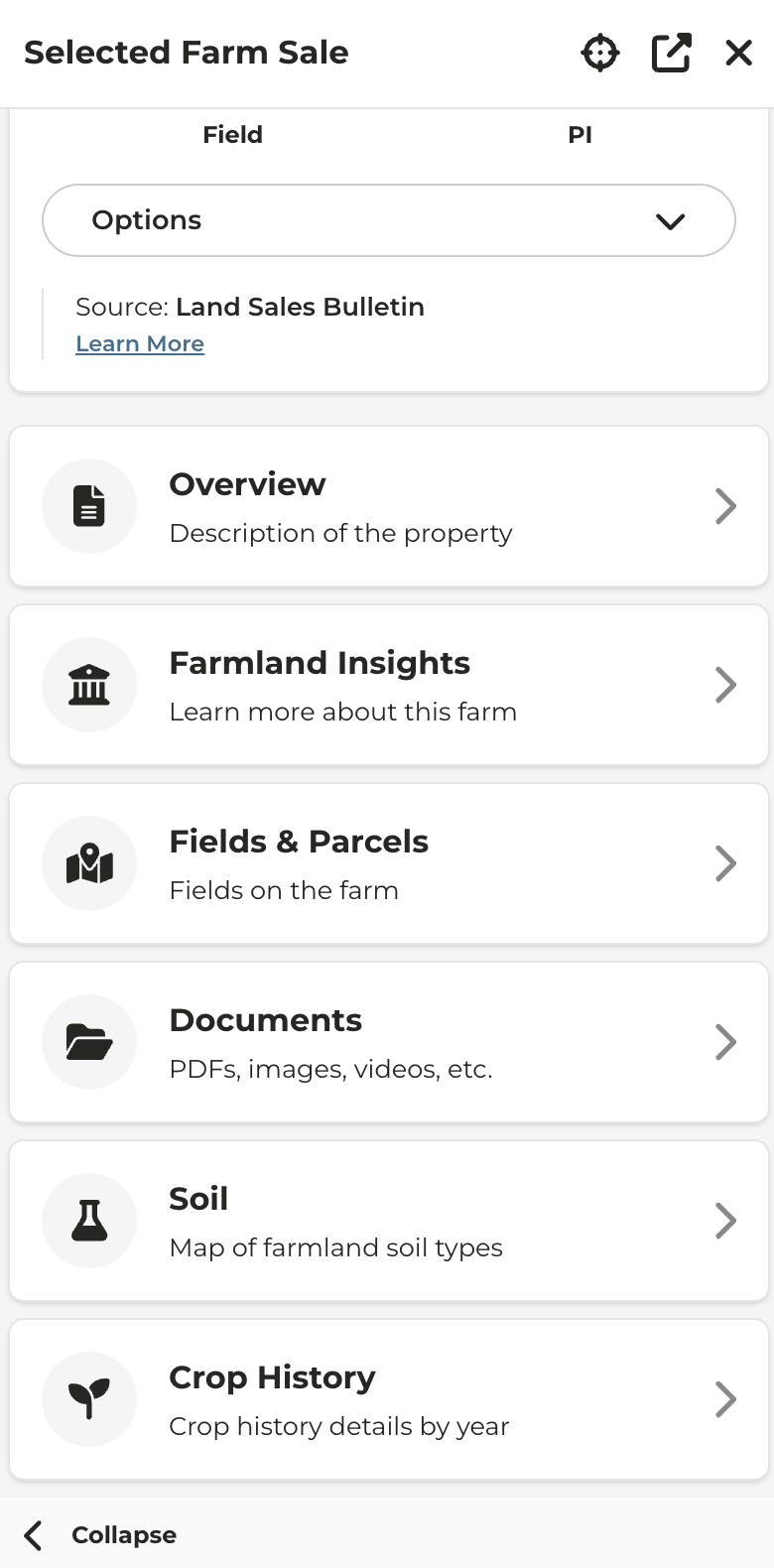
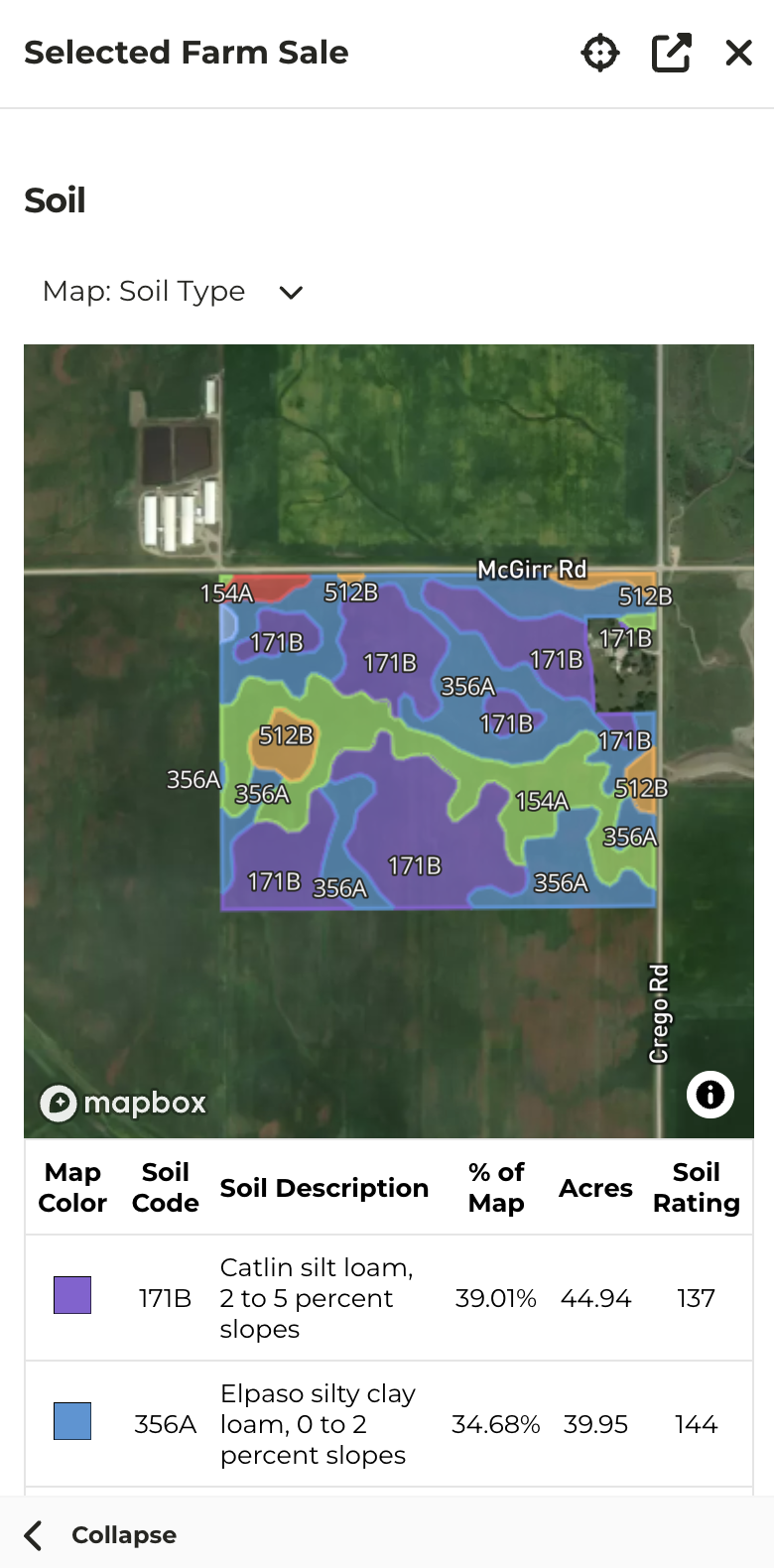
* Scrolling further down will reveal the additional options available to click into such as the **Soil Map**
* If the sale is an upcoming auction, the sale flyer is generally available for download in the **Documents**
<CardGroup>
  <Frame>
    ![](https://assets.camo.ag/tillable-assets/docs/user-guides/image-194.png)
  </Frame>

  <Frame>
    ![](https://assets.camo.ag/tillable-assets/docs/user-guides/image-403.png)
  </Frame>
</CardGroup>