> ## Documentation Index
> Fetch the complete documentation index at: https://docs.camo.ag/llms.txt
> Use this file to discover all available pages before exploring further.
# Viewing Contacts on the Map or Contacts Dashboard
* Review this help center article [Creating a Contact](/hc/en-us/articles/32557019340695-Creating-a-Contact)
* If you update a contact in your CRM, the data will update on the map panels within a couple minutes
* The address in your CRM is matched to the address the tax bill is sent to for a parcel, not the address of the parcel itself
* [Contacts Layer on map](#h_01JXG1S4WW7JXXQP5XC23HZDRB) - See immediately (refresh page if needed)
* [Contacts Dashboard](#h_01JXG24J207FKS9CYQMR9G0B79) - See immediately (refresh page if needed)
* Contacts Report - Report takes approximately 30 minutes to update. Click [Contacts Pro Report](/hc/en-us/articles/25955119653911-Contacts-Report) to be taken to the report guide
**Potential Use Cases:**
*Below are some common use cases but it does not capture all potential use cases for the contacts layer.*
* You know of an upcoming auction or sale and want to see your Contacts that are in the area
* Want to understand where the organization has a concentration of contacts vs. areas with fewer contacts
### **Navigating the Contacts Layer**
* To access the Contacts layer you can either:
* Use the **Global Search** to locate a specific contact
* Click on **Organization Contacts** from the dashboard
* Navigate to the **Map** and enable the contacts layer
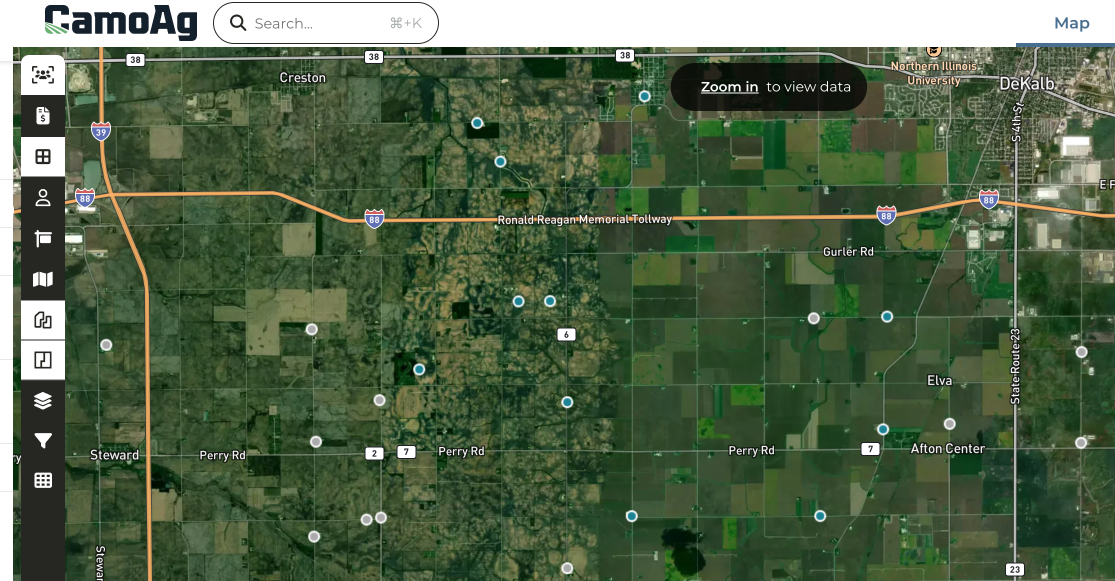
* Zooming in on the map will display dots indicating the location of contacts and as you zoom in closer the dots will be replaced with contact marker flags
| | |
| ------------------------------------------------------------------------------------------------------------------ | ------------------------------------------------------------------------------------ |
|  | Teal marker or dot indicates the contact is a **Customer** in your CRM |
|  | Gray marker or dot indicates contact was created in CamoAg or a prospect in your CRM |
* Clicking on a contact marker will reveal the contact card on the left along with additional insights about the contact such as:
* Operation
* Owned Parcels
* UCC Filing Data\*
* Mortgage Data\*
* Subsidy payments
* Connected Operators\*
* Operated Parcels
* Recent Land Transactions
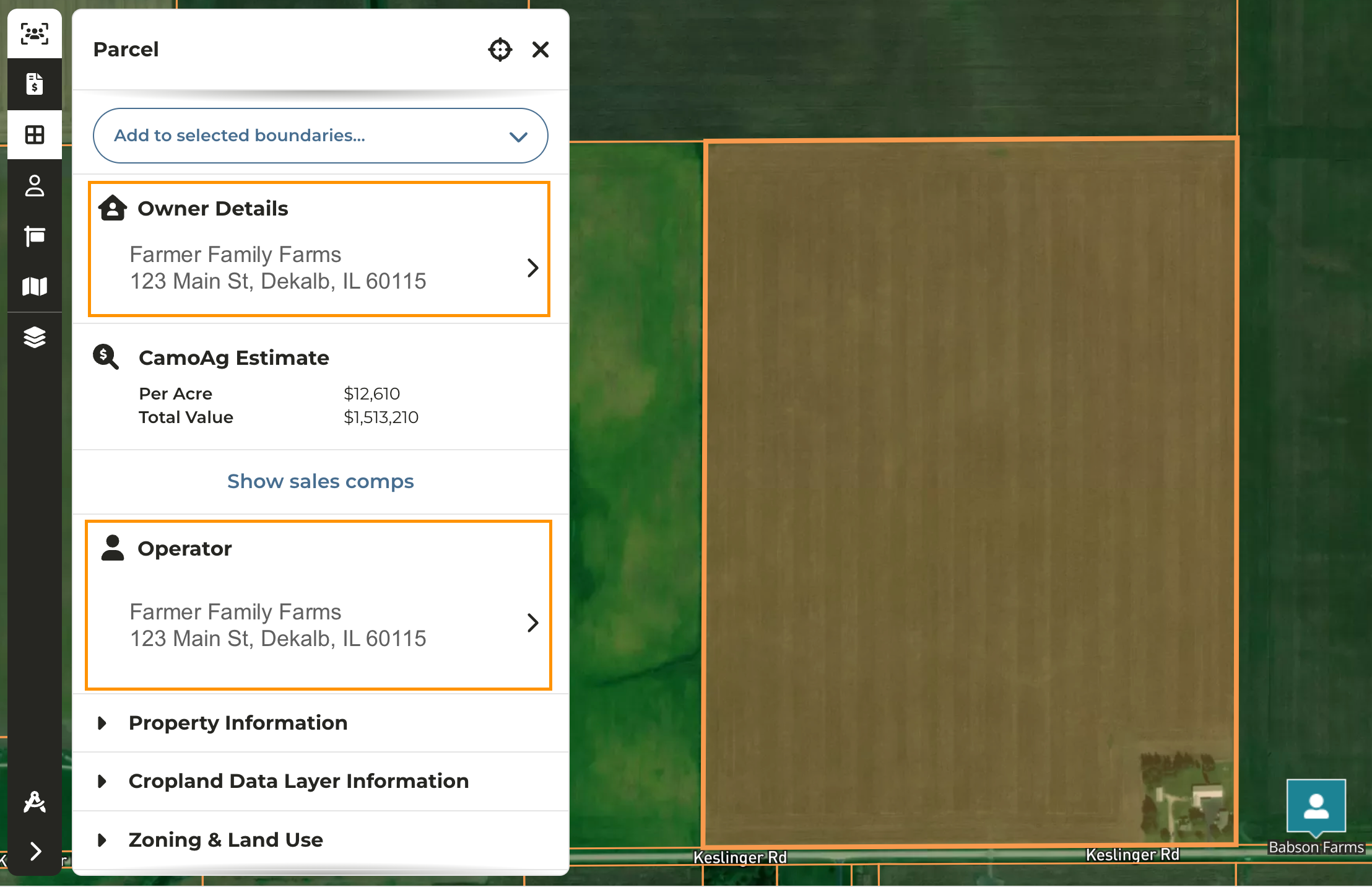
* Clicking on the parcel will reveal information about the parcel, but by clicking into the Owner and/or Operator Details, you will be able to access contact details and link back to your CRM
### Contacts Dashboard
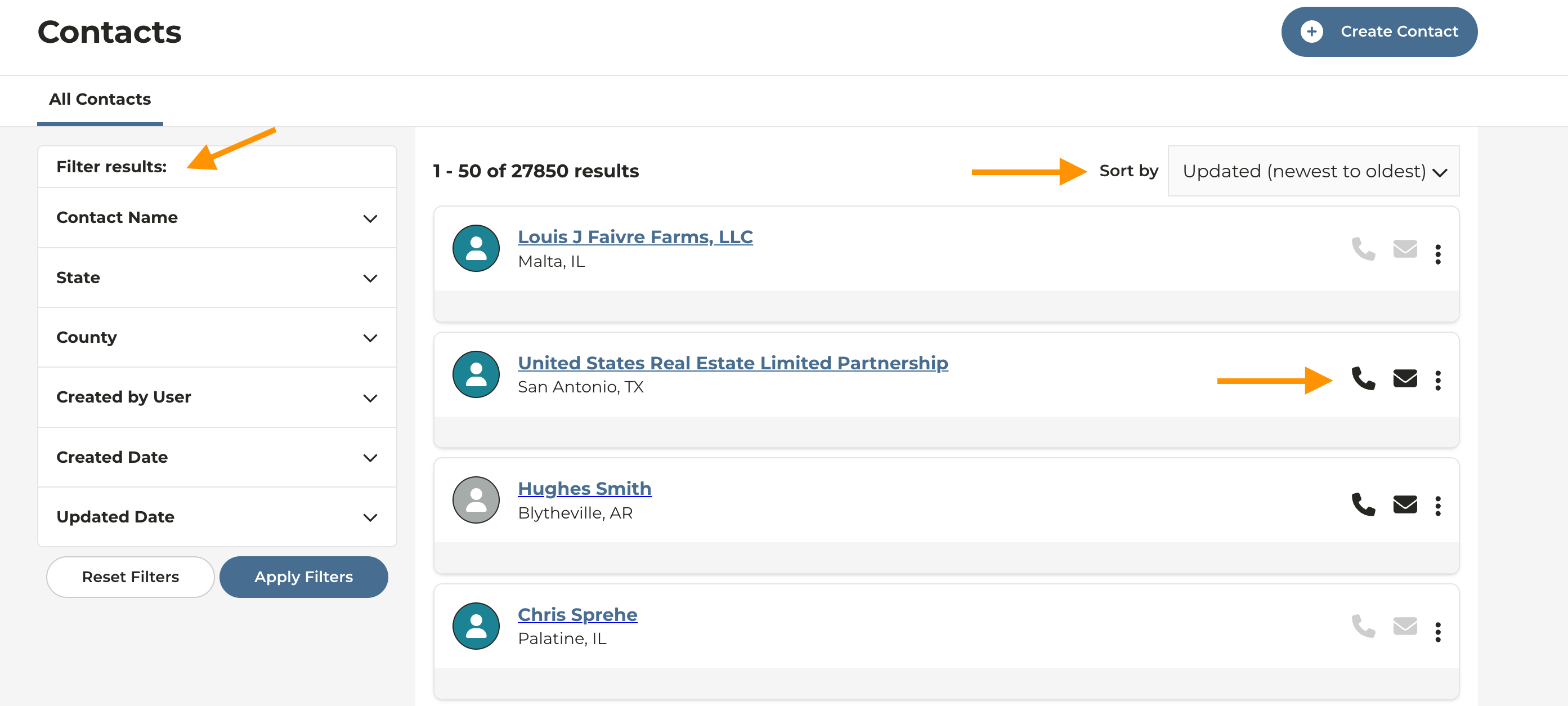
* Click **Manage > Contacts**
* **Filter Contacts by:**
* Name
* State and/or County
* Created by User: Name of logged in user will appear first on the list allowing you to filter to see only your contacts
* Created Date
* Updated Date
* If phone and/or email info is available, the corresponding icons can be clicked on and the info is available to copy
* Click the three vertical dots to **Edit Contact** information
* Click on the Contact Name to be taken to the map