> ## Documentation Index
> Fetch the complete documentation index at: https://docs.camo.ag/llms.txt
> Use this file to discover all available pages before exploring further.
# Contacts Report
*\*\*Updated to reflect upcoming release of Networks*
**Potential Use Cases:**
* You want to pull a list of your contacts within a specified area
* Access the report from the Farm Sales layer to notify contacts of an upcoming auction or farm that has sold
## **Contacts Pro** **Report Filters**
**To see all available filters click on the funnel to the right of the filters**
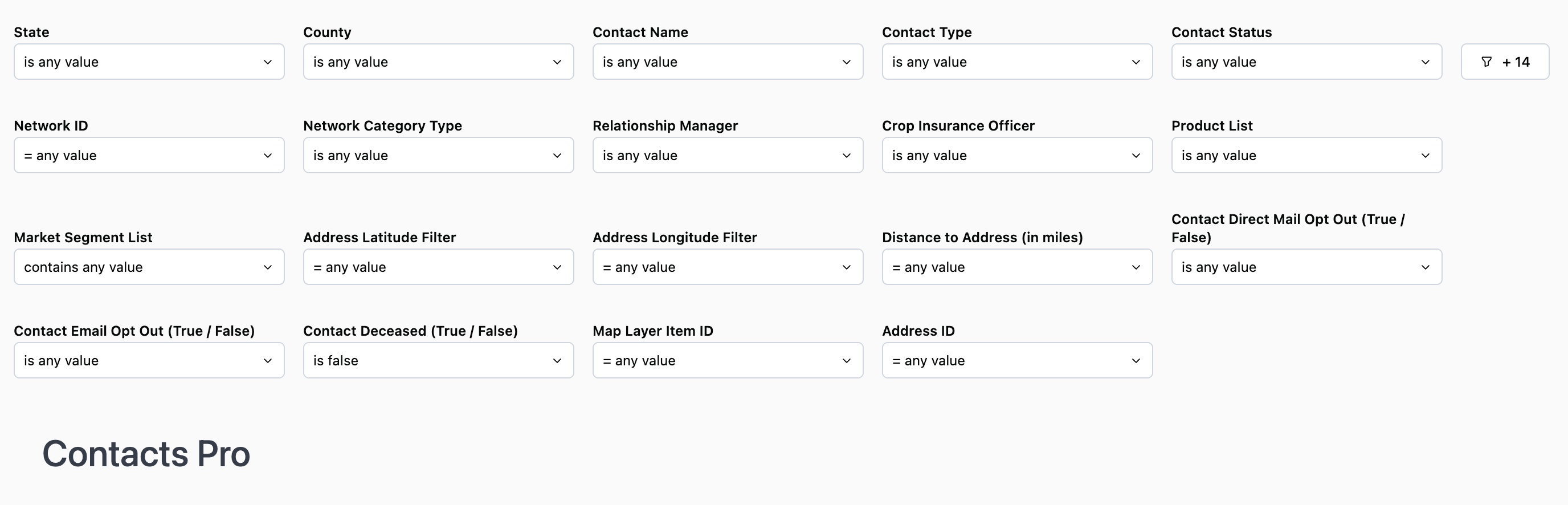
* **State:** Filter to show organization contacts within a specific state
* **County:** Filter to show organization contacts within a specific county. Use in conjunction with State.
* **Contact Name:** Use this if you want to focus on a specific contact or set of contacts
* **Contact Type:** Filter to show active clients or prospects
* **Contact Status:** Filter by statuses such as lead, contact, account, or prospect. The statuses here may differ if your organization’s CRM is integrated with CamoAg
* \*\*Network ID ("\*\***Formerly Address ID"):** The Network ID is unique to CamoAg and is used to create networks by grouping parties who either reside at the same address or are tied together for business reasons
* \*\*Network Category (Formerly “Primary Addressee Type”)\*\*The type of address associated with the primary addressee name such as agribusiness, government organizations, farm management companies, or banks
* **Relationship Manager:** Filter the report to see the contacts for a specific RM or group of RMs
* **Crop Insurance Officer:** Requires CRM integration, filter the report to see the contacts assigned to a specific person
* ****Product List:**** Filter your report to include or exclude organization contacts who have specific products
**Use Case:** You want to generate a list of contacts who do not currently purchase Crop Insurance from your organization. Use "does not contain" and select Crop Insurance.
*Note: If you select "is not equal to" the results may still include contacts who use crop insurance if they also purchase other products from your organization*
* **Market Segment:** Requires CRM integration, filter by specific market segments as specified in your CRM and shared with CamoAg
* **Address Latitude & Longitude:** Populates with the latitude/longitude coordinates when the report is accessed via right-click on the map. Can also be manually populated with coordinates.
* **Distance to Address:** Default distance of 10 miles when report is accessed via right-click on the map. Use this when you want to search for contacts who physically live near a specific address. This address may be geographically different from where their land is located (See Use Case below)
**Use Case:** Your organization is hosting an open house in the Quad Cities and want to invite customers and prospects who live within 50 miles.
Navigate to the map and right-click from where you are hosting the open house
Click **Available Reports > Contacts**
Adjust the distance filter to the preferred distance
Apply any additional filters so the list reflects the desired group of contacts
* **Contact Direct Mail Opt Out (True/False):** Requires CRM integration
* **Contact Email Opt Out (True/False):** Requires CRM integration
* **Contact Deceased (True/False):** Requires CRM integration
* **Map Layer Item ID:** This filter is populated when the report is accessed via a [Features of Interest](/hc/en-us/articles/26601919891735-Generating-a-Report-from-a-Custom-Features-of-Interest-Layers) layer on the map. The report will filter to show only data within the boundaries of that FOI layer.
### **Contacts Data Table**
* Click the three dots in the upper right corner of the data table to download or schedule an alert or delivery
