> ## Documentation Index
> Fetch the complete documentation index at: https://docs.camo.ag/llms.txt
> Use this file to discover all available pages before exploring further.

# Using the Report Filters and Downloading Data Tables

**Click on a heading to be taken directly to that section**

* **[Selecting the Filter Expression](/hc/en-us/articles/25909548062103-Using-the-Report-Filters-and-Downloading-Data-Tables#selecting-the-filter-expression)**
* **[Filter Expression Definitions & Examples](/hc/en-us/articles/25909548062103-Using-the-Report-Filters-and-Downloading-Data-Tables#filter-expression-definitions-&-examples)**
* **[Downloading Data Tables](#downloading-data-tables)**

<AccordionGroup>
  <Accordion title="When I select a state, will the county filter update to display only the counties in that state?">
    - At this time, no. However, this is a request we have put through with the report provider, Omni.
  </Accordion>

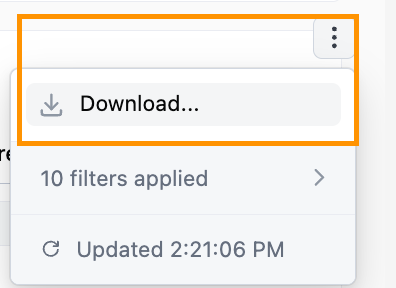
  <Accordion title={`When downloading a table of data it shows "# of filters applied" but I haven't applied that many filters?`}>
    * The number displayed is the total number of filters that could be applied, not necessarily the number of filters you have applied to the report. We have shared this feedback with Omni for their consideration.
  </Accordion>

  <Accordion title="Can I download a report to excel?">
    * Yes. A report can be downloaded to excel or into a csv file.
  </Accordion>
</AccordionGroup>

### **Selecting the Filter Expression**

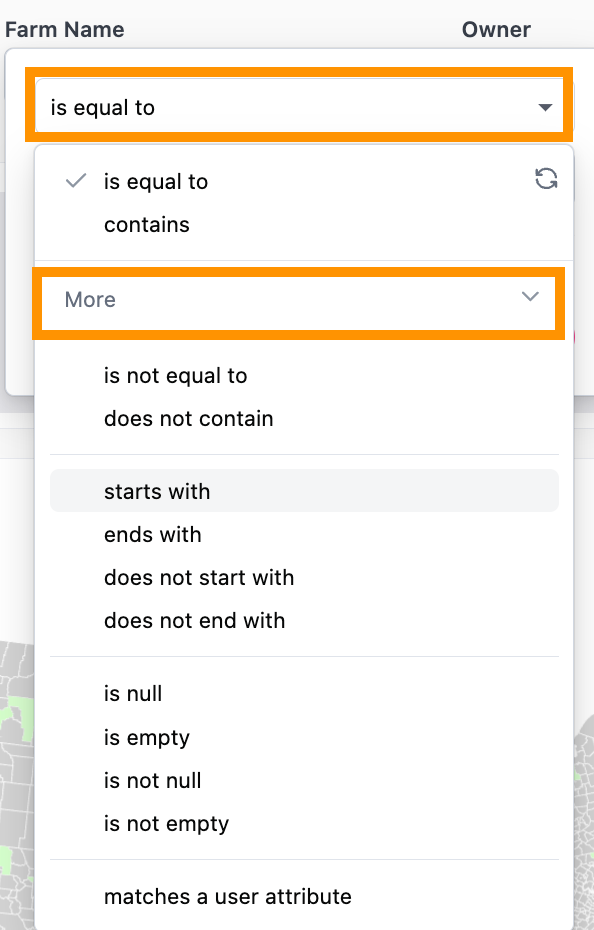
* Most filters are going to have a default expression selected such as "is equal to" or "contains"
* To change the filter expression click on the dropdown and either select one of the most frequently used expressions or click "More" (if available) and select your preferred option
<Frame>
  ![Screenshot 2024-08-23 at 11.41.32 AM.png](https://assets.camo.ag/tillable-assets/docs/user-guides/image-123.png)
</Frame>

### **Filter Expression Definitions & Examples**

<Note>
  *Note: Only the most widely used filter expressions are listed below. If you do not see an expression that is otherwise available within a filter dropdown, it's because it is not a widely used or useful option.*
</Note>

| **Expression**            | **Description**                                                                                                                                                                                                                                                                                                                                                                   | **Filter Example**                                                                                                |
| :------------------------ | :-------------------------------------------------------------------------------------------------------------------------------------------------------------------------------------------------------------------------------------------------------------------------------------------------------------------------------------------------------------------------------- | :---------------------------------------------------------------------------------------------------------------- |
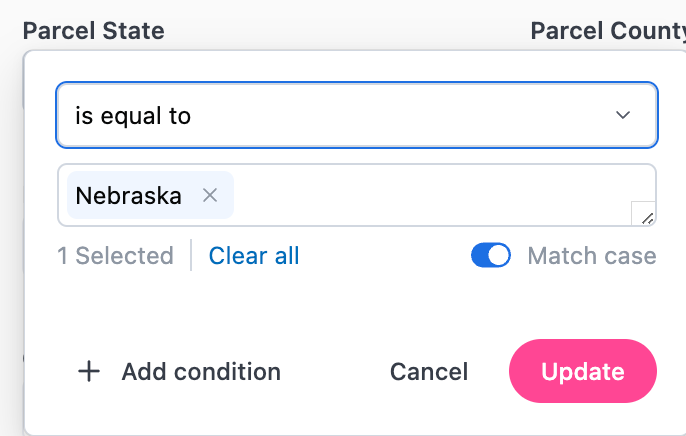
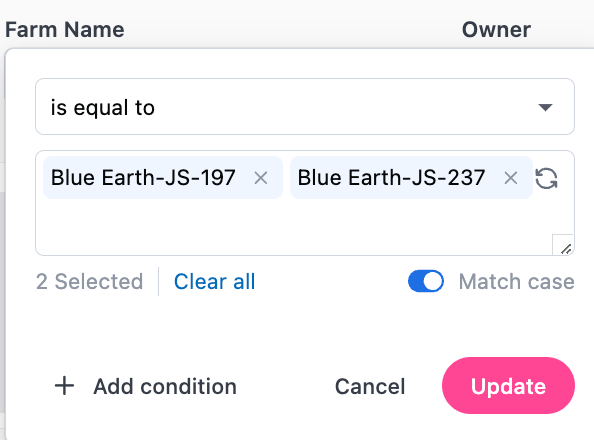
| Is equal to               | Will display data that exactly matches the value selected                                                                                                                                                                                                                                                                                                                         | ![Screenshot 2024-10-18 at 2.41.09 PM.png](https://assets.camo.ag/tillable-assets/docs/user-guides/image-124.png) |
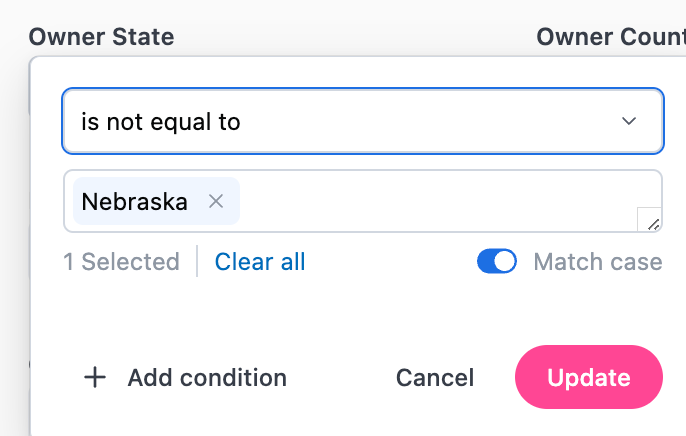
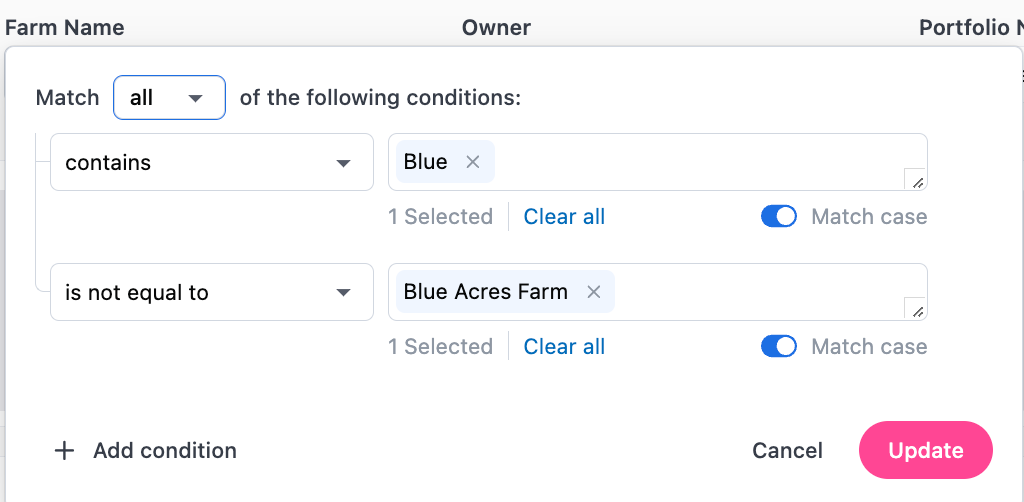
| is not equal to           | Will exclude data that exactly matches the value selected                                                                                                                                                                                                                                                                                                                         | ![Screenshot 2024-10-18 at 2.41.51 PM.png](https://assets.camo.ag/tillable-assets/docs/user-guides/image-125.png) |
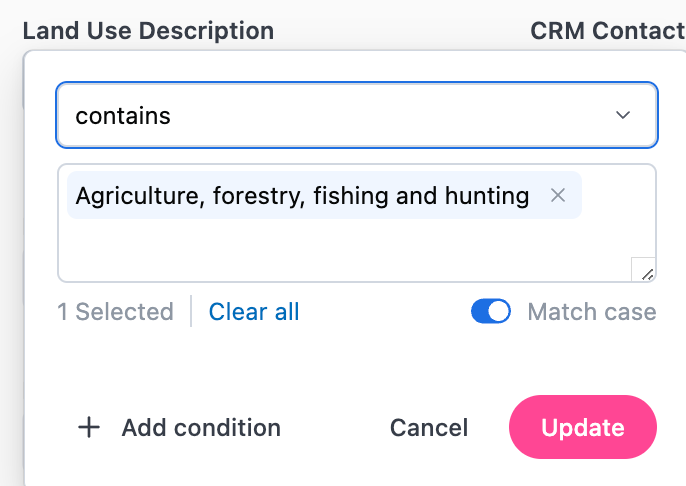
| contains                  | Will include data that contains the value selected. *Note that when using "contains" other data may be included. For example, if a parcel has a second land use of "logging" it will also be included in the data set.*                                                                                                                                                           | ![Screenshot 2024-10-18 at 2.42.54 PM.png](https://assets.camo.ag/tillable-assets/docs/user-guides/image-126.png) |
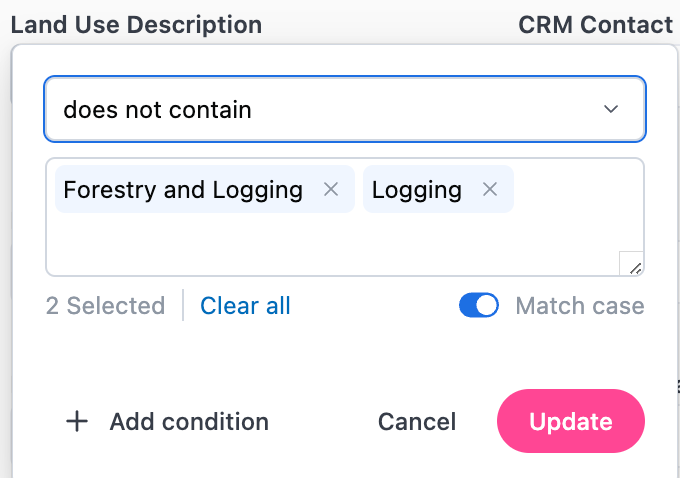
| does not contain          | Will exclude data that contains the value(s) selected. *Note that when using "does not contain" other data may be excluded. For example, if a parcel has a second land use of "agriculture" it will also be excluded from the data set.*                                                                                                                                          | ![Screenshot 2024-10-18 at 2.45.57 PM.png](https://assets.camo.ag/tillable-assets/docs/user-guides/image-127.png) |
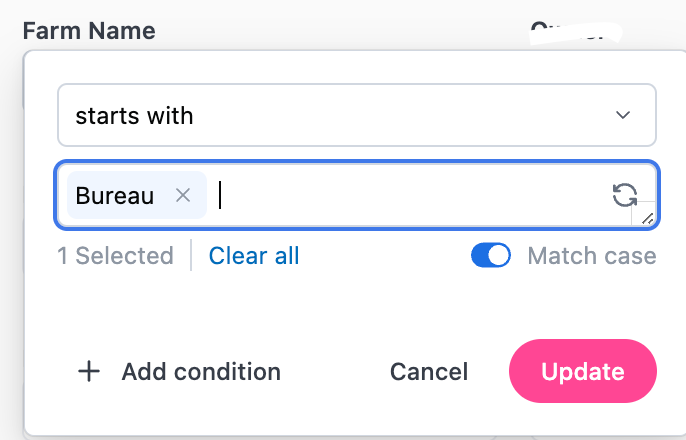
| starts with               | Will display data that starts with the value(s) selected                                                                                                                                                                                                                                                                                                                          | ![Screenshot 2024-10-18 at 2.46.57 PM.png](https://assets.camo.ag/tillable-assets/docs/user-guides/image-128.png) |
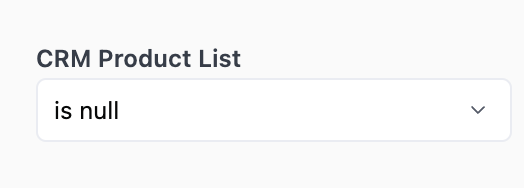
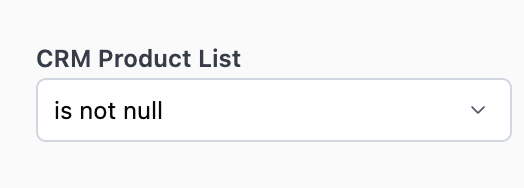
| is null                   | There is no data available to populate the data field. For example: Your organization has a CRM integration, applying "is null" to the CRM Product List filter will display data for which no Product value has been assigned in your CRM and as a result there is no data to display in CamoAg.   *Specific to third-party data and data sent to CamoAg from your organization.* | ![Screenshot 2024-10-18 at 2.50.57 PM.png](https://assets.camo.ag/tillable-assets/docs/user-guides/image-129.png) |
| is not null               | Will display data for the filter selected that is populated with data. *Specific to third-party data and data sent to CamoAg from your organization.*                                                                                                                                                                                                                             | ![Screenshot 2024-10-18 at 2.52.38 PM.png](https://assets.camo.ag/tillable-assets/docs/user-guides/image-130.png) |
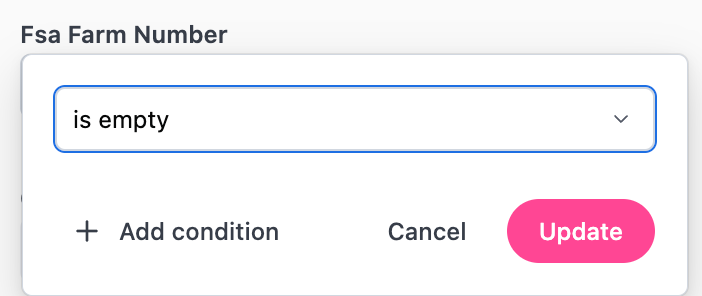
| is empty                  | Data set is empty (has zero characters). For example, you want to view farms created in your organization for which no FSA Farm Number has been entered.   *Specific to data manually entered by a user in your organization*                                                                                                                                                     | ![Screenshot 2024-10-18 at 3.06.20 PM.png](https://assets.camo.ag/tillable-assets/docs/user-guides/image-131.png) |
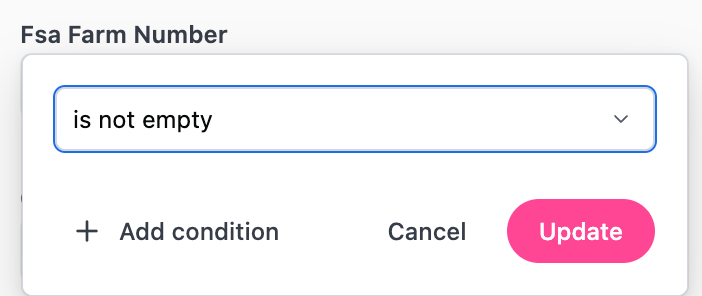
| is not empty              | Will display data for which that particular data set is populated with information  *Specific to data manually entered by a user in your organization*                                                                                                                                                                                                                            | ![Screenshot 2024-10-18 at 3.06.39 PM.png](https://assets.camo.ag/tillable-assets/docs/user-guides/image-132.png) |
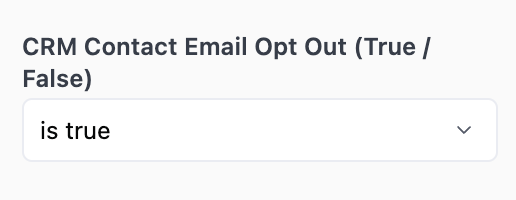
| is true                   | Typically used with the CRM filters to help filter contacts who have opted in or out of communications                                                                                                                                                                                                                                                                            | ![Screenshot 2024-10-18 at 3.07.44 PM.png](https://assets.camo.ag/tillable-assets/docs/user-guides/image-133.png) |
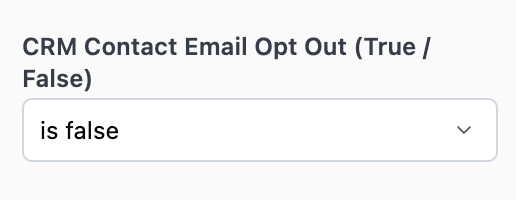
| is false                  | Typically used with the CRM filters to help filter contacts who have opted in or out of communications. *Note: If a CRM filter is set to False, the data displayed will only include contacts in your CRM.*                                                                                                                                                                       | ![Screenshot 2024-10-18 at 3.08.14 PM.png](https://assets.camo.ag/tillable-assets/docs/user-guides/image-134.png) |
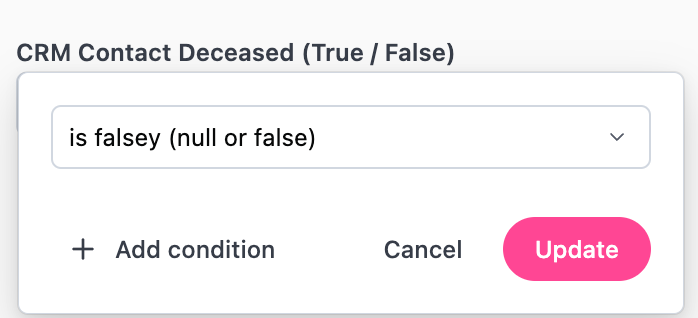
| is falsey (null or false) | Typically used with the CRM filters. Will pull non-contacts into the report along with contacts who meet the "false" requirement of the filter type. For example: Referring to the screenshot, setting the filter to "is falsey", would pull in non-contacts and contacts who are not marked as deceased in your CRM.                                                             | ![Screenshot 2024-10-18 at 3.09.47 PM.png](https://assets.camo.ag/tillable-assets/docs/user-guides/image-135.png) |
* Once you've selected your preferred filter expression, you can then select the value(s) you want to include or exclude in your search 
<Frame>
  ![Screenshot 2024-08-23 at 11.43.08 AM.png](https://assets.camo.ag/tillable-assets/docs/user-guides/image-136.png)
</Frame>

* Additional conditions can be added if needed by clicking **Add Condition**
<Frame>
  ![Screenshot 2024-08-23 at 12.03.22 PM.png](https://assets.camo.ag/tillable-assets/docs/user-guides/image-137.png)
</Frame>

* Click **Update** once you have selected all filters and values

### **Downloading Data Tables**

<Steps>
  <Step>
    Find the data table you want to download and click the three dots then select **Download**
    <Frame>
      ![Screenshot 2024-08-27 at 2.21.58 PM.png](https://assets.camo.ag/tillable-assets/docs/user-guides/image-138.png)
    </Frame>
  </Step>

  <Step>
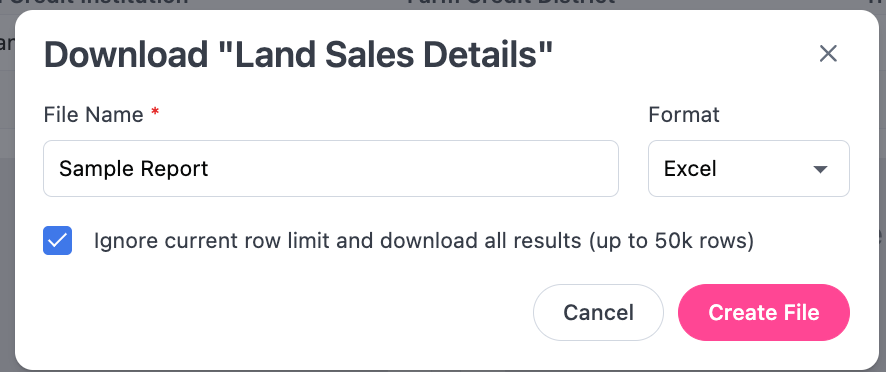
    Scroll to the top of the page until you see the **Download** modal

    * File Name: You have the option to rename the file before downloading
      * Format: Select the file format
      * If there are more than 500 lines of data check the box next to "Ignore current row limit and download all results"
  </Step>

  <Step>
    Click ****Create File****
  </Step>

  <Step>
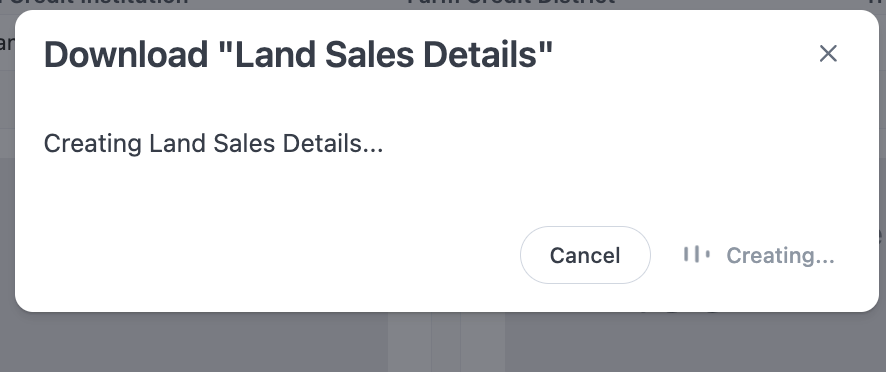
    The file will begin to generate. *Note: Larger files may take a few seconds*

    | ![Screenshot 2024-08-27 at 2.23.38 PM.png](https://assets.camo.ag/tillable-assets/docs/user-guides/image-139.png) | ![Screenshot 2024-08-27 at 2.24.01 PM.png](https://assets.camo.ag/tillable-assets/docs/user-guides/image-140.png) |
    | :---------------------------------------------------------------------------------------------------------------- | :---------------------------------------------------------------------------------------------------------------- |
  </Step>

  <Step>
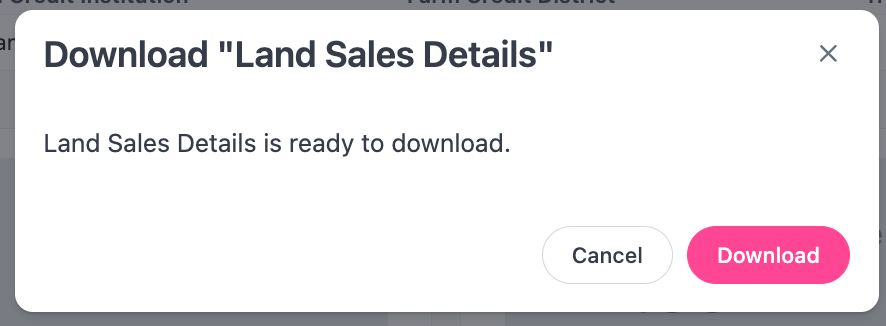
    Once the file has been created click ****Download****
    <Frame>
      ![Screenshot 2024-08-27 at 2.24.16 PM.png](https://assets.camo.ag/tillable-assets/docs/user-guides/image-141.png)
    </Frame>
  </Step>
</Steps>