> ## Documentation Index
> Fetch the complete documentation index at: https://docs.camo.ag/llms.txt
> Use this file to discover all available pages before exploring further.
# Moving a Field to Another Farm
* A Farm is made up of one or more fields
* There can't be an active lease in place. Once the lease expires, you can move the field.
* The farm to which you are moving the field must already exist in the platform
* Field was added to a farm by mistake
* You would like to consolidate multiple farms into a single farm
* You would like to separate fields that belong to a single farm into multiple farms
Navigate to the farm whose field you want to move
Click ****Fields & Parcels****
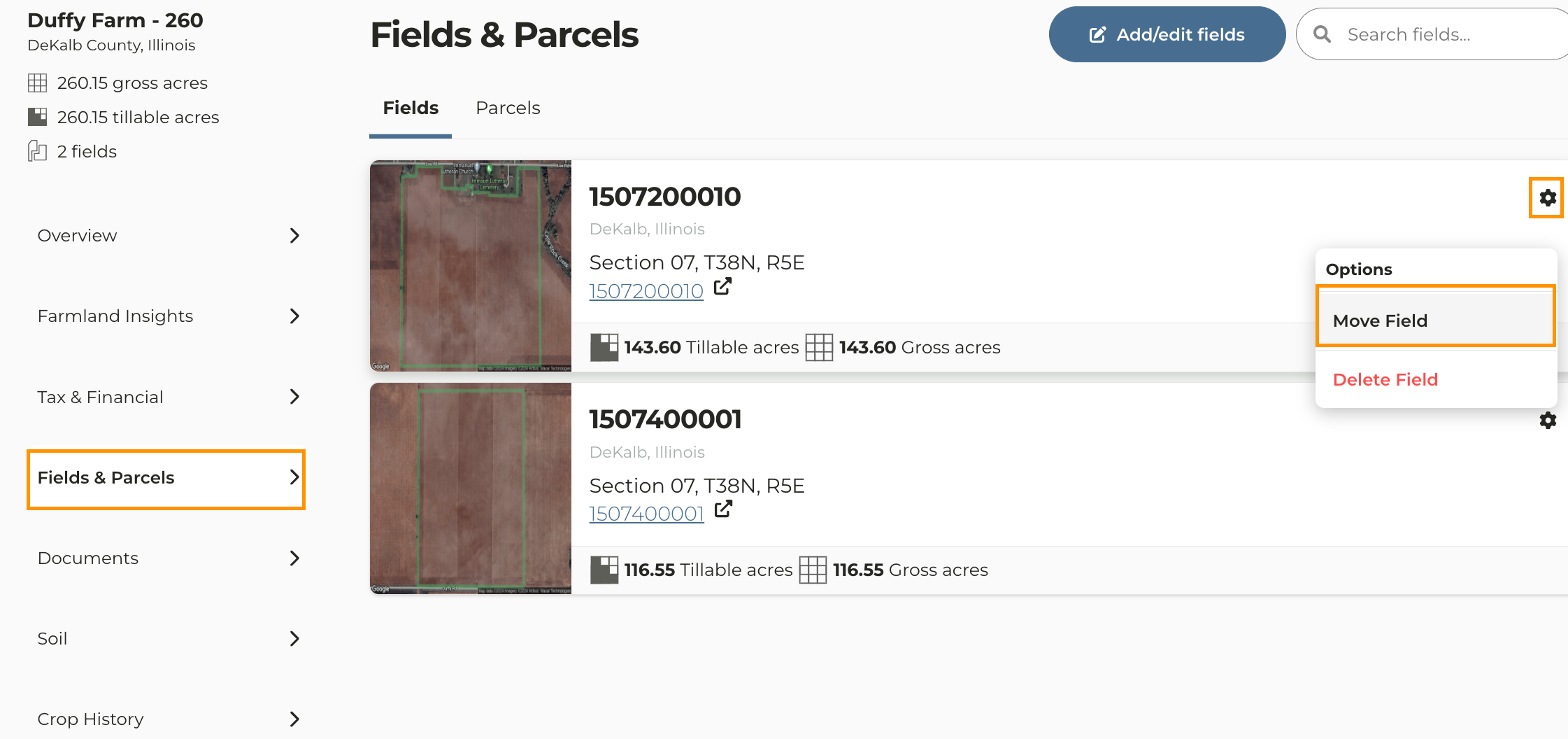
To the right of the field you want to work with, click the icon then **Move Field**
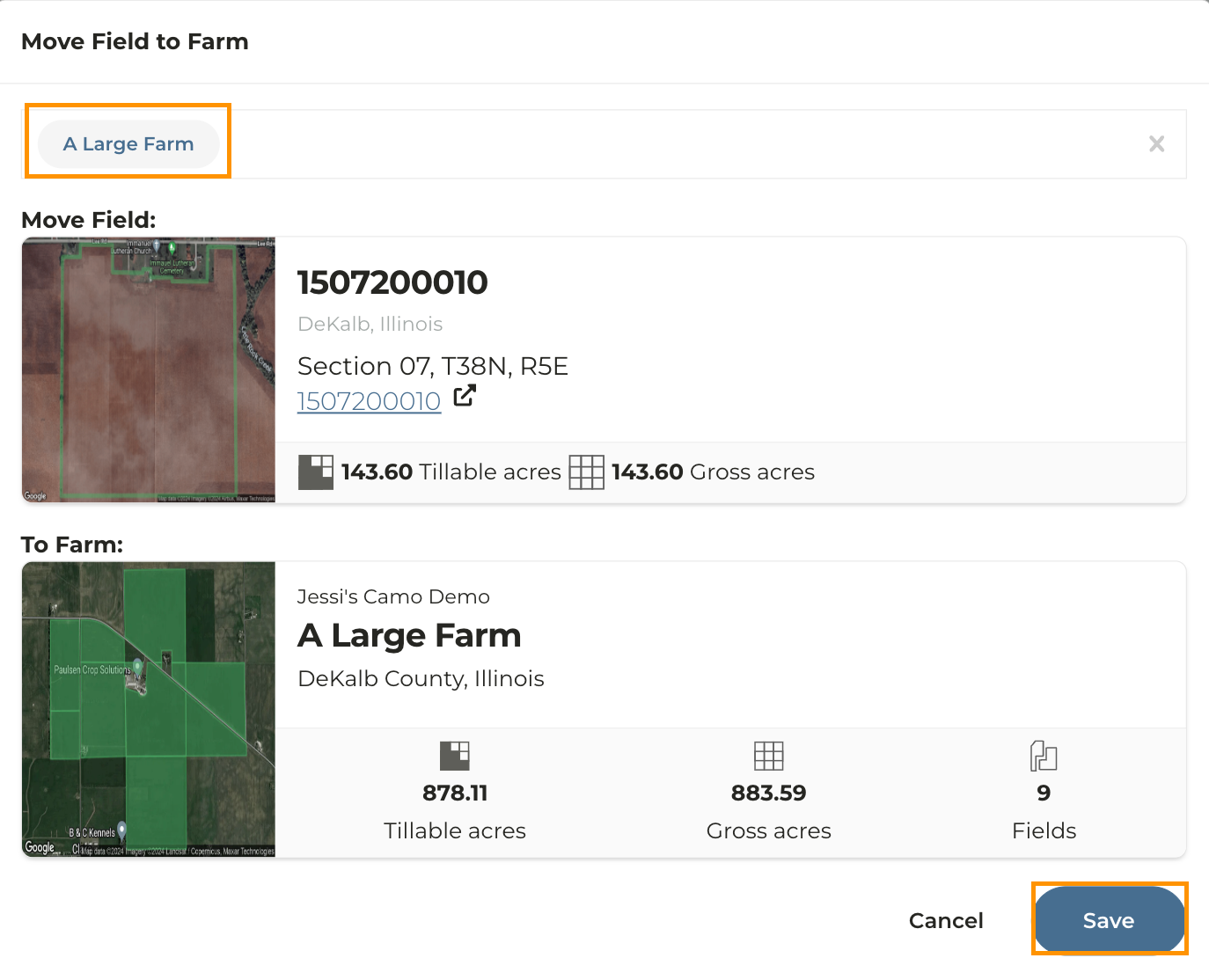
Search for the name of the farm to which you want to move this field. *Note: The farm will appear under the field you want to move.*
Click **Save** then **Okay** to confirm the move