> ## Documentation Index
> Fetch the complete documentation index at: https://docs.camo.ag/llms.txt
> Use this file to discover all available pages before exploring further.
# Comps Created Report
**The Comps Created report allows you to view all private sales comps that have been entered into the CamoAg platform by someone within your organization**
## **Comps Created Filters**
**To see all available filters click on the funnel to the right of the filters**

**Farm State:** Filter to show properties with comps that are in a specific state
**Farm County:** Select the county or counties you would like to include or exclude
*Note: The county filter is not state specific and will display all counties regardless of the state selected.*
**Created By User:** Filter for a specific user within your organization
**Use Case:** You want a birds eye view of all the Private Comps you or a user within your organization has created or locate a specific private comparable sale created in order to make edits.
**Sale Type:** Filter by Auction or Listing
**Sold Date:** Filter to view sales comps by their sold date
**Total Acres:** Total acres attributed to the comp created
**Price Per Acre:** Filter by the per acre price vs. the total sale price
**Soil Rating:** Filter to show only private comps with a certain soil rating
**Created At:** Filter by the date or time frame the Comp was created
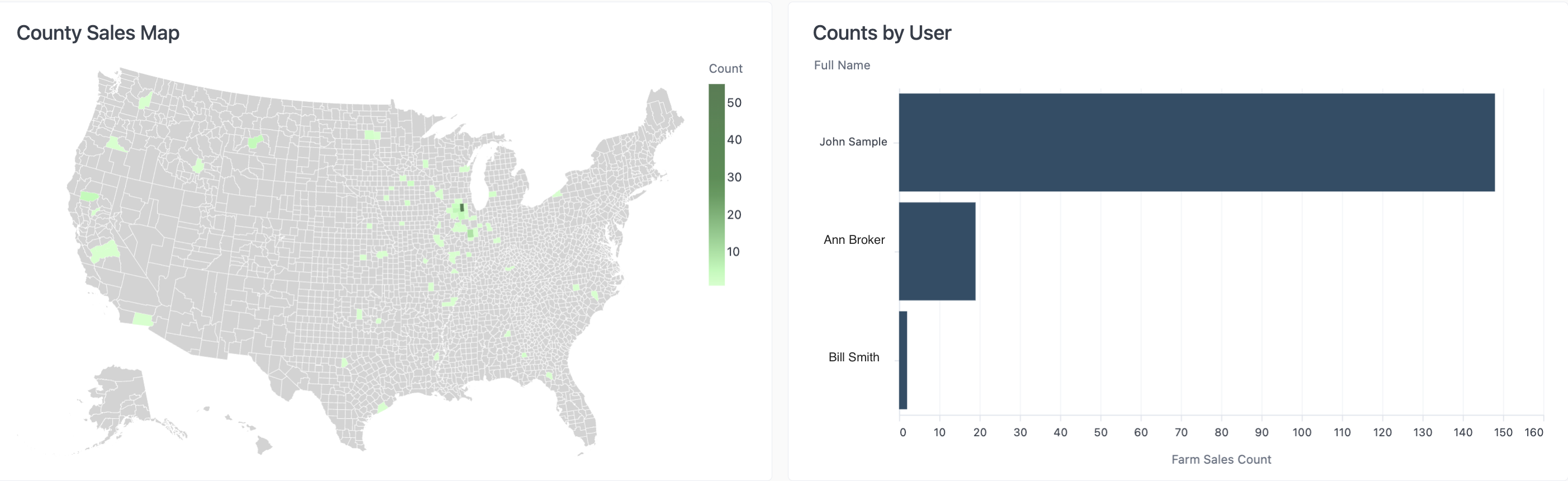
## **Comps Created Data Sets**
* Numbers will vary depending on the filters applied

## **Total Comps Created Data Table**
* Links to comps on the map
* Table can be downloaded