> ## Documentation Index
> Fetch the complete documentation index at: https://docs.camo.ag/llms.txt
> Use this file to discover all available pages before exploring further.
# Copying an Auction or Sold Farm to Make Edits
Auctions and Sold Farms can be copied to your account and edited if necessary
* **Use Case 1:** You attend an auction and are aware of the sales information and would like to use that as a comparable sale ahead of the sales data being published
* **Use Case 2:** You know a parcel was split in the sale, but it appears as a single sale in CamoAg. You can copy the sale and make any necessary edits and use the updated sale and a comparable sale.
Navigate to the Map and enable the **Farms Sales** layer
Navigate to the auction or sale you want to copy and click into the property
From the property overview page click ****Options > Copy Sale to My Account****
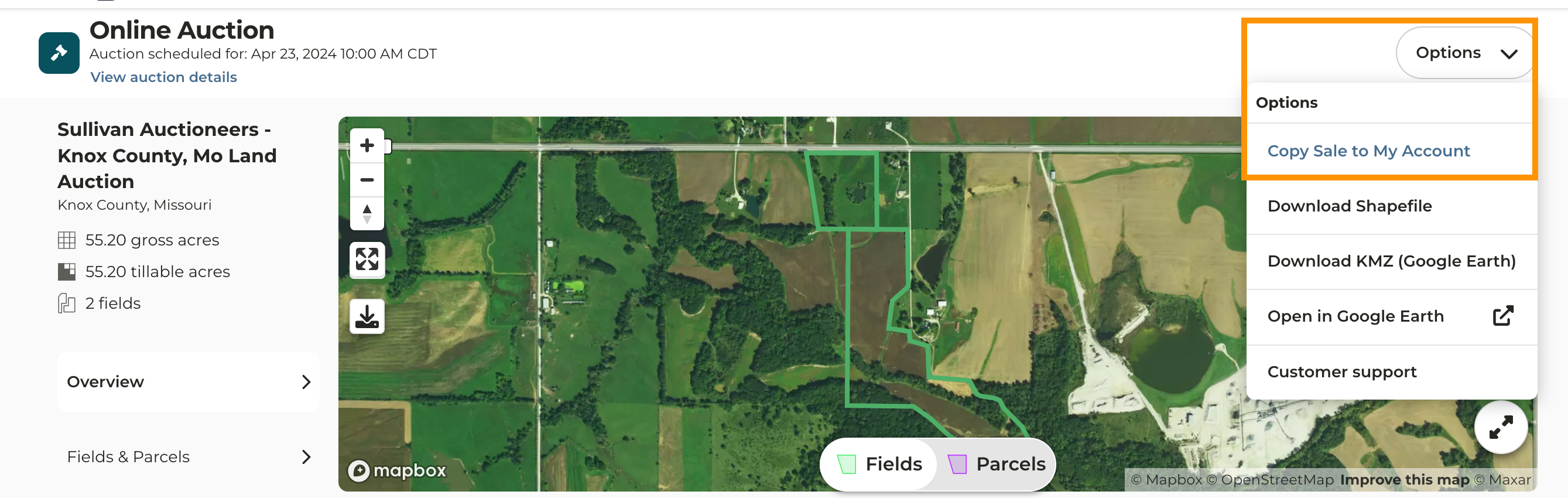
Once copied you will see a green banner on your screen notifying you the auction was successfully copied and is available to view on the Farms page.
*Note: If the property was sold in multiple tracts, continue clicking "Copy Sale to My Account" until you have as many copies of the sale as tracts sold.*
If you made multiple copies of the farm complete the steps below, if not continue with Step 6
* *Rename the copy of the farm sale to help identify the tract it will represent such as Acme Auctioneers Tract 1, Acme Auctioneers - Tract 2, etc.*
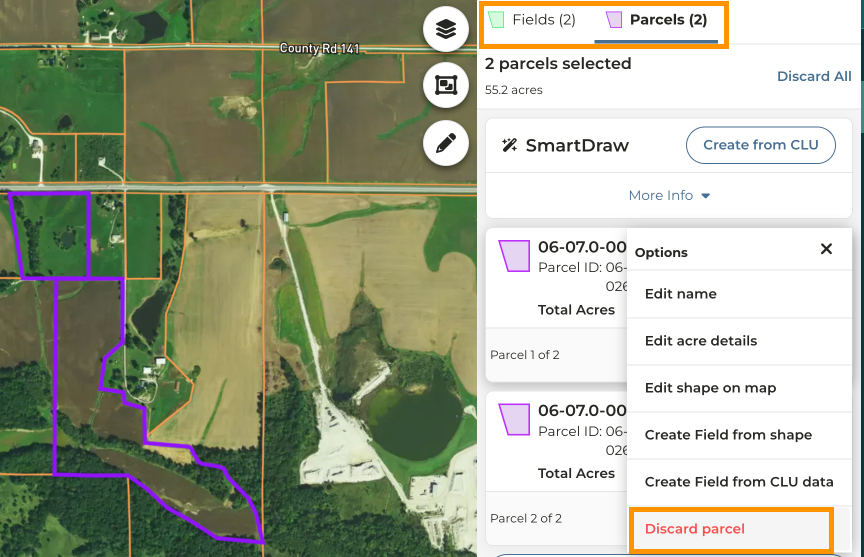
* Click on **Fields & Parcels > Add/Edit Fields**
* Click on the Fields tab and next to the field you want to remove click **Discard Field**
* Click on the Parcels tab and repeat removing the corresponding parcel of the field you just removed
* Click **Save Changes**
* Repeat the steps removing different fields/parcels until each copy of the farm looks how you want it and continue with Step 10
Click **Options > Edit Farm Sale**
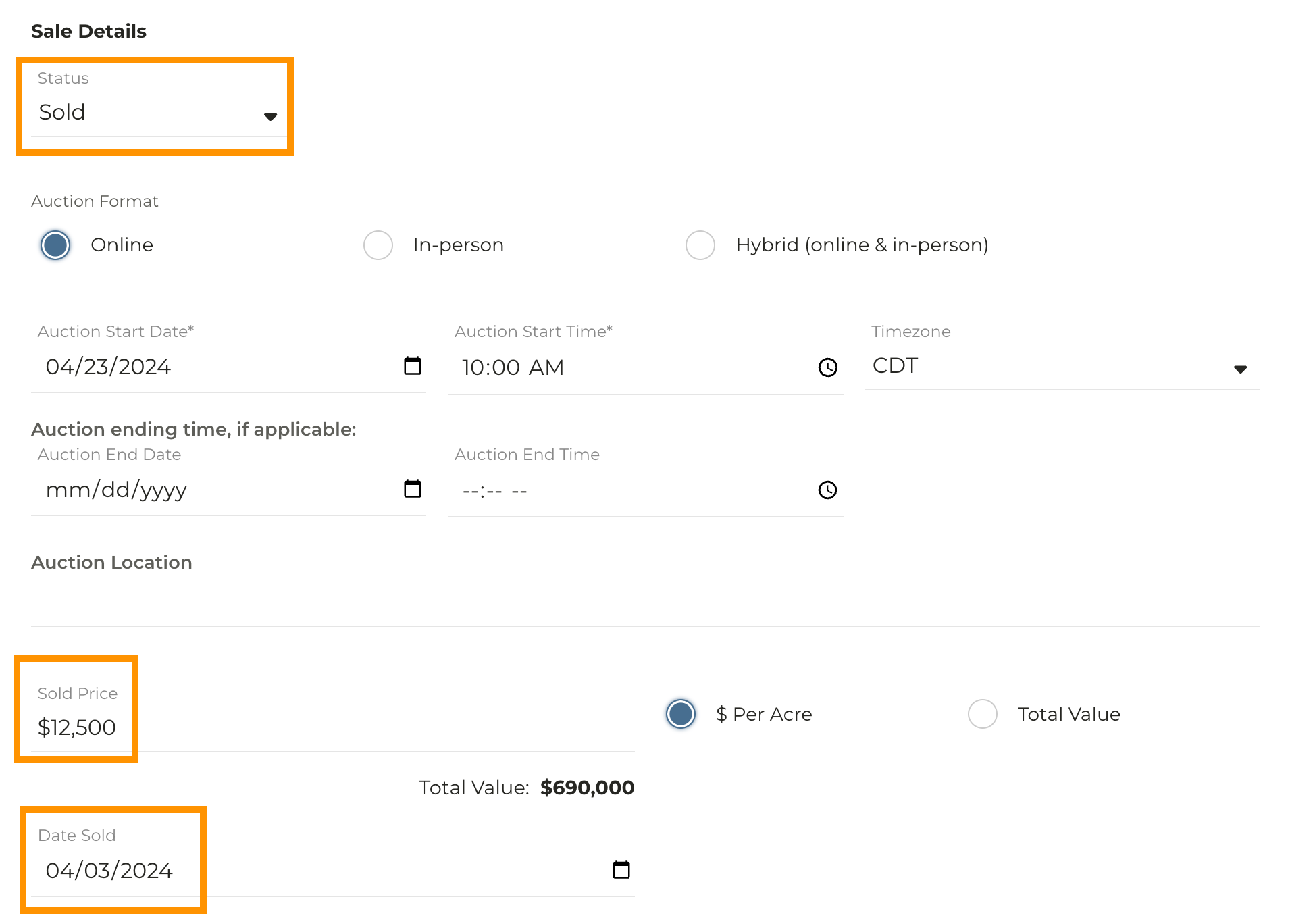
Under **Sale Details** change the status from Draft to **Sold (for recently completed auctions only)**
Enter or Edit the **Sold Price** and **Date Sold.** You have the option to enter additional information such as the Buyers and Sellers, but are not required to do so
Click **Save Farm Sale**
The sale will now appear as a private comp on the **Sold Farms** map and can be used as a comparable farm in a CMA