> ## Documentation Index
> Fetch the complete documentation index at: https://docs.camo.ag/llms.txt
> Use this file to discover all available pages before exploring further.
# Plat Map: Enabling Location Services
> If you enable location services and use the plat map in CamoAg, the map will zoom into your location allowing you to quickly find and add the parcel when you are on site. There are two options for enabling your location services
### **Android Devices:**
On your Android device, open Chrome
On the right of the address bar, tap More
**Settings**.
Under “Advanced,” tap **Site settings** **Location**.
Turn **Location** on or off.
### **Apple Devices**
**Option 1:**
Open Safari and search for something or simply enter app.camo.ag
When the prompt to share you location comes up select Always or While Using App
**If Option 1 does not work, use Option 2**
**Option 2:**
Navigate to the Settings

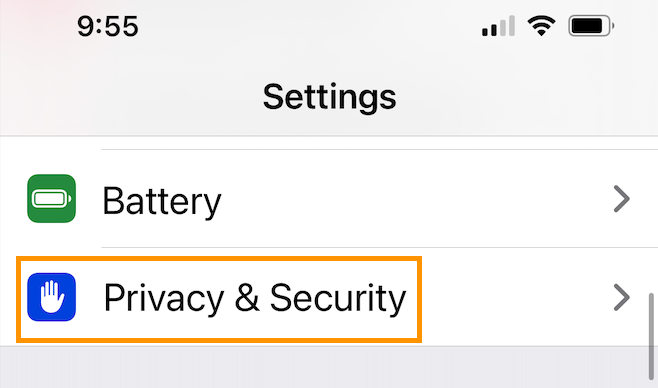
Privacy & Security
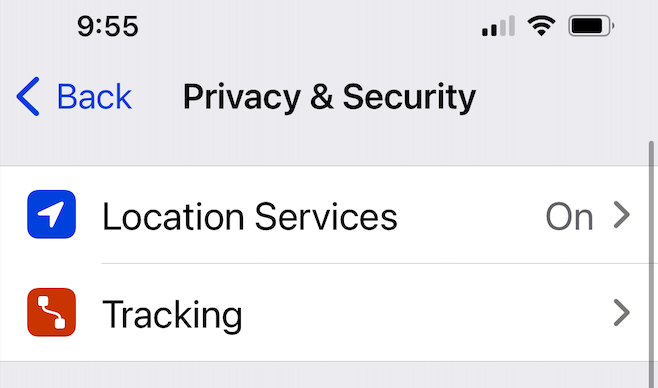
Location Services
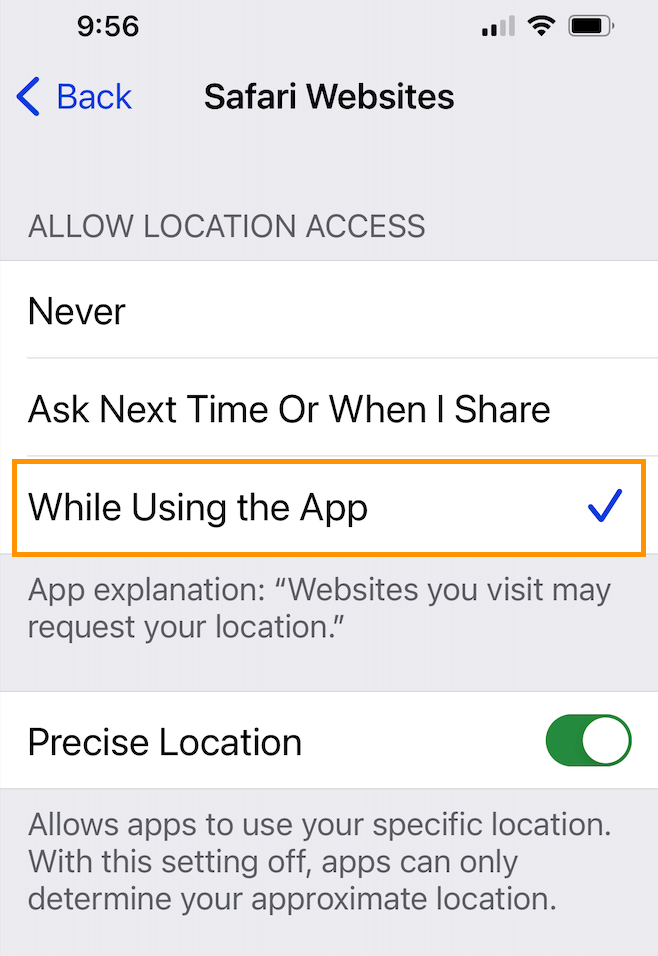
Scroll until you find Safari Websites and select **While Using the App**
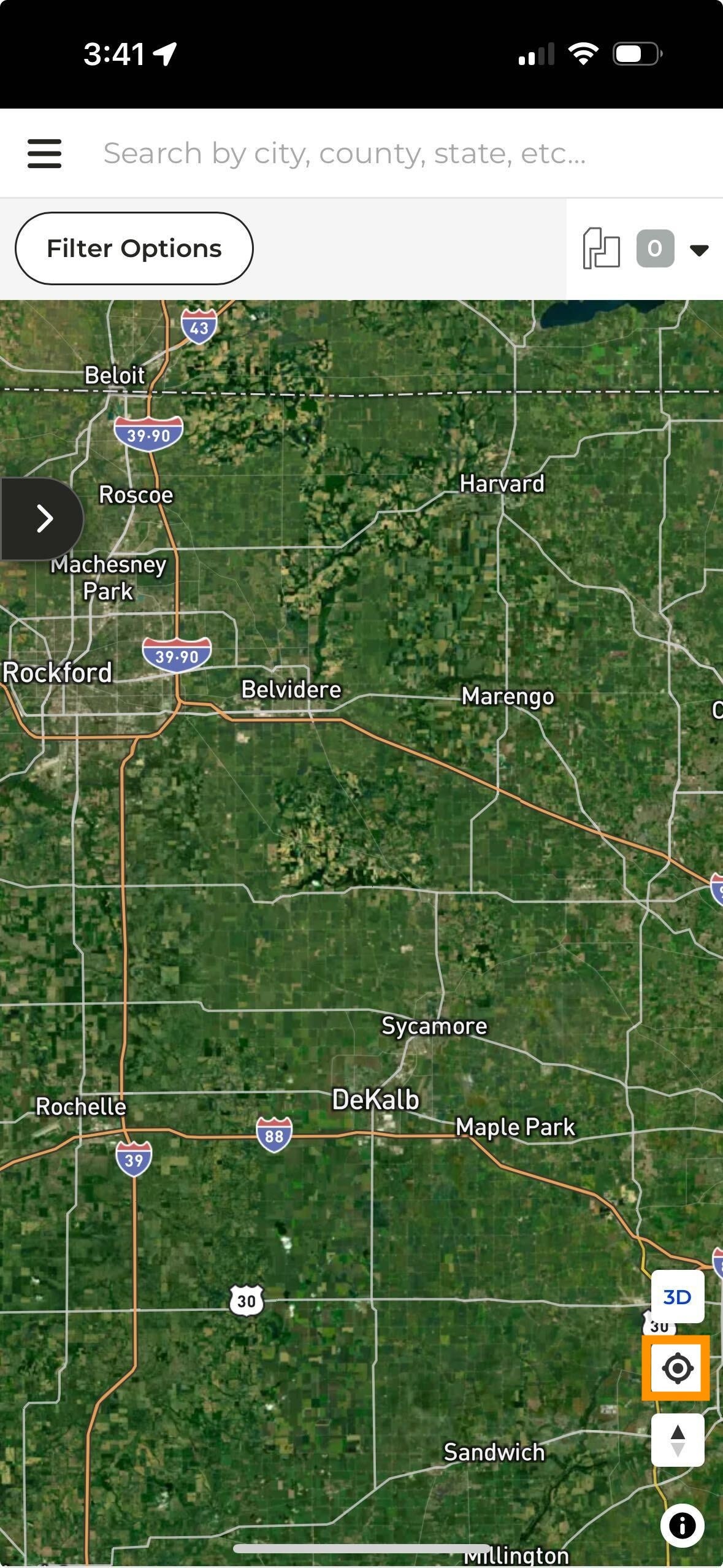
Navigate to CamoAg and open the plat map. If the map doesn't automatically zoom into your location, tap on the icon highlighted in the lower right corner (see below)