> ## Documentation Index
> Fetch the complete documentation index at: https://docs.camo.ag/llms.txt
> Use this file to discover all available pages before exploring further.
# Installing CamoAg on a Phone or Tablet
**Is there a CamoAg app?**
* Yes - there is a CamoAg iOS app available on the Apple App Store.
* If you have an Android device, or prefer to use the web version, you can add CamoAg to the home screen of a mobile device and access your account in the same way as an app
**Apple Device**
Open Safari. Other browsers, such as Chrome, won't work for this specific task.
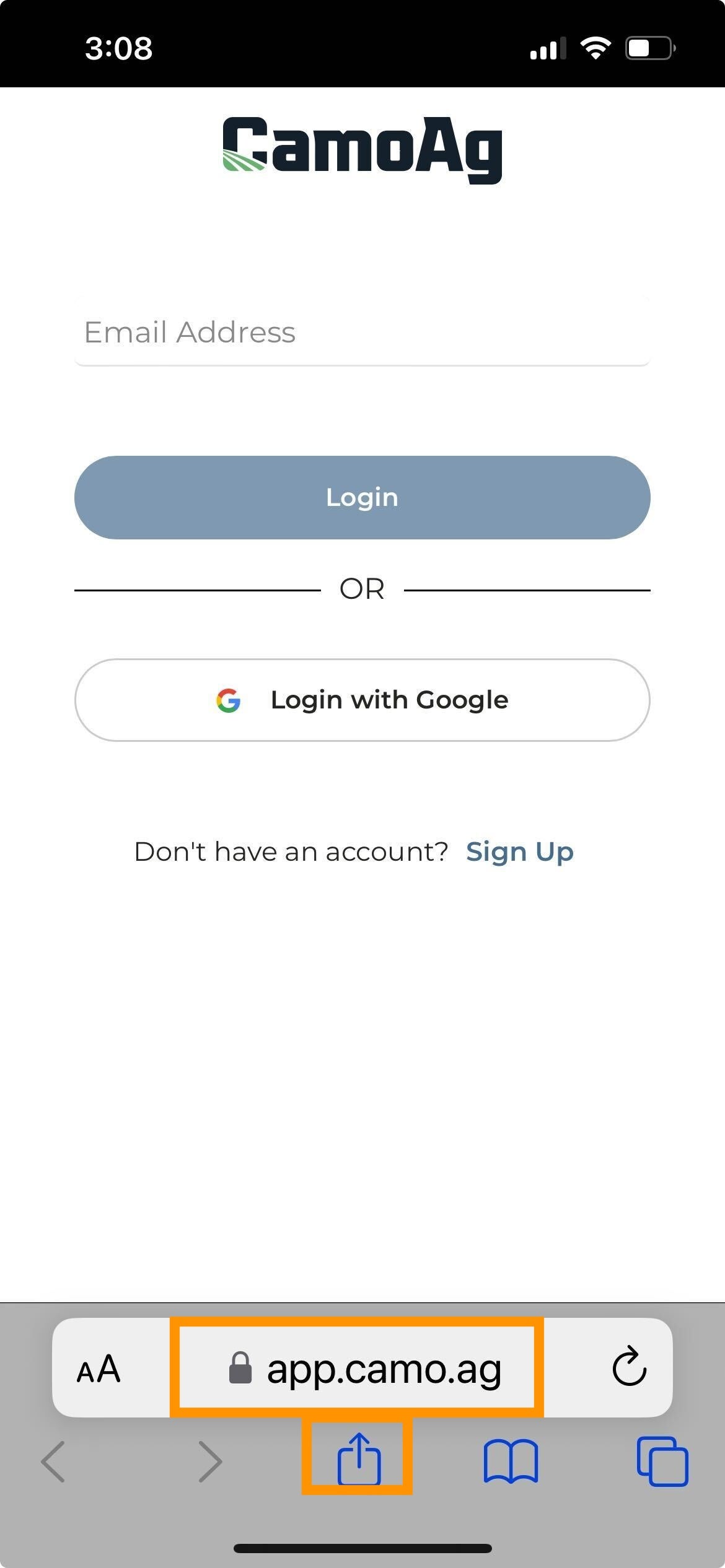
Navigate to your organization's specific URL or to [app.camo.ag](https://app.camo.ag) and tap **Go**
Tap the Share button on the bottom of the page. It looks like a square with an arrow pointing out of the top.
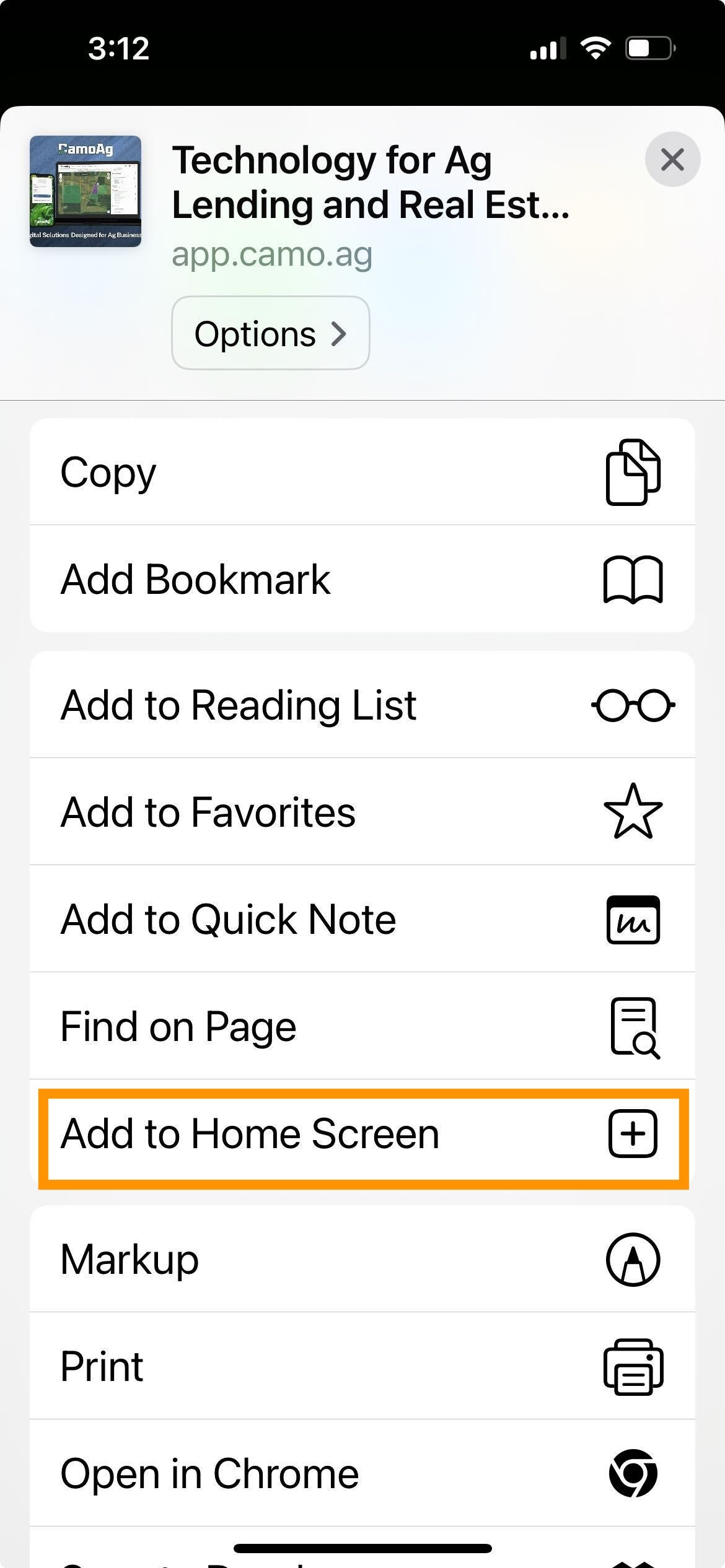
Scroll until you see **Add to Home Screen** and tap on the plus sign
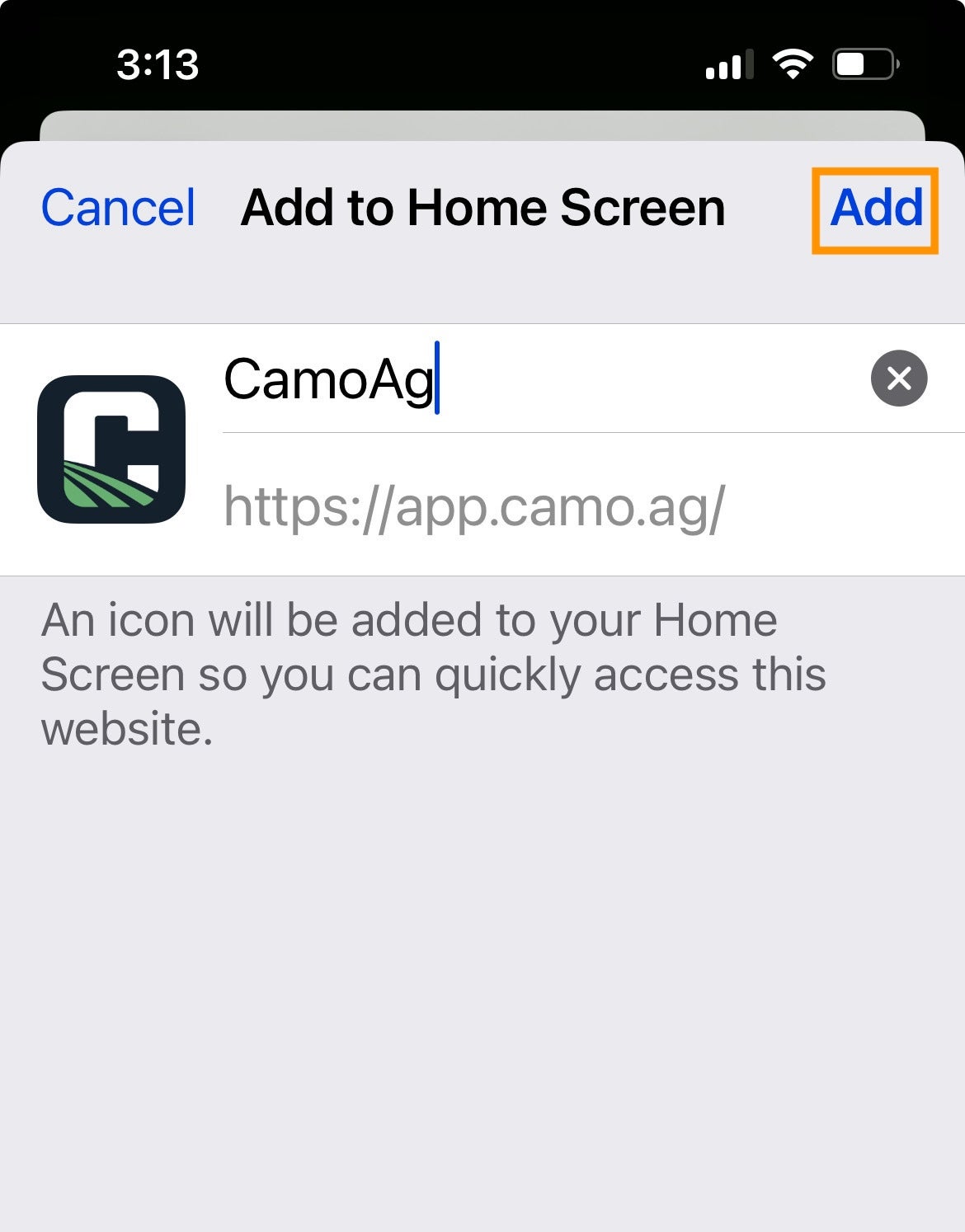
Tap **Add**
Tap the new "app" or shortcut on your home screen, and it will take you to the login screen
Lastly, you can optionally enable location services - when using the plat map out in the field, your location will be identified and allow you to quickly research or add a property to your account.
Settings > Privacy & Security > Location Services > Safari Websites > While Using App
**Android**
Open Chrome.
Navigate to the website or web page you want to pin to your home screen.
Tap the menu icon (3 dots in upper right-hand corner) and tap Add to homescreen.
Choose a name for the website shortcut, then Chrome will add it to your home screen
**Once you have added CamoAg to your home screen you can quickly:**
Access directions to a property you have added to your account
Add a subject property when on site by navigating to the Plat Map and tapping on the Find My Location icon
Sign a Lease