> ## Documentation Index
> Fetch the complete documentation index at: https://docs.camo.ag/llms.txt
> Use this file to discover all available pages before exploring further.
# Downloading Soil Maps for a Farm or Individual Fields
**What to know about the soil maps:**
* All soils data is provided by SSURGO
* A farm must be added to your account in order to generate a soil map
* Soil maps can be downloaded for the entire farm or for a specific field
* The displayed soil rating is calculated based on acres designated as Dryland, Irrigated, or CRP productive acres. If a property includes both productive and non-productive acres, the non-productive acres should be separated into a second field to prevent them from affecting the soil rating.
* If you want to download a soil report for the different acres types, multiple fields must exist with the designated acres assigned to each field. Ex: Timber acres would need to be assigned a field that is separate from productive acres.
**Soil Map Total Acres**
* The total acres you see in the soil map table are equal to the gross acres of the field shape
* If you want the acres in the table to match the production acres then the production acres of a field should match the gross acres of a field
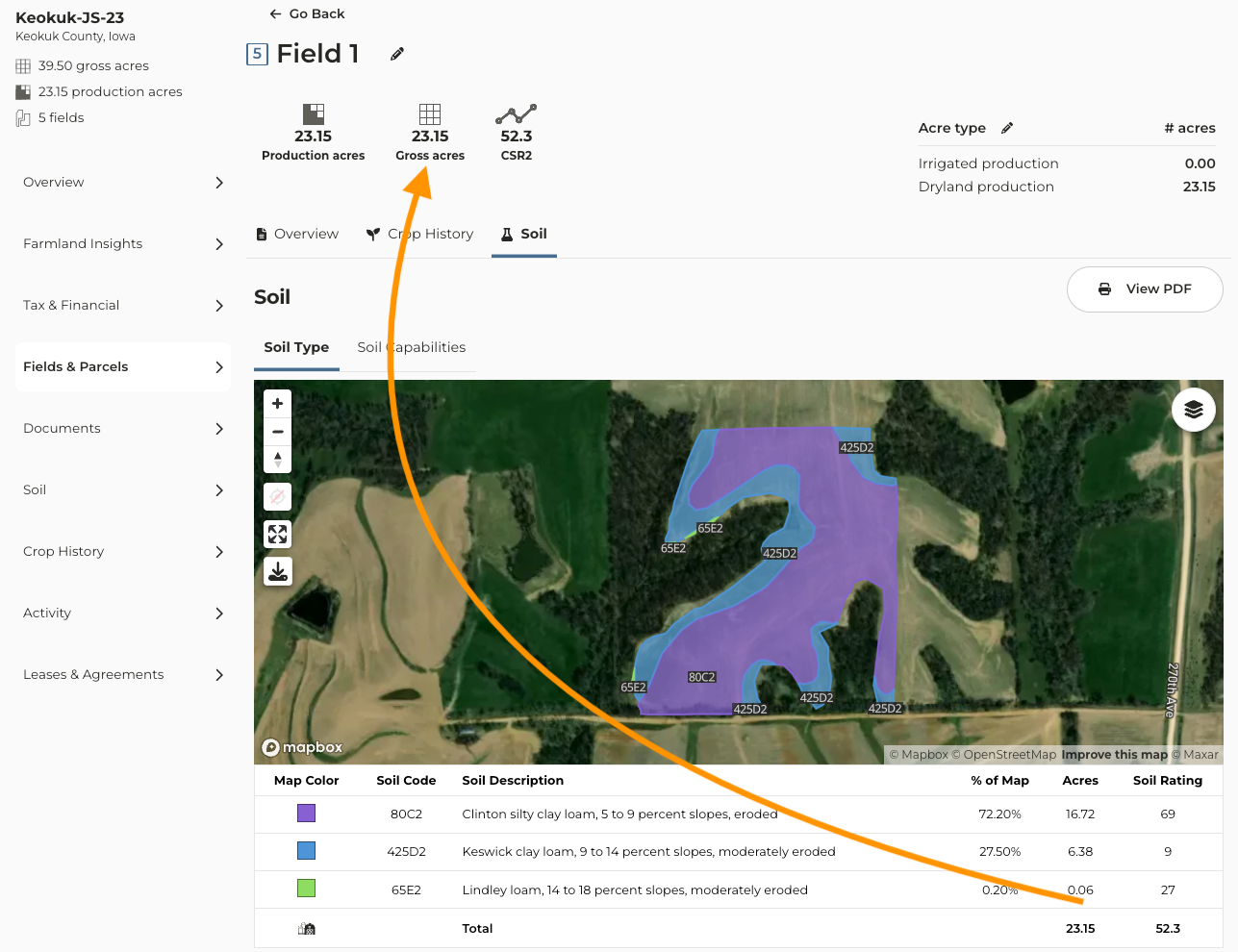
Soil maps can be downloaded for the [entire farm](#h_01JP326A442VX2PTJ4QW8DXQD1) or [individual fields](#h_01JP326FYPESG3QBMR5EP1RTGS)
### **To download a soil map for the entire farm:**
Navigate to the farm you want to work with
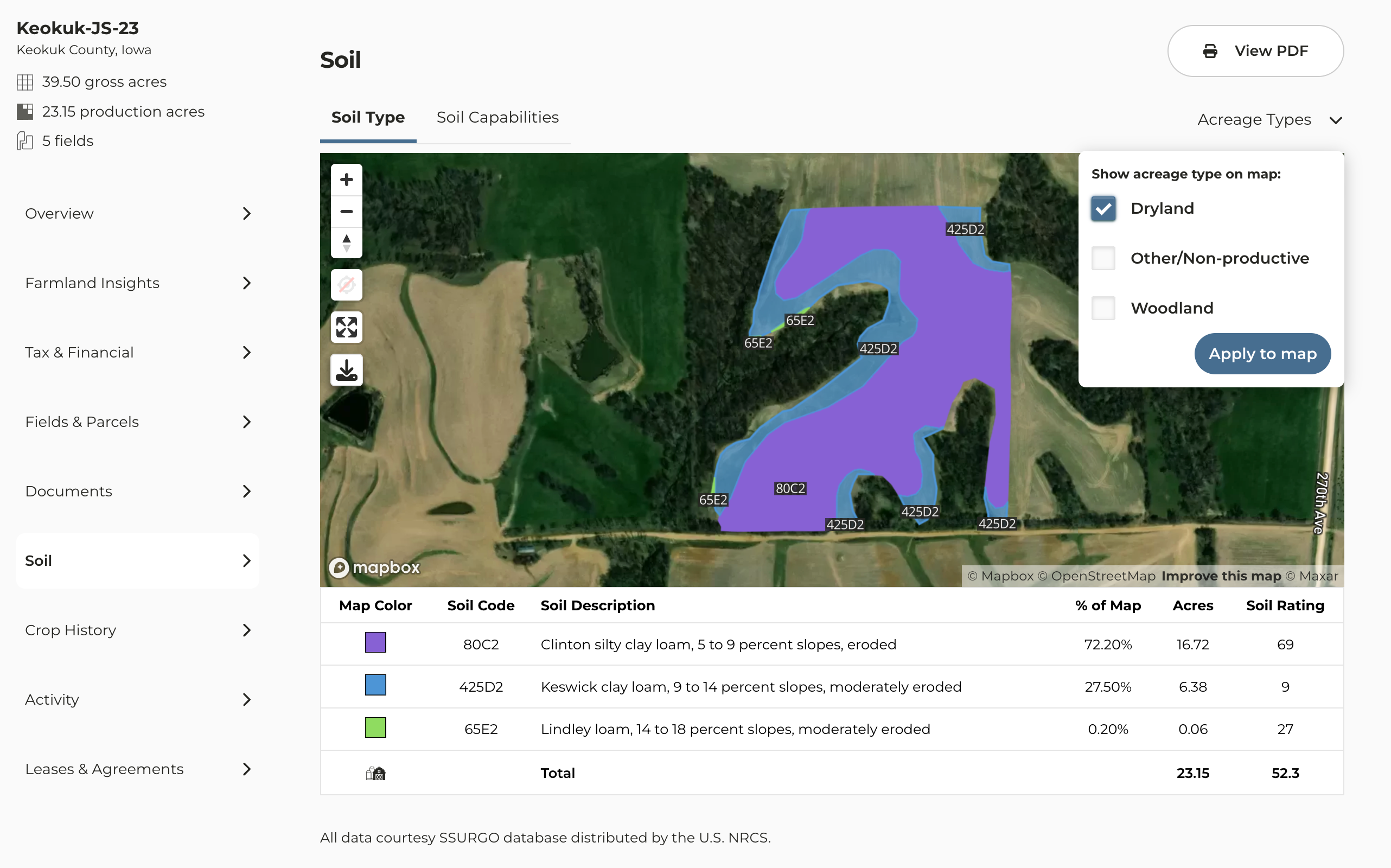
From the farm page click on **Soil**
There are two options to download a soil map for the entire farm
**Option 1: Click View PDF** - this will generate a soil report for the entire farm based on the soils designated as productive. This includes dryland, irrigated, and CRP acres.
**Option 2: Click Acreage Types:** If multiple fields and acre types exist for the farm this will be an option. Select the acre types you want to appear on the map and continue with Step 6. *Note: Only the acre types designated to this farm will appear in the dropdown. Ex: If irrigated acres are not designated to a field, you will not see it in the dropdown.*
Click ****Apply to map****
When you're ready to generate the map click ****View PDF****
### **To download a soil map for a field(s)**
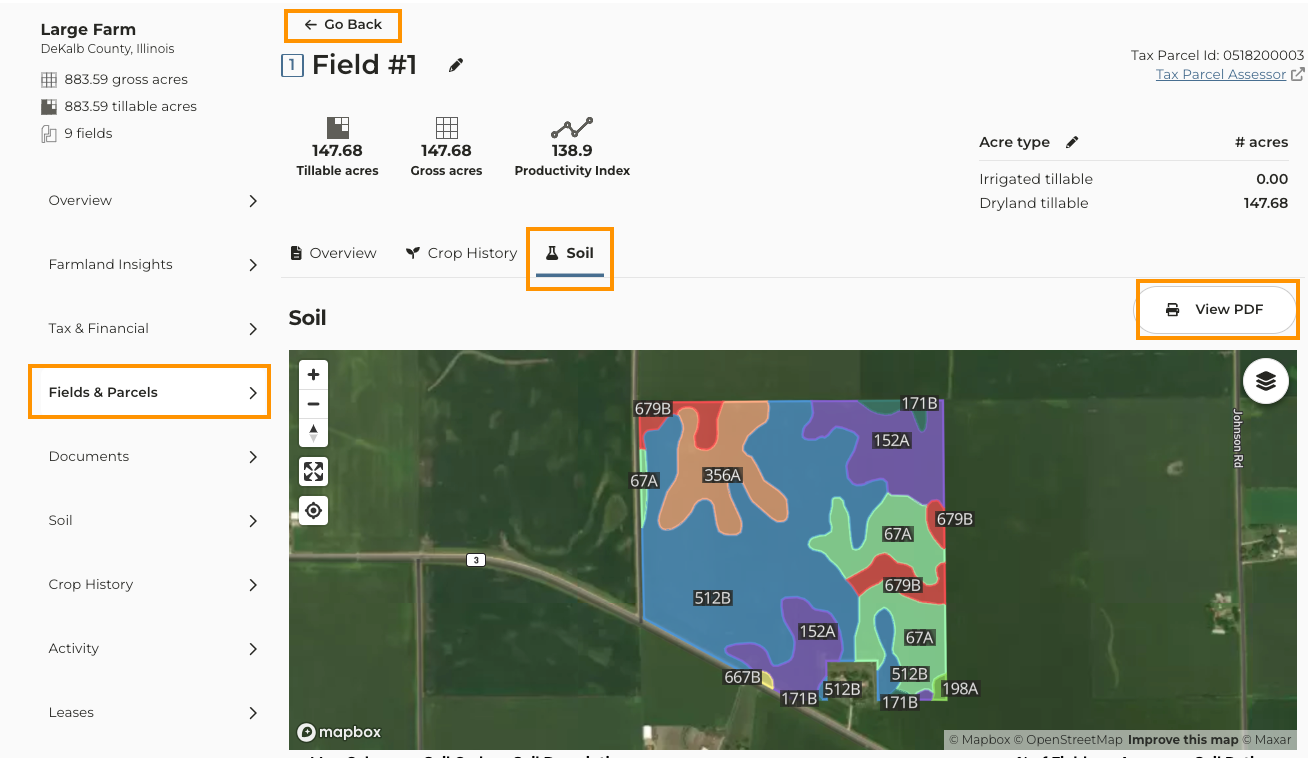
Navigate to the farm you want to work with
Click on **Fields & Parcels**
Click into the field you want work with
Above the map click on the **Soil** tab
Click **View PDF**
If there are additional fields you want to generate a soil map for click **Go Back** and repeat steps 3-5