> ## Documentation Index
> Fetch the complete documentation index at: https://docs.camo.ag/llms.txt
> Use this file to discover all available pages before exploring further.
# Creating & Editing a Comparative Market Analysis (CMA)
* If you do not have a paid subscription to CamoAg or Land Sales Bulletin you will not be able to view the transaction details for a sold property.
* If you have paid for a subscription please contact [support@camo.ag](mailto:support@camo.ag) for resolution
* Auctions added to the platform by the CamoAg team
* **Green Flag** - Denotes sales comps pulled from CoreLogic, Attom, and Black Knight
* **Blue Flag** - Denotes private comps created by your organization
* **Purple Flag** - Denotes data from Land Sales Bulletin
* Yes - the [CMAs Created](/hc/en-us/articles/25954581460247-CMAs-Created-Report)
### **Creating a CMA**
* If you have previously added the subject property to your account, locate the property in CamoAg, click **Create CMA** and skip down to Step 5
* If you have not located the subject property, begin at Step 1.
From the dashboard click **Create CMA** and continue
Locate the subject property on the map and click **Start Farm from Parcel**
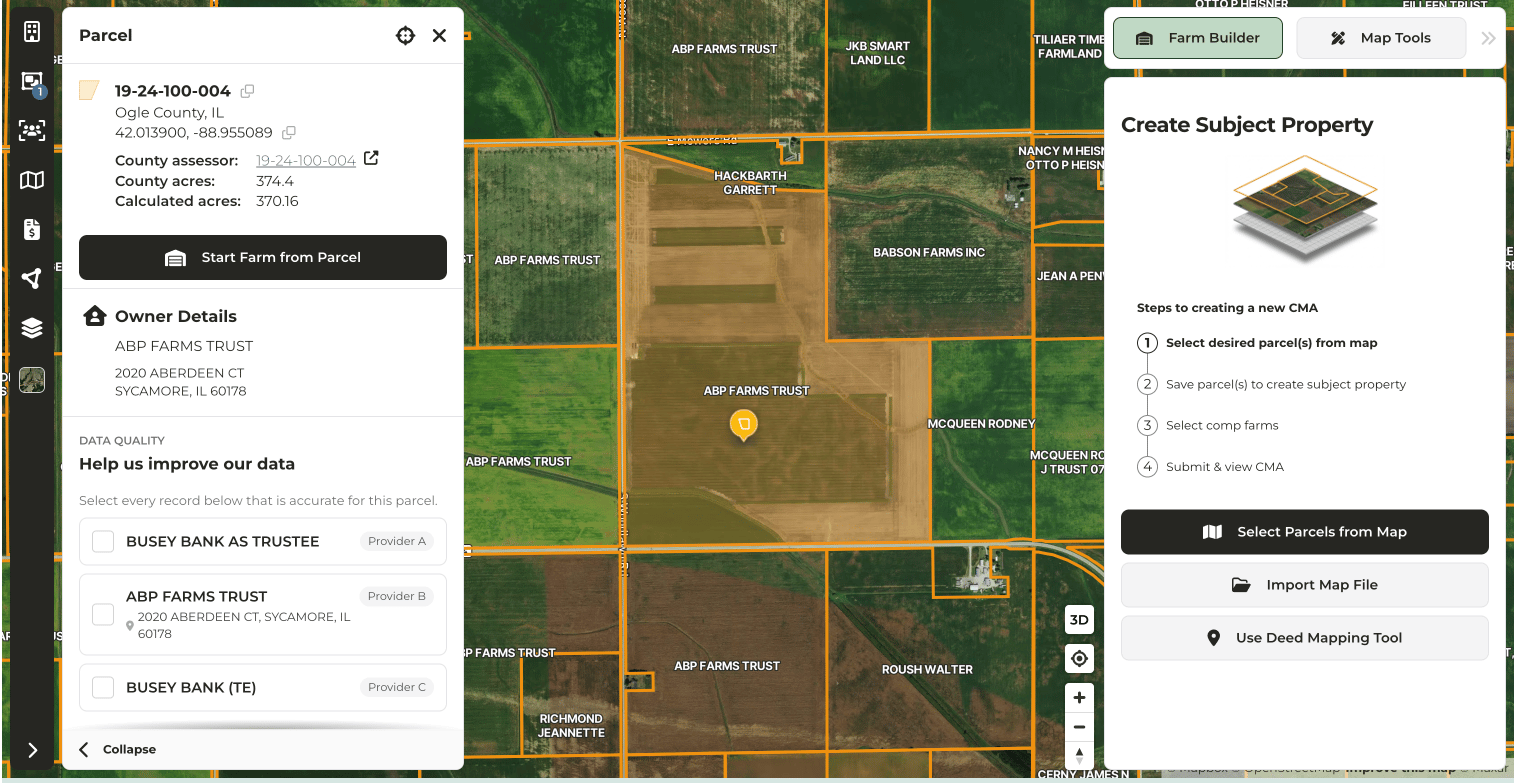 Click through the [Farm Builder](https://docs.camo.ag/hc/en-us/articles/23972877590423-Adding-a-Property-To-Your-Account-Using-Farm-Builder) steps
After you save your farm, on the map you will see the subject property marked in the center of the radius, with comparable sales within a ten (10) mile radius around it
On the left panel click **Farms > + >** **Advanced Filters.** Here you can filter the comparable sales displayed by: data sources, soil rating, distance to subject property, and date sold to name a few.
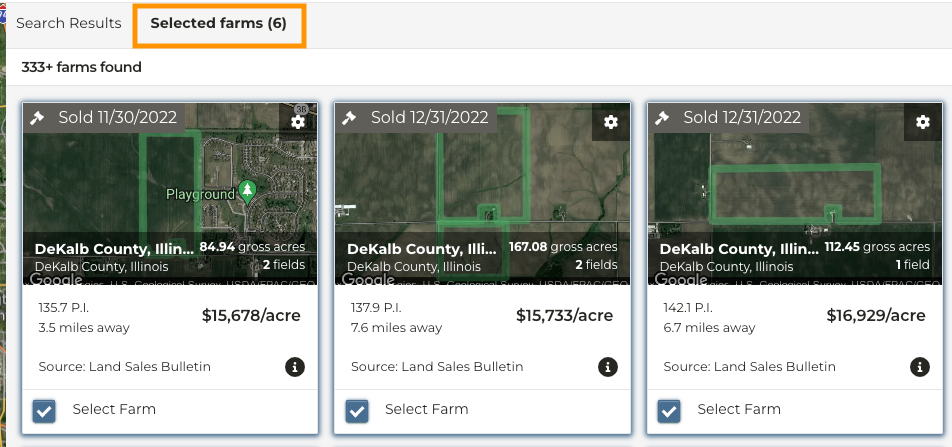
Comparable sales can be added to your analysis by either, clicking on the sale on the map then **Add to Market Analysis** or by reviewing the thumbnails on the right side of the page and checking the **Select Farm** box.
Once you've made your selections click **Save Changes > View Analysis**
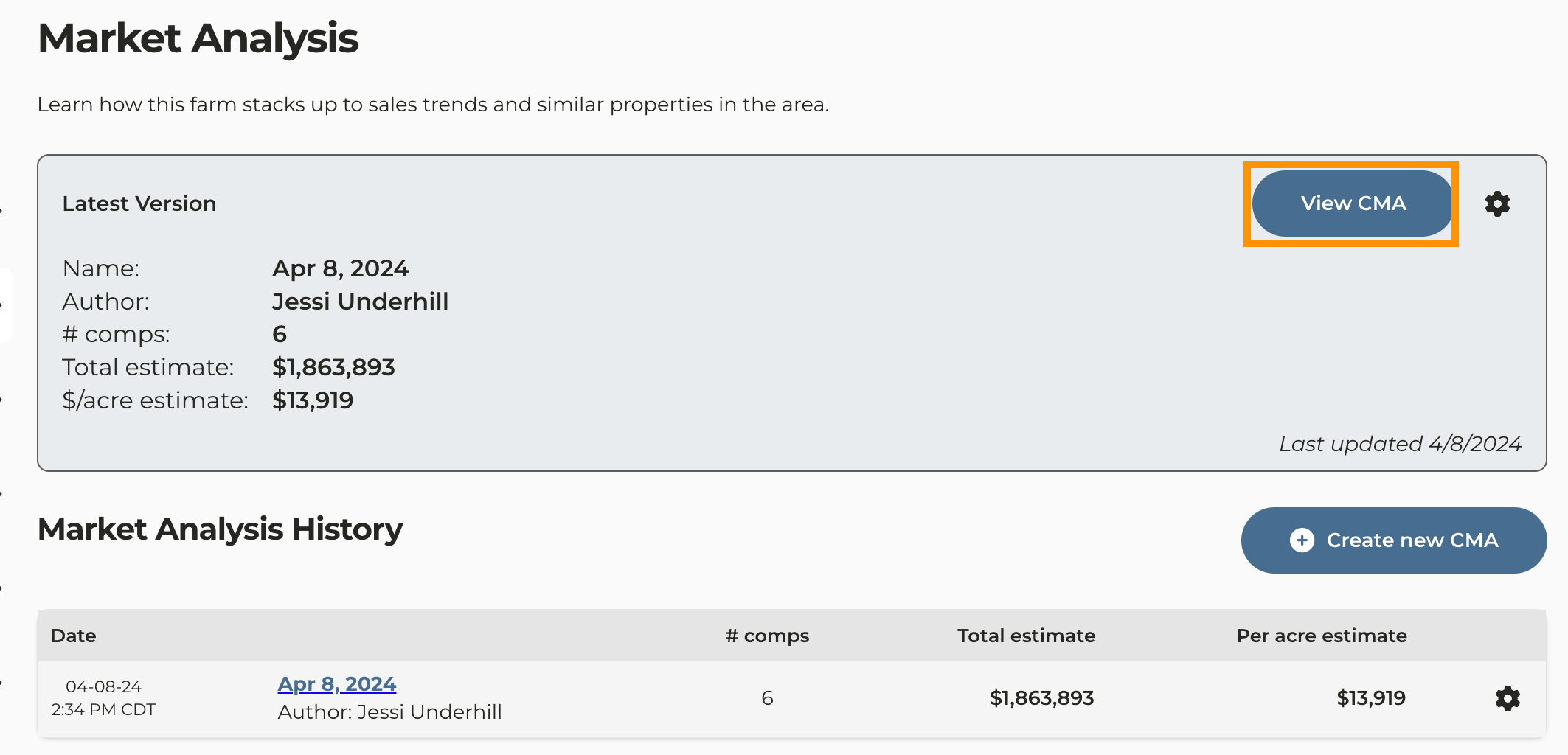
You will now be taken to the Market Analysis page, click **View CMA** to review and make edits
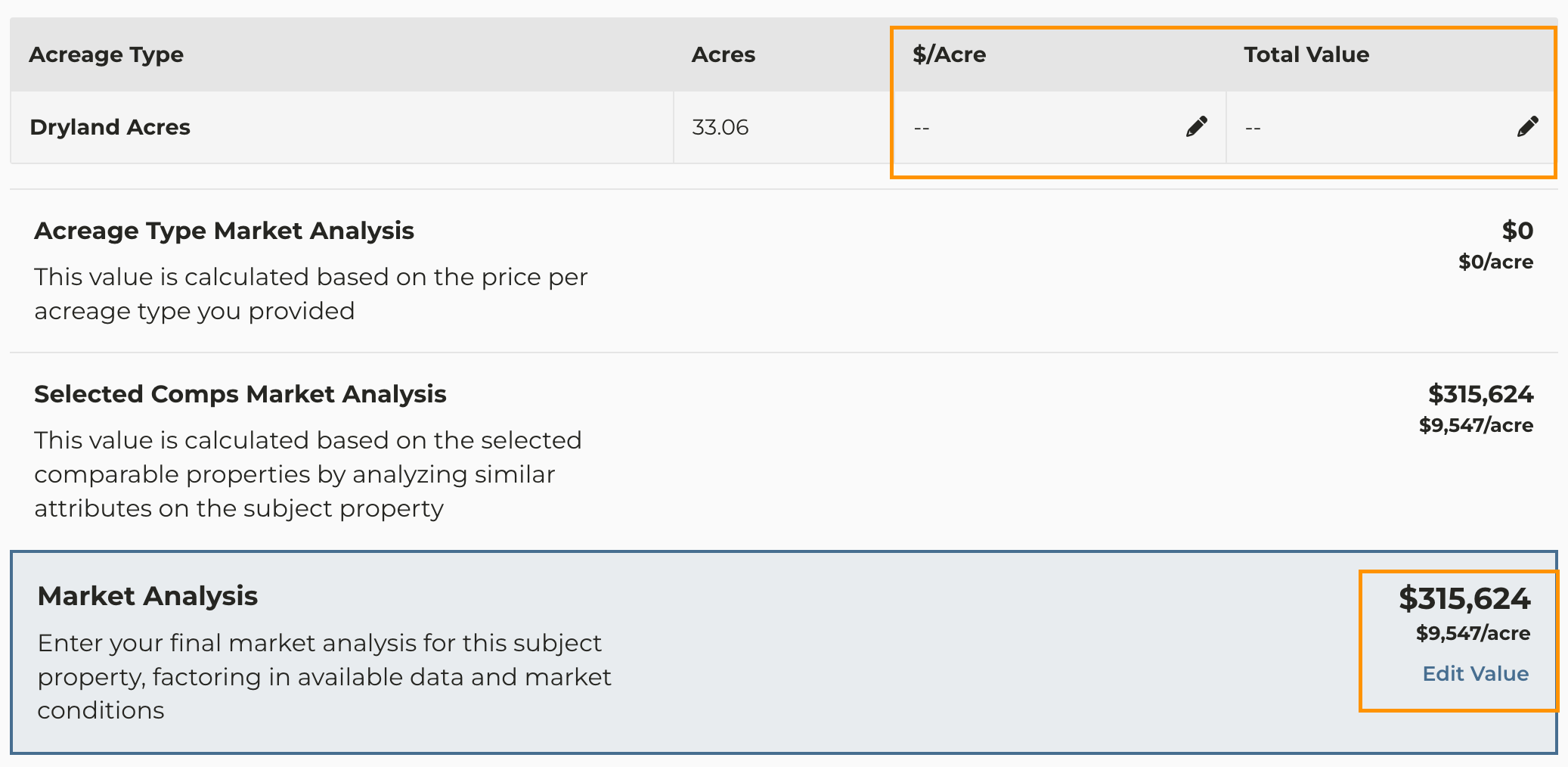
If different acre types have been designated to the subject property, you have the option of assigning a different value to each acre type by clicking the edit icon next to each acre type
* If you do not assign a value to the acre types, the data on the CMAs report will pull from the **Selected Comps Market Analysis**
* If a value has been assigned to the different acre types, the numbers you see in the **Acreage Type Market Analysis**, will populate the Market Analysis Average Price Per Acre and Market Analysis Average Total Estimated Value columns in the [CMAs Created report.](/hc/en-us/articles/25954581460247-CMAs-Created-Report)
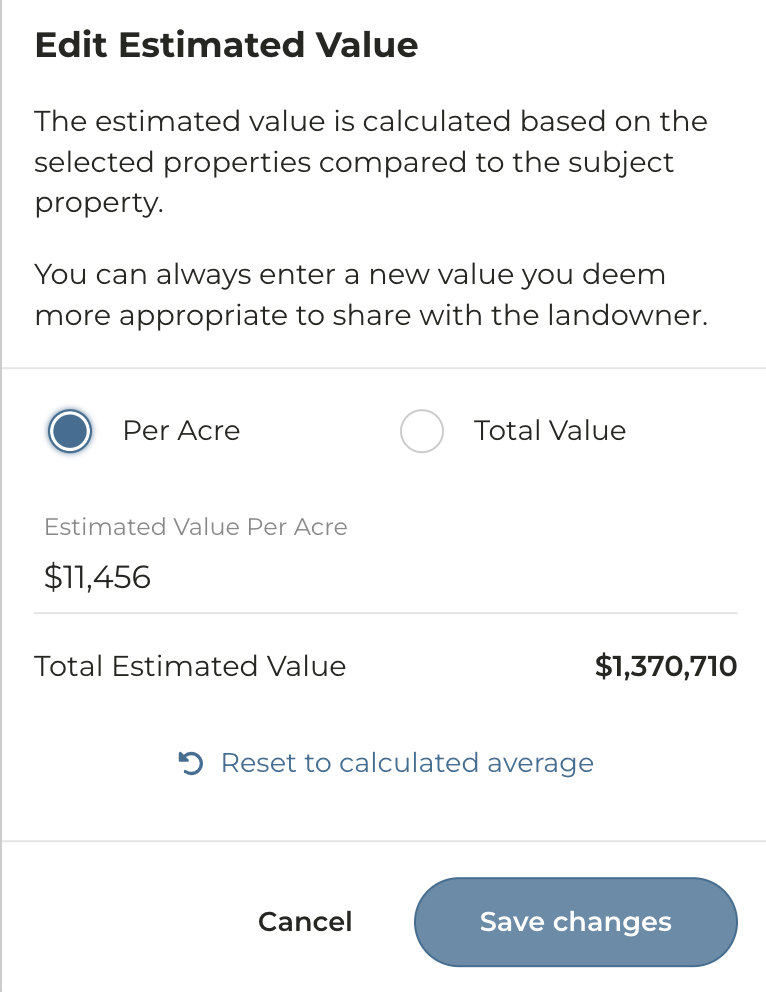
* To update the **Market Analysis** value to reflect your opinion, click **Edit Value,** update the value and click **Save changes.** *Note: In order for the CMAs Created Report to populate with the this value, you must click **Edit Value >** **Save changes,** even if no edit is made to the value.*
* If using the **CMAs Created Report**, you will need to click **Edit Value >** **Save changes** even if no edits are made to the Total Estimated Value
If you want to update your selection of comparable farms you can do so by clicking on **Update Farms**
**To add more farms** to the analysis, select the farms you want to add from the map or the Search Results tab
**To remove a farm** from the analysis click on the **Selected farms** tab above the thumbnails and uncheck the box next to the property you wish to remove from the analysis.
Click **Save Changes**
Click through the [Farm Builder](https://docs.camo.ag/hc/en-us/articles/23972877590423-Adding-a-Property-To-Your-Account-Using-Farm-Builder) steps
After you save your farm, on the map you will see the subject property marked in the center of the radius, with comparable sales within a ten (10) mile radius around it
On the left panel click **Farms > + >** **Advanced Filters.** Here you can filter the comparable sales displayed by: data sources, soil rating, distance to subject property, and date sold to name a few.
Comparable sales can be added to your analysis by either, clicking on the sale on the map then **Add to Market Analysis** or by reviewing the thumbnails on the right side of the page and checking the **Select Farm** box.
Once you've made your selections click **Save Changes > View Analysis**
You will now be taken to the Market Analysis page, click **View CMA** to review and make edits

If different acre types have been designated to the subject property, you have the option of assigning a different value to each acre type by clicking the edit icon next to each acre type
* If you do not assign a value to the acre types, the data on the CMAs report will pull from the **Selected Comps Market Analysis**
* If a value has been assigned to the different acre types, the numbers you see in the **Acreage Type Market Analysis**, will populate the Market Analysis Average Price Per Acre and Market Analysis Average Total Estimated Value columns in the [CMAs Created report.](/hc/en-us/articles/25954581460247-CMAs-Created-Report)

* To update the **Market Analysis** value to reflect your opinion, click **Edit Value,** update the value and click **Save changes.** *Note: In order for the CMAs Created Report to populate with the this value, you must click **Edit Value >** **Save changes,** even if no edit is made to the value.*
* If using the **CMAs Created Report**, you will need to click **Edit Value >** **Save changes** even if no edits are made to the Total Estimated Value

If you want to update your selection of comparable farms you can do so by clicking on **Update Farms**
**To add more farms** to the analysis, select the farms you want to add from the map or the Search Results tab
**To remove a farm** from the analysis click on the **Selected farms** tab above the thumbnails and uncheck the box next to the property you wish to remove from the analysis.
Click **Save Changes**
