> ## Documentation Index
> Fetch the complete documentation index at: https://docs.camo.ag/llms.txt
> Use this file to discover all available pages before exploring further.
# Creating a Private Comparable Sale
* CamoAg allows you to create a comparable sale for a property that is viewable/private to only your organization.
* If your organization sends sales data to CamoAg, we suggest speaking with your team before creating private sales comps.
* You have knowledge of the sale that is not yet publicly available or published
* Want to track data and details based on the outcome of the sale that wouldn’t otherwise be made available. Ex: Why a farm sold for a certain amount, any unusual circumstances, etc.
* **Green Flag** - Denotes sales comps pulled from CoreLogic and Black Knight
* **Blue Flag** - Denotes private comps created by your organization
* **Purple Flag** - Denotes data from Land Sales Bulletin
**If the property has already been added to your account start here:**
Navigate to the property or farm sale in your account
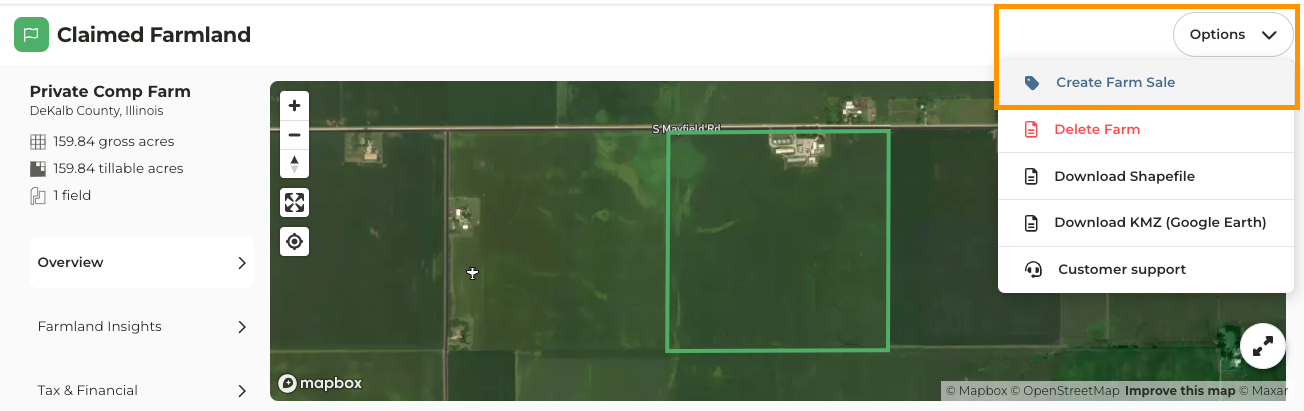
From the farm page click on **Options > Create Farm Sale**
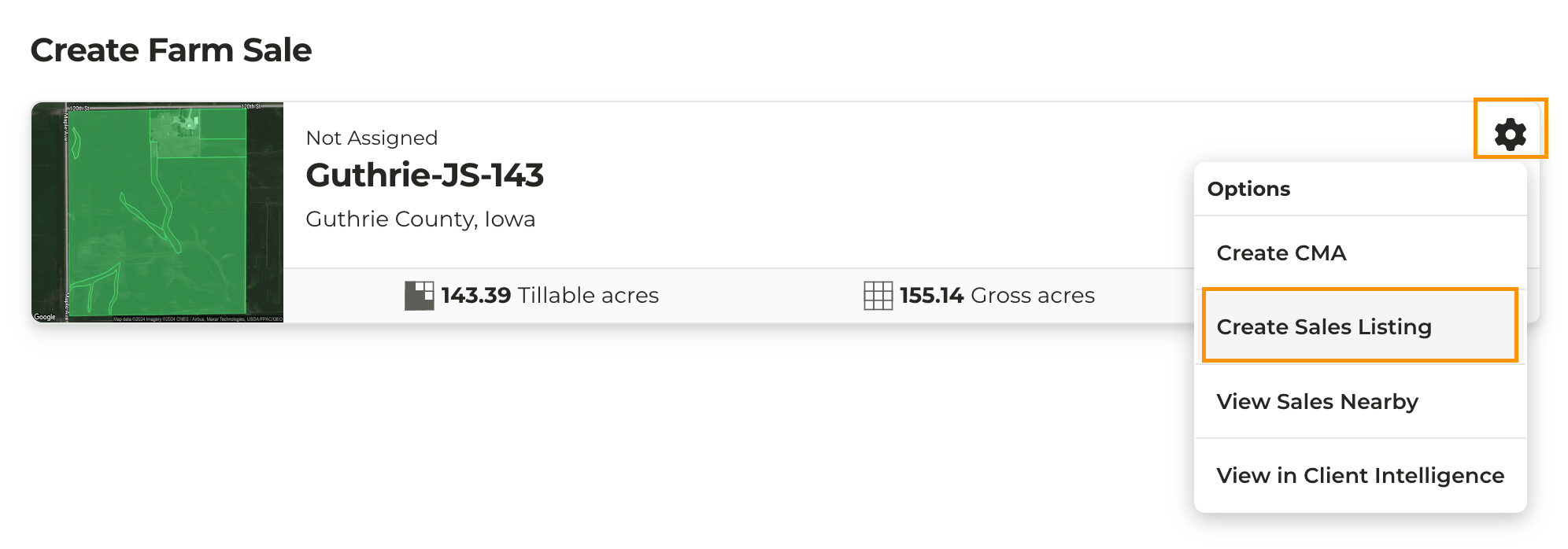
Click the gear icon and select **Create Sales Listing**
Update the details on this page to create the Private Comp. Entering the information accurately is important as others in your organization will be able to see and use this as a comparable.
* Sale Type: For Sale or Auction
* Sale Details: Set to **Sold**
* Listing Price and Listing Date
* Sold Price and Sold Date
* Deed Information (optional)
* Buyer & Seller information (optional, but if add you will need to enter something for the address. Note that NA is acceptable if this information is not disclosed)
Click **Save Farm Sale**
**If you need to add the property to your account first start here:**
Refer to [Adding a Property to Your Account](/hc/en-us/articles/23972877590423-Adding-a-Property-To-Your-Account-Using-Farm-Builder) for instructions on how to complete this step
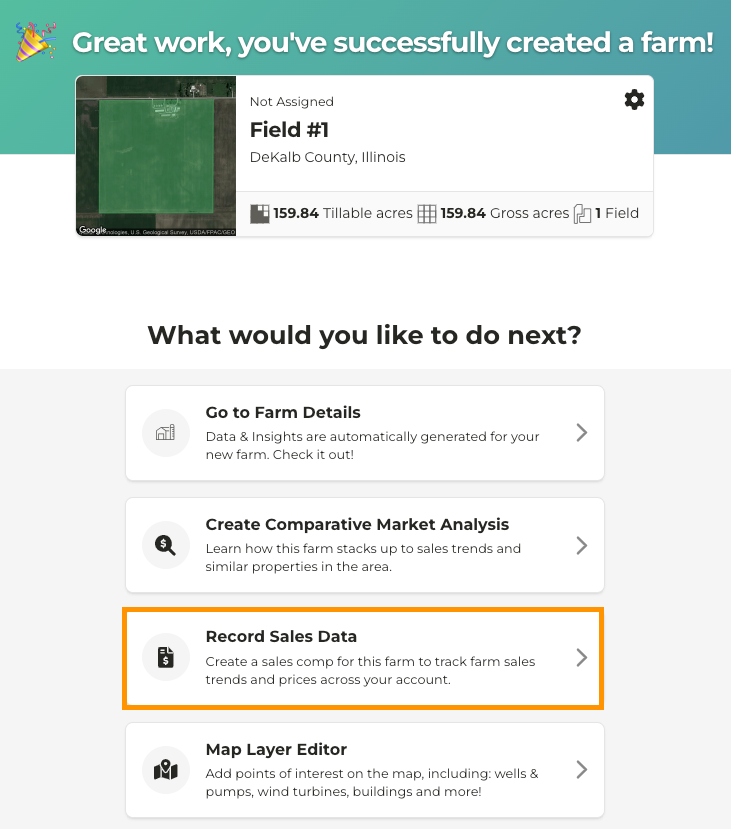
After you click **Add this farmland to my Account** you will see this page
Click on **Record Sales Data**
Update the details on this page to create the Private Comp. Entering the information accurately is important as other users in your organization will be able to see and use this as a comparable.
* Sale Type: For Sale or Auction
* Sale Details: Set to **Sold**
* Listing Price and Listing Date
* Sold Price and Sold Date
* Deed Information (optional)
* Buyer & Seller information (optional)
Click **Save Farm Sale**