> ## Documentation Index
> Fetch the complete documentation index at: https://docs.camo.ag/llms.txt
> Use this file to discover all available pages before exploring further.
# Deleting or Archiving a Property or Field
**This guide contains information on how to:**
* Delete a Property
* Archive a Property
* Delete or Archive a Single Field
- Archiving a property preserves any historical data tied to that property or a field that is a part of that property
- Deleting a property removes it completely from your account
- A property and/or field may only be deleted if it has never been tied to a Lease, Private Comp, or a CMA in the CamoAg platform
* Yes. If only a single field that is a part of a larger property needs to be removed you are able to do that.
* The entire property or one of the fields is no longer a part of your portfolio and you don’t want the farm to show up in future reporting, but want to maintain historical data.
* No. Once a farm is archived you can no longer view the farm in your account. However, the historical data of the farm will still appear in reporting.
* If you need to unarchive a farm or field please reach out to the CamoAg team and we will get this taken care of
* Deleted properties can't be recovered, but you are not prevented from adding the property again
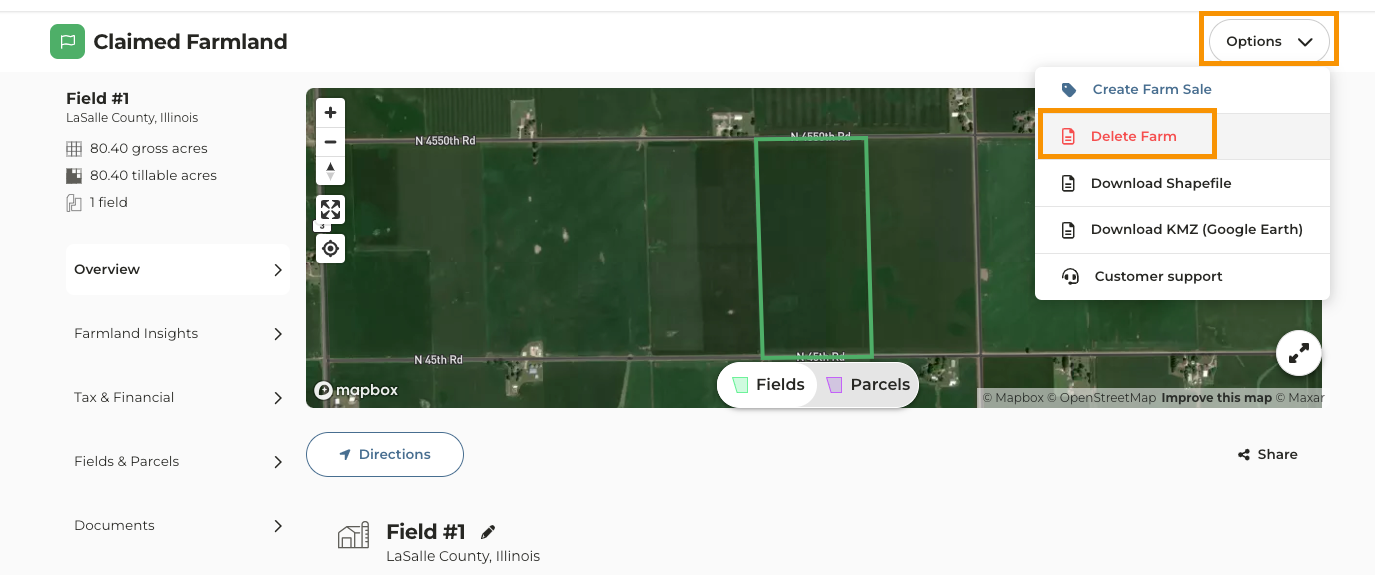
**How to Delete Farm**
Login to CamoAg
From the Dashboard click Farms
Search for the farm you wish to delete and click into it
In the upper right corner click on **Options > Delete Farm**
## **How to Archive a Farm**
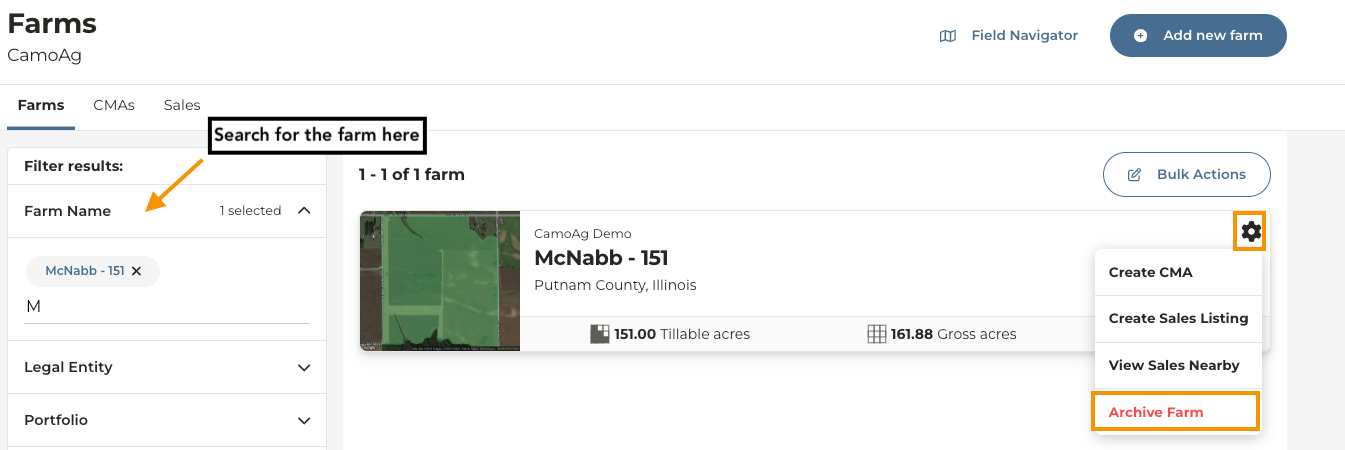
From the Dashboard click Farms
Search for the farm you wish to archive using the filter on the left side of the page
Once the farm you searched for appears click the the gear icon then **Archive Farm**
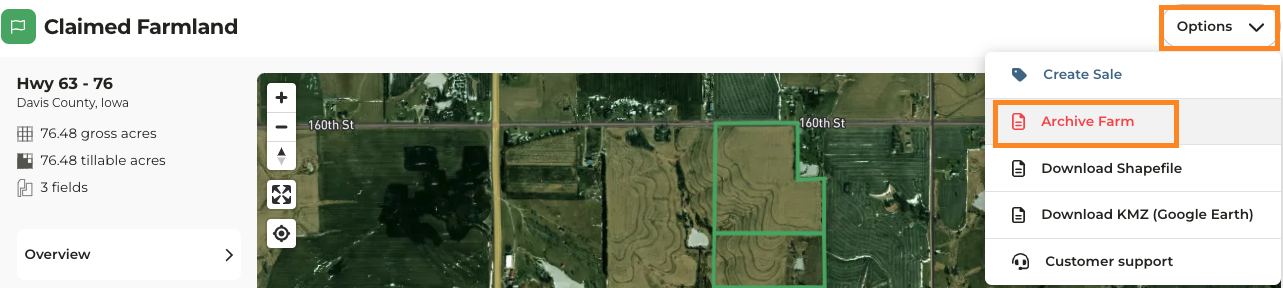
Likewise you can click into the farm and click **Options** then **Archive Farm**
 ## **How to Archive or Delete a Single Field**
If you need to archive or delete a field that is a part of a larger farm for any reason, follow the steps below.
From the Dashboard click **Farms**
Search for the farm that has a field you need to archive or delete and click into it
Click on the **Fields & Parcels** tab on the left side of the page
Find the field you want to archive and click on the gear icon then **Delete field**
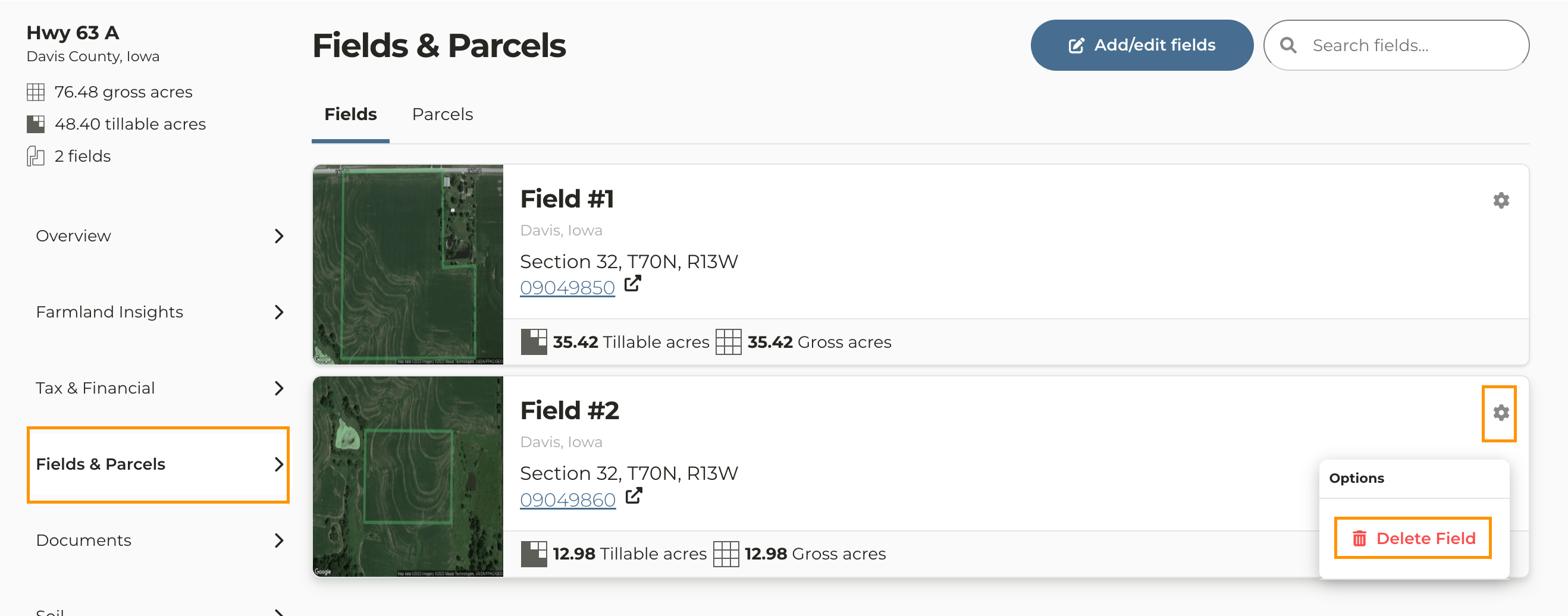
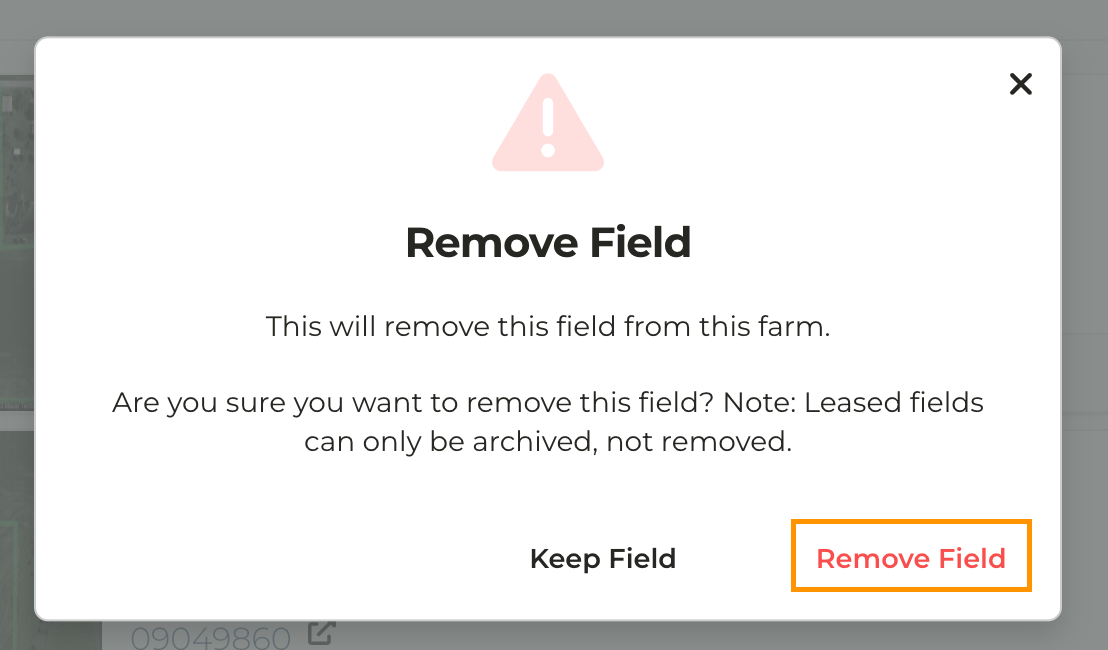
In the message that pops up click **Remove Field.** *Note: If a field is currently or has previously been leased through the CamoAg platform it will be archived thus preserving any data connected to the field.*
## **How to Archive or Delete a Single Field**
If you need to archive or delete a field that is a part of a larger farm for any reason, follow the steps below.
From the Dashboard click **Farms**
Search for the farm that has a field you need to archive or delete and click into it
Click on the **Fields & Parcels** tab on the left side of the page
Find the field you want to archive and click on the gear icon then **Delete field**

In the message that pops up click **Remove Field.** *Note: If a field is currently or has previously been leased through the CamoAg platform it will be archived thus preserving any data connected to the field.*
