> ## Documentation Index
> Fetch the complete documentation index at: https://docs.camo.ag/llms.txt
> Use this file to discover all available pages before exploring further.
# Adding Users & Assigning Permissions
* Organization Admins can add and remove users
* Please review the [Adding Users with SSO guide](/hc/en-us/articles/17976847580951-Assigning-Permissions-to-Users-Single-Sign-On)
* Assigning a user permissions at the Organization level grants the user additional access into features such as Reports and allows them to see all properties within the Organization
* A user can be granted organization permissions as well as Legal Entity permissions. For example, John Smith can have View/Edit access to the Org. and be granted signing permissions for a specific Legal Entity
* **Account Administrator:** Allows the user to edit legal entities, portfolios, farm listings, and other user’s general information. Account Administrators do not have Finance permissions by default.
* **Lease Signer:** Allows a user to sign leases across the entire organization or leases assigned to specific Legal Entities. It is important to note that anyone assigned this permission will appear as a potential lease signer on any lease created that is associated with the Legal Entity for which they are a signer.
* **View:** User is able to add, edit, or delete their own work, but are limited to View Only access for work created by other users.
* **View & Edit:** Able to view `and/or edit farms assigned to the legal entities for which they have View/Edit permissions.`
* **Finance:** Allows a user to connect or remove bank accounts to Legal Entities. Anyone assigned this permission will receive email notifications regarding scheduled lease payments that process through the CamoAg platform.
Login to CamoAg
From the Dashboard click on **Account Settings**
Click on **My Organization**
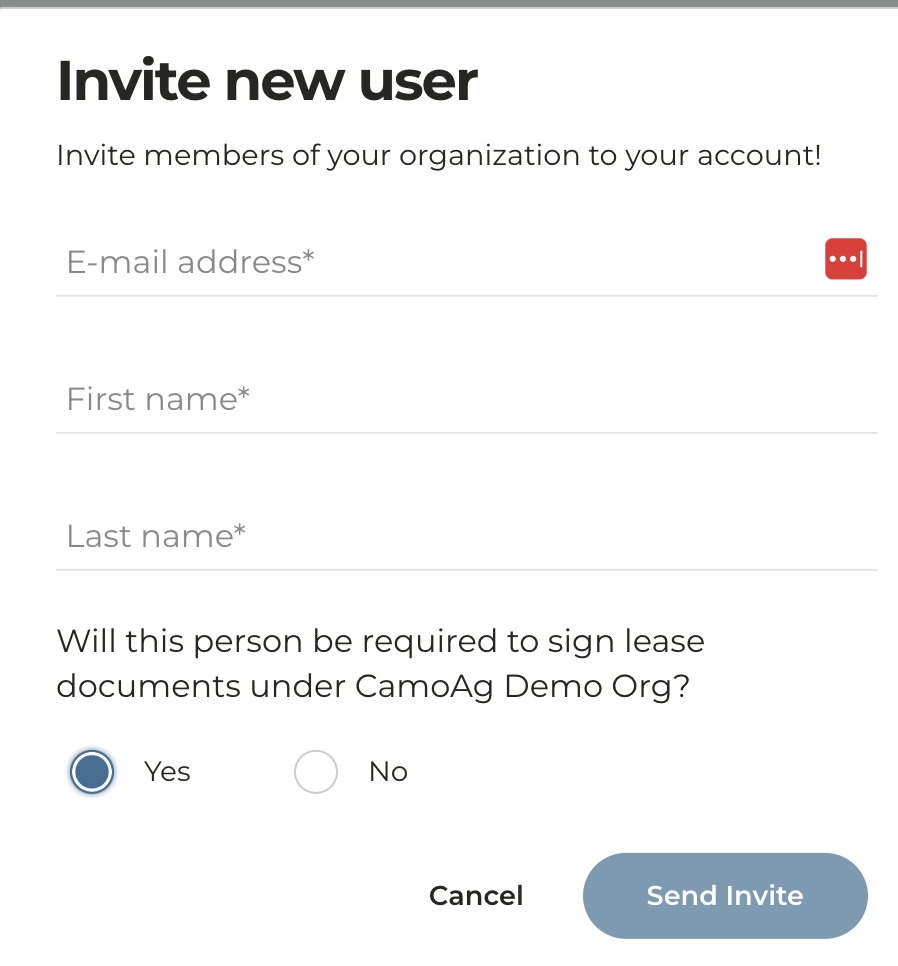
Click **Add New User**
Enter the users **Email, First Name, and Last Name** and determine if they should be available as a lease signer for any lease sent through the platform. If you are not using the Land Management tool to lease your properties, check No
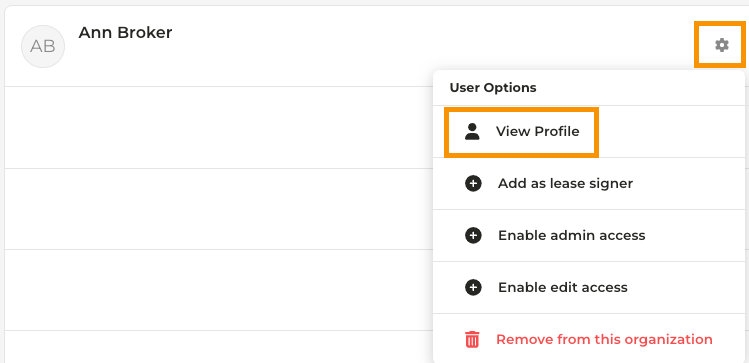
Find the person you just invited to the platform and click the gear icon to the right of their name then ****View Profile****
Under the person’s name you will see four (4) tabs; Contact Details, Organization, Legal Entities, and Farms. In each of these tabs you can assign certain permissions. [What are the different permission types?](/hc/en-us/articles/17975450570391-Adding-Users-Assigning-Permissions#what-are-the-different-permission-types)
* **Organization:**
* To assign or adjust organization wide permissions, check the applicable boxes
* If a user should not have any Org Level Permissions, do not check any of the boxes and navigate to the Legal Entities tab
* If a user should have access to all properties within an organization, but is a signer for a specific Legal Entity,
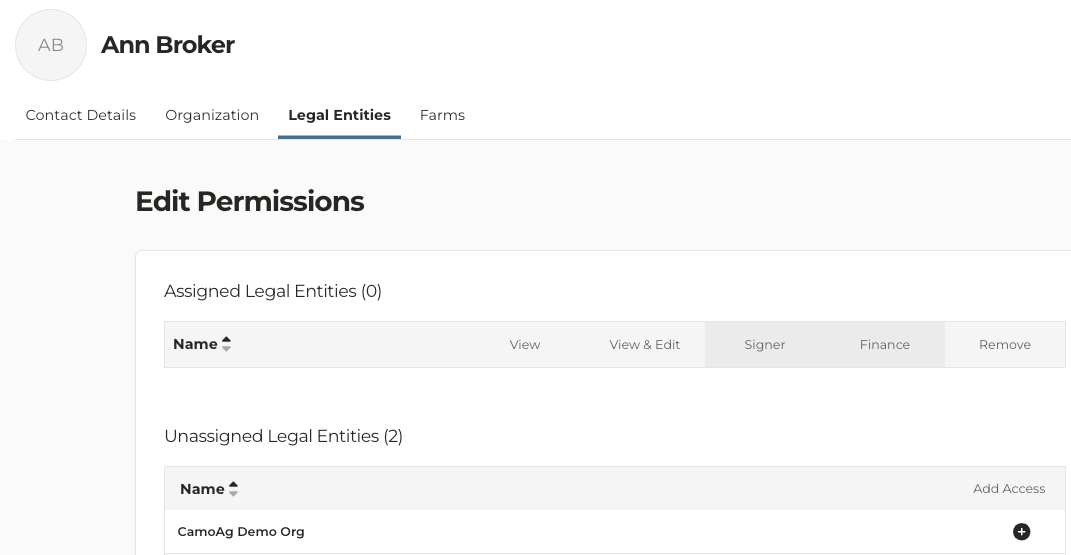
* **Legal Entities** - Assign specific permissions such as Signer or Finance at the Legal Entity level vs. the Organization level. Click the + next to the Legal Entity or Entities you wish to grant this user access. Different permissions can be assigned to different entities.
* **Farms** - This tab will provide you a birds-eye view of the farms the user has access to